
1. Introduction
Thank you for choosing the VBESTLIFE Fingerprint Time Clock. This device is designed to streamline employee attendance tracking in various environments such as offices, factories, hotels, and schools. It features advanced 360° fingerprint recognition, multi-language support, and automatic report generation. This manual provides detailed instructions for the proper installation, operation, and maintenance of your time clock to ensure optimal performance and longevity.
2. Package Contents
Please verify that all items listed below are included in your package. If any items are missing or damaged, please contact customer support.
- 1 x Fingerprint Attendance Machine
- 3 x Screw
- 3 x Anchor
- 1 x User Manual (this document)
- 1 x Nail Paper (for installation marking)
- 1 x Power Adapter (US Plug)
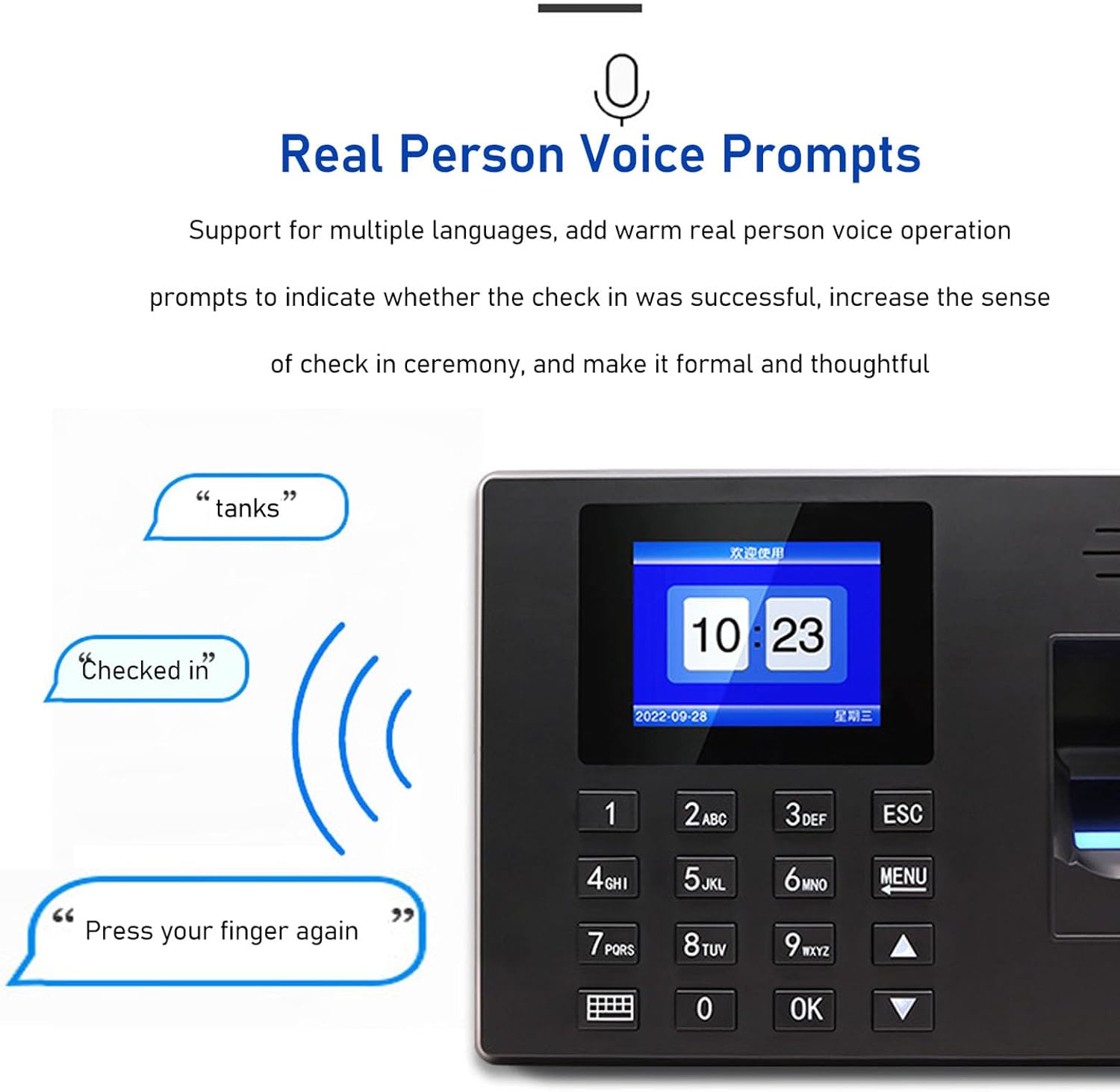
Image: Contents of the VBESTLIFE Fingerprint Time Clock package, showing the device, power adapter, screws, and anchors.
3. Product Features
The VBESTLIFE Fingerprint Time Clock offers a range of features designed for efficient attendance management:
- Smart Attendance System: Integrates fingerprint recognition and password verification to automatically calculate employee work hours.
- 360° Fingerprint Recognition: Advanced technology for quick and accurate identification of fingerprints from various angles.
- Multi-Language Support: Supports Simplified Chinese, Traditional Chinese, English, Spanish, Portuguese, French, and Vietnamese for user prompts.
- Automatic Report Generation: No software installation required; the device can automatically generate attendance reports directly to a USB flash drive in Excel format.
- Flexible Shift Settings: Supports multi-day shift configurations for diverse work schedules.
- Voice Prompts: Provides clear voice feedback for successful or failed check-ins.
- Wide Application: Suitable for offices, factories, hotels, schools, restaurants, and other work environments.

Image: The time clock display and key features, emphasizing ease of use and report generation.

Image: Visual representation of the voice prompt feature, indicating feedback during attendance.
4. Installation Instructions
Follow these steps to properly install your VBESTLIFE Fingerprint Time Clock:

Image: Step-by-step visual guide for wall mounting the time clock.
- Marking: Use the provided nail paper to mark the screw hole positions on the wall where the attendance machine will be installed. Ensure the marked areas match the standard screw sizes.
- Drilling: Drill three holes at the marked positions.
- Insert Anchors: Insert the anchors into the drilled holes, ensuring they are fully seated.
- Fixing Screw: Use a screwdriver to insert the self-tapping screws into the anchors. Leave a small portion of the screw exposed for hanging the device.
- Hanging Up: Carefully hang the attendance machine onto the exposed self-tapping screws.
- Power On: Connect one end of the power cord (or transformer) to the power interface of the attendance machine and plug the other end into a 5V1A power socket to power on the device.
5. Operating Instructions
5.1 Initial Setup and User Registration
Upon first power-on, you may need to configure basic settings and register users. Access the menu by pressing the MENU button.
- Administrator Setup: It is recommended to register an administrator fingerprint or password first to secure the device settings.
- Registering Fingerprints:
- Navigate to "User Management" -> "Register Fingerprint".
- Follow the on-screen prompts. Place the user's finger on the scanner multiple times until registration is complete.
- Ensure the finger is clean and dry for accurate scanning.
- Registering Passwords:
- Navigate to "User Management" -> "Register Password".
- Enter a numeric password and confirm it.
- Setting Language: Navigate to "System Settings" -> "Language" to select your preferred language (e.g., English, Spanish).
- Setting Time and Date: Ensure the correct time and date are set in "System Settings" -> "Time/Date".
5.2 Daily Attendance Operation
Employees can clock in or out using their registered fingerprint or password.
- Fingerprint Check-in/out: Place a registered finger firmly on the fingerprint scanner. The device will provide a voice prompt indicating success or failure.
- Password Check-in/out: Enter the registered password using the keypad and press OK.

Image: An employee using the fingerprint scanner for attendance.
5.3 Generating Attendance Reports
The device can generate attendance reports directly to a USB flash drive without requiring external software.
- Insert a FAT32 formatted USB flash drive into the USB port on the side of the time clock.
- Access the main menu by pressing MENU.
- Navigate to "Report Management" -> "Download Report".
- Select the desired date range for the report.
- Confirm the download. The report will be saved as an Excel file on the USB drive.
- Safely remove the USB flash drive.

Image: Illustration of the report generation process and examples of Excel attendance reports.
6. Maintenance
Proper maintenance ensures the longevity and reliable operation of your time clock.
- Cleaning: Regularly wipe the fingerprint scanner and screen with a soft, dry, lint-free cloth. Do not use abrasive cleaners, solvents, or spray liquids directly onto the device.
- Environment: Keep the device in a clean, dry environment, away from direct sunlight, extreme temperatures, and high humidity.
- Power Supply: Use only the provided power adapter. Ensure the power connection is secure.
- Data Backup: Periodically download attendance reports to a USB drive to back up important data.
- Firmware Updates: Check the manufacturer's website for any available firmware updates. Follow instructions carefully if performing an update.
7. Troubleshooting
If you encounter issues with your time clock, refer to the following common problems and solutions:
| Problem | Possible Cause | Solution |
|---|---|---|
| Device does not power on. | Power adapter not connected or faulty; power outlet issue. | Check power adapter connection. Try a different power outlet. Ensure the adapter is 5V1A. |
| Fingerprint not recognized. | Finger is wet, dirty, or injured; fingerprint not properly registered; scanner is dirty. | Ensure finger is clean and dry. Try a different registered finger. Re-register the fingerprint. Clean the scanner surface. |
| Cannot access menu. | No administrator set up; incorrect administrator password/fingerprint. | Ensure an administrator is registered. Use the correct administrator credentials. If locked out, refer to the reset procedure (if available in full manual) or contact support. |
| Reports not saving to USB. | USB drive not formatted to FAT32; USB drive faulty; insufficient space on USB. | Ensure USB drive is formatted to FAT32. Try a different USB drive. Check available space. |
| Incorrect time/date displayed. | Time/date not set correctly. | Access "System Settings" -> "Time/Date" and adjust accordingly. |
8. Specifications
Detailed technical specifications for the VBESTLIFE Fingerprint Time Clock:
- Model: VBESTLIFEc1e9gw0nok-11
- Material: ABS
- Plug Voltage: 100-240V (US Plug)
- Report Mode: Software-free (direct export of Excel reports from USB flash drive)
- Supported Languages: Simplified Chinese, Traditional Chinese, English, Spanish, Portuguese, Brazilian Portuguese, French, Vietnamese
- Secondary Development: Not supported
- Voice: Voice pronunciation reminder
- Keys: Support (keypad)
- Collector: High accuracy total Catoptrics collector
- Attendance Speed: Less than 1 second per time
- Misjudgment Rate: 0.0001%
- Fall Resistance: Can withstand 3 times of 1.2m fall
- Waterproof and Dustproof: In accordance with IP54 standard
- Working Temperature Range: 0-45℃ (32-113°F)
- Storage Temperature Range: 0-50℃ (32-122°F)
- Environmental Light Strength: 1000LX
- Communication Interface: USB (for drive)
- Data Download: USB drive
- USB Drive Support Format: FAT32
- Number of Registrations:
- Fingerprints: 1000
- Passwords: 1000
- Storage Capacity: 100,000 attendance records
- Package Dimensions: 11.42 x 5.12 x 1.97 inches
- Item Weight: 14.1 ounces
- Manufacturer: VBESTLIFE
- Date First Available: April 1, 2024

Image: Dimensions of the VBESTLIFE Fingerprint Time Clock.
9. Warranty Information
VBESTLIFE products are manufactured to high quality standards. This product is covered by a limited warranty against defects in materials and workmanship from the date of purchase. Please retain your proof of purchase for warranty claims. The warranty does not cover damage caused by misuse, accident, unauthorized modification, or improper installation.
10. Customer Support
For technical assistance, troubleshooting, or warranty inquiries, please contact VBESTLIFE customer support through the retailer where you purchased the product or visit the official VBESTLIFE brand store on Amazon:
Please have your product model number (VBESTLIFEc1e9gw0nok-11) and purchase details ready when contacting support.


