
1. Introduction
Thank you for choosing the Cykvis 3-in-1 USB Computer Speaker with Microphone. This versatile device integrates a high-performance speaker, an omnidirectional microphone, and a 3-port USB hub into a single, compact unit. Designed for convenience and clarity, it enhances your audio experience for various applications, including online meetings, virtual classes, and multimedia playback. This manual provides detailed instructions for setup, operation, and maintenance to ensure optimal performance.
2. Package Contents
Please verify that all items listed below are included in your package:
- Cykvis 3-in-1 USB Computer Speaker with Microphone
- USB Connection Cable (1.8m)
- User Manual
3. Product Overview
Familiarize yourself with the components and controls of your Cykvis 3-in-1 USB Computer Speaker:

Figure 1: Front view of the Cykvis 3-in-1 USB Computer Speaker.
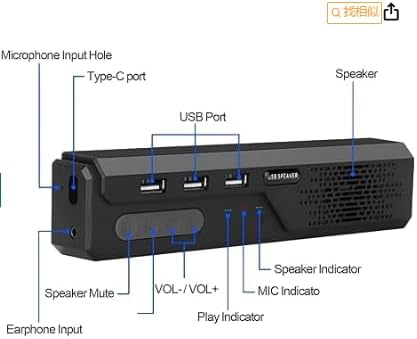
Figure 2: Detailed diagram of ports and controls.
Key Components:
- Speaker Grille: For audio output.
- Microphone: Integrated for voice input.
- USB Ports (3x): For connecting external USB devices.
- Volume Buttons (+/-): To adjust speaker volume.
- Mute Button: To mute/unmute the microphone.
- Power Indicator: Illuminates when the device is powered on.
- Microphone Indicator: Shows microphone status (e.g., active/muted).
- Play Indicator: Indicates audio playback status.
- Type-C Port: Main connection to your computer.
- Earphone Input: 3.5mm jack for connecting headphones.
- Microphone Input Hole: 3.5mm jack for connecting an external microphone (if desired).
4. Setup
Follow these steps to set up your Cykvis 3-in-1 USB Computer Speaker:
- Connect the USB Cable: Insert the Type-C end of the provided USB cable into the Type-C port on the speaker.
- Connect to Computer: Plug the standard USB-A end of the cable into an available USB port on your computer (PC, Mac, Laptop, etc.).
- Automatic Recognition: The device is plug-and-play and should be automatically recognized by your operating system without requiring additional driver installation.
- Power Indicator: Once connected, the power indicator light on the speaker will illuminate, confirming it is receiving power.
- Audio Settings (Optional): If the device is not automatically selected as the default audio input/output, navigate to your computer's sound settings and select the "Cykvis Speaker" or similar as your preferred speaker and microphone device.

Figure 3: Speaker connected to a laptop for use.
5. Operating Instructions
Speaker Functionality:
- Volume Control: Use the + and - buttons on the speaker to adjust the playback volume. You can also control the volume through your computer's operating system.
- The speaker delivers clear, high-definition stereo sound for an enhanced listening experience.
Microphone Functionality:
- Omnidirectional Voice Pickup: The integrated microphone array provides 360° voice pickup, capturing clear audio from up to 16 feet away. This is ideal for conference calls with multiple participants.
- Noise Reduction: The microphone features intelligent noise filtering and echo cancellation to ensure your voice is clear and free from background distractions.
- Mute/Unmute: Press the dedicated Mute button on the speaker to toggle the microphone on or off. The microphone indicator light will change to reflect its status.

Figure 4: Noise reduction in action during a call.
USB Hub Functionality:
- The speaker includes a 3-port USB hub. Connect various USB-compatible devices such as webcams, USB drives, mice, keyboards, or USB fans directly to these ports.
- This feature is particularly useful for computers with limited USB ports, providing expanded connectivity.

Figure 5: Multifunctional Speaker Hub setup.
Compatibility:
- The Cykvis speaker is broadly compatible with various operating systems, including Windows (Vista/7/8/10), Mac OS, and Android.
- It seamlessly integrates with popular communication platforms such as Microsoft Teams, LINE, Zoom, WhatsApp, and Skype.

Figure 6: Broad compatibility with platforms and operating systems.
Portability:
- Its light and compact design makes it easy to carry for business trips, remote work, or online study sessions.

Figure 7: Compact and portable design.
6. Maintenance
To ensure the longevity and optimal performance of your Cykvis speaker, follow these maintenance guidelines:
- Cleaning: Use a soft, dry cloth to wipe the exterior of the device. Avoid using harsh chemicals, solvents, or abrasive cleaners.
- Liquid Exposure: Do not expose the device to water or other liquids. If it comes into contact with liquid, disconnect it immediately and allow it to dry completely before reuse.
- Storage: Store the speaker in a cool, dry place away from direct sunlight and extreme temperatures when not in use.
7. Troubleshooting
If you encounter any issues with your Cykvis 3-in-1 USB Computer Speaker, please refer to the following troubleshooting steps:
| Problem | Possible Cause | Solution |
|---|---|---|
| No sound from speaker / Low volume |
|
|
| Microphone not working / Poor audio quality |
|
|
| USB hub ports not functioning |
|
|
8. Specifications
Below are the technical specifications for the Cykvis 3-in-1 USB Computer Speaker with Microphone:
| Brand | Cykvis |
| Model Name | 1C-BK (Style: 3-Retro) |
| Speaker Type | Portable Speaker |
| Connectivity Technology | USB |
| Audio Output Mode | Stereo |
| Speaker Maximum Output Power | 1 Watts |
| Frequency Response | 4000 KHz |
| Microphone Pickup Range | Up to 16 Feet (360° Omnidirectional) |
| Control Method | Touch Buttons |
| Compatible Devices | PC, iMac, Mac mini, Laptop, XPS, PS4, Television, USB-compatible devices |
| Operating System Compatibility | Windows (Vista/7/8/10), Mac OS, Android |
| Product Dimensions | 1"D x 0.98"W x 1"H |
| Item Weight | 7.4 ounces (0.21 Kilograms) |
| Material | Plastic |
| Color | Grey Black |
9. Warranty and Support
The Cykvis 3-in-1 USB Computer Speaker with Microphone comes with a limited warranty. For any product-related issues, technical assistance, or warranty claims, please contact the Cykvis support team immediately. We are committed to providing 100% responsibility for our products and customers.
Please refer to the contact information provided with your purchase or visit the official Cykvis website for support details.


