
1. Product Overview
The NetumScan Mini QR Bluetooth Barcode Scanner is a versatile 3-in-1 device designed for efficient barcode reading. It supports 1D and 2D barcodes and offers multiple connection options: 2.4G wireless, Bluetooth, and USB wired. Its compact and lightweight design makes it suitable for various applications, including inventory management, point-of-sale systems, and general data collection across different devices and operating systems.

Figure 1.1: NetumScan Mini QR Bluetooth Barcode Scanner. This image shows the compact design of the scanner, highlighting its portability and sleek appearance.

Figure 1.2: Key features of the NetumScan Mini QR Bluetooth Barcode Scanner. This image illustrates the scanner's 3-in-1 connection modes, multi-language support, and high compatibility with various systems.
2. Setup and Connection
The NetumScan Mini QR Bluetooth Barcode Scanner offers three connection methods to suit various environments and devices.
2.1 Initial Charging
Before first use, fully charge the scanner using the provided USB cable. Connect the USB cable to the scanner's charging port and a compatible USB power source (e.g., computer USB port, USB wall adapter). The charging indicator light will provide status feedback.
2.2 Connection Modes
The scanner supports 2.4G wireless, Bluetooth, and USB wired connections.
- Bluetooth Mode:
- Ensure the scanner is powered on.
- Scan the "Bluetooth Pairing" barcode (refer to the included quick start guide or full manual for specific barcodes).
- On your device (smartphone, tablet, computer), enable Bluetooth and search for available devices.
- Select "NetumScan Scanner" (or similar name) from the list to pair.
- Once paired, the scanner will emit a confirmation beep.
- 2.4G Wireless Mode:
- Insert the 2.4G USB dongle into an available USB port on your computer or POS system.
- Scan the "2.4G Wireless Mode" barcode (refer to the included quick start guide or full manual for specific barcodes).
- The scanner will automatically connect to the dongle. A successful connection will be indicated by a confirmation beep.
- USB Wired Mode:
- Connect the scanner directly to your computer or POS system using the provided USB cable.
- The scanner will function as a standard USB HID keyboard device, requiring no additional drivers for most operating systems.
- Scan the "USB Wired Mode" barcode (refer to the included quick start guide or full manual for specific barcodes).
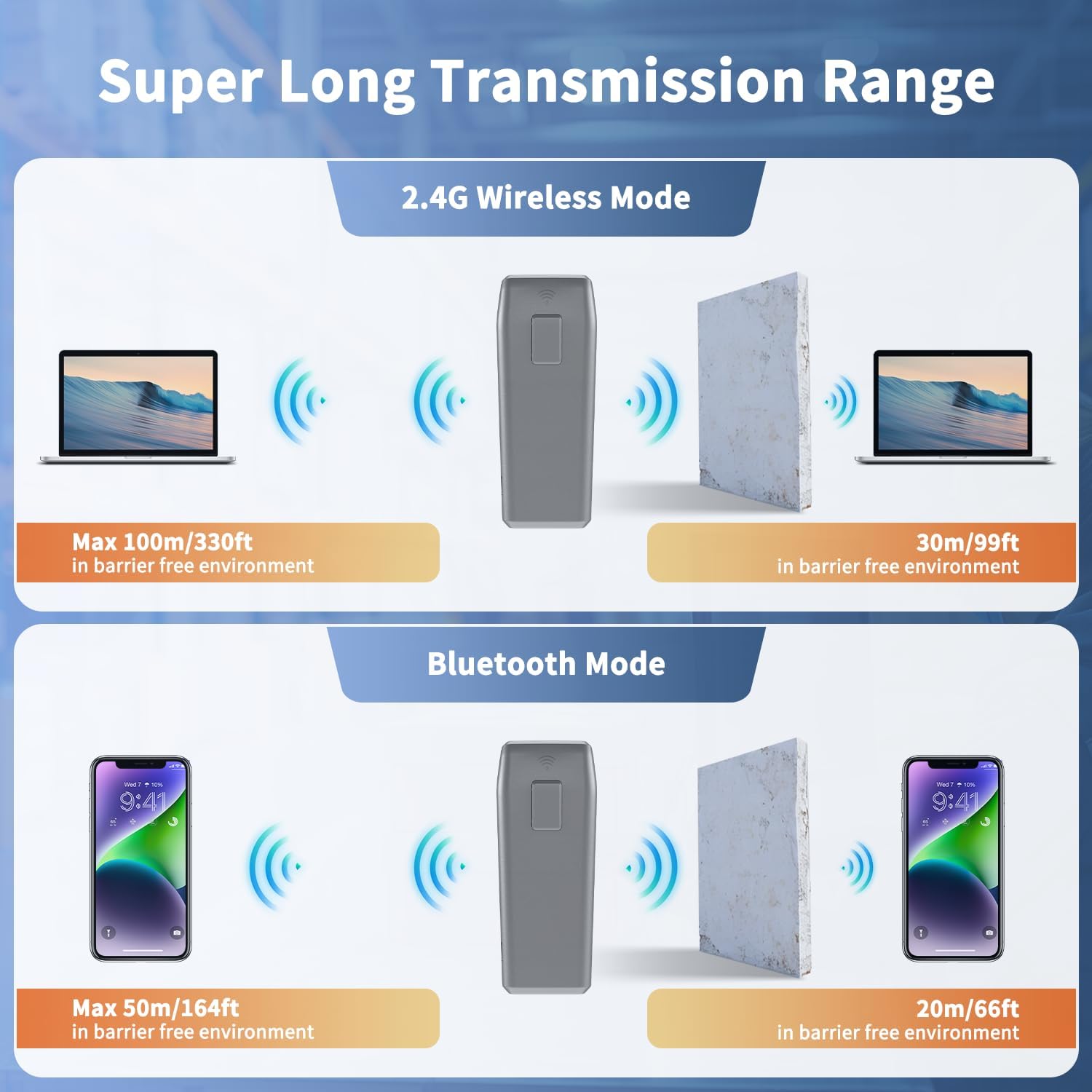
Figure 2.1: Transmission ranges for 2.4G Wireless and Bluetooth modes. This image illustrates the maximum effective distances in barrier-free environments for both wireless connection types.
3. Operation
The scanner is designed for intuitive operation with various scanning and working modes.
3.1 Scanning Capabilities
The professional CMOS sensor allows for efficient reading of both 1D and 2D barcodes from various surfaces, including paper, computer screens, and mobile phones. It is capable of decoding:
- Standard 1D barcodes (e.g., UPC/EAN, Code39, Interleaved 2 of 5)
- Standard 2D barcodes (e.g., QR Code, Data Matrix, PDF417)
- Damaged barcodes
- Blurred barcodes
- Distorted barcodes
- Colorful barcodes
- Reflective barcodes
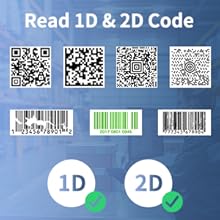
Figure 3.1: Examples of 1D and 2D barcodes supported by the scanner.

Figure 3.2: The scanner's ability to read various challenging barcode types, including damaged, blurred, distorted, and colorful codes.

Figure 3.3: Demonstrates the scanner reading a QR code displayed on a mobile phone screen, showcasing its versatility.
3.2 Scanning Modes
- Manual Scan: Press the trigger button to initiate a scan.
- Auto-sensing Scan: The scanner automatically detects a barcode in its field of view and scans it without requiring a trigger press.
- Continuous Scan: The scanner continuously scans for barcodes, ideal for high-volume scanning environments.

Figure 3.4: Visual representation of the auto-sensing scanning mode, where the scanner automatically activates when a barcode is presented.
3.3 Working Modes
- Instant Upload Mode: Scanned data is immediately transmitted to the connected device.
- Storage Mode: Scanned data is stored in the scanner's internal memory (16MB, capable of storing over 50,000 barcodes) and can be uploaded to the device later when within transmission range or connected via USB.

Figure 3.5: Illustrates the scanner's large capacity storage, indicating its 16MB flash memory for offline barcode storage.
3.4 Configuration Options
The scanner offers multiple configuration options, typically set by scanning specific barcodes found in the full instruction manual:
- Enable/Disable sound (beep) and vibration feedback.
- Add/Hide custom prefix/suffix digits to scanned data.
- Delete characters from scanned data.
- Add keyboard keys (e.g., TAB, CR&LF) to the scanning output for automated data entry.

Figure 3.6: Visual representation of the options to enable or disable beep sounds and vibration feedback.
4. Maintenance
Proper maintenance ensures the longevity and optimal performance of your NetumScan barcode scanner.
4.1 Battery Care
The scanner is equipped with a 1200mAh rechargeable Lithium Ion battery, providing approximately 20 hours of continuous operation on a full charge. To maximize battery life:
- Charge the battery fully before first use.
- Avoid completely draining the battery frequently.
- Store the scanner with a partial charge if not used for extended periods.
- Use only the provided USB cable for charging.
4.2 Cleaning
To clean the scanner's exterior:
- Use a soft, dry, lint-free cloth.
- For stubborn dirt, slightly dampen the cloth with water or a mild, non-abrasive cleaning solution.
- Do not use harsh chemicals, solvents, or abrasive cleaners.
- Ensure no liquid enters the scanner's ports or openings.
- For the scanning window, use a lens cleaning cloth to avoid scratches.
4.3 Storage
When not in use, store the scanner in a cool, dry place, away from direct sunlight, extreme temperatures, and excessive dust or moisture.
5. Troubleshooting
This section addresses common issues you might encounter with your NetumScan barcode scanner.
| Problem | Possible Cause | Solution |
|---|---|---|
| Scanner does not power on or respond. | Low battery; device is off. | Charge the scanner fully. Press the power button to turn it on. |
| Cannot connect via Bluetooth. | Scanner not in pairing mode; Bluetooth disabled on host device; interference. | Ensure scanner is in Bluetooth pairing mode (scan pairing barcode). Verify Bluetooth is enabled on your device. Move closer to the device. Try re-pairing. |
| Scanner not reading barcodes. | Incorrect scanning mode; barcode damaged/unreadable; scanner lens dirty; insufficient lighting. | Check scanning mode (manual, auto-sensing, continuous). Ensure barcode is clear and well-lit. Clean the scanner lens. Try scanning a different, known-good barcode. |
| Scanned data is incorrect or incomplete. | Barcode partially scanned; incorrect data formatting settings. | Ensure the entire barcode is within the scanning area. Re-scan the barcode. Check configuration settings for prefix/suffix or character deletion (refer to full manual). |
| Scanner turns on accidentally in bag. | Power button pressed inadvertently. | Ensure the scanner is powered off before storing. Refer to the full manual for the "Power Off" barcode to ensure complete shutdown. The scanner has an auto-off feature if idle for a set period (default 3 minutes). |
| Scanner minimizes app on mobile device. | Behavior related to Bluetooth keyboard input on some mobile OS. | This can be a characteristic of how some mobile operating systems handle external keyboard input. Re-navigate to your scanning screen in the app. |
For advanced configurations such as adjusting beep volume, Bluetooth transmit speed, or clearing stored memory, refer to the comprehensive barcode configuration guide provided with your scanner or available on the NetumScan support website.
6. Specifications
| Feature | Detail |
|---|---|
| Model | Mini QR Bluetooth Barcode Scanner (ASIN: B0CZLC2V58) |
| Brand | NetumScan |
| Connectivity Technology | Bluetooth, 2.4G Wireless, USB Wired |
| Compatible Devices | Desktop, Laptop, Smartphone, Tablet (Windows XP/7/8/10, Mac OS, Linux, Windows Mobile, iOS, Android) |
| Barcode Types Supported | 1D (UPC/EAN, Code39, Interleaved 2 of 5, etc.), 2D (QR, Data Matrix, PDF417, etc.) |
| Internal Storage | 16MB flash memory (stores over 50,000 barcodes) |
| Battery Type | 1 x Lithium Ion (included) |
| Battery Capacity | 1200mAh |
| Continuous Working Time | Approx. 20 hours (after full charge) |
| Power Source | Battery Powered |
| Item Weight | 6.4 ounces (approx. 181g) |
| Package Dimensions | 6.81 x 4.09 x 2.52 inches (approx. 17.3 x 10.4 x 6.4 cm) |
| Manufacturer | NetumScan |
| Date First Available | June 3, 2024 |

Figure 6.1: Dimensions and weight of the NetumScan Mini QR Bluetooth Barcode Scanner, illustrating its compact and lightweight nature.
7. Warranty and Support
For warranty information, technical support, or further assistance with your NetumScan Mini QR Bluetooth Barcode Scanner, please refer to the official NetumScan website or contact their customer service directly. Contact details are typically found in the product packaging or on the manufacturer's website.
You can visit the official NetumScan store on Amazon for more information and support resources: NetumScan Store.