1. Introduction
This manual provides instructions for the SNOODU Trackpad Keyboard Case, designed to enhance the functionality of your 2024 iPad Pro 11-inch (M4). Please read this manual thoroughly before use to ensure proper operation and care.
1.1 Compatibility
This keyboard case is specifically designed for the 2024 iPad Pro 11.0 inch M4 with model numbers A2837, A3006, A2836. It is not compatible with other iPad models. Please verify your iPad's model number on the back of the device before installation.

Image 1.1: Compatibility Notice. This image illustrates the specific iPad Pro 11-inch M4 models (A2837, A3006, A2836) that are compatible with this keyboard case, alongside visual examples of incompatible iPad models marked with an 'X'.
1.2 Package Contents
Ensure all items are present in the package:
- SNOODU Wireless Keyboard Case with Pencil Holder
- USB-C Charging Cable
- User Manual (this document)
Note: The iPad tablet and Apple Pencil are NOT included.
2. Setup
2.1 Installing the iPad
- Gently align your iPad Pro 11-inch (M4) with the protective shell of the case.
- Press the iPad firmly into the case, ensuring all edges are securely seated. The case provides 360° protection.
2.2 Charging the Keyboard
The keyboard is powered by a built-in Lithium Polymer battery. Before first use, fully charge the keyboard.
- Locate the USB-C charging port on the side of the keyboard.
- Connect the provided USB-C cable to the keyboard and a compatible USB power adapter (not included).
- A full charge typically takes approximately 2 hours.
- The keyboard offers over 6 hours of continuous use and up to 3 months of standby time on a single charge.
2.3 Connecting via Bluetooth
The keyboard connects wirelessly to your iPad via Bluetooth 5.1.
- Ensure the keyboard is charged and powered on using the power switch.
- On your iPad, go to Settings > Bluetooth and turn Bluetooth ON.
- The iPad will search for nearby Bluetooth devices. Select the keyboard (e.g., "Bluetooth Keyboard") from the list of available devices.
- Once connected, the status indicator on the keyboard will confirm successful pairing.
3. Operating Instructions
3.1 Keyboard Backlight
The keyboard features a 3-zone, 7-color backlit display with 3 adjustable brightness modes.
- To change backlight colors: Press the Fn + S keys simultaneously. Repeat to cycle through the 7 available colors.
- To adjust backlight brightness: Press the Fn + D keys simultaneously. Repeat to cycle through the 3 brightness levels.

Image 3.1: Backlight Control. This diagram illustrates how to use the Fn + S keys to change backlight colors and Fn + D keys to adjust backlight brightness.
3.2 Multi-Touch Trackpad
The integrated trackpad supports various iPadOS gestures for efficient navigation and interaction.
- Single Finger: Tap to click, drag to move the cursor.
- Double Finger: Swipe to scroll content (up/down/left/right).
- Pinch Gestures: Use two fingers to zoom in or out.
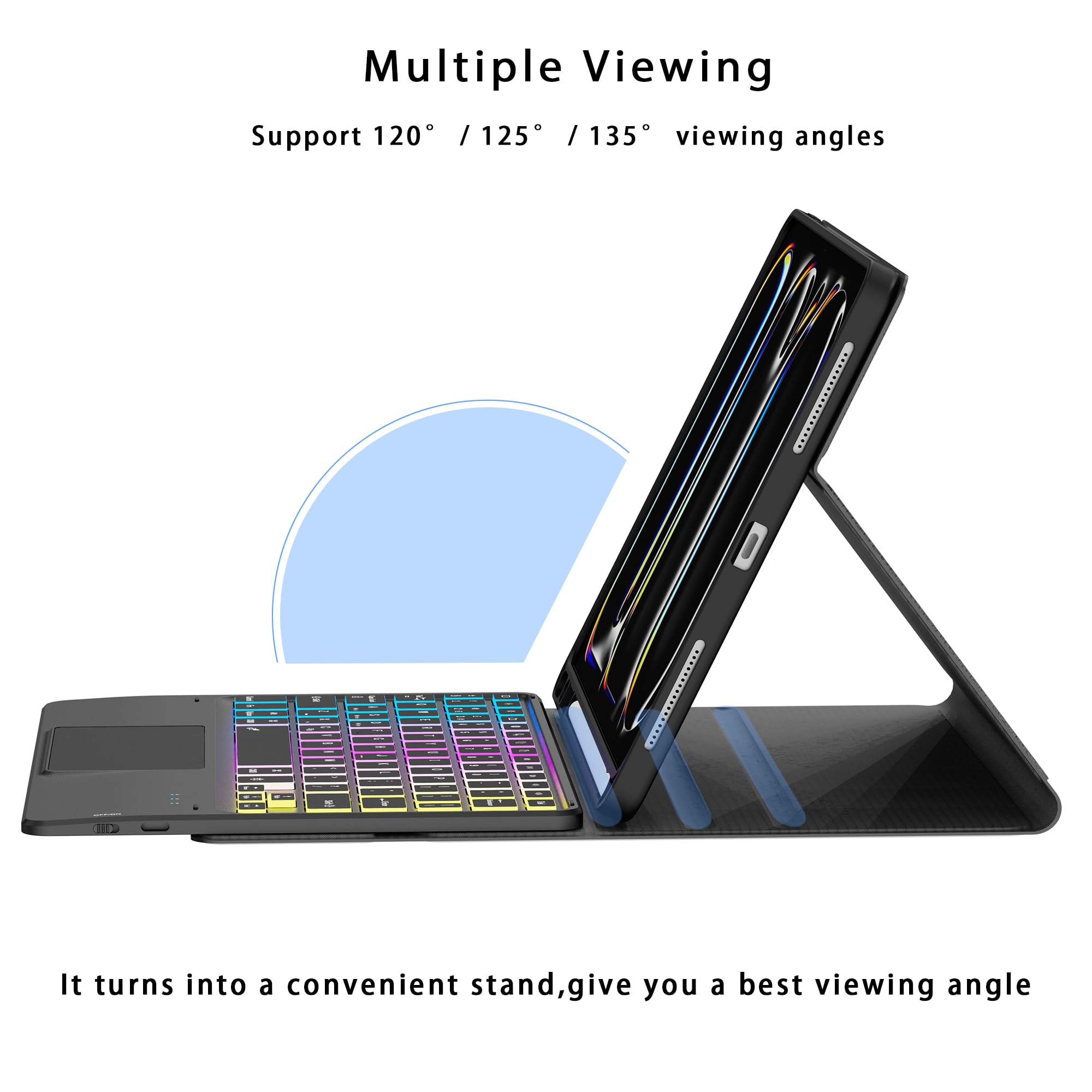
Image 3.2: Trackpad Gestures. This image demonstrates common multi-touch gestures for the trackpad, including single-finger tap/drag, two-finger scrolling, and pinch-to-zoom.
3.3 Adjustable Viewing Angles
The case allows for multiple viewing angles to suit various activities such as typing, watching videos, or reading.
- Adjust the iPad's position within the case to achieve angles of 120°, 125°, or 135°.
- The magnetic design ensures stability at your chosen angle.

Image 3.3: Multiple Viewing Angles. This image displays the keyboard case configured to support various viewing angles, highlighting its versatility for different uses.
3.4 Pencil Holder
A dedicated slot is integrated into the case to securely hold your Apple Pencil, preventing loss and ensuring it's always accessible.

Image 3.4: Pencil Holder. A detailed view of the case's integrated slot for securely storing an Apple Pencil.
3.5 Key Features Overview

Image 3.5: Key Features Diagram. This image provides a labeled overview of the keyboard case's main components and features, including the trackpad, shortcut keys, pencil holder, and charging port.
4. Maintenance
To ensure the longevity and optimal performance of your SNOODU keyboard case, follow these maintenance guidelines:
- Cleaning: Use a soft, dry, lint-free cloth to clean the exterior of the case and keyboard. Avoid using abrasive cleaners, solvents, or harsh chemicals.
- Storage: When not in use for extended periods, store the keyboard case in a cool, dry place.
- Protection: Keep the device away from liquids, extreme temperatures, and direct sunlight.
5. Troubleshooting
If you encounter issues with your keyboard case, refer to the following common solutions:
5.1 Keyboard Not Connecting via Bluetooth
- Check Power: Ensure the keyboard is powered on and has sufficient battery charge.
- Bluetooth On: Verify that Bluetooth is enabled on your iPad (Settings > Bluetooth).
- Re-pair: If previously paired, try forgetting the device on your iPad's Bluetooth settings and then re-pairing it.
- Restart Devices: Restart both your iPad and the keyboard, then attempt to connect again.
5.2 Backlight Not Working or Dim
- Battery Level: Low battery can affect backlight performance. Ensure the keyboard is fully charged.
- Brightness Adjustment: Use the Fn + D keys to cycle through brightness levels and ensure it's not set to the lowest setting or off.
5.3 Keys Not Responding
- Connection: Confirm the keyboard is properly connected via Bluetooth.
- Battery: Ensure the keyboard has adequate battery power.
- Restart: Restart your iPad and the keyboard.
6. Specifications
| Feature | Detail |
|---|---|
| Model Number | for iPad Pro 11.0" 2024(M4) |
| Compatible Devices | iPad Pro 11.0" 2024(M4) (Models: A2837, A3006, A2836) |
| Connectivity Technology | Bluetooth 5.1 |
| Keyboard Description | Multi Functional, Detachable |
| Special Features | Backlit (3 Zone, 7 Colors, 3 Brightness Modes), Hotkeys, Media Keys, Portable, Rechargeable, Multi-Touch Trackpad, Pencil Holder |
| Battery Type | 1 Lithium Polymer battery (included) |
| Charging Time | Approx. 2 hours |
| Continuous Use Time | Over 6 hours |
| Standby Time | Up to 3 months |
| Item Weight | 1.76 pounds |
| Package Dimensions | 11.14 x 8.58 x 1.22 inches |
7. Warranty and Support
For detailed warranty information, product registration, or technical assistance, please visit the official SNOODU website or contact SNOODU customer support directly. Keep your purchase receipt for warranty claims.