
1. Introduction
Thank you for choosing the Gawfolk GF270C 27-inch Curved Gaming Monitor. This manual provides essential information for setting up, operating, and maintaining your monitor. Please read it thoroughly before use to ensure proper functionality and to maximize your viewing experience.
2. Important Safety Instructions
- Do not expose the monitor to rain or moisture to prevent fire or electric shock hazards.
- Do not open the monitor casing. There are no user-serviceable parts inside. Refer all servicing to qualified personnel.
- Place the monitor on a stable, flat surface to prevent it from falling.
- Ensure proper ventilation around the monitor. Do not block ventilation openings.
- Use only the power adapter supplied with the monitor.
- Disconnect the power plug from the outlet if the monitor will not be used for an extended period.
- Avoid placing heavy objects on the power cord.
- Keep the monitor away from direct sunlight, heat sources, and extreme temperatures.
3. Package Contents
Please check the package contents to ensure all items are present:
- Gawfolk GF270C 27-Inch Curved Gaming Monitor
- Monitor Stand (Base and Neck)
- Power Adapter
- HDMI Cable
- DisplayPort (DP) Cable
- User Manual
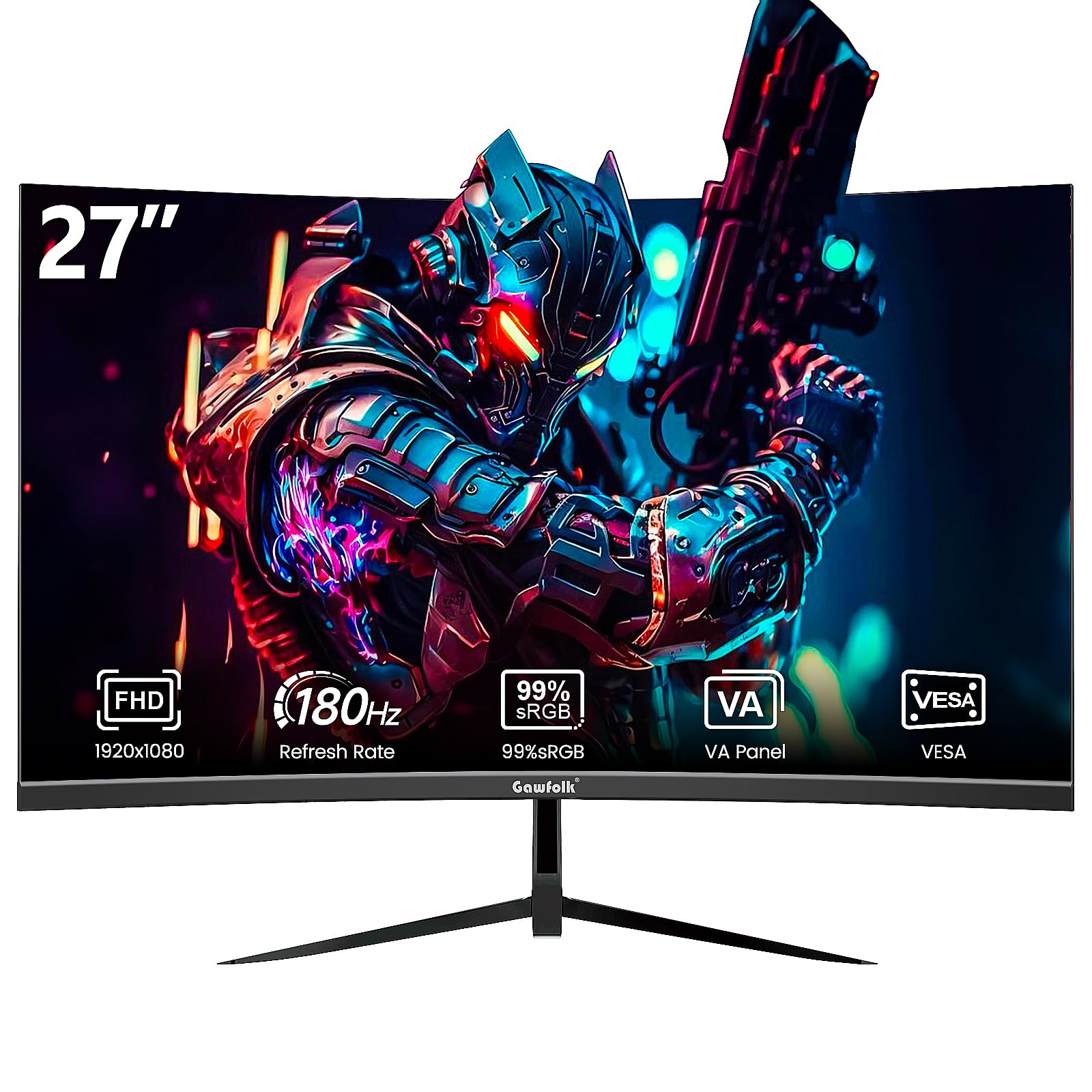
Image: Gawfolk GF270C monitor and typical accessories.
4. Setup Guide
4.1 Assembling the Stand
Follow these steps to attach the stand to your monitor:
- Carefully place the monitor face down on a soft, clean cloth to prevent scratches.
- Attach the stand neck to the back of the monitor by aligning the tabs and pushing until it clicks into place or securing with screws if provided.
- Attach the stand base to the stand neck, securing it with the thumb screw or screws provided.
- Carefully lift the monitor and place it on a stable desk.
4.2 Wall Mounting (VESA)
The monitor supports VESA 100mm x 100mm mounting. To wall mount the monitor, you will need to remove the stand neck (if attached) and use a compatible VESA wall mount kit (sold separately).

Image: Rear view of the monitor showing VESA 100x100mm mounting points and port locations.
4.3 Connecting the Monitor
Connect your devices to the monitor using the available ports:
- Power Connection: Connect the power adapter to the monitor's DC 12V input and then plug it into a power outlet.
- HDMI Connection: Connect one end of the HDMI cable to the monitor's HDMI port and the other end to the HDMI output of your computer or gaming console. (Supports up to 144Hz refresh rate via HDMI).
- DisplayPort (DP) Connection: Connect one end of the DisplayPort cable to the monitor's DP port and the other end to the DisplayPort output of your computer or gaming console. (Supports up to 180Hz refresh rate via DP).
- Audio Output: Connect external speakers or headphones to the 3.5mm Audio Out port for audio playback.
Note: Exact refresh rate performance depends on your CPU, consoles, and applications.
5. Operating Instructions
5.1 Powering On/Off
- Power On: Press the power button located on the monitor. The power indicator light will illuminate.
- Power Off: Press the power button again to turn off the monitor.
5.2 On-Screen Display (OSD) Menu
The OSD menu allows you to adjust various monitor settings. The specific controls (buttons or joystick) are typically located on the back or bottom of the monitor.
- Accessing the OSD: Press the OSD menu button (or push the joystick) to open the menu.
- Navigation: Use the directional buttons or joystick to navigate through the menu options.
- Selection: Press the select button (or push the joystick in) to confirm a selection.
- Exit: Use the exit button or navigate to the 'Exit' option to close the OSD menu.
5.3 Common OSD Settings
- Brightness/Contrast: Adjust the overall luminance and contrast of the display.
- Color Settings: Modify color temperature, gamma, and individual RGB levels.
- Input Source: Manually select between HDMI and DisplayPort inputs.
- Picture Mode: Choose from preset display modes (e.g., Standard, Game, Movie, Text).
- Gaming Features: Enable/disable Adaptive-Sync, Crosshair function, and other gaming-specific enhancements.
- Low Blue Light: Adjust the blue light filter level to reduce eye strain.
6. Gaming Features
The Gawfolk GF270C monitor is equipped with features designed to enhance your gaming experience.
6.1 High Refresh Rate (180Hz)
Experience smoother motion and reduced input lag with a high refresh rate of up to 180Hz. This allows for more frames per second, providing a competitive edge in fast-paced games.

Image: Visual representation of smoother motion at 180Hz compared to lower refresh rates.
6.2 Adaptive-Sync Technology
Adaptive-Sync technology synchronizes the monitor's refresh rate with your graphics card's frame rate, eliminating screen tearing and stuttering for fluid gameplay. This feature is automatically enabled when compatible hardware is detected and configured.

Image: Visual comparison of screen tearing with Adaptive-Sync off versus smooth display with Adaptive-Sync on.
6.3 Crosshair Function (Gameplay Assist)
The monitor includes a built-in crosshair function, which can be enabled via the OSD menu. This feature provides an on-screen aiming reticle, potentially assisting in games that lack a native crosshair or for improved precision.

Image: Depiction of the monitor's gameplay assist feature, showing an on-screen crosshair for improved targeting.
6.4 Low Blue Light & Flicker-Free
To reduce eye strain during extended use, the monitor incorporates Low Blue Light and Flicker-Free technologies. The Low Blue Light feature minimizes harmful blue light emissions, while Flicker-Free technology eliminates screen flickering, providing a more comfortable viewing experience.

Image: Monitor displaying content with reduced blue light, illustrating the eye care feature.
7. Maintenance
7.1 Cleaning the Monitor
- Always unplug the monitor before cleaning.
- Use a soft, lint-free cloth lightly dampened with water or a mild, non-abrasive screen cleaner.
- Do not spray cleaner directly onto the screen.
- Avoid using benzene, thinner, ammonia-based cleaners, or abrasive materials.
7.2 Storage
When storing the monitor, ensure it is kept in a cool, dry place, away from direct sunlight and extreme temperatures. If possible, use the original packaging for protection.
8. Troubleshooting
If you encounter issues with your monitor, please refer to the following table for common problems and solutions.
| Problem | Possible Cause | Solution |
|---|---|---|
| No Power | Power cable not connected; Power outlet not working; Monitor off. | Ensure power cable is securely connected. Test the power outlet. Press the monitor's power button. |
| No Signal | Video cable not connected; Incorrect input source selected. | Check HDMI/DP cable connections. Select the correct input source via the OSD menu. |
| Image Flickering | Faulty cable; Graphics card issue; Refresh rate mismatch. | Replace video cable. Update graphics drivers. Ensure refresh rate is set correctly in OS display settings. |
| Incorrect Resolution/Refresh Rate | OS display settings incorrect; Cable limitation. | Adjust resolution and refresh rate in your computer's display settings. Ensure you are using a DisplayPort cable for 180Hz. |
| Colors appear washed out or incorrect | Color settings in OSD; Graphics card settings. | Adjust color settings (brightness, contrast, gamma) in the OSD menu. Check graphics card color settings. |
9. Product Specifications
| Feature | Specification |
|---|---|
| Model Number | GF270C |
| Screen Size | 27 Inches |
| Panel Type | VA (Curved) |
| Resolution | FHD 1920 x 1080p |
| Aspect Ratio | 16:9 |
| Refresh Rate | Up to 180 Hz (DP), Up to 144 Hz (HDMI) |
| Response Time | 1 Millisecond |
| Contrast Ratio | 3000:1 |
| Brightness | 250 Candela |
| Color Gamut | 99% sRGB |
| Viewing Angle | 178 Degrees |
| Connectivity | 1x HDMI, 1x DisplayPort, 1x USB (Charging Only), 1x 3.5mm Audio Out |
| VESA Compatibility | 100mm x 100mm |
| Special Features | Adaptive-Sync, Curved, Eye Care, Flicker-Free, Frameless |
| Dimensions (D x W x H) | 4.7"D x 26.7"W x 17.7"H |
| Weight | 4.7 Kilograms |
10. Warranty and Support
Your Gawfolk GF270C monitor comes with a 12-month manufacturer's warranty from the date of purchase. This warranty covers manufacturing defects and malfunctions under normal use.
For technical support, warranty claims, or any questions regarding your product, please contact Gawfolk customer service. Refer to the contact information provided on the product packaging or the official Gawfolk website.
Please have your model number (GF270C) and proof of purchase ready when contacting support.