
1. Introduction
This manual provides detailed instructions for the installation, operation, and maintenance of your FeirTon 10.1-inch Android 12 Car Stereo. This advanced multimedia system is designed to enhance your driving experience with features such as a 10.1-inch IPS touchscreen, Android 12 operating system, wired CarPlay and Android Auto support, built-in GPS, Wi-Fi 6, and Bluetooth 5.4 connectivity.
Please read this manual thoroughly before installation and use to ensure proper function and to maximize the benefits of your new car stereo.

Image 1.1: Overview of the FeirTon 10.1-inch Android 12 Car Stereo's main features.
2. Vehicle Compatibility
This FeirTon car stereo is specifically designed for certain Chevrolet, GMC, and Buick models. It is crucial to verify your vehicle's compatibility before attempting installation. Refer to the table below for applicable models and years. If you are uncertain, please consult a professional installer or contact customer support.
2.1 Applicable Models

Image 2.1: Detailed list of compatible Chevrolet, GMC, and Buick vehicle models and their respective year ranges.
2.2 Important Compatibility Notes
The unit is not SiriusXM compatible. Please ensure your vehicle's dashboard and wiring harness match the requirements for this unit. Incorrect fitment can lead to installation difficulties or damage.
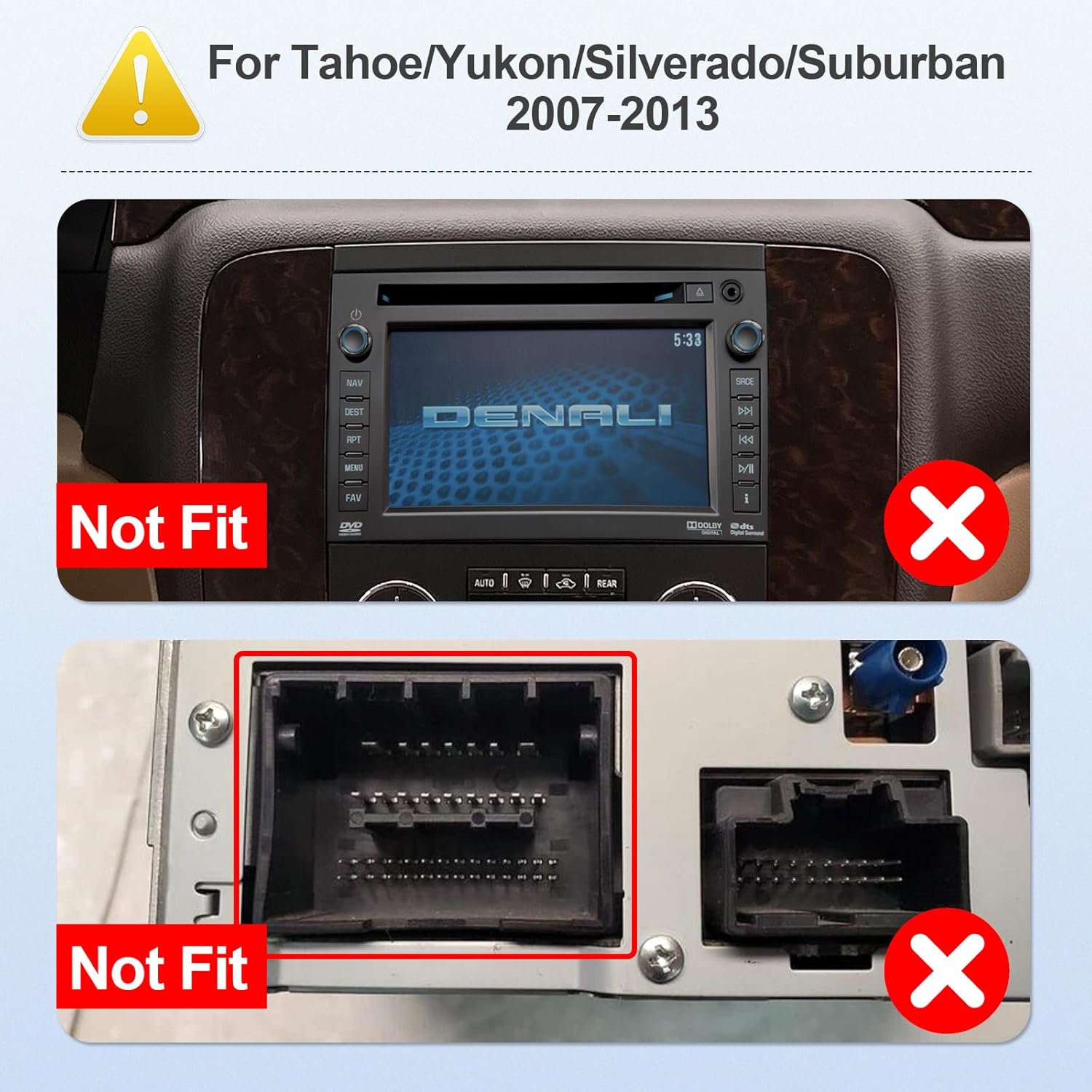
Image 2.2: Examples of incompatible dashboard configurations and wiring harnesses for specific models (Tahoe/Yukon/Silverado/Suburban 2007-2013).
3. Package Contents
Upon opening the package, please verify that all the following components are included:
- Car Radio (1280*720) with Frame x1
- Power Cable x1
- Original USB Cable x1
- RCA Cable x1
- Camera Input Cable x1
- FM Antenna x1
- GPS Antenna x1
- User Manual x1
- CVBS 720P Rear View Camera x1 (Gift)
- Canbus x1 (if applicable for your vehicle)
- Backup Camera Cable x1
- Buzzer x1
- USB 4Pin x1
- USB 6Pin x1
- Removal Tool x1

Image 3.1: All components included in the FeirTon car stereo package.
4. Setup and Installation
Installation of this car stereo requires technical knowledge and experience with automotive electronics. For optimal performance and to prevent damage to your vehicle or the unit, professional installation is highly recommended.
4.1 Pre-Installation Checklist
- Verify Compatibility: Confirm your vehicle model and year are listed in the compatibility section.
- Disconnect Battery: Always disconnect the vehicle's negative battery terminal before starting any electrical work.
- Gather Tools: Ensure you have the necessary tools, including the provided removal tool, screwdrivers, and wire strippers.
- Review Wiring Diagram: Familiarize yourself with the wiring diagram provided with the unit.
4.2 Installation Steps (General Guidance)
- Remove Old Unit: Carefully remove the existing car stereo and dashboard trim using appropriate tools.
- Connect Wiring Harness: Connect the provided power cable and original USB cable to your vehicle's wiring harness. Ensure all connections are secure.
- GPS Antenna Installation: Mount the GPS antenna in a location with a clear view of the sky, typically on the dashboard or under the windshield, away from metal obstructions.
- FM Antenna Connection: Connect the FM antenna.
- Backup Camera Installation (Optional): If installing the backup camera, route the camera cable from the rear of the vehicle to the stereo unit and connect it to the camera input.
- Steering Wheel Control (SWC): The unit supports original car steering wheel control. Use the 'Settingwheel' APP on the car radio to pair the functions.
- Test Connections: Before fully reassembling the dashboard, temporarily reconnect the battery and power on the unit to test basic functions (power, audio, touchscreen, camera, SWC).
- Secure Unit and Reassemble: Once tested, secure the new car stereo into the dashboard opening and reassemble all trim pieces.
Note: This unit supports OEM Camera and Parking Sensor. It also supports AHD high-definition rearview cameras (720P 25/30 frames, 1080P 25/30 frames) and ordinary CVBS signals (aftermarket).

Image 4.1: Illustration of backup camera support and parking sensor integration.
5. Operating Instructions
5.1 Basic Operation
The FeirTon car stereo features a responsive 10.1-inch IPS touchscreen. Navigate through menus and applications by tapping, swiping, and pinching gestures similar to a smartphone or tablet. The main interface provides quick access to essential functions.
5.2 CarPlay & Android Auto
The unit supports both wired CarPlay and wired Android Auto. This allows seamless integration of your smartphone's features directly onto the car stereo display.
- Connection: Use the original USB data cable to connect your Apple or Android phone to the car stereo's USB port.
- Functionality: Once connected, your phone's compatible apps (navigation, music, messages, calls) will appear on the stereo screen.
- Voice Control: Utilize voice commands (Siri for CarPlay, Google Assistant for Android Auto) for hands-free operation.

Image 5.1: Display of CarPlay and Android Auto interfaces on the car stereo.

Image 5.2: Example of using voice commands with CarPlay.

Image 5.3: Example of using voice commands with Android Auto.
5.3 GPS Navigation
The unit has built-in GPS functionality. You can use pre-installed navigation apps or download others from the Google Play Store. Connect to Wi-Fi or a mobile hotspot for online navigation, or download offline maps for use without an internet connection.
5.4 Bluetooth 5.4 Connectivity
Pair your smartphone via Bluetooth for hands-free calling and audio streaming.
- Pairing: Go to the Bluetooth settings on the car stereo and your phone. Search for available devices and select the car stereo's name to pair.
- Hands-Free Calling: Make and receive calls directly from the stereo screen.
- Audio Streaming: Play music and other audio from your phone through the car's speakers.

Image 5.4: Bluetooth 5.4 calling interface on the car stereo.
5.5 Wi-Fi 6 Connectivity
The unit supports dual-band Wi-Fi (2.4GHz and 5GHz) for internet access. Connect to a Wi-Fi network or your phone's hotspot to browse the internet, download apps, and stream content.
5.6 FM Radio
Access local and regional radio stations using the built-in FM tuner.

Image 5.5: FM Radio interface on the car stereo.
5.7 Android App Download
Access the Google Play Store to download and install various Android applications directly onto your car stereo, expanding its functionality.

Image 5.6: Accessing the Google Play Store for app downloads.
5.8 Steering Wheel Control (SWC)
If your vehicle supports it, you can configure the car stereo to work with your existing steering wheel controls. Use the 'Settingwheel' application on the stereo to map functions like volume, track skip, and mode selection.

Image 5.7: The FeirTon car stereo installed in a vehicle dashboard.
6. Maintenance
To ensure the longevity and optimal performance of your FeirTon car stereo, follow these maintenance guidelines:
- Screen Cleaning: Use a soft, lint-free cloth specifically designed for electronics to clean the touchscreen. Do not use abrasive cleaners or harsh chemicals.
- Software Updates: Periodically check for software updates to ensure you have the latest features and bug fixes. Updates can typically be performed via Wi-Fi.
- Avoid Extreme Temperatures: Do not expose the unit to extreme heat or cold for extended periods, as this can affect its electronic components.
- Cable Connections: Periodically check all cable connections to ensure they are secure and free from corrosion.
7. Troubleshooting
If you encounter issues with your FeirTon car stereo, refer to the following common problems and solutions:
| Problem | Possible Cause | Solution |
|---|---|---|
| Unit does not power on | Loose power connection, blown fuse, incorrect wiring. | Check power cable connections. Inspect vehicle's fuse box and the unit's fuse. Verify wiring against the diagram. |
| No sound | Speaker wires disconnected, volume too low, incorrect audio source. | Check speaker wire connections. Increase volume. Select the correct audio source (FM, Bluetooth, CarPlay/Android Auto). |
| CarPlay/Android Auto not connecting | Non-original USB cable, phone software issue, incorrect settings. | Use the original USB data cable. Restart your phone and the car stereo. Check phone settings for CarPlay/Android Auto permissions. |
| GPS signal weak or inaccurate | GPS antenna obstruction, poor antenna placement. | Ensure GPS antenna has a clear view of the sky. Relocate antenna if necessary, away from metal. |
| Backup camera not displaying | Camera cable disconnected, incorrect camera input selected, camera malfunction. | Check camera cable connections. Ensure the unit is in reverse gear. Verify camera functionality. |
| Steering Wheel Controls not working | Incorrect wiring, not configured in software. | Verify SWC wiring. Use the 'Settingwheel' APP to configure and map controls. |
If the problem persists after attempting these solutions, please contact FeirTon customer support for further assistance.
8. Specifications
| Feature | Detail |
|---|---|
| Model | 2+32G |
| Operating System | Android 12 |
| Display Size | 10.1 Inches |
| Display Resolution | 1280x720 IPS Touchscreen |
| CarPlay & Android Auto | Wired Support |
| Wi-Fi | Wi-Fi 6 (5Ghz and 2.5GHz dual-band) |
| Bluetooth | Bluetooth 5.4 |
| GPS | Built-in GPS for online/offline navigation |
| Voice Command | Microphone, Touchscreen |
| Backup Camera Support | OEM Camera, Parking Sensor, AHD 720P/1080P, CVBS signals |
| USB Ports | Dual USB Input |
| Audio Output Mode | Stereo |
| Item Weight | 4.16 pounds |
| Package Dimensions | 12.32 x 9.53 x 5.75 inches |
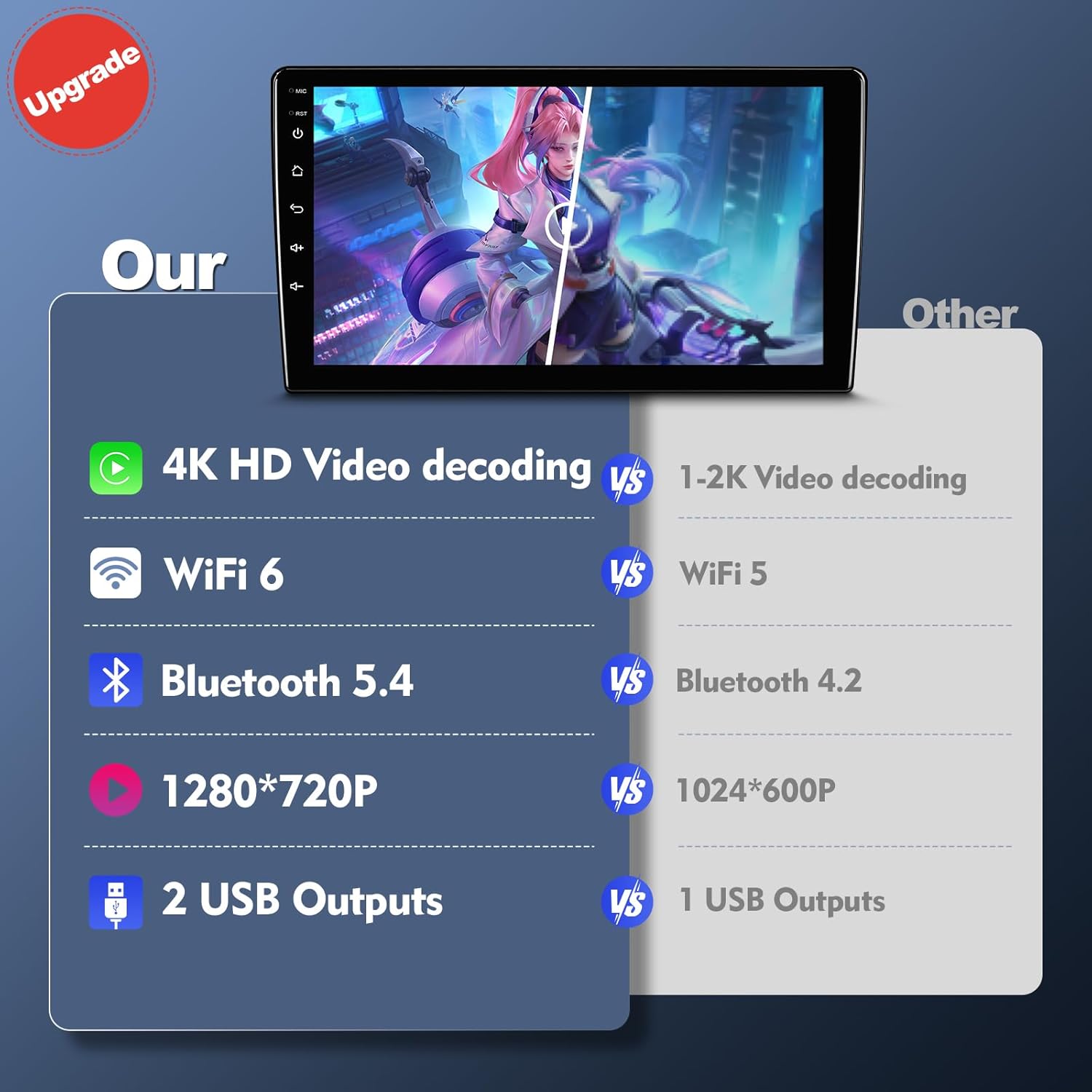
Image 8.1: Feature comparison highlighting key specifications and upgrades.
9. Warranty and Support
FeirTon provides a 12-month quality assurance warranty for this touchscreen car radio. Our professional after-sales team is available 7 days a week, 24 hours a day, to assist you with any questions or issues you may encounter during installation or use.
For support, please refer to the contact information provided with your product packaging or visit the official FeirTon website.