
SHYSKY HAKO Pro
HAKO Pro Android TV Box User Manual
Model: HAKO Pro | Brand: SHYSKY
1. Introduction
Thank you for choosing the SHYSKY HAKO Pro Android TV Box. This device transforms your television into a smart entertainment hub, offering access to streaming services, apps, and more, powered by Android 11.0 ATV. This manual provides essential information for setting up, operating, maintaining, and troubleshooting your HAKO Pro TV Box to ensure optimal performance and an enjoyable user experience.
Please read this manual thoroughly before using the product and retain it for future reference.
2. Package Contents
Verify that all items listed below are included in your package:
- HAKO Pro Android TV Box
- IR+BT Voice Remote Control
- HD Cable (HDMI Cable)
- Power Adapter (12V/1A)
- English User Manual (this document)

Image: The HAKO Pro TV box, remote control, power adapter, and HDMI cable as typically found in the product packaging.
3. Product Overview
The HAKO Pro Android TV Box is a compact device designed to deliver a rich multimedia experience. It features a sleek black design and various ports for connectivity.

Image: The HAKO Pro Android TV Box and its accompanying voice remote control.
3.1. Device Interfaces
The HAKO Pro TV Box is equipped with several ports for connecting to your TV, power, and other peripherals:
- DC IN: Power input port (12V/1A)
- HDMI: High-Definition Multimedia Interface for connecting to your TV
- SPDIF: Digital audio output
- RJ45 LAN: Ethernet port for wired network connection
- USB 2.0 (x2): Ports for connecting USB devices like external storage or keyboards
- Micro SD: Slot for Micro SD card expansion

Image: Detailed view of the HAKO Pro TV Box's rear and side interfaces, including DC IN, HDMI, SPDIF, RJ45 LAN, USB 2.0 ports, and Micro SD slot.
4. Setup Guide
Follow these steps to set up your HAKO Pro Android TV Box:
- Connect to TV: Connect one end of the provided HD Cable (HDMI) to the HDMI port on your HAKO Pro TV Box and the other end to an available HDMI input on your television.
- Connect to Power: Insert the DC plug of the power adapter into the "DC IN" port on the TV Box. Plug the power adapter into a wall outlet.
- Network Connection (Optional):
- Wired: For a stable connection, connect an Ethernet cable from your router to the "RJ45 LAN" port on the TV Box.
- Wireless: You can connect to Wi-Fi during the initial setup process on screen.
- Power On: The device should automatically power on once connected to power. If not, press the power button on the remote control.
- Select Input: On your TV, select the correct HDMI input source that corresponds to the port where you connected the TV Box.
- Initial Setup Wizard: Follow the on-screen instructions to complete the initial setup, including language selection, network configuration, and Google account sign-in.
5. Operating Instructions
5.1. Remote Control
The HAKO Pro comes with an IR+BT Voice Remote Control. It allows you to navigate the Android TV interface, launch apps, control media playback, and use voice commands.
- Power Button: Turns the device on/off or puts it into standby.
- Google Assistant Button: Activates voice commands.
- Navigation Pad (Directional Buttons & OK): For menu navigation and selection.
- Back Button: Returns to the previous screen.
- Home Button: Returns to the Android TV home screen.
- Volume Buttons: Adjusts the volume.
- Dedicated App Buttons: Quick access to popular streaming services like YouTube, Netflix, Prime Video, and Disney+.
5.2. Initial Setup and Navigation
Upon first boot, you will be guided through a setup wizard. This includes:
- Language Selection: Choose your preferred language.
- Network Connection: Connect to your Wi-Fi network or confirm wired connection.
- Google Account Sign-in: Sign in with your Google account to access the Google Play Store, Google Assistant, and synchronize settings.
- Terms of Service: Accept the terms and conditions.
Once setup is complete, you will see the Android TV home screen, which provides quick access to installed apps, recommended content, and settings.
5.3. Media Playback and Streaming
The HAKO Pro supports various media formats and streaming services:
- Pre-installed Apps: Access Netflix, YouTube, Prime Video, and other popular streaming platforms directly from the home screen or via dedicated remote buttons.
- Google Play Store: Download and install additional apps, games, and streaming services from the Google Play Store.
- Chromecast Built-in: Easily cast photos, videos, and music from your compatible phone, tablet, or laptop to your TV. Ensure your device and the HAKO Pro are on the same Wi-Fi network.
- Local Media Playback: Connect a USB drive or Micro SD card to play local media files.
5.4. Google Assistant
The integrated Google Assistant allows for voice control of your TV Box. Press the Google Assistant button on your remote and speak your commands. You can:
- Search for movies, TV shows, and videos.
- Open applications.
- Control smart home devices (if configured).
- Get answers to questions.

Image: Illustration of using Google Assistant voice commands with the Android TV interface.
6. Maintenance
- Cleaning: Use a soft, dry cloth to clean the surface of the TV Box. Do not use liquid cleaners or aerosols.
- Software Updates: Ensure your device's software is up to date. Go to Settings > Device Preferences > About > System update to check for and install available updates. Regular updates improve performance and security.
- Ventilation: Ensure the TV Box is placed in a well-ventilated area to prevent overheating. Do not cover ventilation openings.
- Power Cycle: If the device becomes unresponsive, disconnect the power adapter for a few seconds and then reconnect it to perform a power cycle.
7. Troubleshooting
If you encounter issues with your HAKO Pro Android TV Box, refer to the following common problems and solutions:
- No Power:
- Ensure the power adapter is securely connected to the TV Box and a working power outlet.
- Verify the power outlet is active.
- No Picture/Signal on TV:
- Check that the HDMI cable is securely connected to both the TV Box and the TV.
- Ensure your TV is set to the correct HDMI input source.
- Try a different HDMI port on your TV or a different HDMI cable.
- Remote Control Not Responding:
- Check and replace the batteries in the remote control.
- Ensure there are no obstructions between the remote and the TV Box.
- For Bluetooth functions, ensure the remote is properly paired with the TV Box (refer to initial setup or device settings for pairing instructions).
- No Internet Connection:
- For Wi-Fi, check your Wi-Fi password and ensure the TV Box is within range of your router.
- For wired connection, ensure the Ethernet cable is properly connected to both the TV Box and the router.
- Restart your router and modem.
- App Freezing/Crashing:
- Close and reopen the app.
- Clear the app's cache and data (Settings > Apps > [App Name] > Clear cache/Clear data).
- Ensure the app and the TV Box's system software are up to date.
8. Specifications
Detailed technical specifications for the SHYSKY HAKO Pro Android TV Box:
| Feature | Specification |
|---|---|
| Model | HAKO Pro |
| Operating System | Android 11.0 ATV |
| CPU | Amlogic S905Y4 Quad Core ARM Cortex A35 |
| GPU | ARM Mali-G31 MP2 |
| RAM | 2GB DDR4 |
| Storage | 16GB eMMC |
| Video Decoding | AV1, H.265, VP9 P-2 |
| HDR Support | HDR 10, HLG, HDR 10+ |
| Resolution | Up to 4K 60fps |
| Wi-Fi | 2x2 MIMO Wi-Fi 2.4GHz/5GHz 802.11a/b/g/n/ac (Wi-Fi 5) |
| Bluetooth | BT 5.0 |
| Ethernet | RJ45 10M/100M adaptive |
| Ports | DC IN, HDMI, SPDIF, RJ45 LAN, 2x USB 2.0, Micro SD Slot |
| Power Supply | External 12V/1A |
| Dimensions (L x W x H) | 110mm x 110mm x 22mm |
| Weight | 144g |

Image: Technical drawing showing the dimensions of the HAKO Pro Android TV Box (110mm x 110mm x 22mm).
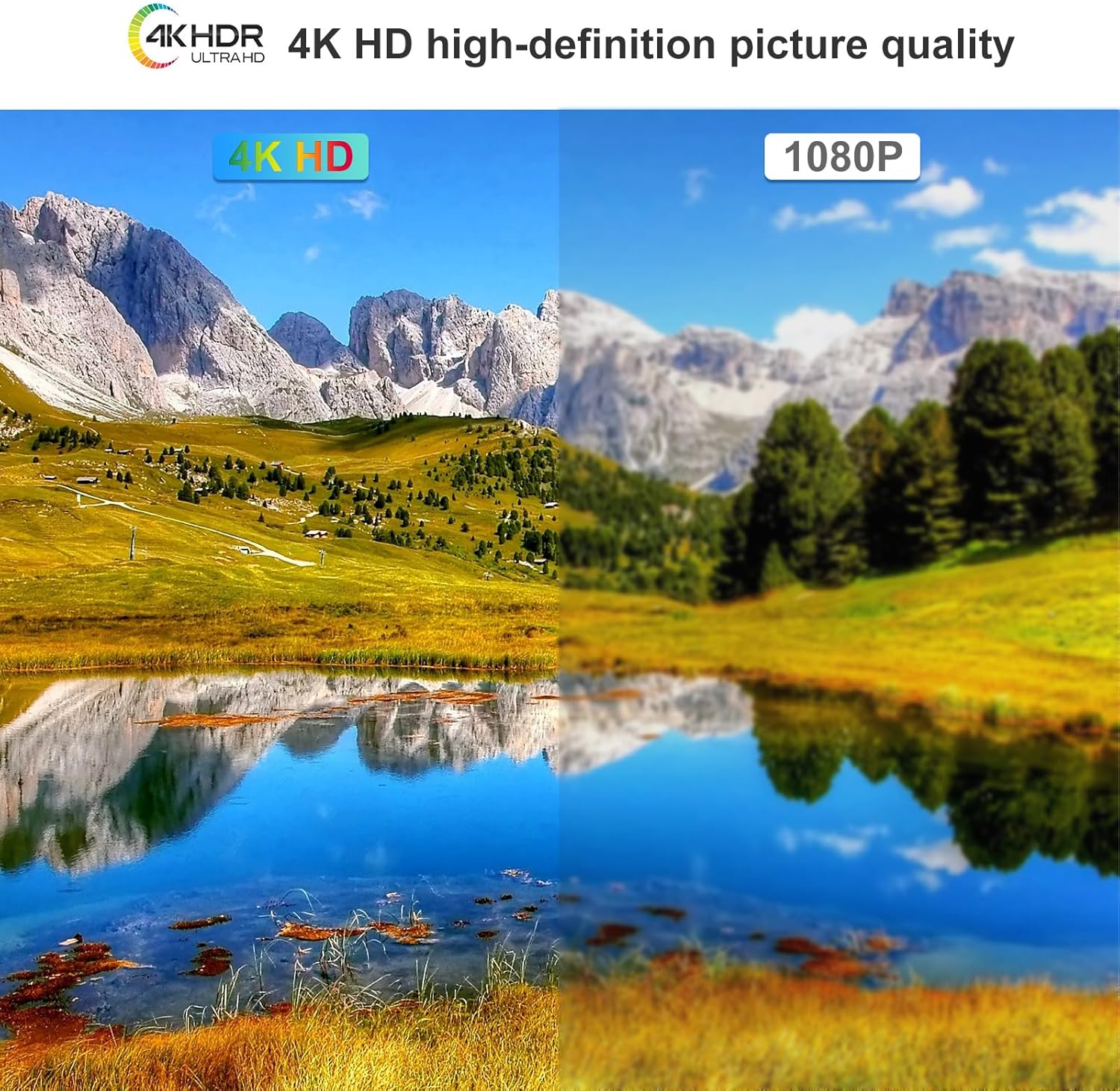
Image: Visual comparison demonstrating the clarity and detail of 4K HD resolution versus 1080P resolution.

Image: Chart illustrating the data efficiency of the AV1 video codec compared to H.265 and VP9, indicating AV1 requires less data for similar quality.
9. Warranty and Support
The SHYSKY HAKO Pro Android TV Box comes with a standard manufacturer's warranty. Please refer to the warranty card included in your package or contact your retailer for specific warranty terms and conditions.
For technical support, troubleshooting assistance beyond this manual, or warranty claims, please contact SHYSKY customer service through the contact information provided on the product packaging or the official SHYSKY website.
Ask a question about this manual
Ask about setup, troubleshooting, compatibility, parts, safety, or missing instructions. Manuals+ will review the question and use this page’s manual context to help answer it.