
WUYJTIF DIN240117001
WUYJTIF Smart Q96 X1 Android TV Box User Manual
Model: DIN240117001
1. Introduction
This user manual provides detailed instructions for setting up, operating, and maintaining your WUYJTIF Smart Q96 X1 Android TV Box. Please read this manual thoroughly before using the device to ensure proper functionality and safety.
1.1 Package Contents
Verify that all items listed below are included in your package:
- 1 x Smart Q96 X1 TV Box
- 1 x User Manual
- 1 x Charging Adapter
- 1 x Remote Control
- 1 x HDMI Cable

Image: Illustration of the Q96 X1 TV Box and its included accessories: HDMI cable, remote control, user manual, and power supply.
1.2 Product Overview
The Smart Q96 X1 is an advanced Android TV Box designed to transform your television into a smart entertainment hub. It supports 4K and 8K resolution, features a voice assistant, and provides access to a wide range of applications through the Play Store. Its compact design and powerful processing capabilities make it ideal for home theater, office presentations, and educational use.

Image: The Q96 X1 TV Box, a compact black device with a brushed finish, shown alongside its black remote control. The TV box features a USB port and an SD card slot on its side. The remote control has various buttons for navigation, volume, and app access.
2. Setup Guide
2.1 Connecting Your Device
- Connect one end of the provided HDMI cable to the HDMI port on the Q96 X1 TV Box.
- Connect the other end of the HDMI cable to an available HDMI input port on your television or display.
- Connect the charging adapter to the DC IN port on the TV Box, then plug the adapter into a power outlet.
- Optionally, connect external peripherals such as a USB keyboard, mouse, or external hard drive to the available USB ports.
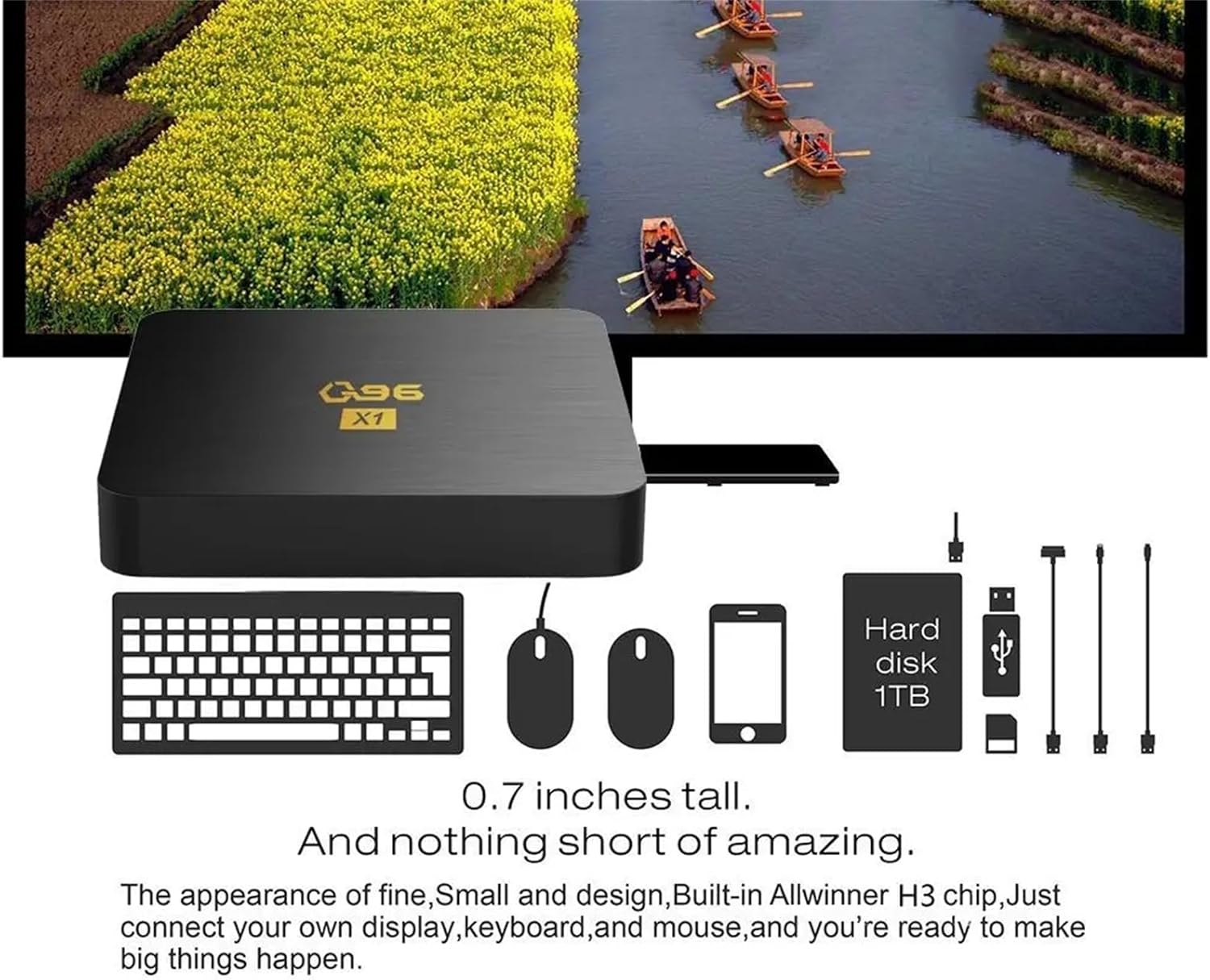
Image: The Q96 X1 TV Box displayed with various compatible peripherals including a keyboard, mouse, 1TB hard disk, and USB drives, illustrating its connectivity options.
2.2 Initial Power On
After connecting all cables, the TV Box should power on automatically. If not, press the power button on the remote control or the device itself. Select the correct HDMI input on your television to display the TV Box interface.
2.3 Network Connection
To access online content and applications, connect your TV Box to the internet:
- Wi-Fi: Navigate to Settings > Network > Wi-Fi. Select your Wi-Fi network from the list, enter the password, and connect. The device supports dual Wi-Fi connectivity for stable performance.
- Ethernet: Connect an Ethernet cable from your router to the LAN port on the TV Box. The device will automatically detect and connect to the wired network.
2.4 System Language and Time
Upon first boot, you may be prompted to select your preferred language and set the correct time zone. Follow the on-screen instructions to complete these initial settings.
3. Operating Instructions
3.1 Navigating the Interface
The Q96 X1 runs on Android 7.1, providing a user-friendly interface. Use the remote control's directional pad and OK button to navigate through menus, select applications, and confirm actions. The Home button will always return you to the main screen.
3.2 Using the Remote Control
The included remote control allows full command of your TV Box. Key functions include:
- Power Button: Turns the device on/off or puts it into standby.
- Directional Pad (Arrows & OK): For navigation and selection.
- Volume Buttons: Adjusts audio output.
- Back Button: Returns to the previous screen.
- Home Button: Returns to the main home screen.
- App Button: Accesses the application list.
- Number Buttons: For direct input or channel selection in certain apps.
3.3 Installing Applications
Access the Google Play Store from the home screen to download and install a wide variety of applications, including streaming services, games, and utility tools. A Google account is required for Play Store access.
3.4 Media Playback
The TV Box supports various media formats and resolutions up to 8K. You can play local media files from connected USB drives or SD cards, or stream content from online platforms. The device's H.265 decoding technology ensures efficient playback of high-definition content.
3.5 Voice Assistant
Utilize the built-in voice assistant feature for hands-free control. Press the voice button on your remote (if available) and speak commands to search for content, open apps, or control playback.
3.6 Screen Mirroring (Miracast, DLNA, Airplay)
The Q96 X1 supports various screen mirroring protocols, allowing you to cast content from your smartphone, tablet, or computer directly to your TV. This includes Miracast for Android devices, DLNA, and Airplay for Apple devices.

Image: A visual representation showing the Q96 X1 TV Box connected to a television, with a smartphone mirroring its screen to the TV, demonstrating Miracast, DLNA, and Airplay support.
4. Key Features
4.1 8K Ultra HD Resolution
Experience stunning visual clarity with support for up to 8K resolution. The Q96 X1 delivers incredibly detailed and vibrant images, enhancing your viewing experience for compatible content.

Image: A graphic highlighting the 8K Ultra High Definition capability of the Q96 X1 TV Box, with text indicating H.265 decoder up to 8K@60FPS and support for HDR10.
4.2 H.265 HEVC Decoding
The device incorporates H.265 High Efficiency Video Coding (HEVC) technology, which significantly reduces bandwidth requirements compared to older H.264 standards. This allows for smoother streaming of high-quality video with less buffering.
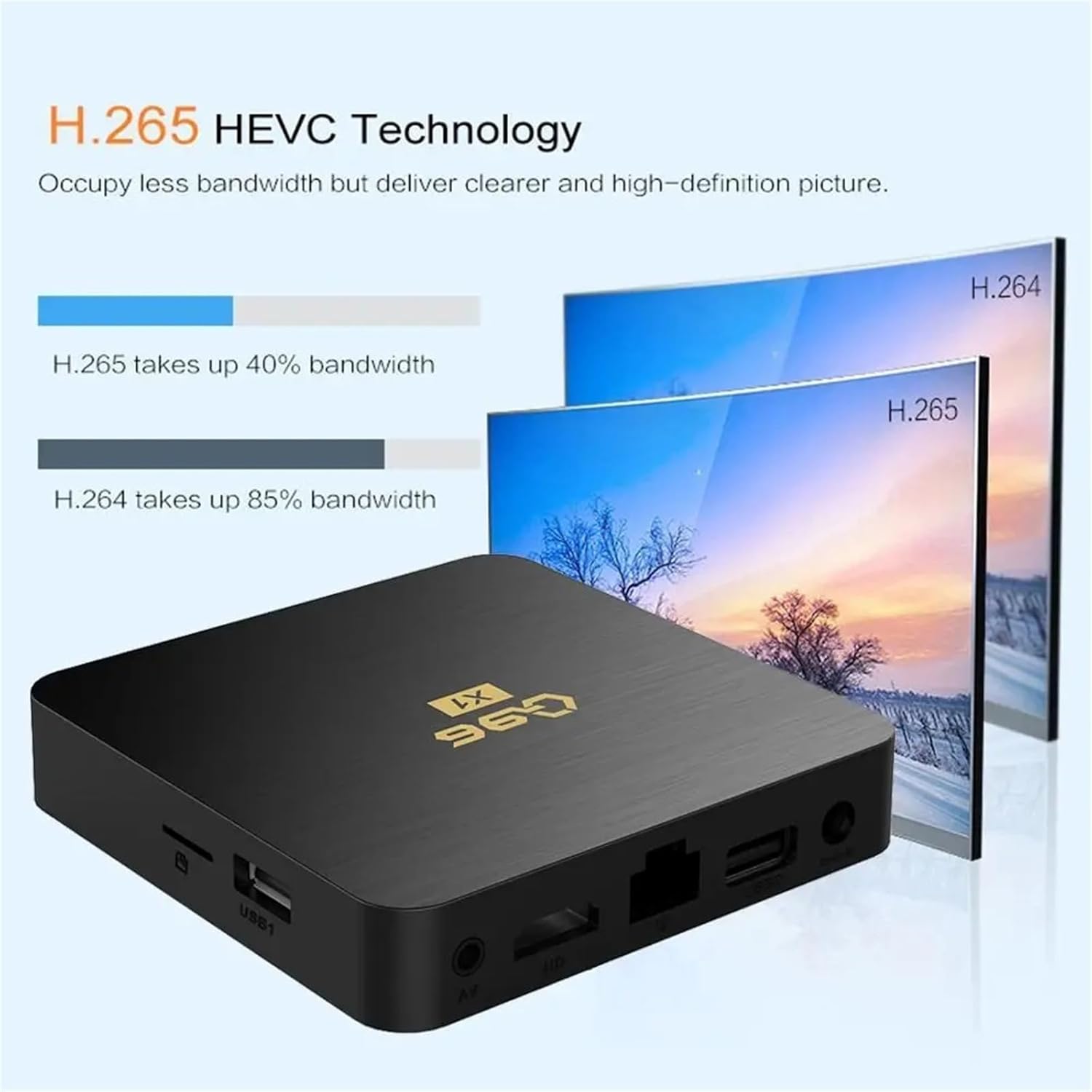
Image: A comparison graphic illustrating that H.265 takes up 40% bandwidth while H.264 takes up 85% bandwidth, demonstrating the efficiency of H.265 HEVC technology.
4.3 Android 7.1 Operating System
Powered by Android 7.1, the Q96 X1 offers a stable and versatile platform for your entertainment needs. Enjoy access to a vast ecosystem of apps, games, and services from the Google Play Store.
4.4 Allwinner H3 Processor
Equipped with the Allwinner H3 Quad-core Cortex-A53 processor and G31 MP2 GPU, the TV Box delivers robust performance for smooth navigation, fast app loading, and efficient media processing.

Image: A close-up view of the Allwinner H3 chip on a circuit board, highlighting its Quad-core Cortex-A53 and G31 MP2 specifications.
4.5 Dual Wi-Fi Connectivity
Benefit from reliable and fast internet connectivity with dual Wi-Fi support, ensuring a seamless streaming and browsing experience without interruptions.
4.6 HDMI-Compatible Output
Easily connect the TV Box to any modern television or display using the HDMI-compatible port for high-quality audio and video transmission.
4.7 3D Graphics Processing
The integrated 3D Graphics Processing Unit allows you to enjoy 3D movies and compatible content, bringing an immersive cinematic experience to your home theater.

Image: A person watching a 3D movie on a large screen in a living room setting, with the Q96 X1 TV Box visible in the foreground, illustrating the 3D Graphics Processing Unit feature.
5. Specifications
| Specification | Detail |
|---|---|
| Brand Name | WUYJTIF |
| Product Dimensions | 3.8 x 1.35 x 0.62 inches |
| Item Model Number | DIN240117001 |
| Color | Red |
| Special Features | Browser |
| ASIN | B0CZF36CT3 |
| Connectivity Technology | USB |
| Connector Type | Micro USB |
| Resolution | 4K (supports up to 8K) |
| Supported Internet Services | YouTube |
| Controller Type | Remote Control |
| Form Factor | TV Box |
| Model Name | DIN240117001 |
6. Troubleshooting
If you encounter issues with your Q96 X1 TV Box, please refer to the following common problems and solutions:
- No Power:
Ensure the power adapter is securely connected to the TV Box and a working power outlet. Try a different outlet if necessary.
- No Signal on TV:
Verify the HDMI cable is firmly connected to both the TV Box and your television. Ensure your TV is set to the correct HDMI input source.
- Wi-Fi Connection Issues:
Check if your Wi-Fi router is working correctly. Restart the TV Box and your router. Re-enter the Wi-Fi password in the network settings.
- Apps Crashing or Freezing:
Close and reopen the app. Clear the app's cache and data in Settings > Apps. Ensure the TV Box has sufficient storage space. Restart the device.
- Remote Control Not Responding:
Check and replace the batteries in the remote control. Ensure there are no obstructions between the remote and the TV Box's IR receiver.
7. Maintenance
To ensure the longevity and optimal performance of your Q96 X1 TV Box, follow these maintenance guidelines:
- Cleaning: Use a soft, dry cloth to clean the exterior of the device. Do not use liquid cleaners or abrasive materials.
- Ventilation: Ensure the TV Box is placed in a well-ventilated area to prevent overheating. Do not block the ventilation holes.
- Software Updates: Periodically check for system updates in the device settings to ensure you have the latest features and security patches.
- Storage: When not in use for extended periods, store the device in a cool, dry place away from direct sunlight and extreme temperatures.
8. Warranty and Support
Your WUYJTIF Smart Q96 X1 Android TV Box comes with a standard manufacturer's warranty. Please refer to the warranty card included in your package for specific terms and conditions.
For technical support, troubleshooting assistance beyond this manual, or warranty claims, please contact WUYJTIF customer service through the contact information provided on the product packaging or the official WUYJTIF website.
Ask a question about this manual
Ask about setup, troubleshooting, compatibility, parts, safety, or missing instructions. Manuals+ will review the question and use this page’s manual context to help answer it.