Introduction
This manual provides detailed instructions for the IINE Neptune Wireless Controller, designed for use with Nintendo Switch, Switch Lite, and Switch OLED consoles. Please read this manual thoroughly before using the product to ensure proper operation and to maximize your gaming experience.
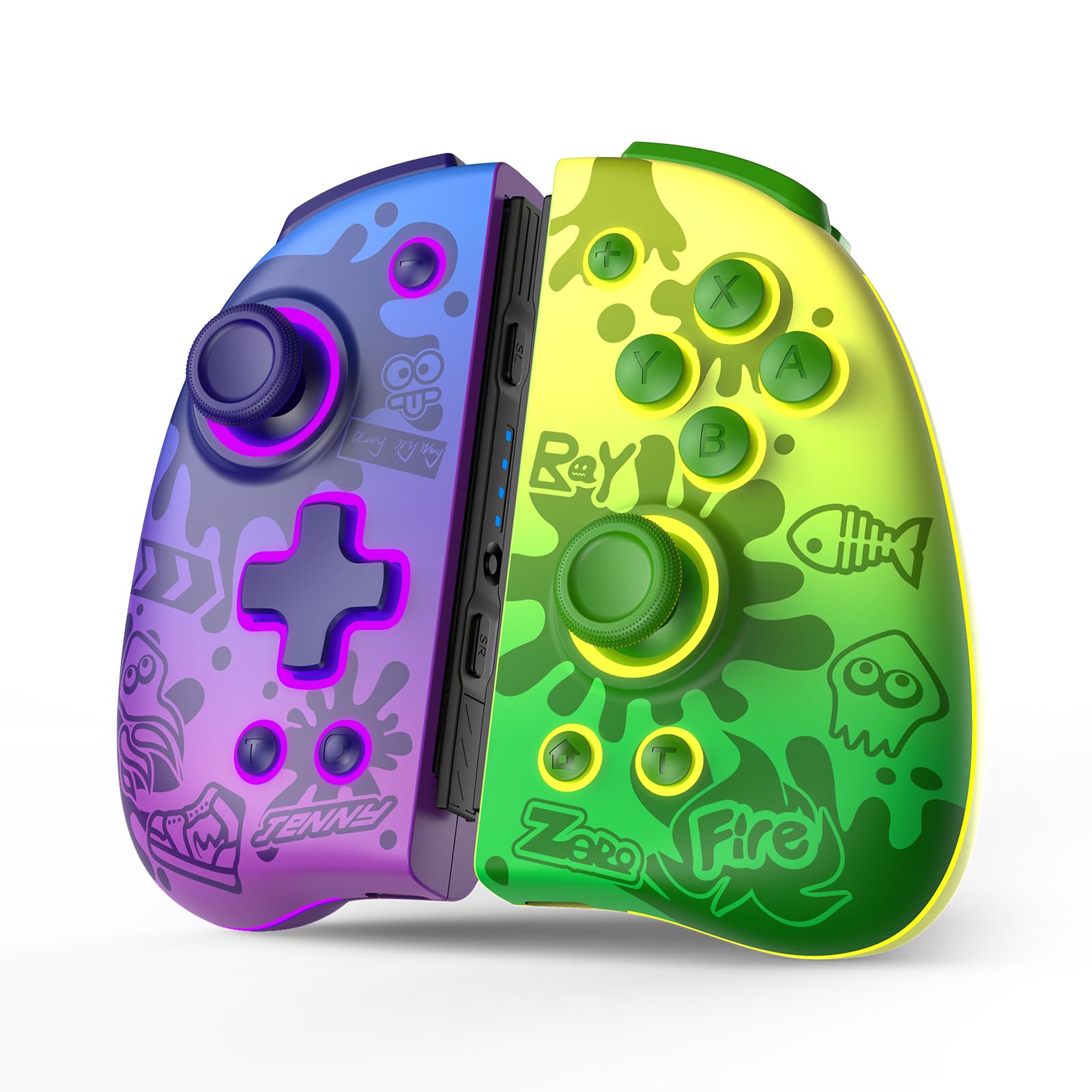
Image: The IINE Neptune Wireless Controller shown attached to a Nintendo Switch console, highlighting its design and compatibility.
1. Setup
1.1 Charging the Controller
Before first use, fully charge the controller. The controller features a Type-C charging port.
- Connect the provided 1.5m USB to Type-C cable to the controller's charging port.
- Connect the other end of the cable to a USB power source (e.g., Switch dock, USB wall adapter).
- A full charge typically takes approximately 2 hours.
- The controller provides 4-5 hours of usage time on a full charge.
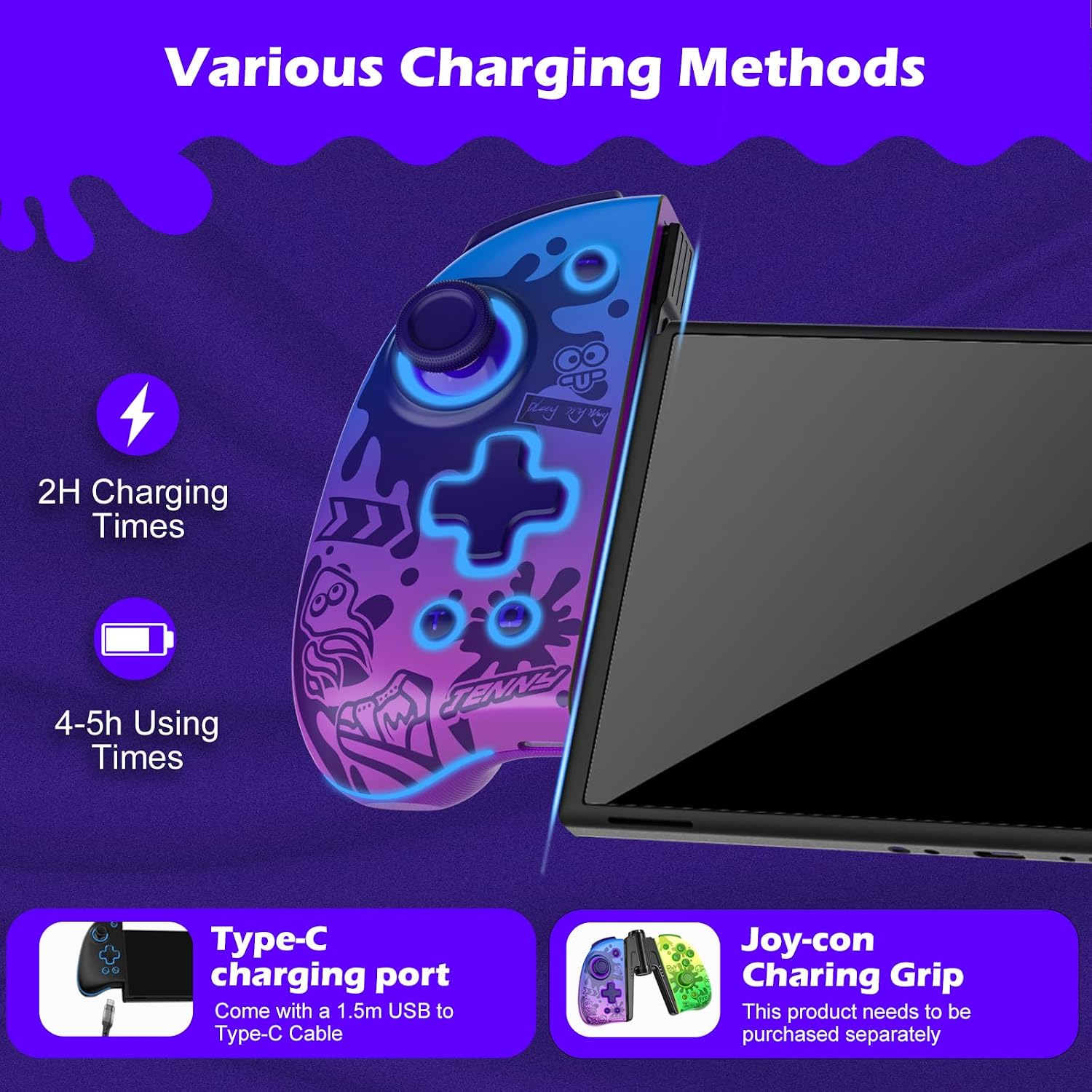
Image: Illustration of the controller's Type-C charging port and estimated charging and usage times.
1.2 Pairing with Nintendo Switch
Follow these steps to pair your IINE Neptune controller wirelessly with your Nintendo Switch console:
- From the HOME Menu, select "Controllers" > "Change Grip/Order".
- While the screen displays "Press L + R on the controller", press and hold the pairing button on the IINE Neptune controller until the player LEDs begin to flash.
- Once paired, the player LED(s) on the controller will remain lit.
Note: The controller supports one-click wake-up for the Switch console once paired.
2. Operating Instructions
2.1 Mechanical Buttons and ALPS Joysticks
The IINE Neptune controller features mechanical gaming buttons and ALPS joysticks for enhanced responsiveness and durability.
- Mechanical Buttons: Provide faster rebound and more sensitive touch feedback. This applies to A/B/X/Y/L/R/ZL/ZR action buttons.
- ALPS Joysticks: Multi-directional joysticks with metal thumbstick grips designed to prevent dust accumulation and drift, ensuring smooth and precise control.

Image: Detail of the mechanical buttons, emphasizing their responsive design.

Image: Close-up of an ALPS joystick, highlighting its multi-directional capability and metal grip.
2.2 Macro Settings (MR/ML Buttons)
The MR/ML back buttons can be customized to map basic function buttons or a sequence of actions.
- Setting a Macro:
- Hold down the 'M' button.
- While holding 'M', press any action button or sequence of buttons you wish to map.
- Release the 'M' button to save the macro.
- Clearing a Macro: Click the 'M' button again to cancel the current macro setting.
- Releasing Custom Macro: Click the ML/MR button to execute the custom macro settings.

Image: Visual guide for setting and clearing macros using the MR/ML back buttons.
2.3 Turbo Function
The Turbo function allows for rapid, repeated input of a button press. It supports both automatic and manual turbo modes.
- Activating Turbo: Press the 'Turbo' button simultaneously with the desired action button (e.g., A, B, X, Y).
- Adjusting Turbo Speed: (Specific instructions not provided in source, typically involves Turbo + D-pad Up/Down or joystick)
- Deactivating Turbo: Repeat the activation step or press the 'Turbo' button independently.
2.4 6-Axis Gyro Sensor (Somatosensory)
The built-in 6-axis gyro sensor provides precise motion control for compatible games.
- This feature allows for intelligent detection of rotation and direction changes.
- It enhances gameplay in titles that support somatosensory actions, shooting, and aiming.
- Note: This feature supports most somatosensory games on Switch, but may not be compatible with games requiring infrared (e.g., Ring Fit Adventure).

Image: Visual representation of the 6-axis gyro sensor's motion detection capabilities.
2.5 Adjustable RGB Lighting
The controller features adjustable RGB LED lights with various modes and brightness levels.
- Change Light Color: Press the 'Turbo' button + L3/R3 (left/right joystick click).
- Adjust Brightness: Hold the 'Turbo' button for 3 seconds, then press L3/R3 to cycle through 20%, 50%, 75%, and 100% brightness levels.
- Change Light Mode: Press the 'Turbo' button + L3/R3 (double click). Available modes include Monochromatic Light, Breathing Light, and Colorful Light.

Image: Guide to customizing the controller's RGB lighting effects.
2.6 Dual Vibration Adjustment
The controller offers adjustable dual vibration strength for a personalized haptic feedback experience.
- The vibration strength can be adjusted for the left and right joypads independently.
- Adjusting Vibration: (Specific button combination not provided in source, typically involves a dedicated button or Turbo + D-pad/joystick)
- Default vibration levels are typically 0, 50, and 100.

Image: Illustration of the controller's adjustable vibration strength settings.
2.7 Screenshot Function
The controller includes a dedicated button for taking screenshots during gameplay.
- Press the 'Screenshot' button (usually located near the Home button) to capture in-game moments.
3. Maintenance
- Cleaning: Use a soft, dry cloth to clean the controller. Avoid using harsh chemicals or abrasive materials.
- Storage: Store the controller in a cool, dry place away from direct sunlight and extreme temperatures.
- Battery Care: To prolong battery life, avoid fully discharging the controller frequently. Charge it regularly, even if not in use for extended periods.
- Dust Prevention: The ALPS joysticks are designed to prevent dust, but regular cleaning around the joystick bases can further minimize debris.
4. Troubleshooting
| Problem | Possible Cause | Solution |
|---|
| Controller does not connect. | Low battery, out of range, pairing issue. | Ensure controller is charged. Move closer to the console. Re-attempt pairing process (Section 1.2). |
| Buttons are unresponsive or delayed. | Interference, low battery, software glitch. | Charge the controller. Ensure no strong wireless interference. Restart the Switch console and controller. |
| Motion control is inaccurate. | Controller not calibrated, environmental factors. | Calibrate the controller's motion sensors via Switch system settings. Ensure you are in an open area without strong magnetic fields. |
| RGB lights are not working. | Incorrect settings, low battery. | Check RGB lighting settings (Section 2.5). Ensure controller is sufficiently charged. |
5. Specifications
- Model: IINE Neptune
- Compatible Devices: Nintendo Switch, Nintendo Switch Lite, Nintendo Switch OLED
- Controller Type: Gamepad
- Connectivity: Wireless
- Joysticks: ALPS Multi-Directional Joysticks with Metal Grips
- Buttons: Mechanical Gaming Buttons (A/B/X/Y/L/R/ZL/ZR)
- Special Features: Macro Settings (MR/ML), Turbo Function (Auto/Manual), 6-axis Gyro Sensor (Somatosensory), Adjustable Dual Vibration, Adjustable RGB Lights (Monochromatic, Breathing, Colorful), One-click Wake-up, Screenshot Function, Ergonomic Design
- Power Source: Battery Powered
- Charging Port: USB Type-C
- Charging Time: Approximately 2 hours
- Usage Time: Approximately 4-5 hours
- Manufacturer: WEUTOP
6. Warranty and Support
For warranty information and technical support, please refer to the documentation included with your purchase or contact the retailer where the product was acquired. You may also visit the official IINE website for further assistance.
Contact: For any questions or support, please reach out to the customer service provided by your retailer or the manufacturer.
