
1. Introduction
The Daconovo Nut 2 Smart Tracker F5D is a compact and portable device designed to help you locate your belongings and prevent loss. This smart tracker connects to your smartphone via Bluetooth, offering features such as anti-loss alerts, a find-your-phone function, and location tracking. Its mini size and lightweight design make it ideal for attaching to keys, wallets, bags, or other valuable items.

Image: The Nut 2 Smart Tracker in various colors, highlighting its main functions: Ring your things, Bidirectional reminding, Last place seen, Find your phone, and Replaceable battery.
2. Setup
2.1 Package Contents
- 1 x Nut 2 Smart Tracker
- 1 x Button Battery (CR2032)
- 1 x Strap
- 1 x User Manual
2.2 App Installation
- Carefully read this user manual before proceeding.
- Scan the QR code provided in the product packaging or search for the 'Nut' app in your smartphone's app store (Google Play Store for Android, Apple App Store for iOS).
- Download and install the 'Nut' application on your smartphone.

Image: Scan the QR code to download the Nut App and ensure the tracker connects with your phone. The image also illustrates the app interface and the tracker's appearance.
2.3 Device Pairing
- Ensure Bluetooth is enabled on your smartphone.
- Open the 'Nut' app.
- Follow the on-screen instructions within the app to add and pair your Nut 2 Smart Tracker. This typically involves pressing a button on the tracker to activate pairing mode.
3. Operating Instructions
3.1 Ring Your Things
If you cannot find an item to which the Nut 2 Smart Tracker is attached, open the Nut app on your phone. Within the app, locate and press the 'Ring' button. The tracker will emit a beeping sound, helping you locate your item within the Bluetooth connection range.

Image: The Nut app interface showing the 'Ring' function. When activated, the tracker beeps to help you find your items.
3.2 Find Your Phone
If you misplace your smartphone, you can use the Nut 2 Smart Tracker to find it. Double-press the button on your Nut tracker. Your phone will ring, even if it is set to silent or vibration mode, allowing you to locate it quickly.

Image: Double-pressing the Nut tracker button makes your phone ring, even on silent mode, to help you find it.
3.3 Bidirectional Reminding (Anti-Loss Mode)
In Anti-Loss Mode, if your Nut 2 Smart Tracker loses its Bluetooth connection with your phone (meaning your item is moving out of range), both the Nut app on your phone and the tracker itself will emit an alarm. This feature helps prevent you from leaving your belongings behind.
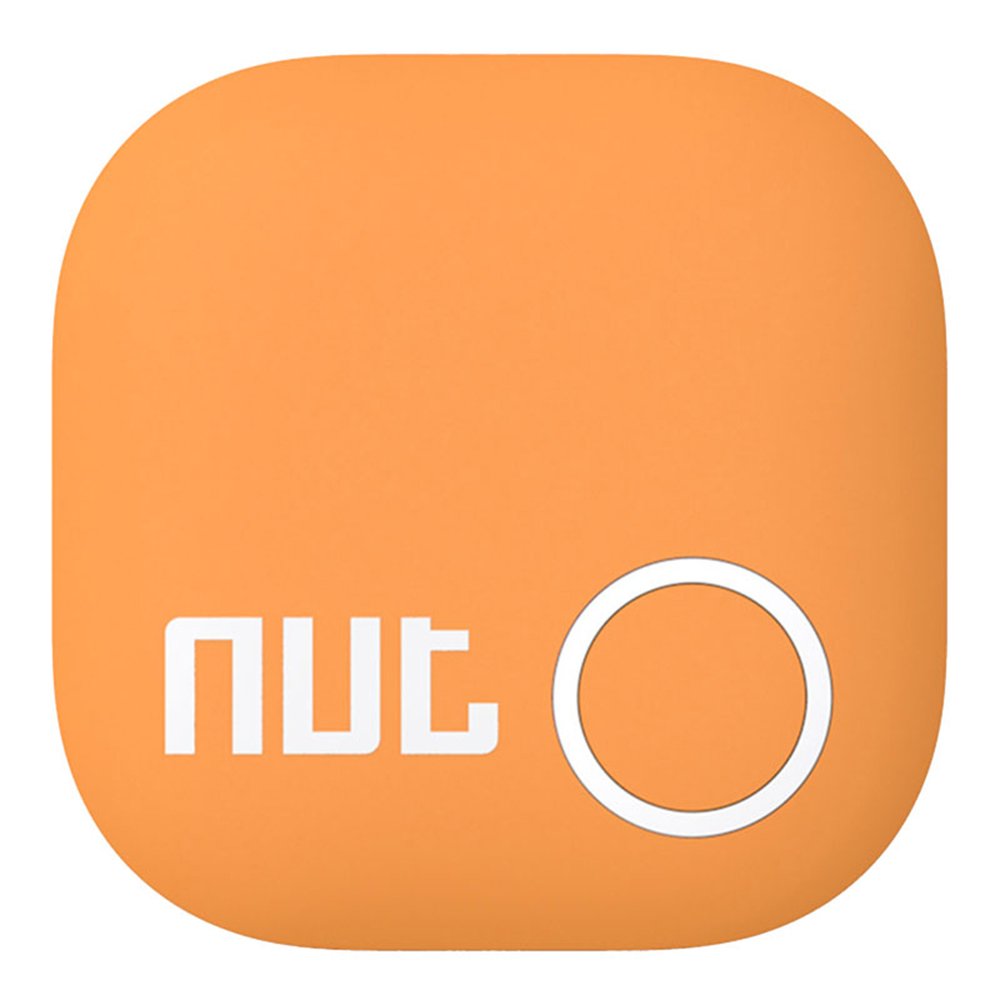
Image: Illustrates the bidirectional reminding feature, where both the Nut app and the tracker alert you when the connection is lost.
3.4 Last Place Seen
To utilize this feature, ensure the Nut app is running in the background on your smartphone. The app will automatically record the last known location where your phone lost connection with the Nut tracker. This information can be viewed on a map within the app, assisting you in retracing your steps to find lost items.

Image: A map view within the Nut app showing the last recorded location of a lost item, marked with a pin.
4. Maintenance
4.1 Battery Replacement
The Nut 2 Smart Tracker uses a replaceable CR2032 button battery. When the battery level is low, the app will notify you. To replace the battery:
- Gently open the tracker casing.
- Remove the old CR2032 battery.
- Insert a new CR2032 battery with the positive (+) side facing up.
- Close the casing securely.
Note: Battery life varies depending on actual usage conditions.
5. Troubleshooting
5.1 Connection Issues / Range Limitations
The effective usage range of the Nut 2 Smart Tracker is dependent on the Bluetooth signal strength and environmental factors. The distance can be approximately 10-30 meters indoors (when walls or people are present) and 30-50 meters outdoors in open environments.
Important: Bluetooth connectivity and range can be affected by various factors such as physical obstructions (walls, furniture), electromagnetic interference, and the specific environment. The connection distance cannot be artificially extended or guaranteed to be constant, as it will fluctuate based on these external factors.
5.2 Tracker Not Responding
- Ensure the battery is not depleted. Replace the CR2032 battery if necessary.
- Check if Bluetooth is enabled on your smartphone and if the Nut app is running.
- Try restarting the Nut app and your smartphone.
- If the issue persists, try re-pairing the tracker with your phone through the Nut app.
6. Specifications

Image: Detailed specifications and dimensions of the Nut 2 Smart Tracker.
| Feature | Detail |
|---|---|
| Brand | Daconovo |
| Model | F5D |
| Material | Plastic |
| Colors Available | White, Orange, Green |
| Battery Type | CR2032 Button Battery (approx. 220mAh) |
| Standby Time | Up to 4 months |
| Alarm Volume | 90 dB |
| Connectivity | Bluetooth 4.0 |
| Compatible Systems | Android 4.3 and above, iOS (with Nut App) |
| Product Dimensions | Approx. 36mm x 36mm x 5.8mm |
| Product Weight | Approx. 10g |
| Package Size | Approx. 7.0 x 6.7 x 2.0 cm |
| Package Weight | Approx. 26g |
7. Important Notes
- The color of the product shown in images may vary slightly from the actual product due to differences in photographic lighting and monitor display settings.
- Always ensure the Nut app is running in the background for optimal performance of tracking and anti-loss features.
8. Warranty and Support
Specific warranty information for the Daconovo Nut 2 Smart Tracker F5D is not provided in this manual. Please refer to the product packaging or contact your retailer for details regarding warranty coverage and customer support.