
Introduction
This manual provides essential information for setting up, operating, and maintaining your HP 14-inch HD Touchscreen Laptop Computer. Please read these instructions carefully to ensure proper use and longevity of your device.
Your HP laptop features an AMD Ryzen 3 5300U processor, 32GB RAM, and a 1TB NVMe SSD, designed for efficient performance in various tasks.

Figure 1: Front view of the HP 14-inch HD Touchscreen Laptop, highlighting its touch-enabled display.
Package Contents
Verify that all items are present in your package:
- HP 14-inch HD Touchscreen Laptop
- AC Power Adapter
- USB Extension Cord
- HDMI Cable
- Mouse Pad
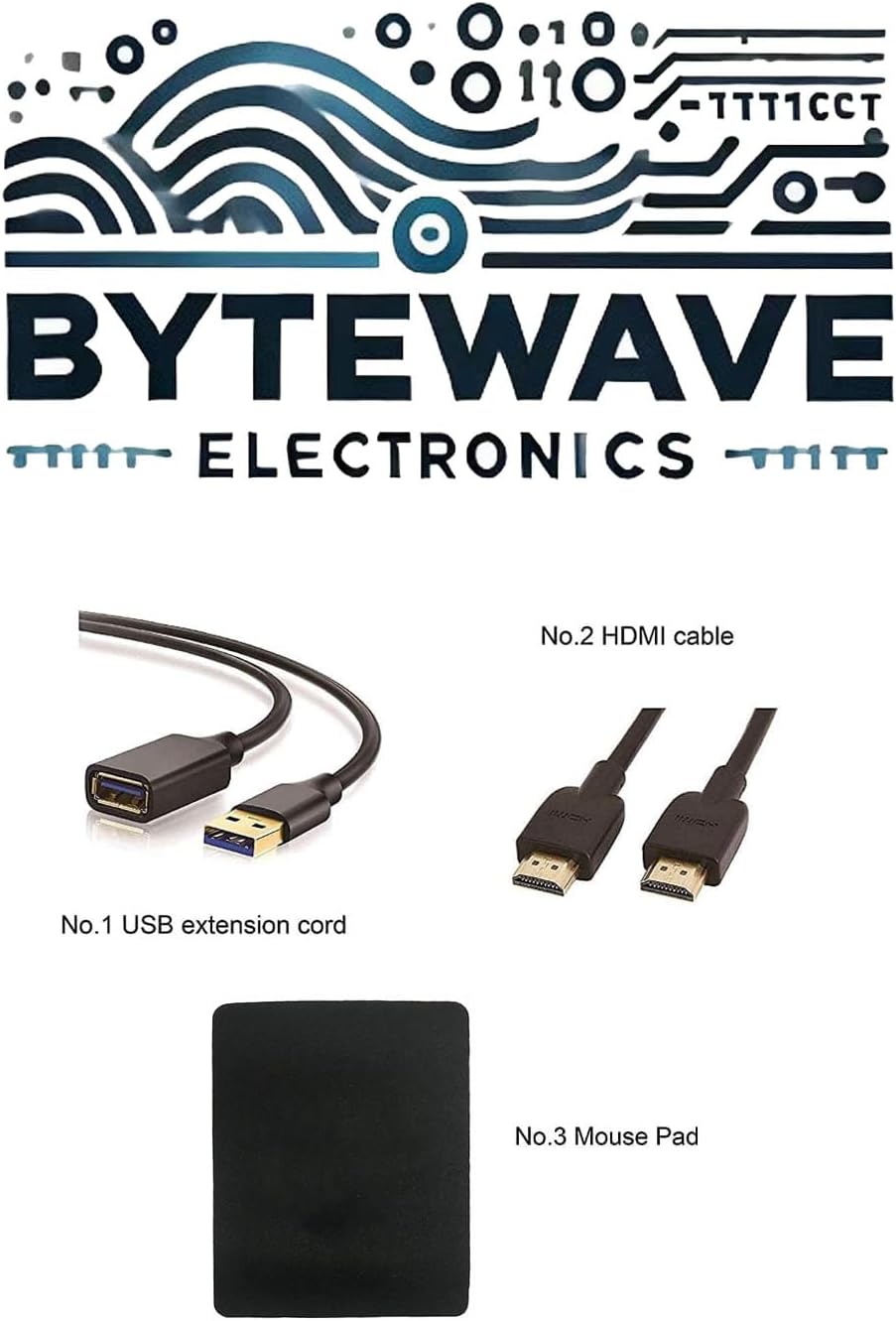
Figure 2: Image showing the included USB extension cord, HDMI cable, and mouse pad.
Setup
1. Initial Power On
- Connect the AC power adapter to the laptop's AC smart pin port and then to a power outlet.
- Open the laptop lid.
- Press the power button, typically located on the keyboard deck, to turn on the laptop.
- Follow the on-screen instructions to complete the initial Windows setup.
2. Switching Out of Windows 11 Home in S Mode
Your laptop comes with Windows 11 Home in S mode, which is designed for security and performance by exclusively running apps from the Microsoft Store. If you need to install apps from outside the Microsoft Store, you can switch out of S mode. This is a one-way switch.
- Click the "Start button" (Windows icon) at the bottom left of the screen.
- Select the "Settings" icon (gear icon) located above the "power" icon.
- In the Settings window, navigate to "Update & Security" (or "System" then "Activation" on newer Windows 11 versions) and then select "Activation".
- Under the "Switch to Windows 11 Home" or "Switch out of S mode" section, select "Go to the Store".
- On the Microsoft Store page that appears, select the "Get" option under the "Switch out of S mode" section.
- Follow any additional on-screen prompts to complete the process.
Note: Be careful not to click any "Go to the Store" links under an "Upgrade your edition of Windows" section, as this is a different process.
Operating Your Laptop
Touchscreen Functionality
Your laptop features a 14-inch HD touchscreen display. You can interact with the operating system and applications directly by touching the screen. Common gestures include:
- Tap: Equivalent to a mouse click.
- Tap and Hold: Equivalent to a right-click.
- Swipe: To scroll or navigate.
- Pinch-to-Zoom: To zoom in or out on images and web pages.
Keyboard and Touchpad
The integrated keyboard and touchpad provide traditional input methods. The touchpad supports multi-touch gestures for enhanced navigation.
- Single-finger tap: Left-click.
- Two-finger tap: Right-click.
- Two-finger scroll: Scroll up or down.
- Pinch-to-zoom: Zoom in or out.
Connectivity
Your HP laptop offers various ports and wireless capabilities for connecting to peripherals and networks.
Ports Overview

Figure 3: Detailed diagram of the laptop's input/output ports.
- 1 x USB Type-C 5Gbps signaling rate: For connecting modern USB-C devices, data transfer.
- 2 x USB Type-A 5Gbps signaling rate: For connecting standard USB devices like mice, keyboards, or external drives.
- 1 x AC smart pin: For connecting the power adapter to charge the laptop.
- 1 x HDMI 1.4b: For connecting to external displays or projectors.
- 1 x Multi-format SD media card reader: For reading and writing data to SD cards.
- 1 x Headphone/microphone combo: For connecting headphones, external speakers, or a headset with a microphone.
Wireless Connectivity
- Wi-Fi: Integrated Realtek RTL8822CE 802.11a/b/g/n/ac (2x2) Wi-Fi for connecting to wireless networks.
- Bluetooth 5: For connecting wireless peripherals such as headphones, speakers, or mice.
Specifications
Detailed technical specifications for your HP 14-inch laptop:
| Feature | Specification |
|---|---|
| Processor | AMD Ryzen 3 5300U (4 Cores, 8 Threads, Up to 3.8GHz, 4MB Cache) |
| Graphics | AMD Radeon Graphics (Integrated) |
| Display | 14" diagonal, HD (1366 x 768), touch, micro-edge, BrightView, 220 nits |
| Memory (RAM) | 32GB DDR4 |
| Storage | 1TB PCIe NVMe SSD |
| Operating System | Windows 11 Home in S mode |
| Wireless | Realtek RTL8822CE 802.11a/b/g/n/ac (2x2) Wi-Fi and Bluetooth 5 |
| Ports | 1x USB Type-C, 2x USB Type-A, 1x AC smart pin, 1x HDMI 1.4b, 1x Multi-format SD media card reader, 1x Headphone/microphone combo |
| Dimensions (W x D x H) | 12.76 x 8.86 x 0.71 inches (32.41 x 22.50 x 1.80 cm) |
| Weight | 3.24 lb (1.47 kg) |
| Color | Jet black |

Figure 4: Physical dimensions of the HP 14-inch laptop.
Maintenance
Proper maintenance helps extend the life of your laptop and ensures optimal performance.
- Cleaning: Use a soft, lint-free cloth to clean the screen and exterior. For stubborn smudges, dampen the cloth slightly with water or a screen cleaner. Avoid harsh chemicals.
- Ventilation: Ensure the laptop's vents are not obstructed to prevent overheating. Use the laptop on a hard, flat surface.
- Battery Care: Avoid fully discharging the battery frequently. For long-term storage, charge the battery to about 50-70%.
- Software Updates: Regularly update your operating system and drivers to maintain security and performance.
- Storage: Store the laptop in a cool, dry place away from direct sunlight and extreme temperatures.
Troubleshooting
This section addresses common issues you might encounter with your laptop.
Laptop Does Not Power On
- Ensure the AC adapter is securely connected to both the laptop and a working power outlet.
- Verify the power outlet is functional by plugging in another device.
- If the battery is completely drained, it may take a few minutes of charging before the laptop can power on.
- Try performing a hard reset: Disconnect the AC adapter, hold the power button for 15-20 seconds, then reconnect the AC adapter and try to power on.
No Wi-Fi Connection
- Check if Wi-Fi is enabled in Windows settings.
- Restart your router and modem.
- Ensure you are within range of a Wi-Fi network.
- Update your Wi-Fi drivers through Device Manager.
Touchscreen Not Responding
- Restart the laptop.
- Ensure the screen is clean and free of debris.
- Check for updated touchscreen drivers in Device Manager.
- If the issue persists, contact HP support.
Warranty and Support
Your HP laptop is covered by a standard manufacturer's warranty. For specific warranty terms and conditions, please refer to the documentation included with your product or visit the official HP support website.
For technical assistance, driver downloads, or service requests, please contact HP Customer Support:
- HP Support Website: support.hp.com
- Phone Support: Refer to your region-specific HP support contact information.
Keep your product's serial number and model information readily available when contacting support.