
Daconovo GF10
Daconovo GF10 GPS Locator User Manual
Comprehensive guide for setup, operation, and maintenance of your Daconovo GF10 GPS Locator.
1. Introduction
The Daconovo GF10 is an intelligent, ultra-thin GPS locator designed for real-time tracking and anti-loss applications. It features global real-time positioning, intelligent geofencing, and multiple alarm functions, making it ideal for monitoring vehicles, elderly individuals, children, and pets. Its magnetic design ensures convenient and discreet installation without complex procedures.

Figure 1.1: The Daconovo GF10 GPS Locator alongside a smartphone displaying its tracking application interface. This image illustrates the compact design of the locator and its integration with mobile tracking capabilities.
2. Key Features
- Global Real-time Positioning: Utilizes advanced GPS technology for accurate location tracking worldwide.
- Intelligent Geofencing: Set custom safe zones (circular or polygonal) and receive instant alerts when the device enters or exits these areas.
- High-Efficiency Intelligent Chip: Equipped with a new high-sensitivity positioning chip for rapid response and enhanced accuracy.
- Multiple Alarm Functions: Includes various alerts for enhanced safety and monitoring.
- Historical Track Playback: Review up to 180 days of location history via the mobile application.
- Magnetic Installation: Strong built-in magnets allow for quick and secure attachment to metallic surfaces without complex setup.
- Ultra-thin Design: Compact and discreet form factor for versatile placement.

Figure 2.1: Visual representation of the GF10's core features, including track playback, electronic fence, global positioning, and built-in magnet, highlighting its multi-functional capabilities.
3. Specifications
| Attribute | Value |
|---|---|
| Model | GF10 |
| Brand | Daconovo |
| Dimensions (L x W x H) | 9.8 x 6.6 x 3.4 cm (Product Size) |
| Color | Multicolor (typically black) |
| Compatible Devices | Smartphones (via APP) |
| Installation | Magnetic, No complex installation required |
| Tracking Features | Global Real-time Positioning, Geofence, Historical Track Playback (180 days) |

Figure 3.1: Detailed product dimensions of the GF10 locator, showing its diameter of 41.2mm and thickness of 13.6mm.
4. Setup Guide
4.1. Package Contents
Before proceeding, ensure all items are present in the package:
- Daconovo GF10 GPS Locator Unit
- USB Data Cable
- User Manual / Specification Sheet
- Packing Box
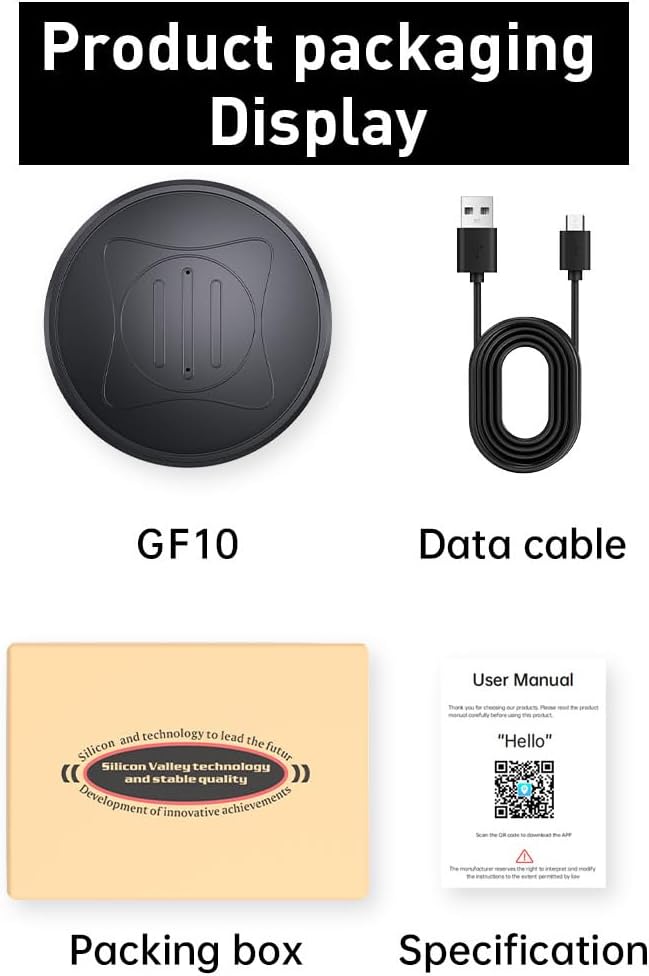
Figure 4.1: Contents of the Daconovo GF10 product package, including the GF10 device, data cable, packing box, and user manual/specification sheet.
4.2. Charging the Device
Before first use, fully charge the GF10 locator using the provided USB data cable. Connect the cable to the device and a standard USB power source (e.g., computer USB port, wall adapter).
4.3. Installing the Mobile Application
To utilize the full features of the GF10, you need to install the dedicated mobile application on your smartphone. Scan the QR code provided in the user manual or visit the official app store link:
https://www.xtgps.top/appstore
Follow the on-screen instructions to download and install the application. Once installed, register an account and log in.
4.4. Device Activation and Binding
- Open the installed mobile application.
- Locate the "Add Device" or "Bind Device" option within the app.
- Enter the unique device ID (usually found on the device itself or its packaging) or scan the QR code on the device if available.
- Follow any additional prompts to complete the binding process.
5. Operating Instructions
5.1. Real-time Tracking
Once the device is bound and powered on, open the mobile application to view its real-time location on the map. The app will display the current position, movement status, and other relevant information.

Figure 5.1: The GF10 Localizer emphasizing real-time location tracking with no installation required, highlighting its built-in magnet, electronic fence, and track playback features.
5.2. Setting Up Geofences
The geofence feature allows you to define virtual boundaries and receive alerts when the device crosses them.
- In the mobile application, navigate to the "Geofence" or "Safe Zone" section.
- Choose between a circular or polygonal fence.
- For a circular fence, select a center point on the map and define the radius.
- For a polygonal fence, tap on the map to draw the desired shape.
- Save the geofence. You will receive notifications when the device enters or exits this defined area.

Figure 5.2: Illustration of the geofence alarm feature, showing examples of circular and polygonal safe zones on a map, triggering alerts upon entry or exit.
5.3. Historical Track Playback
To review past movements of the device:
- Open the mobile application and find the "History" or "Track Playback" feature.
- Select the desired date range (up to 180 days).
- The app will display the device's movement path during the selected period.
5.4. Alarm Management
The application provides various alarm notifications. You can manage these alerts within the app's settings, enabling or disabling specific types of alarms (e.g., low battery, geofence entry/exit, speed alerts).
6. Maintenance
- Cleaning: Wipe the device with a soft, dry cloth. Do not use harsh chemicals or abrasive cleaners.
- Storage: Store the device in a cool, dry place away from direct sunlight and extreme temperatures when not in use for extended periods.
- Battery Care: To prolong battery life, avoid fully discharging the device frequently. Charge it regularly, even if not in constant use.
- Software Updates: Periodically check the mobile application for software updates to ensure optimal performance and access to new features.
7. Troubleshooting
| Problem | Possible Cause | Solution |
|---|---|---|
| Device not showing location | Low battery; No GPS signal; Device offline. | Charge the device; Move to an open area with clear sky view; Check network connection in the app. |
| Inaccurate location | Weak GPS signal; Interference; Device indoors. | Ensure device has clear line of sight to sky; Avoid placing near large metal objects or strong electromagnetic fields. |
| Cannot bind device to app | Incorrect device ID; App version outdated; Network issues. | Verify device ID; Update app to the latest version; Check your internet connection. |
| No alarm notifications | Notifications disabled in app/phone settings; Geofence not set correctly. | Enable notifications in app and phone settings; Reconfigure geofence. |
8. Warranty and Support
For warranty information and technical support, please refer to the specific warranty card included with your product or contact Daconovo customer service through their official website or the contact information provided in the mobile application.
Please retain your purchase receipt for warranty claims.
Ask a question about this manual
Ask about setup, troubleshooting, compatibility, parts, safety, or missing instructions. Manuals+ will review the question and use this page’s manual context to help answer it.