Product Overview
The ZOSHING 16-inch TV (15.6-inch diagonal) is a compact, high-definition television featuring a built-in DVD player and a T2-TNT digital tuner. It supports 1080p resolution and offers versatile connectivity options including HDMI, USB, and PC inputs. Designed for both AC and 12V car power, it is ideal for various environments such as kitchens, bedrooms, RVs, or cars.
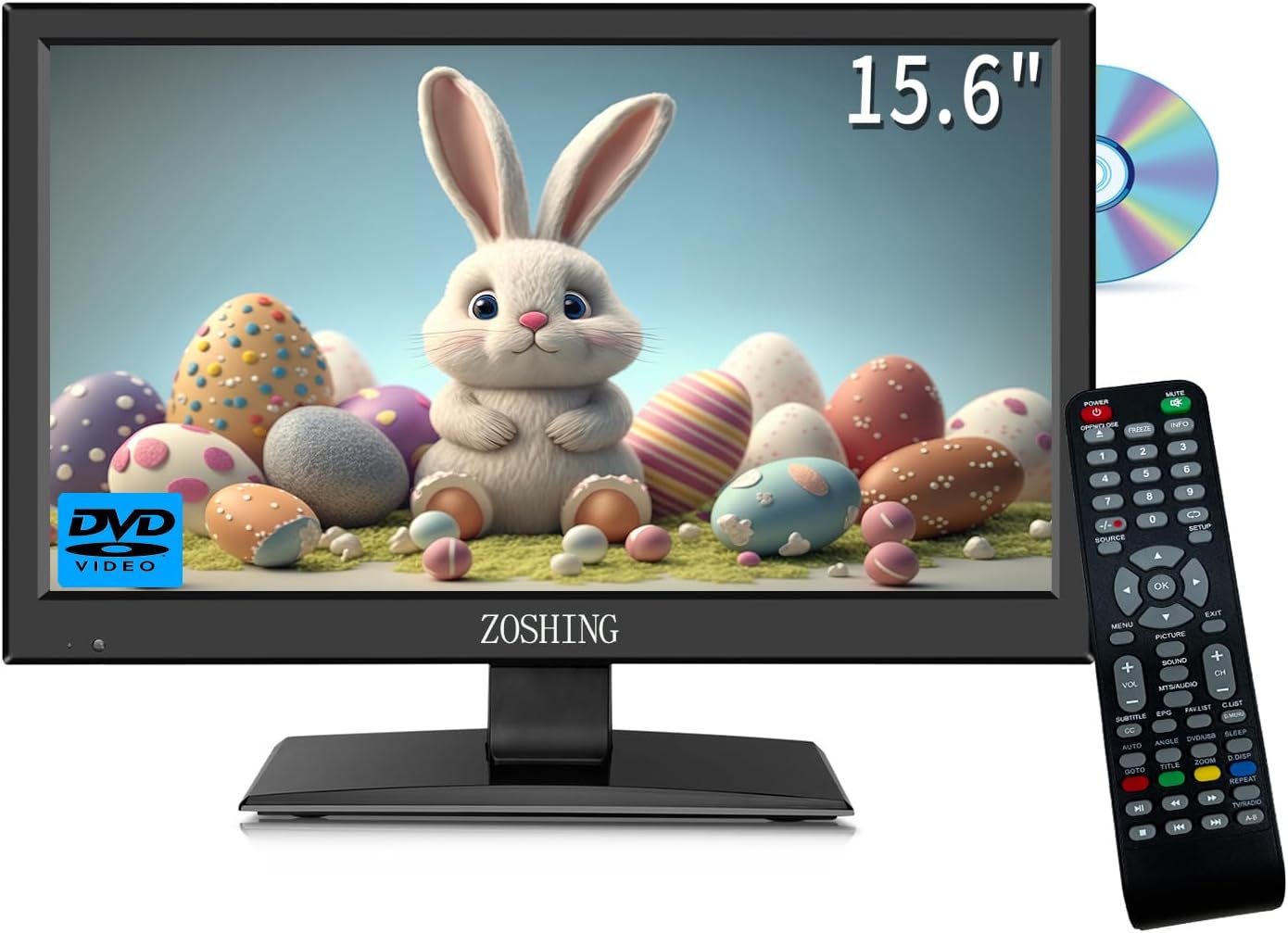
Image: Front view of the ZOSHING 16-inch TV, showing the screen displaying an image of a rabbit, a remote control, and a DVD disc. The screen size is indicated as 15.6 inches.
Package Contents
Please ensure all items are present in the package:
- ZOSHING 16-inch TV Unit (Model DVP-SR520P)
- Full-Function Remote Control
- AC Power Adapter
- Car 12V Power Adapter
- User Manual (this document)
- Mini Antenna (may vary by region/package)

Image: The product packaging box, indicating "15.6 Inch Video Player with TV" and various input options like VGA, AC/DC, USB, AV in, TV, HD input, and DVD player.
Component Identification
Front Panel Controls
The top-right side of the TV typically includes basic controls for Power, Source, Menu, Channel Up/Down, and Volume Up/Down.
Rear Panel Connections

Image: Rear view of the ZOSHING TV, highlighting various input ports: Power Input, USB Input, HDMI Input, PC VGA Input, PC AV Input, Headphone Output, and RF Antenna Input.
- Power Input: DC 12V for connecting the AC or car power adapter.
- USB Input: For connecting USB storage devices to play media files.
- HDMI Input: For connecting high-definition devices like game consoles or set-top boxes.
- VGA Input (PC): For connecting a computer.
- AV Input (PC): For connecting audio/video devices, often used with VGA.
- Headphone Output: For connecting headphones.
- RF Antenna Input: For connecting a terrestrial antenna (DVB-T2/T) to receive digital broadcasts.
Side Panel (DVD Player)
The integrated DVD player slot is located on the side of the television. Ensure discs are inserted correctly with the label side facing the indicated direction.

Image: Side view of the ZOSHING TV, showing the slot for the built-in DVD player.
Setup
Power Connection
- Connect the AC power adapter to the DC 12V input on the TV and then to a standard wall outlet.
- For car use, connect the 12V car adapter to the DC 12V input and then to your vehicle's 12V power socket (cigarette lighter port).
Antenna Connection
For receiving digital terrestrial broadcasts (T2-TNT), connect a suitable antenna to the RF Antenna Input port on the rear of the TV.

Image: Rear view of the ZOSHING TV with a digital ATSC tuner antenna connected to the RF input, illustrating how to receive local HD channels.
Initial Power On and Channel Scan
Press the Power button on the TV or the remote control to turn on the unit. Follow the on-screen prompts for initial setup, including language selection and automatic channel scanning to find available digital channels.
Operating Instructions
Using the Remote Control
The full-function remote control allows access to all TV features. Ensure batteries are correctly inserted (2x AAA, not included).

Image: A close-up of the ZOSHING TV's full-function remote control, showing various buttons for power, source, menu, volume, channel, and DVD playback.
Selecting Input Source
Press the SOURCE button on the remote control to cycle through available inputs: TV (Antenna), HDMI, USB, PC (VGA/AV), DVD.
DVD Playback
- Insert a DVD disc into the side slot with the label facing the correct direction (usually towards the screen).
- Select "DVD" as the input source using the SOURCE button.
- Playback should begin automatically. Use the remote control for playback functions (Play, Pause, Stop, Skip, etc.).
USB Media Playback
Insert a USB drive into the USB port on the rear of the TV. Select "USB" as the input source. The TV will display a media browser, allowing you to select and play compatible video, audio, or image files.
Menu Navigation
Press the MENU button on the remote to access settings for Picture, Sound, Channel, Time, Options, and Lock. Use the arrow keys to navigate and OK to confirm selections.
Maintenance
Cleaning the Screen
Use a soft, lint-free cloth slightly dampened with water or a specialized screen cleaning solution. Do not spray liquid directly onto the screen. Avoid using harsh chemicals or abrasive materials.
Cleaning the Unit
Wipe the exterior of the TV with a soft, dry cloth. Avoid abrasive cleaners or solvents, which can damage the finish.
DVD Player Care
Keep the DVD slot free of dust and debris. If playback issues occur due to dirt on the lens, use a commercially available disc cleaning kit designed for DVD players.
Troubleshooting
- No Power: Ensure the power adapter is securely connected to both the TV and a working power outlet. Check the power outlet by plugging in another device.
- No Picture/Sound: Verify the correct input source is selected using the SOURCE button. Check all cable connections (HDMI, AV, Antenna) are secure.
- Poor TV Reception: Adjust the antenna position for better signal. Perform a channel rescan through the TV's menu. Ensure the antenna is suitable for your area's digital broadcast signals (DVB-T2/T).
- DVD Playback Issues: Ensure the disc is clean and free of scratches. Verify the disc is inserted correctly with the label side facing the screen. Try a different, known-good disc.
- Remote Control Not Working: Check and replace the batteries (AAA). Ensure there are no obstructions between the remote and the TV's IR sensor. Point the remote directly at the TV.
For further assistance, please refer to the support information provided in the warranty section.
Specifications
| Feature | Specification |
|---|---|
| Brand | ZOSHING |
| Model | DVP-SR520P |
| Screen Size | 16 inches (15.6 inches diagonal, 39.5 cm) |
| Resolution | 1080p Full HD |
| Display Technology | LED |
| Refresh Rate | 60 Hz |
| Integrated Features | DVD Player, T2-TNT Digital Tuner |
| Connectivity | HDMI, USB, VGA, AV, RF Antenna, Headphone Out |
| Power Supply | AC (via adapter), DC 12V (Car) |
| Aspect Ratio | 16:9 |
| Product Dimensions (approx.) | 37.5 cm (W) x 28.4 cm (H) x 4 cm (D) |

Image: Diagram illustrating the product dimensions of the ZOSHING TV, showing a width of 14.8 inches (37.5 cm) and a height of 9.37 inches (23.8 cm) for the screen, and a total height of 11.2 inches (28.4 cm) with the stand.
Warranty and Support
ZOSHING products come with a standard manufacturer's warranty. Please refer to the warranty card included in your package for specific terms and conditions regarding coverage period and service procedures.
Manufacturer: Shenzhen Shengzhengxing Packing Technology Co.
Manufacturer Address: 401, Building 1, Zhenxing Road, Carp River Industrial Zone, Guanlan, Xinniu, Guangming, Shenzhen, China
Manufacturer Email: 15323766551@163.com
EC Representative: SUCCESS COURIER SL
EC Representative Address: CALLE RIO TORRES NUM. 1, PLANTA 1, DERECHA, OFICINA 3, Fuenlabrada, Madrid, 28947 Spain
EC Representative Email: SUCCESS SERVICE2@hotmail.com
For technical support or service inquiries, please contact the manufacturer or the EC representative using the provided contact information. When contacting support, please have your product model (DVP-SR520P) and purchase details ready.

Image: Side view of the product packaging, displaying warning labels regarding electrical shock and manufacturer contact information, including the EC REP details.