
Introduction
Thank you for choosing the Ediliow 380W 8-Port USB C Charging Station. This device is designed to provide a powerful and efficient charging solution for multiple devices simultaneously. Featuring advanced GaN III chip technology, it offers high energy efficiency, reduced size, and enhanced heat dissipation for safer and faster charging. This manual provides essential information for the proper setup, operation, and maintenance of your charging station.

Image: The Ediliow 380W 8-Port USB C Charging Station, highlighting its high power and multiple ports.
Product Overview
The Ediliow 380W 8-Port USB C Charging Station is equipped with a total of 8 charging ports: 5 USB-C ports and 3 USB-A ports. It intelligently distributes power to ensure optimal charging for all connected devices.
- Dual 100W USB-C Ports (USB-C1/C2): Ideal for charging high-power devices such as laptops (MacBook Pro/Air, Dell XPS, Microsoft Surface) and tablets (iPad Pro).
- Three 30W USB-C Ports (USB-C3/C4/C5): Suitable for fast charging smartphones, smaller tablets, and other USB-C powered accessories.
- Three 30W USB-A Ports (USB-A1/A2/A3): For charging a wide range of USB-A compatible devices.
The integrated GaN III chip technology ensures efficient power delivery while maintaining a compact form factor and superior heat management.

Image: Close-up view of the charging station, showing the labeled USB-C and USB-A ports with their respective power outputs.

Image: Diagram illustrating the GaN III chip technology, highlighting its benefits like over-voltage protection, over-current protection, higher efficiency, and upgraded heat dissipation.
Setup
- Unpack: Carefully remove all components from the packaging.
- Connect Power: Plug the provided 5ft power cord into the charging station and then into a standard 100-240V AC wall outlet.
- Connect Devices: Use the appropriate USB cables (USB-C to USB-C, USB-C to USB-A, etc.) to connect your devices to the desired charging ports on the station.
- Verify Connection: Ensure all cables are securely connected. The charging station will automatically detect and distribute power to your devices.

Image: A visual comparison showing a cluttered desk with multiple wall adapters (Before) versus an organized desk with the Ediliow charging station (After).
Operating Instructions
The Ediliow 380W Charging Station is designed for ease of use. Simply plug in your devices, and the smart GaN III chip will manage power distribution efficiently.
- Automatic Power Distribution: The charging station automatically detects the power requirements of each connected device and delivers the optimal charging current.
- Simultaneous Charging: Charge up to 8 devices concurrently, including laptops, smartphones, tablets, and other USB-powered gadgets.
- High-Speed Charging: Utilize the 100W USB-C ports for rapid charging of power-hungry devices like laptops, significantly reducing charging times.
- Universal Compatibility: Compatible with a wide range of devices, including iPhone 11-17 series, iPad Pro/Air/Mini, MacBook Pro/Air, Dell XPS, Microsoft Surface, Samsung Galaxy S series, Google Pixel, Steam Deck, and more.

Image: A laptop and a smartphone being charged simultaneously by the Ediliow charging station, demonstrating its multi-device capability.

Image: The charging station in an office environment, illustrating its use for professional settings.

Image: The charging station being used in home theater and gaming setups, showcasing its versatility.
Maintenance
- Cleaning: Disconnect the charging station from the power outlet before cleaning. Use a soft, dry cloth to wipe the exterior. Avoid using liquid cleaners or abrasive materials.
- Storage: Store the device in a cool, dry place away from direct sunlight and extreme temperatures.
- Cable Management: Keep cables organized to prevent tangling and damage. Avoid bending cables sharply.
Troubleshooting
- Device Not Charging:
- Ensure the charging station is properly plugged into a live power outlet.
- Check if the charging cable is securely connected to both the device and the charging station.
- Try a different port or cable to rule out a faulty connection.
- Verify that your device is compatible with the charging port's output specifications.
- Slow Charging:
- Ensure you are using the correct port for your device (e.g., 100W USB-C for laptops).
- Check the quality of your charging cable; low-quality cables can restrict charging speed.
- The charging station intelligently distributes power. If many high-power devices are connected, individual port output might be adjusted.
- Overheating:
- The GaN III technology provides efficient heat dissipation, but ensure the charging station is placed in a well-ventilated area.
- Avoid covering the charging station during operation.
Specifications
| Feature | Detail |
|---|---|
| Brand | Ediliow |
| Model Number | M1S |
| Total Power Output | 380W |
| USB-C Ports | 5 (2x 100W, 3x 30W) |
| USB-A Ports | 3 (30W each) |
| Input Voltage | 100-240V (AC) |
| Technology | GaN III Chip |
| Special Feature | Fast Charging, Multi-Protection System |
| Form Factor | Desktop |
What's in the Box
- 1x Ediliow 380W 8-Port USB C Charging Station
- 1x 3.3ft 100W USB C Braided Cable
- 2x 3.3ft USB C to C Cables
- 1x 6.6ft USB C to C Cable
- 1x 5ft Power Cord
- 1x User Manual
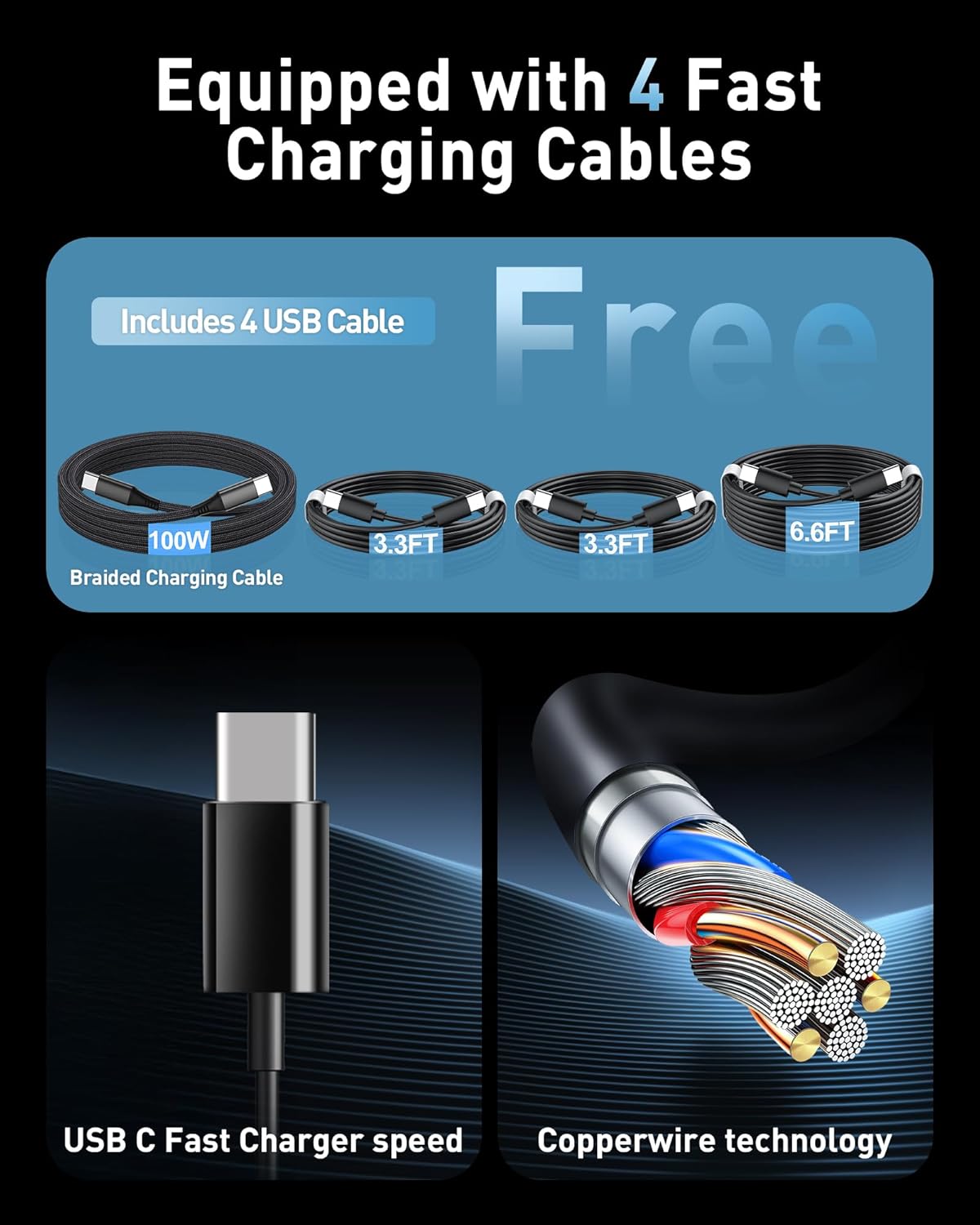
Image: All items included in the package, featuring the charging station and various USB cables.
Warranty and Support
The Ediliow 380W 8-Port USB C Charging Station comes with a 24-month warranty from the date of purchase. This warranty covers manufacturing defects and ensures reliable performance.
For any questions, technical support, or warranty claims, please contact Ediliow customer service through the retailer where you purchased the product or visit the official Ediliow website for contact information.