
Introduction
This manual provides detailed instructions for the setup, operation, and maintenance of your MOLGRIA SKYLOONG GK61 Mechanical Gaming Keyboard. The GK61 is a 61-key QMK mechanical keyboard featuring hot-swappable KTT Brown switches, RGB backlighting, and programmable functions for an enhanced user experience.

Image: The MOLGRIA SKYLOONG GK61 Mechanical Gaming Keyboard with RGB backlighting and black, white, and red keycaps.
Package Contents
Please verify that all items are present in your package:
- GK61 61-Key Mechanical Keyboard
- Type-C to USB Cable (1x)
- Keycap Puller (1x)
- User Manual (1x)
- Several Spare Keycaps
- 6.25U Space Bar and Stabilizers (for alternative configuration)
Setup
Follow these steps to connect your GK61 keyboard:
- Locate the Type-C port on the back or side of the GK61 keyboard.
- Connect the smaller end of the provided Type-C to USB cable into the keyboard's Type-C port.
- Connect the larger USB-A end of the cable into an available USB port on your computer (PC or Mac).
- The keyboard will be automatically recognized by your operating system. No additional drivers are typically required for basic functionality.

Image: A close-up view of the keyboard's detachable Type-C port and the corresponding USB-C cable.
Operating Instructions
QMK/VIA Software and Tap-Hold Function
The GK61 keyboard supports QMK firmware, allowing for advanced customization through VIA software. This enables the configuration of a 'Tap-Hold' function, where a key performs one action when tapped briefly and a different action when held down.
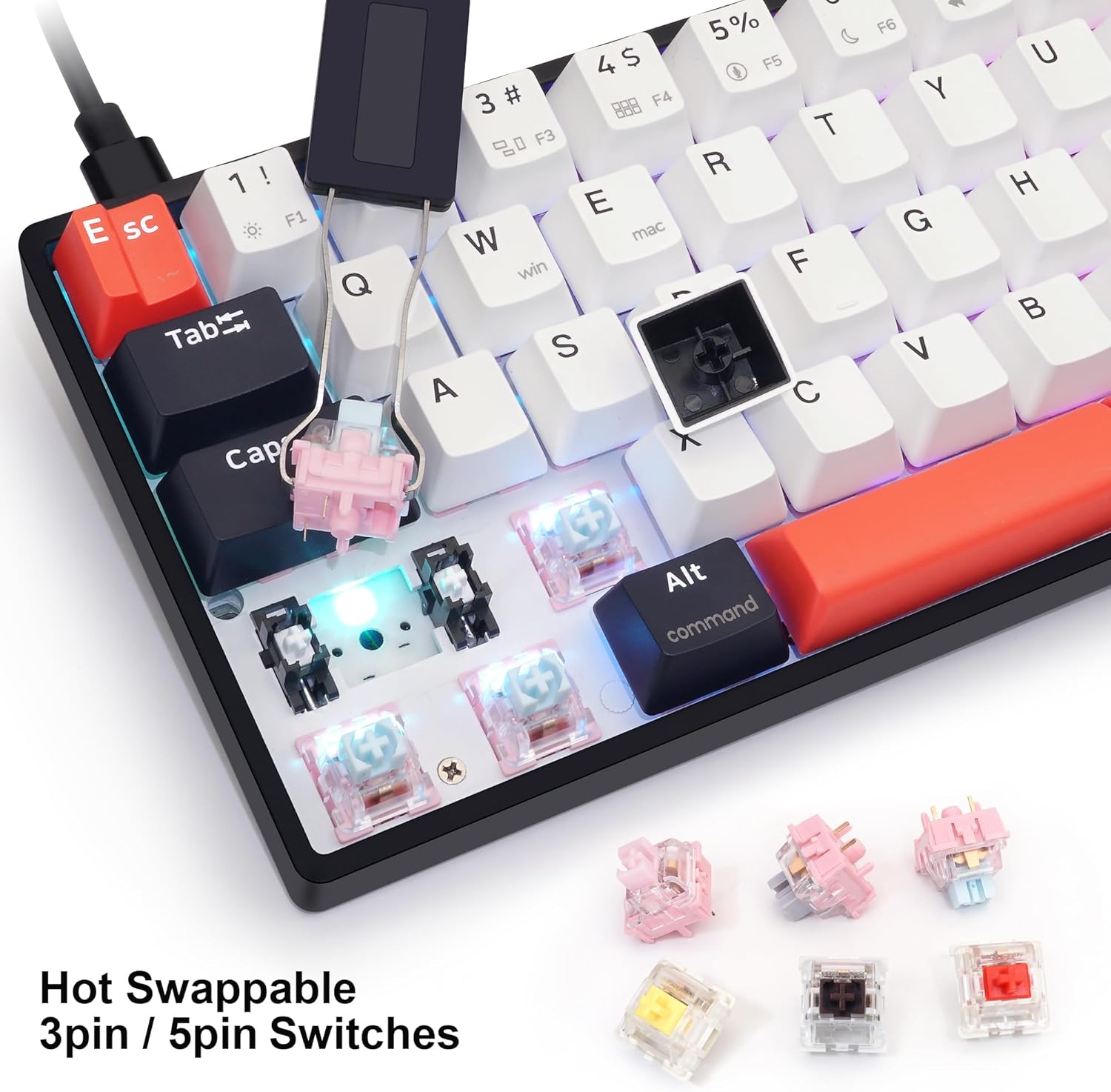
Image: A screenshot of the QMK/VIA software interface, showing key remapping options for the GK61 keyboard.
For example, the arrow keys can be configured using the Tap-Hold function. A short press (tap) can activate the arrow key function, while a long press (hold) can activate a modifier key like Shift, Fn, or Ctrl.

Image: A diagram illustrating the Tap-Hold function, showing how a short press activates arrow keys and a long press activates modifier keys.

Image: A close-up of the bottom right section of the keyboard, highlighting the arrow keys and their Tap-Hold functionality.
RGB Backlighting
The GK61 features adjustable RGB backlighting with multiple lighting modes. Use specific keystroke combinations to cycle through different effects and adjust brightness. Note that the included double-shot PBT keycaps do not allow light to shine through the legends. For shine-through effects, transparent keycaps would be required.
Hot-Swappable Switches
The keyboard is equipped with hot-swappable KTT Brown mechanical switches. This feature allows you to easily remove and replace switches without soldering, enabling customization with other 3-pin or 5-pin mechanical switches to suit your typing preference.

Image: A close-up view of the keyboard with several keycaps removed, showing the hot-swappable switch sockets and various types of mechanical switches.
The keyboard comes with OEM profile, double-shot PBT keycaps, which are durable and provide a consistent typing feel.

Image: Various keycaps, including a stepped ESC keycap, and a view of the OEM profile double-shot PBT keycaps on the keyboard.
Dual-Space Bar Configuration
The GK61 features a dual-space bar design. If you prefer a standard 6.25U long space bar, the package includes a replacement space bar and stabilizers for this alternative configuration. This allows for personalized use of the space key area.

Image: The keyboard showing its dual-space bar setup, alongside a standard 6.25U space bar and stabilizers for replacement.
Programmability for Windows/Mac OS
The GK61 keyboard is fully programmable for both Windows and Mac operating systems. Most keys can be assigned specific functions to optimize your workflow and gaming experience. Utilize the QMK/VIA software for comprehensive key remapping and macro creation.
Maintenance
To ensure the longevity and optimal performance of your keyboard, follow these maintenance guidelines:
- Cleaning Keycaps: Use the provided keycap puller to carefully remove keycaps. Clean them with a soft, damp cloth and mild soap if necessary. Ensure they are completely dry before reattaching.
- Cleaning the Keyboard Base: Use a can of compressed air to remove dust and debris from between the switches. Wipe the keyboard base with a soft, dry cloth.
- Switch Maintenance: If a switch feels inconsistent, you can hot-swap it with a spare switch or a new one.
- Avoid Liquids: Do not expose the keyboard to liquids. In case of accidental spills, immediately disconnect the keyboard and allow it to dry completely before reconnecting.
Troubleshooting
- Keyboard Not Responding:
- Ensure the USB-C cable is securely connected to both the keyboard and the computer.
- Try connecting the keyboard to a different USB port on your computer.
- Test the keyboard on another computer to rule out system-specific issues.
- RGB Backlighting Not Working/Incorrect:
- Check the keyboard's manual or product page for specific key combinations to control RGB modes and brightness.
- Ensure no software conflicts are interfering with the lighting controls.
- Keys Not Registering:
- Carefully remove the keycap and inspect the switch for any visible damage or debris.
- If the switch is hot-swappable, try removing and reinserting it firmly. If the issue persists, replace the switch with a spare.
- QMK/VIA Software Issues:
- Ensure you are using the correct and latest version of the VIA software.
- Verify that the keyboard's firmware supports VIA.
Specifications
| Model | GK61 |
| Keys | 61 Keys |
| Switches | Hot-swappable KTT Brown Mechanical Switches |
| Keycap Material | Matte PBT Double-Shot Keycaps |
| Keycap Profile | OEM Profile |
| Backlighting | RGB Adjustable |
| Connection | USB-C Wired |
| Compatibility | Windows, Mac OS, PC, Smartphone, Tablet PC |
| Dimensions | 13.58 x 5.5 x 1.77 inches |
| Item Weight | 1.88 pounds |
Warranty and Support
MOLGRIA products are designed for reliability and performance. For specific warranty details, please refer to the warranty card included with your product or contact MOLGRIA customer support. Keep your purchase receipt as proof of purchase for any warranty claims.
For technical assistance or further inquiries, please visit the official MOLGRIA website or contact their customer service department through the contact information provided with your product.