
Introduction
Thank you for choosing the NAVRUF 7-inch Wireless Apple CarPlay & Android Auto Car Screen. This device is designed to enhance your driving experience by integrating smartphone functionalities, navigation, and multimedia playback directly into your vehicle. Please read this manual thoroughly before use to ensure proper installation and operation.
Product Overview
Key Features
- Wireless Apple CarPlay & Android Auto: Seamlessly connect your smartphone for navigation, music, messages, and hands-free calls.
- 7-inch HD Touchscreen: Features a vibrant 1024×600 display with wireless screen mirroring for iOS and Android devices.
- Built-in Backup Camera with Night Vision: Automatically activates when reversing, providing a clear 180° wide-angle view with night vision.
- Easy Installation: Designed for tool-free setup with a secure mounting bracket.
- Wide Compatibility: Compatible with 12-24V vehicles, including cars, SUVs, and trucks.
- Voice Control: Utilize Siri or Google Assistant for intelligent voice commands.
- Multimedia Playback: Supports streaming of various video content.
- Audio Output Modes: Stereo audio output via AUX cable, FM transmission, or built-in speaker.
What's in the Box

Image: Packing list showing the 7-inch screen, user manual, suction cup spacer, bracket, AUX cable, car charger, and reverse camera.
- 7-inch screen
- Stand
- AUX cable
- Car charger
- Reverse Camera
- User Manual
Setup and Installation
The NAVRUF car screen is designed for easy, tool-free installation. Follow these steps for a secure setup.
Mounting the Device
- Attach the stand to the back of the 7-inch screen.
- Secure the suction cup spacer to your dashboard or windshield in a location that does not obstruct your view or interfere with driving controls.
- Mount the screen with the attached stand onto the suction cup spacer. Ensure it is firmly in place.
Power Connection
- Connect the car charger to the device's power input port.
- Plug the car charger into your vehicle's 12-24V cigarette lighter socket.
Backup Camera Installation
For optimal safety, install the included backup camera.

Image: Diagram illustrating the wiring connections for the backup camera.
- Connect the camera's AV/IN cable (A) to the corresponding port on the NAVRUF screen.
- Connect the negative terminal wire (B) of the camera to the negative terminal of your vehicle's reversing light.
- Connect the positive terminal wire (C) of the camera to the positive terminal of your vehicle's reversing light.
After successful installation, the camera will automatically activate when your vehicle is put into reverse.
Operating Instructions
Initial Power On
Once connected to power, the device will automatically turn on. The 7-inch HD touchscreen will display the main interface.
Screen Brightness Adjustment
The screen features adjustable brightness for clear visibility in various lighting conditions, including direct sunlight.

Image: Screen showing GPS navigation and a brightness adjustment slider.
Connectivity Options
The device offers multiple ways to connect to your smartphone and vehicle's audio system.
Wireless Apple CarPlay & Android Auto
This feature allows seamless integration with your smartphone for navigation, music, messages, and calls.

Image: Screen showing Apple CarPlay interface and phones with CarPlay/Android Auto logos.

Image: Mobile phone system version requirements for CarPlay and Android Auto.
- Ensure your mobile phone system is iOS 9 or newer for Apple CarPlay, with Siri voice function enabled.
- For Android Auto, ensure your mobile phone system is Android 10 or newer, with Bluetooth and WiFi functions turned on.
- On your phone, turn on Bluetooth and WiFi.
- On the NAVRUF screen, navigate to the CarPlay or Android Auto interface.
- Find the device name (e.g., "CarKit-A329") in your phone's Bluetooth settings and connect.
- Enter the pairing code displayed on your device if prompted.
- Once connected, confirm the use of CarPlay or Android Auto on your phone.

Image: Step-by-step guide for Bluetooth connection to CarPlay on a phone.
Phone Mirror Link
This function allows you to mirror your smartphone's screen onto the 7-inch HD display.

Image: Screen mirroring a phone's display onto the car screen.
Audio Output Options
You can output audio from the NAVRUF screen to your car's stereo system using one of the following methods:

Image: Options for audio output: built-in speaker, AUX, and FM transmission.

Image: Visual representation of FM Transmitter, AUX connection, and Built-in Speaker.
- AUX Connection: Connect the provided AUX cable from the NAVRUF screen to your car's AUX input port. Select AUX as the input source on your car stereo.
- FM Transmitter: Tune the NAVRUF screen to an unused FM frequency. Then, tune your car's FM radio to the same frequency to receive audio.
- Built-in Speaker: The device has a built-in speaker for direct audio output.
Backup Camera Operation
The included high-resolution LED rearview camera enhances parking safety.
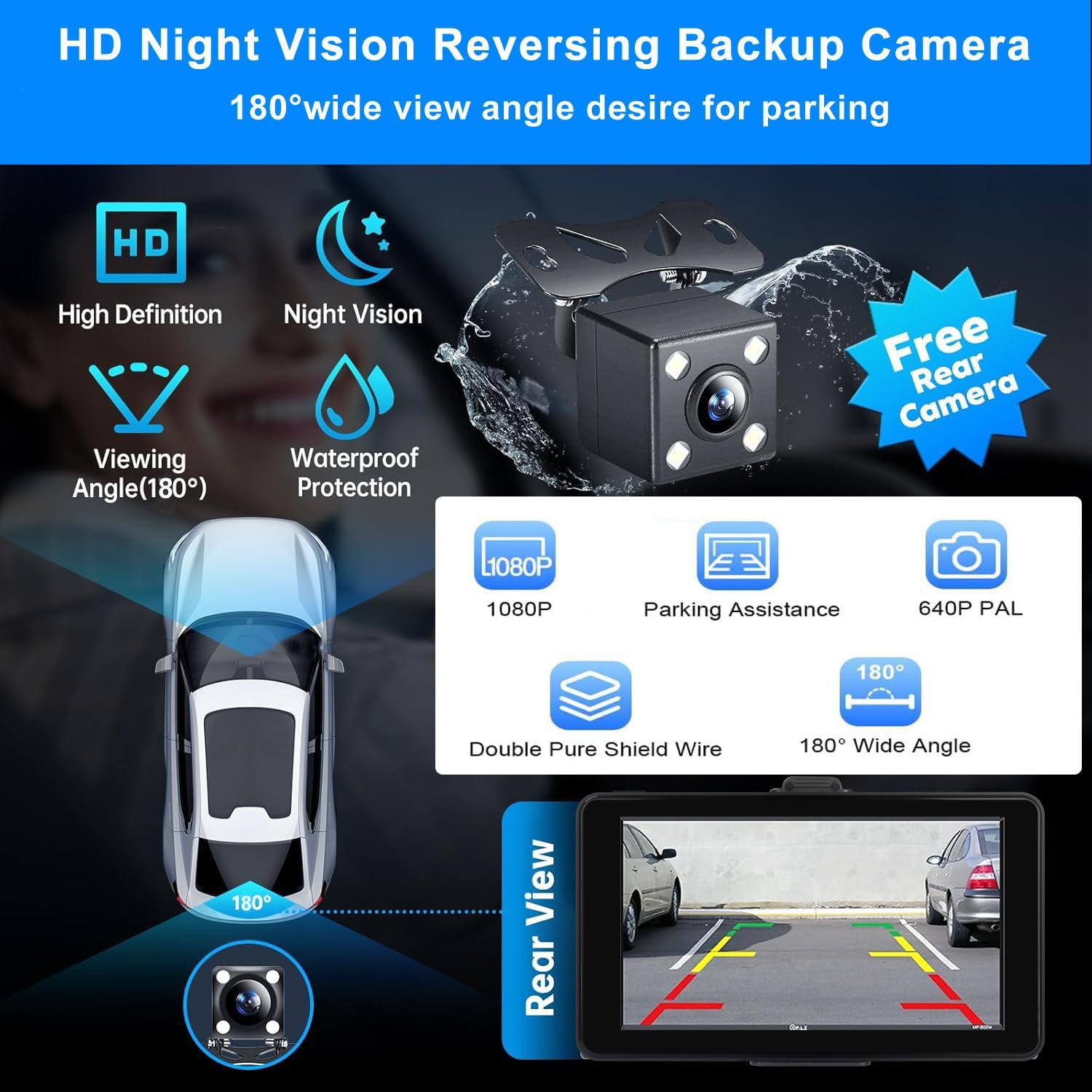
Image: Features of the HD Night Vision Reversing Backup Camera.
- When your vehicle is shifted into reverse, the backup camera feed will automatically display on the NAVRUF screen.
- The camera provides a 180° wide-angle view and night vision capabilities for clear visibility in low-light conditions.
- Parking assistance lines may be displayed on the screen to aid in maneuvering.
Voice Control & GPS Navigation
Utilize voice commands for a safer and more convenient driving experience.

Image: Driver using voice commands for calls.

Image: Driver using voice commands for navigation.
- Activate Siri or Google Assistant through your connected smartphone.
- Use voice commands for navigation, making calls, sending messages, and controlling music playback.
- The device supports GPS navigation through Apple CarPlay or Android Auto, providing real-time directions and traffic updates.
Multimedia Playback
The 7-inch HD touchscreen supports various multimedia functions.
- Stream music and podcasts through connected apps like Spotify.
- Utilize screen mirroring to watch videos from platforms such as YouTube, TikTok, or Netflix (ensure safe and legal usage while parked).
Maintenance
To ensure the longevity and optimal performance of your NAVRUF car screen, follow these maintenance guidelines:
- Cleaning: Use a soft, dry cloth to clean the screen and exterior. Avoid abrasive cleaners or solvents that may damage the surface.
- Temperature: Avoid exposing the device to extreme temperatures. Prolonged exposure to direct sunlight or very cold conditions can affect performance and lifespan.
- Cables: Regularly check all cables for any signs of wear or damage. Replace damaged cables immediately to prevent malfunction.
- Software Updates: Keep the device's software updated as recommended by the manufacturer to ensure compatibility and access to new features.
Troubleshooting
If you encounter issues with your NAVRUF car screen, refer to the following common problems and solutions:
| Problem | Possible Cause | Solution |
|---|---|---|
| Device does not power on. | No power, loose connection, faulty car charger. | Check if the car charger is securely plugged into the vehicle's socket and the device. Ensure the vehicle's power outlet is functional. |
| Cannot connect to Apple CarPlay/Android Auto. | Bluetooth/WiFi off, incorrect pairing, incompatible phone OS. | Ensure Bluetooth and WiFi are enabled on your phone. Verify phone OS version meets requirements (iOS 9+, Android 10+). Re-pair the device. |
| No audio output. | Incorrect audio source selected, loose AUX cable, wrong FM frequency. | Check your car stereo's input source (AUX/FM). Ensure AUX cable is fully inserted. Match FM frequencies precisely. |
| Backup camera not displaying. | Loose camera connection, incorrect wiring, camera malfunction. | Verify all camera connections are secure. Check wiring to the reversing light. Test camera functionality if possible. |
| Touchscreen unresponsive or lagging. | Temporary software glitch, excessive background processes. | Restart the device. Ensure no excessive applications are running on your connected phone. |
If the problem persists after attempting these solutions, please contact NAVRUF customer support for further assistance.
Specifications
| Feature | Detail |
|---|---|
| Brand | NAVRUF |
| Model Name | Q10 |
| Screen Size | 7 Inches |
| Resolution | 1024 x 600 |
| Display Type | LCD |
| Touch Screen Type | Capacitive |
| Operating System | Android |
| Connectivity Technology | Auxiliary, Bluetooth |
| Connectivity Protocol | Bluetooth, Auxiliary |
| Supported Satellite Navigation System | GPS |
| Vehicle Service Type | Car, Truck |
| Compatible with Vehicle Type | Car, Truck |
| Mounting Type | Dashboard Mount |
| Included Components | 7-inch screen, AUX cable, Car charger, Reverse Camera, Stand |
| Item Dimensions L x W x H | 5.5"L x 4.3"W x 8.5"H |
Warranty and Support
NAVRUF provides comprehensive customer support for this product.
- Warranty: The product comes with a 2-year warranty.
- Money-Back Guarantee: Enjoy a 30-day money-back guarantee.
- Replacement Policy: A 12-month replacement policy is offered.
- Technical Support: Lifetime technical support is available.
For any inquiries or assistance, please contact NAVRUF's professional customer service team.