
Ubiquiti Networks UVC-G5-Dome-Ultra
Ubiquiti G5 Dome Ultra (UVC-G5-Dome-Ultra) Instruction Manual
Model: UVC-G5-Dome-Ultra
1. Introduction
This manual provides detailed instructions for the installation, operation, and maintenance of your Ubiquiti G5 Dome Ultra camera. The G5 Dome Ultra is an ultra-compact, tamper-resistant 2K HD PoE camera designed for low-profile indoor security applications, featuring night vision and AI event detections.
Key Features:
- 2K (4MP) video resolution for clear imaging.
- Ultra-wide viewing angle (102.4°) for broad coverage.
- 20 m (65 ft) IR night vision for surveillance in low-light conditions.
- AI event detections for intelligent monitoring.
- Power over Ethernet (PoE) for simplified installation and power delivery.
- Optional Flush Mount for discreet in-ceiling installation.

Figure 1: Ubiquiti G5 Dome Ultra Camera, a compact dome-shaped security camera.
2. Safety Information
Please read, follow, and keep these instructions. Heed all warnings. Only use attachments/accessories specified by the manufacturer.
- Power Source: This device is powered by Power over Ethernet (PoE). Ensure your PoE source complies with IEEE 802.3af/at standards.
- Environment: This camera is designed for indoor use. Do not expose it to water, moisture, or extreme temperatures.
- Installation: Install the device in a location that meets the specified environmental requirements. Ensure the mounting surface is strong enough to support the device.
- Cleaning: Clean only with a dry cloth.
- Servicing: Refer all servicing to qualified service personnel. Servicing is required when the apparatus has been damaged in any way, such as power-supply cord or plug is damaged, liquid has been spilled or objects have fallen into the apparatus, the apparatus has been exposed to rain or moisture, does not operate normally, or has been dropped.
3. Package Contents
Verify that all components listed below are included in your package:
- Ubiquiti G5 Dome Ultra Camera
- Metal Mount Plate
- Screws and Wall Anchors
- Quick Start Guide (not included in this digital manual)
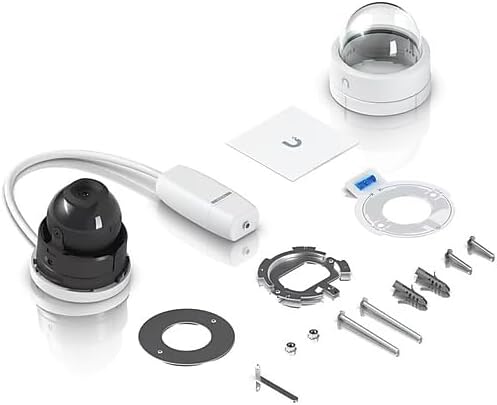
Figure 2: Contents of the Ubiquiti G5 Dome Ultra package, including the camera, mounting plate, screws, and documentation.
4. Setup and Installation
4.1 Pre-installation Requirements
Before installation, ensure you have the following:
- A Power over Ethernet (PoE) switch or injector (802.3af/at compliant).
- An Ethernet cable for network and power connection.
- A UniFi Protect system (e.g., UniFi Dream Machine Pro, UniFi Cloud Key Gen2 Plus, or UniFi Network Video Recorder) for camera management and recording. The camera requires a UniFi Protect appliance for operation and cannot be used as a standalone RTSP camera without initial setup through a UniFi appliance.
- Tools: Drill, screwdriver, and appropriate drill bits for mounting.
4.2 Mounting the Camera
The G5 Dome Ultra is designed for ceiling mount installation. An optional flush mount accessory is available for in-ceiling installations.
- Select Location: Choose a suitable indoor location on a ceiling for optimal viewing coverage.
- Attach Mount Plate: Use the included metal mount plate as a template to mark drill holes on the ceiling. Drill pilot holes and secure the mount plate using the provided screws and wall anchors.
- Route Ethernet Cable: Pass the Ethernet cable through the opening in the mount plate.
- Connect Ethernet: Connect the Ethernet cable to the camera's PoE port.
- Secure Camera: Align the camera with the mount plate and twist to lock it into place. Ensure the camera is securely fastened.

Figure 3: Exploded view illustrating the internal components and assembly of the Ubiquiti G5 Dome Ultra camera.

Figure 4: The Ubiquiti G5 Dome Ultra camera shown mounted, demonstrating its compact form factor.
4.3 Initial Configuration
Once the camera is physically installed and powered via PoE, it will boot up. Follow these steps to integrate it into your UniFi Protect system:
- Access UniFi Protect: Open the UniFi Protect application on your mobile device (iOS or Android) or access the UniFi Protect web interface via a browser.
- Adopt Camera: The UniFi Protect system should automatically detect the new camera. Follow the on-screen prompts to "Adopt" the G5 Dome Ultra into your system.
- Configure Settings: After adoption, you can configure various settings such as camera name, recording schedules, motion detection zones, and image quality preferences within the UniFi Protect interface.
5. Operating the Camera
The Ubiquiti G5 Dome Ultra is managed entirely through the UniFi Protect application or web interface.
5.1 Live View and Recording
- Access Live Feed: From the UniFi Protect dashboard, select your G5 Dome Ultra camera to view its live video feed.
- Recording: Configure recording settings (e.g., always-on, motion-triggered, or scheduled) within the camera's settings in UniFi Protect. Recordings are stored on your UniFi Protect appliance.
5.2 Night Vision
The camera automatically switches to IR night vision mode in low-light conditions. The built-in IR illuminators provide clear black and white video up to 20 meters (65 feet).
5.3 AI Event Detections
Utilize the AI event detection features within UniFi Protect to configure alerts for specific events, such as person detection, vehicle detection, or motion in designated zones. This helps in focusing on relevant security events.
6. Maintenance
6.1 Cleaning
To maintain optimal image quality, periodically clean the camera lens and dome cover. Use a soft, dry, lint-free cloth. Avoid abrasive cleaners or solvents that could damage the lens or plastic.
6.2 Firmware Updates
Firmware updates for the G5 Dome Ultra are managed through your UniFi Protect system. Ensure your UniFi Protect application and camera firmware are kept up-to-date to benefit from the latest features, security enhancements, and bug fixes.
7. Troubleshooting
This section addresses common issues you might encounter with your Ubiquiti G5 Dome Ultra camera.
- Camera Not Powering On:
- Ensure the Ethernet cable is securely connected to both the camera and the PoE source.
- Verify that the PoE switch or injector is powered on and providing power.
- Check if the PoE port on your switch is enabled and functioning correctly.
- No Video Feed in UniFi Protect:
- Confirm the camera is powered on and its status LED (if present) indicates normal operation.
- Ensure the camera is successfully "Adopted" in your UniFi Protect system.
- Check network connectivity between the camera and your UniFi Protect appliance.
- Restart the camera by temporarily disconnecting and reconnecting the Ethernet cable.
- Poor Image Quality:
- Clean the camera lens and dome cover with a soft, dry cloth.
- Ensure there are no obstructions in the camera's field of view.
- Verify that the camera's resolution settings in UniFi Protect are set to your desired quality (e.g., 2K/4MP).
- Check for strong light sources directly facing the camera, which can cause glare.
- Camera Not Detected for Adoption:
- Ensure the camera is connected to the same network as your UniFi Protect appliance.
- Verify that your UniFi Protect appliance is running and accessible.
- Try restarting your UniFi Protect appliance.
If you continue to experience issues, please refer to the Ubiquiti Community Forums or contact Ubiquiti Support.
8. Specifications
| Feature | Detail |
|---|---|
| Model Name | UVC-G5-Dome-Ultra |
| Video Capture Resolution | 2K (4MP Effective Still Resolution) |
| Indoor/Outdoor Usage | Indoor |
| Power Source | PoE (Power over Ethernet) |
| Connectivity Protocol | Ethernet |
| Mounting Type | Ceiling Mount |
| Night Vision Range | 20 m (65 ft) |
| Form Factor | Dome |
| Material | Metal |
| Wattage | 12.5 watts |
| Item Dimensions (L x W x H) | 2.5 x 2.7 inches |
| Item Weight | 0.34 Kilograms (12 ounces) |
| International Protection Rating | IP67 |
| UPC | 810084694213 |
| Manufacturer | Ubiquiti |
Note: While the camera has an IP67 rating, it is primarily designed and recommended for indoor use as per product description.
9. Warranty and Support
9.1 Warranty Information
Ubiquiti products are covered by a limited warranty. For detailed warranty terms and conditions, please refer to the official Ubiquiti website or the warranty card included with your product. Keep your proof of purchase for warranty claims.
9.2 Technical Support
For technical assistance, product documentation, or to report issues, please visit the official Ubiquiti support resources:
Related Documents - UVC-G5-Dome-Ultra
 |
Ubiquiti UniFi Protect UVC-G3-FLEX 1080p IP Camera Quick Start Guide Quick start guide for the Ubiquiti UniFi Protect UVC-G3-FLEX 1080p indoor/outdoor IP camera. Covers installation, setup, hardware overview, specifications, safety, and warranty. |
 |
Ubiquiti EdgeRouter 12 ER-12 Quick Start Guide This Quick Start Guide provides essential information for installing and setting up the Ubiquiti EdgeRouter 12 (ER-12), a 10-port Gigabit router with PoE passthrough and 2 SFP ports. Learn about hardware overview, installation, connectivity, and basic configuration. |
 |
Ubiquiti PowerBeam PBE-M5-300 Quick Start Guide Quick Start Guide for the Ubiquiti Networks PowerBeam M5 (PBE-M5-300) high-performance airMAX bridge, covering installation, hardware overview, configuration, specifications, safety, and warranty information. |
 |
UniFi Cloud Key Gen2 Plus Quick Start Guide This Quick Start Guide provides essential information for setting up and installing the Ubiquiti Networks UniFi Cloud Key Gen2 Plus (UCK-G2-PLUS), covering hardware overview, installation, configuration, and specifications. |
 |
Ubiquiti Networks NanoBeam M5 NBE-M5-19 Quick Start Guide Quick start guide for installing and configuring the Ubiquiti Networks NanoBeam M5 (NBE-M5-19), a high-performance 19 dBi airMAX CPE, including hardware overview, setup, and safety information. |
 |
Ubiquiti UniFi Switch US-24 Quick Start Guide This Quick Start Guide provides essential information for installing and configuring the Ubiquiti Networks UniFi Switch US-24 (models US-24-250W and US-24-500W), including hardware overview, network topology, software installation, and specifications. |
Ask a question about this manual
Ask about setup, troubleshooting, compatibility, parts, safety, or missing instructions. Manuals+ will review the question and use this page’s manual context to help answer it.