
Ubsvaky P4-05I
Ubsvaky Wireless Controller for PS4 User Manual
Model: P4-05I
Introduction
Thank you for choosing the Ubsvaky Wireless Controller for PS4. This manual provides detailed instructions on how to set up, operate, maintain, and troubleshoot your new controller. Please read this manual carefully before use to ensure optimal performance and longevity of your device.

The Ubsvaky Wireless Controller for PS4, featuring a sleek pink and white design.
Setup Guide
What's in the Box
- 1 x Ubsvaky Wireless Controller (Pink)
- 1 x Type-C Charging Cable
Charging the Controller
The controller is equipped with a 1000mAh rechargeable battery. For optimal performance, fully charge the controller before first use.
- Connect the included Type-C charging cable to the charging port on the controller.
- Connect the other end of the cable to a USB power source (e.g., PS4 console, PC, or USB wall adapter).
- The LED light bar on the controller will indicate charging status. A full charge typically takes 2-4 hours and provides 15-20 hours of playing time.

The controller offers 15-20 hours of playtime on a 2-4 hour charge.
Connecting to PS4/PC
The first connection to your device requires a USB cable.
- Use the included USB cable to connect the controller to your PS4 console or PC.
- Press the HOME button on the controller for over 2 seconds. The LED flashes to indicate connection state.
- Wait for over 3 seconds until the LED indicator changes color, indicating a successful connection.
- Once connected via cable, you can disconnect the cable for wireless play via Bluetooth.

Visual guide for connecting the controller to your console.
The controller is compatible with PS4, PS4 Pro, PS4 Slim, and PC Windows.
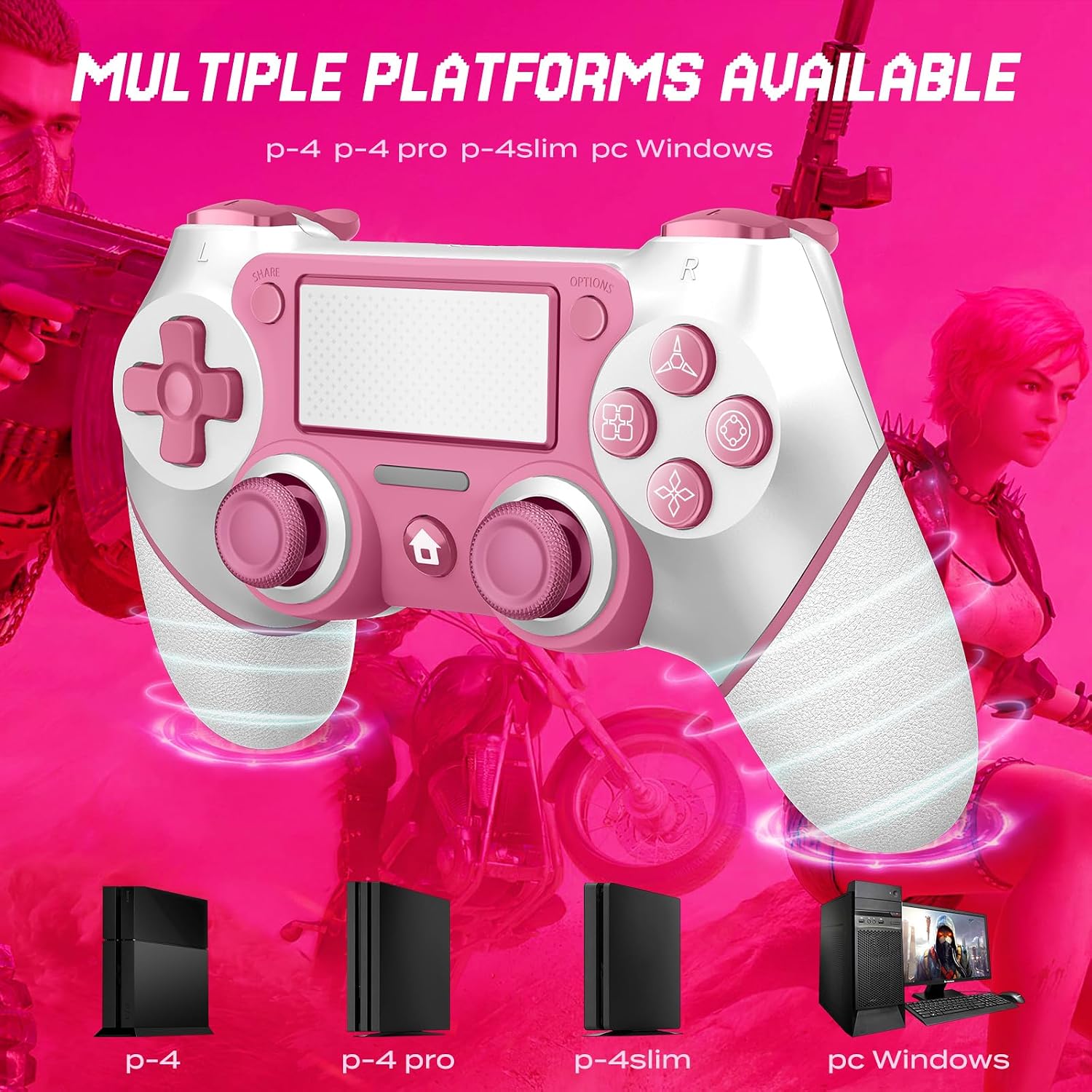
Multi-platform compatibility for versatile gaming.
Operating Instructions
Controller Layout and Basic Functions
Familiarize yourself with the controller's layout for intuitive gameplay.

Detailed view of the controller's smooth rockers, responsive buttons, and precise triggers.
- Clickable Touch Pad: Located at the top center, it offers additional input options for compatible games.
- Motion Sensor: The built-in 6-axis motion sensor provides responsive control for motion-sensitive games.
- LED Light Bar: Indicates player number, charging status, and in-game information.
- 3.5mm Audio Jack: Connect your headset for immersive audio and communication.
- Built-in Speaker: Enhances immersion with sound effects directly from the controller.

Key features of the controller for an enhanced gaming experience.
Advanced Features
- Dual Vibration Motors: Experience realistic haptic feedback with two built-in vibration motors, providing varied intensities for different in-game actions.

Enhanced dual motors provide great game immersion.

Dual vibration motor for unparalleled sense of engagement.
- 6-Axis Motion Sensor: The integrated 6-axis gyroscope sensor provides more accurate and sensitive conduction, allowing you to fully utilize game technology.

The 6-axis motion sensor provides precise control.

The six-axis gyroscope sensor provides more accurate and sensitive conduction.
Maintenance
Proper maintenance ensures the longevity and performance of your controller.
- Cleaning: Use a soft, dry cloth to wipe the controller. For stubborn dirt, slightly dampen the cloth with water. Avoid using harsh chemicals or abrasive materials.
- Storage: Store the controller in a cool, dry place away from direct sunlight and extreme temperatures.
- Battery Care: To preserve battery life, avoid fully discharging the controller frequently. Charge it regularly, even if not in use for extended periods.
- Handling: Avoid dropping the controller or subjecting it to strong impacts, as this can damage internal components.
Troubleshooting
If you encounter any issues with your Ubsvaky Wireless Controller, refer to the following common problems and solutions:
| Problem | Possible Cause | Solution |
|---|---|---|
| Controller does not turn on. | Low battery or no charge. | Connect the controller to a power source using the Type-C cable and allow it to charge for at least 30 minutes before attempting to turn it on. |
| Controller does not connect wirelessly. | Not properly paired or out of range. | Ensure the controller is within 33ft of the console/PC. Re-pair the controller by connecting it with the USB cable and pressing the HOME button. |
| Buttons or joysticks are unresponsive. | Software glitch or physical obstruction. | Restart the controller and the console/PC. Ensure no debris is lodged around the buttons or joysticks. |
| Vibration function is not working. | Vibration setting disabled or game incompatibility. | Check in-game settings and console/PC settings to ensure vibration is enabled. Verify if the game supports vibration feedback. |
If the issue persists after trying these solutions, please contact Ubsvaky customer support for further assistance.
Specifications
| Feature | Detail |
|---|---|
| Model Number | P4-05I |
| Connectivity | Wireless (Bluetooth), Wired (Type-C USB) |
| Battery Capacity | 1000mAh |
| Charging Time | 2-4 hours |
| Playing Time | 15-20 hours |
| Wireless Range | Up to 33ft |
| Motion Sensor | 6-Axis (Gyroscope) |
| Vibration | Dual Vibration Motors |
| Audio Port | 3.5mm Audio Jack |
| Dimensions | 6.3 x 4 x 3 inches |
| Item Weight | 10.9 ounces |
Warranty and Support
Ubsvaky provides a one-year warranty for this Wireless Controller, ensuring quality and customer satisfaction. If you have any questions, concerns, or require technical assistance, please do not hesitate to contact our customer support team.
For support, please refer to the contact information provided with your product packaging or visit the official Ubsvaky website.
Ask a question about this manual
Ask about setup, troubleshooting, compatibility, parts, safety, or missing instructions. Manuals+ will review the question and use this page’s manual context to help answer it.