
1. Introduction
This manual provides detailed instructions for the MOMODS 18.5-inch Portable Monitor (Model 185CM1). This monitor features a 1080P Full HD IPS display with a 100Hz refresh rate, designed for enhanced visual clarity and smooth performance. It offers versatile connectivity options including USB-C and Mini HDMI, making it compatible with a wide range of devices such as laptops, smartphones, and gaming consoles. The monitor also includes eye protection features and VESA mounting capability for flexible use.
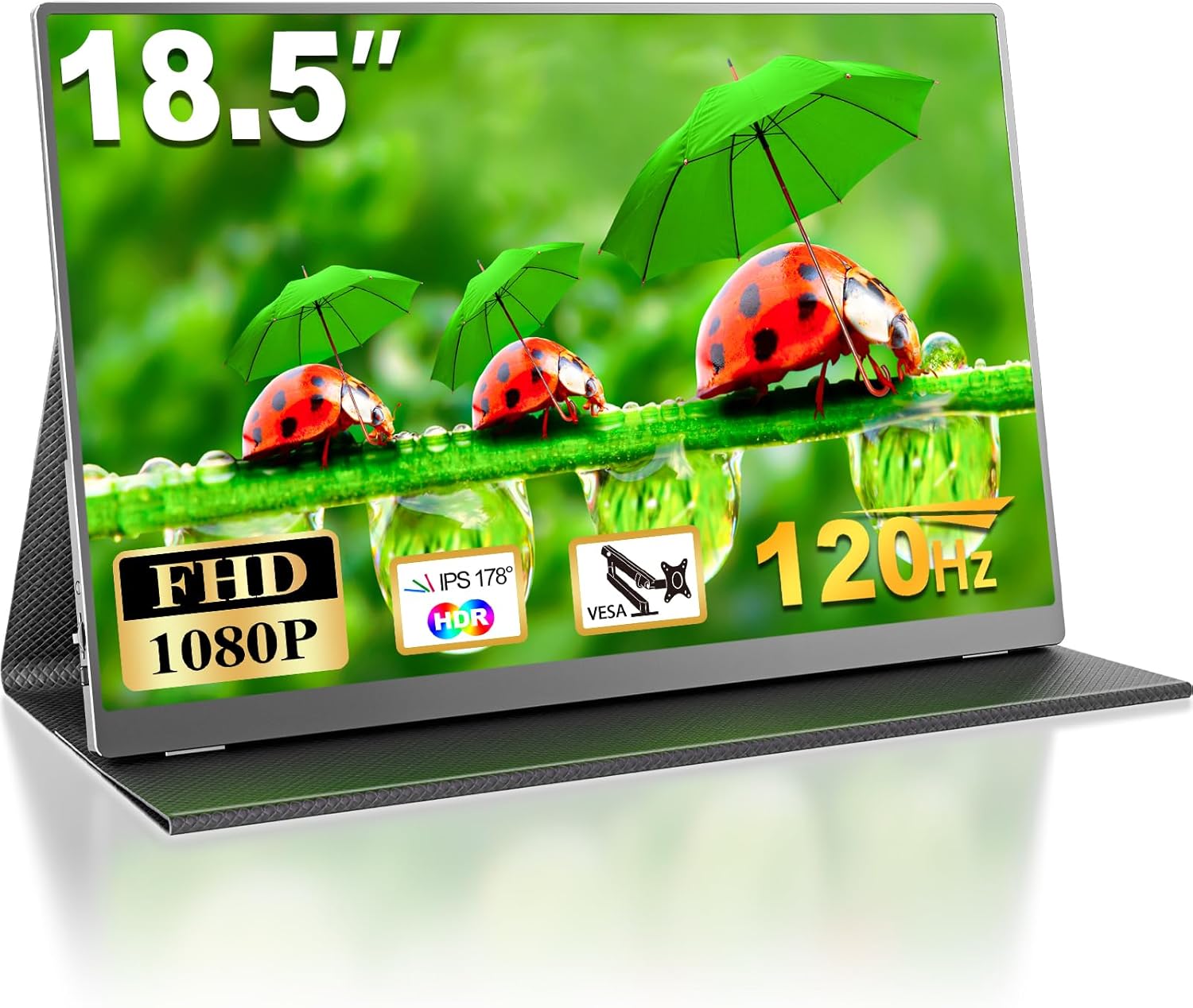
Image 1.1: The MOMODS 18.5-inch Portable Monitor, showcasing its large display and key features like FHD 1080P, IPS 178°, HDR, VESA compatibility, and 100Hz refresh rate.
2. Package Contents
Please verify that all items are present in the package:
- MOMODS 18.5-inch Portable Monitor
- Smart Magnetic Cover
- USB-C to USB-C Cable (for video and power)
- Mini HDMI to HDMI Cable (for video)
- USB-A to USB-C Cable (for power)
- Power Adapter (PD 20W)
- User Manual

Image 2.1: Visual representation of the items included in the product box, such as the monitor, smart cover, various cables, power adapter, and user manual.
3. Product Overview
Familiarize yourself with the monitor's physical components and ports.
3.1. Ports and Controls

Image 3.1: Detailed view of the monitor's side, indicating the Power button, Menu button, Scroll wheel, Audio Output, two USB Type-C ports, and one Mini HDMI port.
- Power Button: Press and hold to turn the monitor on or off.
- Menu Button: Access the On-Screen Display (OSD) menu.
- Scroll Wheel: Navigate through OSD menu options and adjust settings.
- Audio Output: 3.5mm jack for connecting external headphones or speakers.
- USB Type-C Ports (x2): For power delivery, video, and audio signal transmission. Ensure your device supports Thunderbolt 3/4 or USB 3.1 for full functionality.
- Mini HDMI Port: For video and audio signal transmission from devices with HDMI output.
4. Setup and Connection
The MOMODS portable monitor offers flexible connection options for various devices.
4.1. Single Cable Connection (USB-C)
For devices with a full-featured USB Type-C port (supporting DisplayPort Alternate Mode and Power Delivery), a single USB-C to USB-C cable can provide both power and display signals.
- Connect one end of the USB-C to USB-C cable to your device's full-featured USB-C port.
- Connect the other end of the USB-C to USB-C cable to either USB Type-C port on the monitor.
- The monitor should automatically detect the signal. If power is insufficient (e.g., for higher brightness), connect the provided power adapter to the other USB Type-C port on the monitor.

Image 4.1: A laptop connected to the MOMODS portable monitor using a single USB-C cable for both power and display.
4.2. Dual Cable Connection (HDMI + Power)
For devices without a full-featured USB Type-C port, or for devices with HDMI output, you will need two cables: one for video and one for power.
- Connect one end of the Mini HDMI to HDMI cable to the monitor's Mini HDMI port.
- Connect the other end of the Mini HDMI to HDMI cable to your device's HDMI port.
- Connect the USB-A to USB-C power cable to the monitor's USB Type-C port and the USB-A end to a power source (e.g., the provided power adapter or a powered USB port on your device).

Image 4.2: A laptop connected to the MOMODS portable monitor using an HDMI cable for video and a separate USB-C cable for power.
4.3. Device Compatibility
The monitor is compatible with a variety of devices:
- USB-C (Full Function): Laptops, Nintendo Switch, Xbox (requires external power), compatible smartphones (must support USB 3.1 or Thunderbolt 3/4).
- Mini HDMI: Laptops, Macbooks, PS4/PS5, desktop PCs, digital cameras.

Image 4.3: Examples of devices connecting to the monitor, showing HDMI for laptops, Mac, PS5, and USB-C for laptops, Switch, Xbox, and smartphones.
5. Operation
5.1. Power On/Off and Menu Navigation
- Power On: Press and hold the Power button until the screen illuminates.
- Power Off: Press and hold the Power button until the screen turns off.
- OSD Menu: Press the Menu button to open the On-Screen Display menu. Use the Scroll wheel to navigate through options and adjust values. Press the Menu button again to confirm selections or exit.
5.2. Display Modes
The monitor supports multiple display modes to suit your needs:
- Extend Mode: Expands your desktop across both screens, providing more workspace.
- Duplicate Mode (Mirror Mode): Duplicates your primary screen's content onto the portable monitor.
- Second Screen Mode: Uses only the portable monitor as the display.

Image 5.1: A visual guide demonstrating the Extend, Duplicate, and Second Screen display modes when connecting the portable monitor to a laptop.
5.3. High Refresh Rate (100Hz) and HDR
The monitor features a 100Hz refresh rate and HDR technology for a smoother and more vibrant visual experience, especially beneficial for gaming and multimedia content.

Image 5.2: The monitor displaying a high-speed scene, illustrating the benefit of the 100Hz refresh rate for reduced motion blur and smoother visuals.

Image 5.3: A gaming scenario displayed on the monitor, demonstrating the enhanced contrast and color provided by HDR technology.
5.4. Eye Care Features
The monitor includes a blue light filter and flicker-free technology to reduce eye strain during prolonged use.

Image 5.4: A visual comparison highlighting the benefits of low blue light and flicker-free technology for eye protection.
5.5. VESA Mounting
The monitor is equipped with 75x75mm VESA mounting holes, allowing for flexible installation on compatible stands or wall mounts.
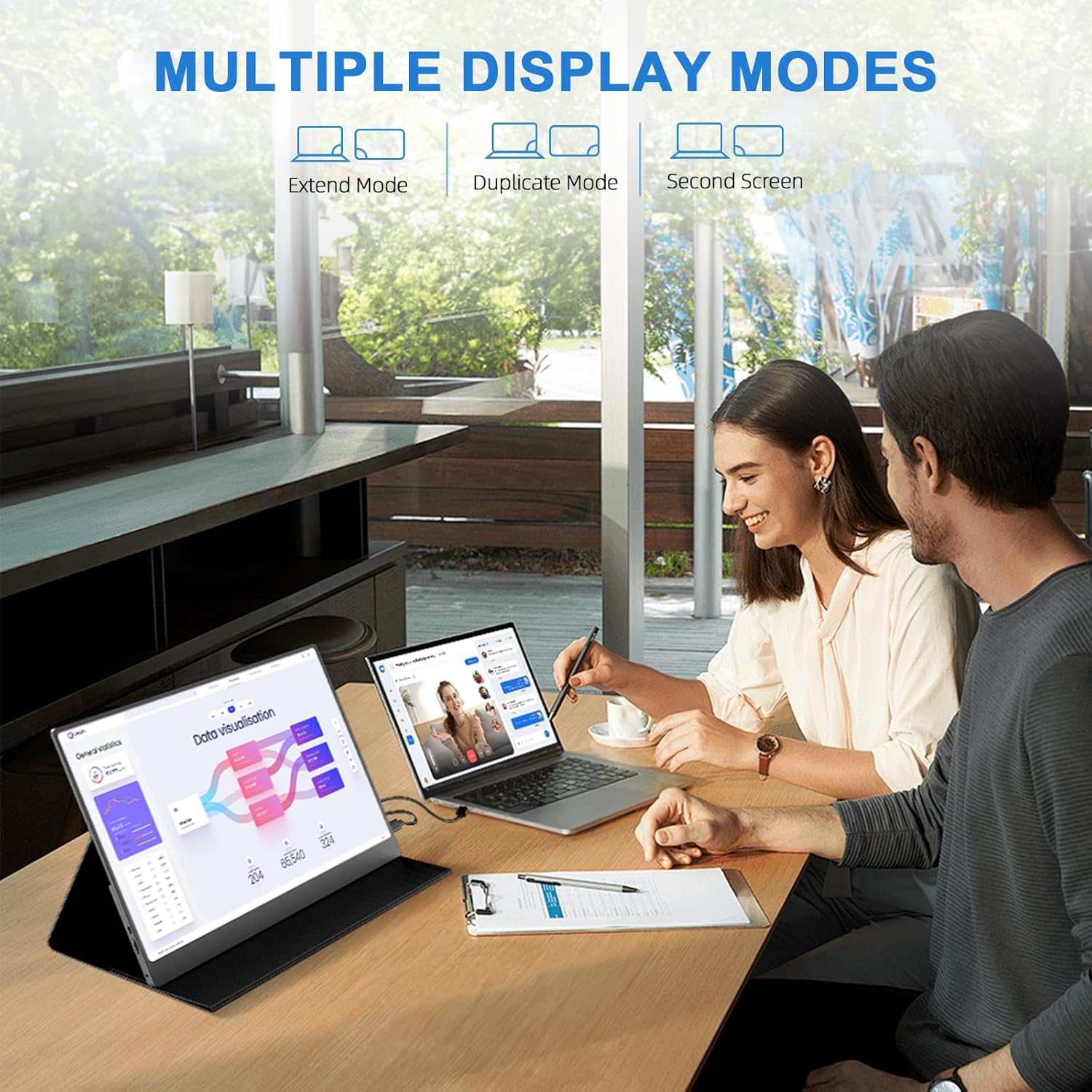
Image 5.5: The MOMODS portable monitor mounted vertically on a VESA stand, demonstrating its adaptability for different setups.
6. Maintenance
Proper care and maintenance will ensure the longevity and optimal performance of your portable monitor.
6.1. Cleaning the Screen
- Turn off the monitor and disconnect all cables before cleaning.
- Use a soft, lint-free cloth lightly dampened with water or a screen-cleaning solution.
- Gently wipe the screen surface. Avoid applying excessive pressure.
- Do not use alcohol, ammonia-based cleaners, or abrasive materials, as these can damage the screen.
6.2. General Care
- Avoid exposing the monitor to extreme temperatures, direct sunlight, or high humidity.
- Keep the monitor away from liquids and dust.
- When transporting, use the provided smart magnetic cover to protect the screen from scratches and impacts.
- Do not place heavy objects on the monitor.
7. Troubleshooting
If you encounter issues with your MOMODS portable monitor, refer to the following common problems and solutions.
| Problem | Possible Cause | Solution |
|---|---|---|
| No display/Black screen |
|
|
| Flickering screen |
|
|
| No sound |
|
|
| Cannot connect via USB-C |
|
|
8. Specifications
Detailed technical specifications for the MOMODS 18.5-inch Portable Monitor (Model 185CM1).
| Feature | Specification |
|---|---|
| Brand | MOMODS |
| Model Name | 185CM1 |
| Screen Size | 18.5 Inches |
| Display Technology | LCD (IPS Panel) |
| Resolution | 1920 x 1080 (FHD 1080p) |
| Aspect Ratio | 16:9 |
| Refresh Rate | 100 Hz |
| Response Time | 2 Milliseconds |
| Brightness | 400 Candela (nits) |
| Contrast Ratio | 2000:1 |
| Viewing Angle | 178 Degrees |
| Screen Surface | Matte |
| Hardware Interface | Mini HDMI, USB Type-C (x2) |
| Compatible Devices | Smartphone, PC, Laptop, Mac, Gaming Consoles (PS5, Xbox, Switch) |
| Special Features | Blue Light Filter, HDR, VESA Mountable (75x75mm) |
| Product Dimensions | 0.5 x 27 x 42 cm |
| Item Weight | 1.12 Kilograms |
| Power Consumption | 20 Watts |
9. Warranty and Support
MOMODS is committed to providing high-quality products and customer satisfaction.
9.1. Warranty Information
Specific warranty details are typically provided with your product documentation or can be found on the official MOMODS website. Please retain your proof of purchase for warranty claims.
9.2. Customer Support
A professional customer service team is available to assist you with any questions or issues you may encounter. For support, please refer to the contact information provided in your product packaging or on the official MOMODS website.

Image 9.1: MOMODS commitment to customer satisfaction, including lifetime support and 24/7 customer service.