
Introduction
The FASLINK Bluetooth OBD2 Scanner X1 mini is a compact and powerful diagnostic tool designed to help you understand and troubleshoot your vehicle's issues. Compatible with both iOS and Android devices, this scanner connects wirelessly to your smartphone, providing access to a wide range of diagnostic functions. This manual will guide you through the setup, operation, and maintenance of your X1 mini scanner.
Package Contents
- FASLINK Bluetooth OBD2 Scanner X1 mini (1 unit)
Specifications
| Brand | FASLINK |
| Model | CC0166-X1mini |
| Power Source | Corded Electric (via OBD-II port) |
| Product Dimensions | 1.85"L x 0.94"W x 1.18"H |
| Operating System Compatibility | Android, iOS |
| Connectivity | Bluetooth BLE 4.2 |
| Supported Protocols | ALL OBD2 protocols (including J1850 & ISO9141) |
Compatibility
The FASLINK Bluetooth OBD2 Scanner X1 mini is designed for wide compatibility:
- Vehicle Compatibility: Supports all OBD2 compliant cars and pickup trucks in the USA from model year 1996 and newer. This includes most global 12V vehicles after 1996. Note: Not compatible with electric or hybrid vehicles, or 24V heavy-duty trucks or motorcycles.
- Device Compatibility: Works with both iOS (10.0.5+ recommended) and Android (Kitkat and above) devices.
- App Compatibility: Primarily uses the FASLINK X app. Also supports third-party software such as Car Scanner and Torque (third-party apps may require a charge).

Image: Wide vehicle coverage for OBD2 compliant vehicles from 1996 and newer.
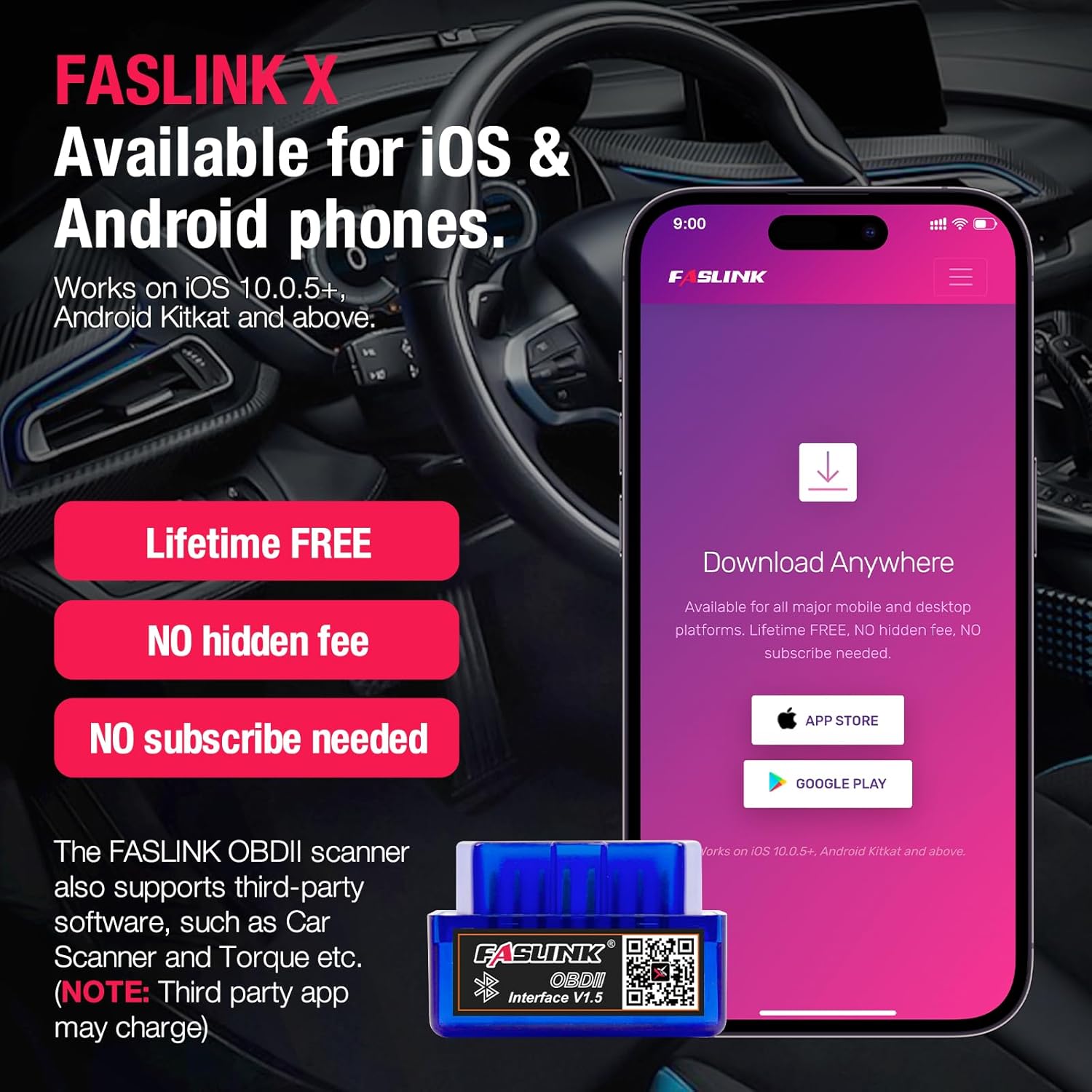
Image: FASLINK X app available for iOS and Android devices.
Setup Guide
1. Download the FASLINK X App
The FASLINK X app is essential for using your OBD2 scanner. It is available for free on both iOS and Android platforms.
- Scan the QR code provided in the product packaging or visit obdresource.com/apps/ to download the FASLINK X app.
- Alternatively, search for "FasLinkX" in your device's App Store (iOS) or Google Play Store (Android) and install the application.
2. Connect the Scanner to Your Vehicle
Locate your vehicle's OBD-II port, which is typically found under the dashboard on the driver's side.
- Ensure your vehicle's ignition is turned off.
- Plug the FASLINK X1 mini OBD2 scanner firmly into the OBD-II port.
- Turn your vehicle's ignition to the ON position (do not start the engine unless required for specific tests).

Image: Easy three-step process for connecting the OBDII scanner.
3. Pair with Your Device
The scanner uses Bluetooth 4.2 for a stable connection with your smartphone.
- Enable Bluetooth on your smartphone.
- Open the FASLINK X app. The app should automatically detect and connect to the X1 mini scanner. If not, navigate to the connection settings within the app and select the scanner.
- Once connected, the app will indicate a successful connection, and you can begin diagnostics.
Video: Official product video demonstrating the setup and usage of the FASLINK Bluetooth OBD2 Scanner X1 mini, including app download, device connection, and accessing diagnostic functions.
Operating Instructions
The FASLINK X app provides a user-friendly interface to access various diagnostic functions.

Image: FASLINK X app interface showing various diagnostic functions.
1. Reading Diagnostic Trouble Codes (DTCs)
This function allows you to identify why your Check Engine Light is on.
- From the app's main menu, select "Trouble Codes" or "Read Codes".
- The scanner will perform a scan and display any active, pending, or permanent DTCs.
- Use the "DTC Lookup" function within the app to get detailed definitions and possible causes for each code.
- To clear codes, select "Erase Codes" after addressing the underlying issue. This will turn off the Check Engine Light.
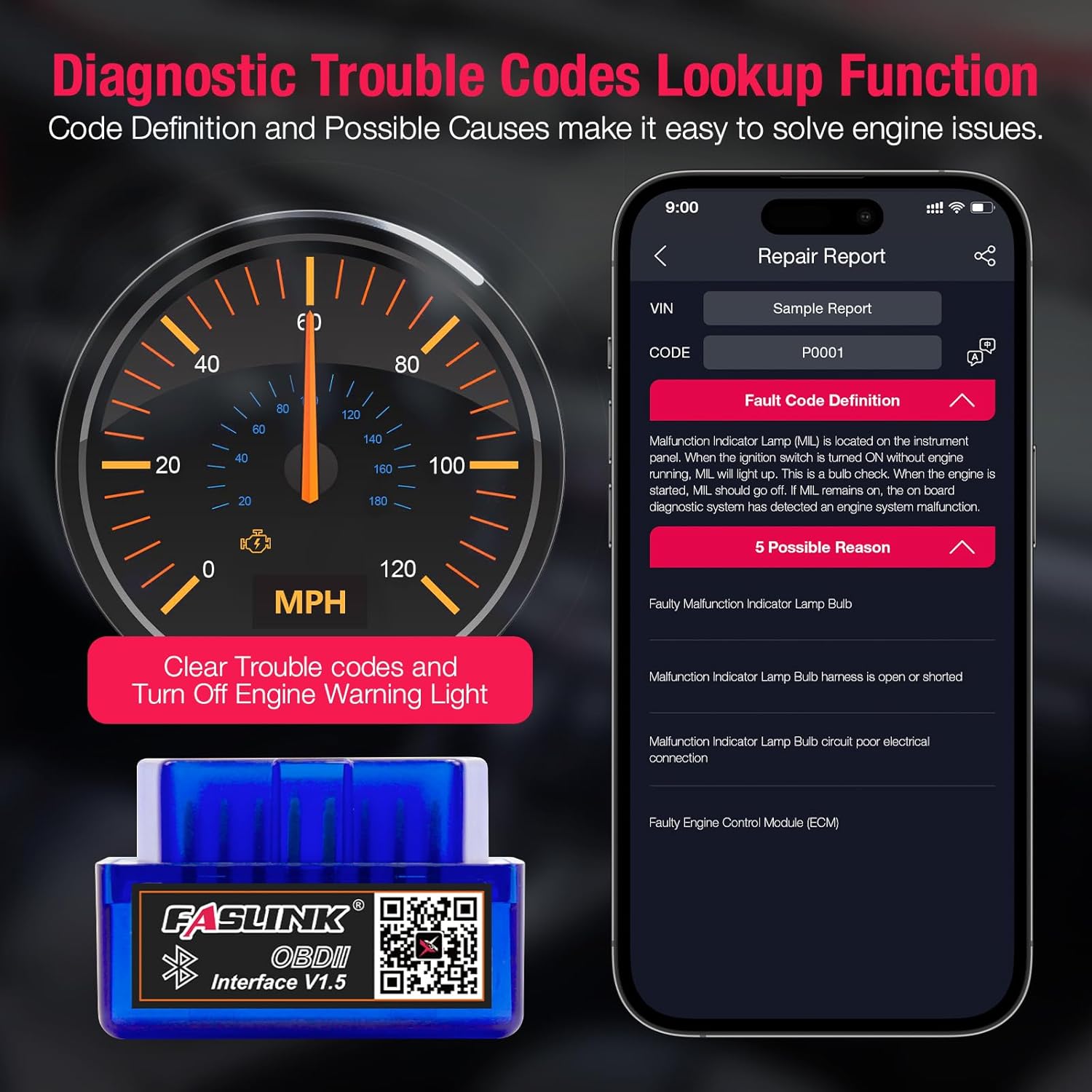
Image: DTC Lookup function providing code definitions and possible causes.
2. Viewing Real-Time Data (Live Data)
Monitor your vehicle's performance in real-time through various sensor readings.
- Select "Live Data" from the app's main menu.
- You can choose specific parameters to monitor, such as:
- O₂ sensor readings
- Engine RPM
- Air temperature
- Fuel pressure
- Boost pressure
- Engine Oil Temperature (EOT)
- Throttle position
- Run time
- Timing advance
- The app will display these values, often with graphical representations, allowing you to observe changes as they occur.
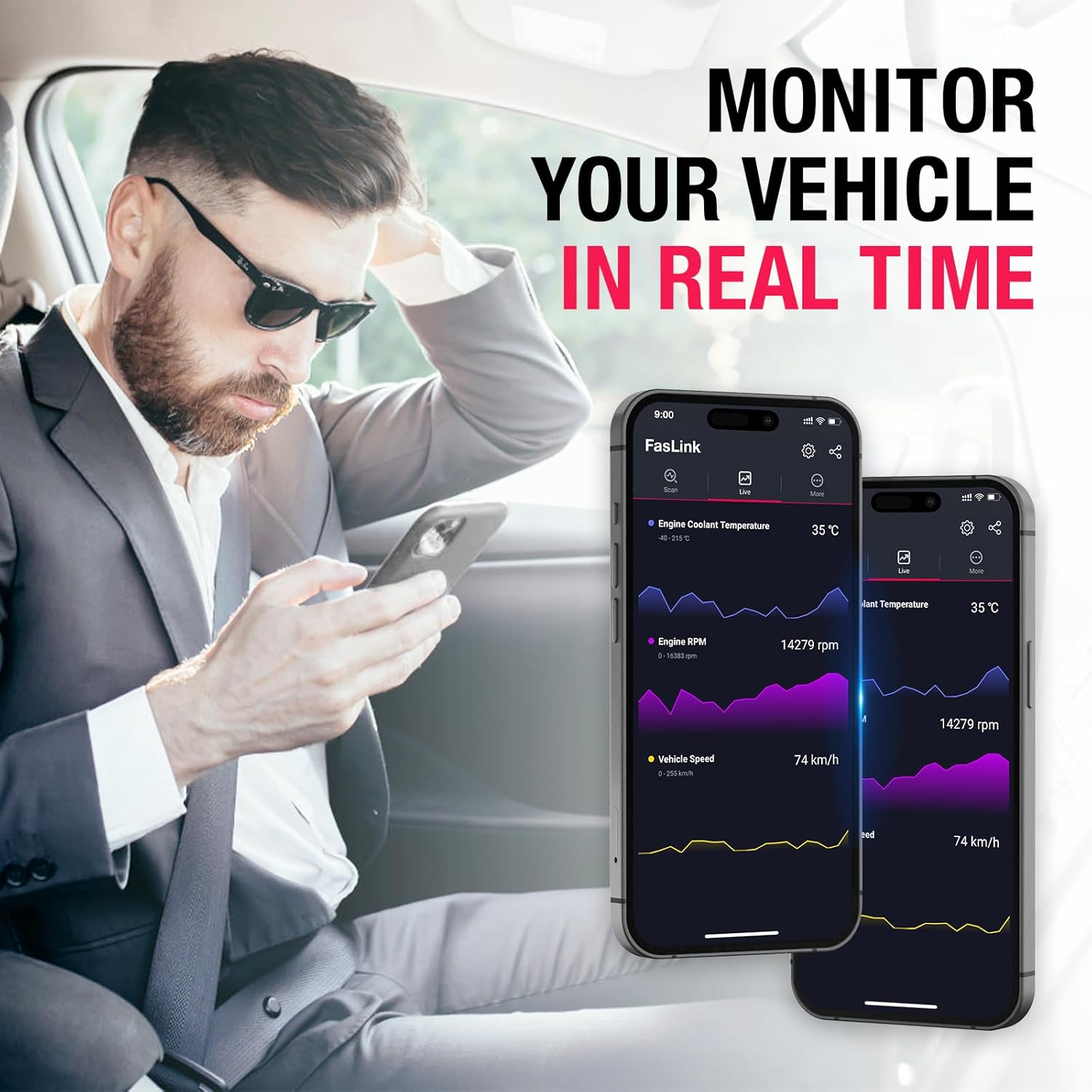
Image: Monitoring real-time vehicle data on the FasLink app.
3. Other Functions
The FASLINK X1 mini offers additional diagnostic capabilities:
- Smog Check: Perform I/M Readiness tests to check if your vehicle is ready for an emissions test.
- Mode 6: Access advanced test results for specific monitored systems.
- Vehicle Info: Retrieve vehicle identification number (VIN), calibration IDs, and calibration verification numbers.
- View Freeze Frame: Capture a snapshot of sensor data at the moment a fault code was set, aiding in diagnosis.
- Battery Voltage Test: Monitor your vehicle's battery voltage.
- Maintenance Manual: Access general maintenance information.
- View Saved Reports: Review previously saved diagnostic reports.

Image: Overview of all OBD2 functions available through the FASLINK X app.
Maintenance
To ensure the longevity and optimal performance of your FASLINK Bluetooth OBD2 Scanner X1 mini, follow these maintenance guidelines:
- Cleaning: Wipe the device with a soft, dry cloth. Avoid using harsh chemicals or abrasive cleaners.
- Storage: Store the scanner in a cool, dry place away from direct sunlight and extreme temperatures when not in use.
- Handling: Handle the device with care to prevent physical damage. Avoid dropping or subjecting it to strong impacts.
- Software Updates: Regularly check for updates to the FASLINK X app to ensure you have the latest features and bug fixes.
Troubleshooting
If you encounter issues with your FASLINK Bluetooth OBD2 Scanner X1 mini, try the following solutions:
- Scanner Not Connecting to App:
- Ensure the scanner is firmly plugged into the OBD-II port and the vehicle's ignition is ON.
- Verify that Bluetooth is enabled on your smartphone.
- Close and restart the FASLINK X app.
- Try restarting your smartphone.
- Ensure the app has necessary permissions (e.g., location, Bluetooth) enabled in your phone's settings.
- No Data or Incorrect Readings:
- Confirm the scanner is securely connected to the OBD-II port.
- Check if your vehicle is OBD2 compliant (1996 or newer for USA vehicles).
- Ensure the vehicle's ignition is ON.
- Some parameters may not be supported by all vehicles.
- App Freezing or Crashing:
- Ensure your app is updated to the latest version.
- Clear the app's cache or reinstall the app.
- Ensure your phone's operating system is up to date.
- Check Engine Light Remains On After Clearing Codes:
- The underlying issue causing the code has not been resolved. The code will reappear if the fault persists.
- Some codes require multiple drive cycles to clear completely after a repair.
Warranty and Support
The FASLINK Bluetooth OBD2 Scanner X1 mini comes with a 1-year manufacturer warranty.
For technical support, warranty claims, or further assistance, please refer to the contact information provided in your product packaging or visit the official FASLINK website. FASLINK is committed to providing professional and high-quality products and support.