
audfly DUO
audfly F1 Duo See Thru Glass Directional Speaker User Manual
Model: DUO
1. Introduction
This manual provides detailed instructions for the setup, operation, and maintenance of your audfly F1 Duo See Thru Glass Directional Speaker. This device utilizes ultrasonic technology to deliver precise, immersive sound to a specific area, allowing for a private listening experience without the need for headphones.
2. Important Safety Information
- Read all instructions before using the product.
- Do not expose the device to water or excessive moisture. The product is not waterproof.
- Avoid placing the speaker in direct sunlight or near heat sources.
- Use only the power adapter provided with the device.
- Do not attempt to disassemble or repair the unit yourself. Refer all servicing to qualified personnel.
- Keep out of reach of children.
3. Package Contents
Verify that all items listed below are included in your package:
- Glass speaker (2 units)
- 3.5mm Audio Cable
- Stand (2 units)
- Driver unit
- Power Adapter

Image: All components of the audfly F1 Duo system, including the two glass speakers, the central driver unit, stands, and cables.
4. Product Overview
The audfly F1 Duo system consists of two transparent glass directional speakers and a central driver unit. Each speaker is designed to project sound in a narrow beam, creating a personal audio zone.
4.1 Speaker Components
- Glass Panel: The transparent surface through which directional sound is emitted.
- Speaker Frame: Houses the internal components and provides structural support.
- Connection Port: Located at the bottom of each speaker for connecting to the driver unit.

Image: A single audfly F1 Duo glass speaker shown vertically with its stand attached, highlighting its sleek design.
4.2 Driver Unit
- Power Button/Volume Knob: Controls power and audio volume.
- Indicator Lights: Display connection status and power.
- Input Ports: For power, 3.5mm audio, and speaker connections.

Image: A close-up view of the audfly F1 Duo driver unit, showing the volume knob and indicator lights on the front panel.
5. Setup Instructions
- Attach the Stands: Securely attach the provided stands to the bottom of each glass speaker. The stands allow for both vertical and horizontal positioning.
- Position the Speakers: Place the two glass speakers on either side of your desired listening area, such as next to a TV or computer monitor. Ensure they are facing the direction where you want the sound to be focused.
- Connect Speakers to Driver Unit: Use the provided cables to connect each glass speaker to the corresponding output ports on the driver unit.
- Connect Audio Source:
- Bluetooth: Power on the driver unit. The device will enter pairing mode. On your audio source (smartphone, tablet, computer), search for "audfly F1 Duo" in the Bluetooth settings and connect.
- Auxiliary (3.5mm): Connect one end of the 3.5mm audio cable to the AUX input on the driver unit and the other end to the audio output of your device (e.g., TV, computer, MP3 player).
- Connect Power: Plug the power adapter into the driver unit's power input, then connect it to a wall outlet.
- Power On: Turn the power/volume knob on the driver unit clockwise to power on the device. The indicator lights will illuminate.

Image: The audfly F1 Duo system fully assembled, showing the central driver unit connected to two glass speakers positioned vertically.
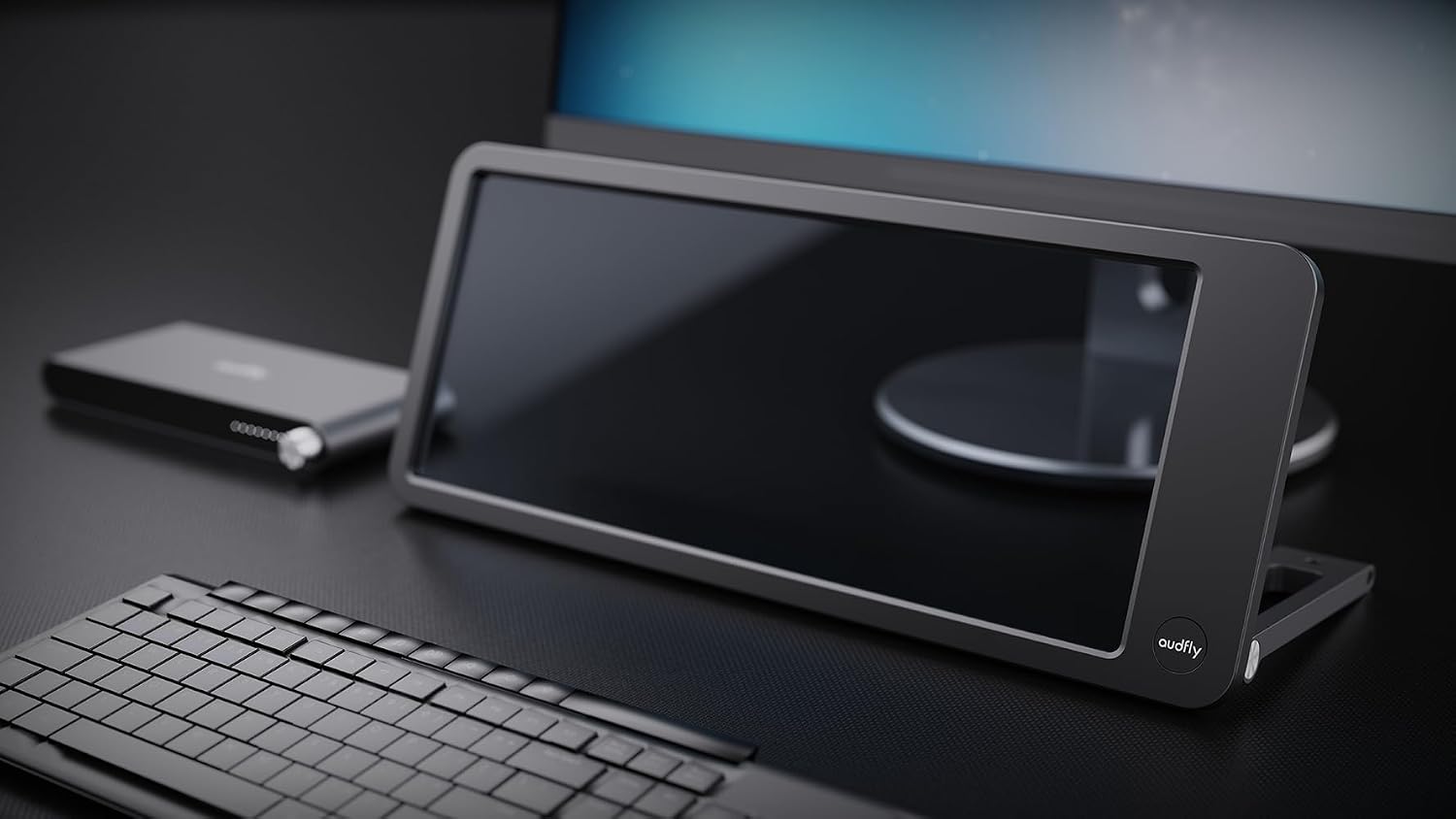
Image: The audfly F1 Duo speakers positioned vertically on a media console, flanking a television, demonstrating a typical home theater setup.
6. Operating Instructions
6.1 Power On/Off and Volume Control
- To power on, rotate the power/volume knob clockwise until the indicator lights illuminate.
- To power off, rotate the power/volume knob counter-clockwise until the indicator lights turn off.
- Adjust the volume by rotating the power/volume knob. Clockwise increases volume, counter-clockwise decreases volume.
6.2 Bluetooth Connection
- Ensure the audfly F1 Duo is powered on and not connected to another device.
- On your smartphone, tablet, or computer, navigate to the Bluetooth settings.
- Select "audfly F1 Duo" from the list of available devices to pair.
- Once connected, the indicator light on the driver unit will show a stable blue light.
6.3 Auxiliary (3.5mm) Connection
- Connect the 3.5mm audio cable from your audio source to the AUX input on the audfly F1 Duo driver unit.
- The system will automatically switch to AUX input when a cable is detected.
6.4 Using the Self-tuning App
The audfly F1 Duo features a self-tuning app to personalize your sound experience. Download the official audfly app from your device's app store. The app allows users to tailor sound effects and optimize the directional audio for their specific environment and preferences.
- Download and install the "audfly" app on your smartphone or tablet.
- Ensure your audfly F1 Duo is powered on and connected via Bluetooth to your device.
- Open the app and follow the on-screen instructions to connect to your speaker.
- Explore the app's settings to adjust sound profiles, directional focus, and other audio parameters.
7. Maintenance
- Cleaning: Use a soft, dry cloth to wipe the glass panels and the driver unit. Do not use abrasive cleaners or solvents.
- Storage: When not in use for extended periods, store the speaker in a cool, dry place, away from direct sunlight and extreme temperatures.
- Handling: Handle the glass speakers with care to avoid scratches or breakage.
8. Troubleshooting
| Problem | Possible Cause | Solution |
|---|---|---|
| No power | Power adapter not connected or faulty. | Ensure the power adapter is securely plugged into the unit and a working power outlet. Try a different outlet. |
| No sound | Volume too low; incorrect input source; speakers not connected; Bluetooth not paired. | Increase volume on both the speaker and the audio source. Verify correct input (Bluetooth/AUX). Ensure speaker cables are firmly connected. Re-pair Bluetooth if necessary. |
| Bluetooth pairing issues | Device too far; interference; speaker already paired. | Ensure the speaker and device are within 10 meters. Turn off other Bluetooth devices. Disconnect from previously paired devices. Restart both the speaker and the Bluetooth device. |
| Distorted sound | Volume too high; poor audio source quality; speaker placement. | Reduce volume. Test with a different audio source. Adjust speaker position for optimal directional sound. |
9. Specifications
| Feature | Detail |
|---|---|
| Brand | audfly |
| Model Name | DUO (FOCUSOUND) |
| Mounting Type | Tabletop Mount |
| Material | Glass |
| Speaker Type | Surround Sound (Directional) |
| Special Feature | Directional Sound |
| Connectivity Technology | Auxiliary, Bluetooth, USB |
| Wireless Communication Technology | Bluetooth |
| Control Method | App |
| Power Source | Corded Electric |
| Speaker Maximum Output Power | 15 Watts |
| Frequency Response | 20 KHz |
| Product Dimensions | 1"D x 6"W x 14.6"H |
| Item Weight | 7.7 pounds (3.5 Kilograms) |
| Water Resistance Level | Not Water Resistant |
10. Warranty and Support
The audfly F1 Duo See Thru Glass Directional Speaker comes with a limited warranty. For detailed warranty information, please refer to the warranty card included in your package or visit the official audfly website.
For technical support, troubleshooting assistance, or any inquiries regarding your product, please contact audfly customer service through their official website or the contact information provided in your product documentation.
Online Resources: Visit the audfly Store on Amazon
Ask a question about this manual
Ask about setup, troubleshooting, compatibility, parts, safety, or missing instructions. Manuals+ will review the question and use this page’s manual context to help answer it.