
1. Introduction
This manual provides essential information for the safe and efficient operation of your Smart Tech 50UG02V 50-inch 4K UHD Google TV. Please read this manual thoroughly before using the television and retain it for future reference.
The Smart Tech 50UG02V offers a 50-inch 4K Ultra HD display, integrated Google TV operating system, and features such as HDR10, Dolby Audio, Chromecast, and Google Assistant for an enhanced viewing experience.

Image 1.1: Front view of the Smart Tech 50UG02V 50-inch 4K UHD Google TV.
2. Safety Information
Always observe the following safety precautions to prevent electric shock, fire, or injury:
- Do not expose the TV to rain or moisture.
- Do not open the TV casing; refer all servicing to qualified personnel.
- Ensure proper ventilation around the TV.
- Avoid placing the TV near heat sources or in direct sunlight.
- Use only the power cord supplied with the TV.
- Keep batteries out of reach of children.
3. Package Contents
Before proceeding with the setup, please verify that all components are present in the box:
- Smart Tech 50UG02V 50-inch 4K UHD Google TV
- Remote Control
- TV Stand (Pied)
- User Manual (this document)
- Power Cable
- 2 x AA Batteries (for remote control)
4. Setup
4.1 Unpacking
Carefully remove the TV and all accessories from the packaging. It is recommended to keep the original packaging for future transport or servicing.
4.2 Attaching the Stand
Place the TV face down on a soft, flat surface to prevent screen damage. Attach the provided stand to the bottom of the TV using the screws included. Ensure the stand is securely fastened.
4.3 Wall Mounting (Optional)
If you choose to wall mount your TV, ensure you use a VESA-compatible wall mount (200x200mm) and follow the instructions provided with the wall mount kit. Always consult a professional for wall mounting to ensure safety.
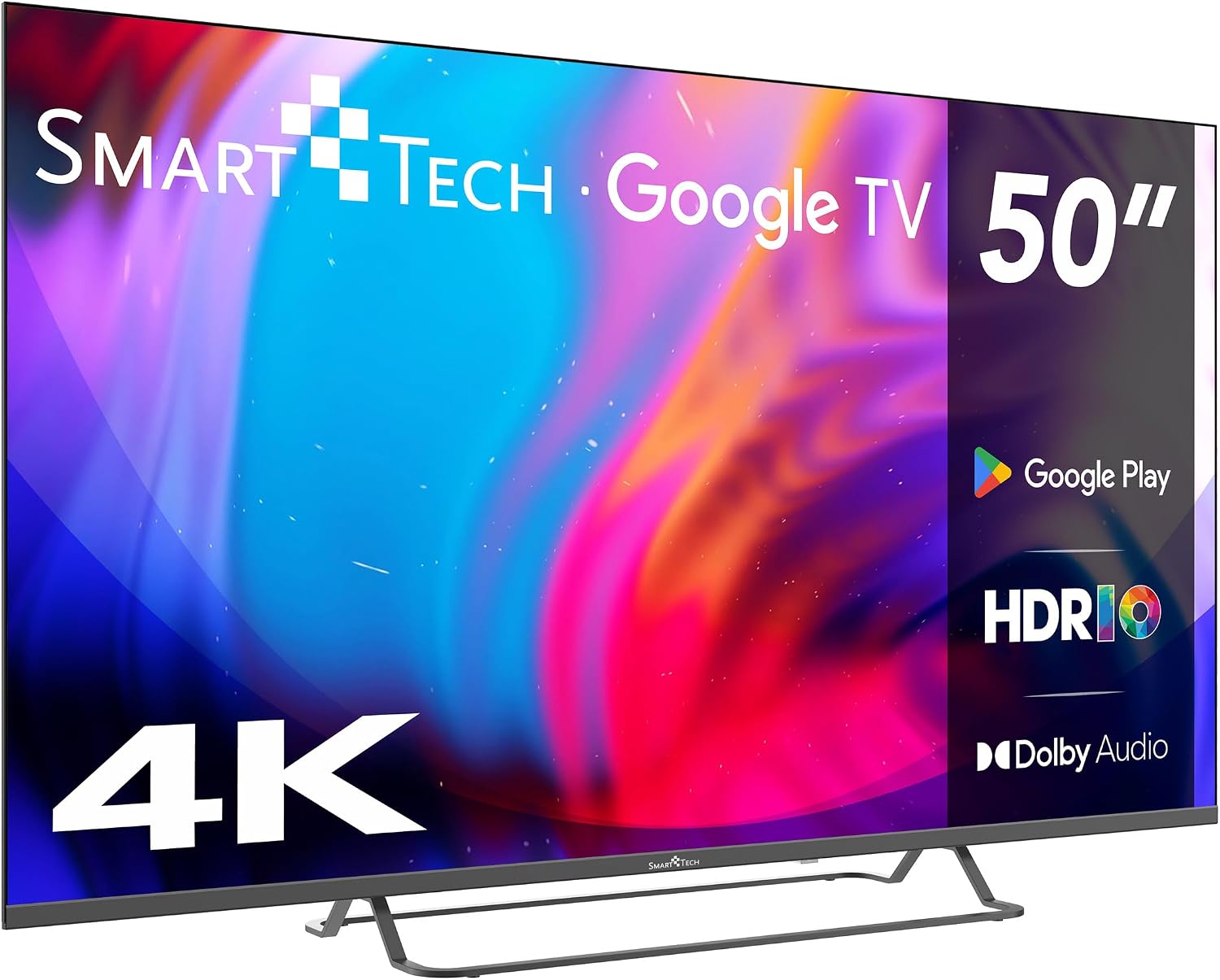
Image 4.1: TV dimensions and VESA mounting points (200mm x 200mm).
4.4 Connecting External Devices
Your Smart Tech TV offers various connection ports:
- HDMI Ports (x4): Connect Blu-ray players, game consoles, set-top boxes, etc.
- USB Ports (x2): Connect USB storage devices for media playback or software updates.
- Ethernet (RJ45): For wired internet connection.
- Optical Audio Out: For connecting to external audio systems.
- AV In: For connecting older devices with composite video and stereo audio.
- DVB-T/T2 & DVB-S/S2: For antenna and satellite connections.
- CI Slot: For Conditional Access Modules (CAM) for encrypted channels.

Image 4.2: Overview of TV connector ports.
4.5 Initial Power-On and Google TV Setup
After connecting all necessary cables and power, press the power button on the remote control or TV. The TV will guide you through the initial Google TV setup process, which includes:
- Language selection.
- Network connection (Wi-Fi or Ethernet).
- Google account sign-in.
- Accepting terms and conditions.
- Installing essential apps.
5. Operating the TV
5.1 Remote Control Overview
The remote control allows you to navigate the Google TV interface, control volume, change channels, and access various functions. Insert the two AA batteries into the remote control, ensuring correct polarity.

Image 5.1: Remote control with voice control and quick access buttons.
5.2 Google TV Interface Navigation
The Google TV home screen provides personalized recommendations, access to your installed apps, and various content categories. Use the directional pad and OK button on your remote to navigate.

Image 5.2: Google TV home screen displaying content recommendations and apps.
5.3 Using Chromecast Built-in
Your TV has Chromecast built-in, allowing you to cast content from compatible apps on your smartphone, tablet, or computer directly to the TV screen. Ensure your device and TV are on the same Wi-Fi network.
5.4 Voice Control with Google Assistant
Press the Google Assistant button on your remote control and speak into the microphone to control your TV, search for content, get answers, and manage smart home devices.
5.5 Picture and Sound Settings
Access the settings menu to adjust picture modes (Standard, Vivid, Movie, Game, Custom), brightness, contrast, color, and sound modes (Standard, Music, Movie, Speech, Custom) to suit your preferences.
6. Maintenance
6.1 Cleaning the TV
- Screen: Gently wipe the screen with a soft, lint-free cloth. For stubborn marks, use a screen cleaner specifically designed for TVs, applied to the cloth, not directly to the screen.
- Casing: Wipe the TV casing with a soft, dry cloth. Do not use abrasive cleaners or solvents.
6.2 Software Updates
Your Google TV may receive automatic software updates. Ensure your TV is connected to the internet to receive these updates, which can improve performance and add new features. You can also manually check for updates in the settings menu.
7. Troubleshooting
If you encounter issues with your TV, refer to the following common problems and solutions:
| Problem | Possible Solution |
|---|---|
| No power | Check if the power cable is securely connected. Ensure the power outlet is working. Try pressing the power button on the TV itself. |
| No picture, but sound is present | Check the input source. Ensure external devices are powered on and connected correctly. |
| No sound, but picture is present | Check the volume level. Ensure mute is not activated. Check audio output settings if using external speakers. |
| Remote control not working | Replace the batteries. Ensure there are no obstructions between the remote and the TV. |
| Network connection issues | Restart your router/modem. Check Wi-Fi password. Try a wired Ethernet connection if possible. |
| Google TV is slow or unresponsive | Restart the TV by unplugging it for a few minutes. Clear cache for problematic apps. Consider a factory reset as a last resort. |
7.1 Factory Reset
A factory reset will erase all personal settings and installed applications, returning the TV to its original factory state. This can resolve persistent software issues. To perform a factory reset, navigate to Settings > System > About > Reset > Factory data reset.
8. Specifications
The following table details the technical specifications of the Smart Tech 50UG02V TV:
| Feature | Specification |
|---|---|
| Brand | Smart Tech |
| Model Number | 50UG02V |
| Screen Size | 50 Inches (127 cm) |
| Display Technology | LED |
| Resolution | 4K Ultra HD (3840 x 2160) |
| Refresh Rate | 60 Hz |
| Operating System | Google TV |
| Processor | Quad Core |
| Image Enhancement | HDR10, HEVC Advance |
| Audio Technology | Dolby Audio |
| Connectivity | Wi-Fi, Bluetooth, Ethernet, HDMI (x4), USB (x2), Optical, AV In |
| Special Features | Chromecast Built-in, Google Assistant |
| Color | Black |
| Product Dimensions (W x H x D) | 111.3 cm x 68 cm x 23 cm (with stand) |
| Power Supply | AC 100-240V, 50/60Hz |
9. Warranty and Support
9.1 Warranty Information
Your Smart Tech 50UG02V TV is covered by a manufacturer's warranty. Please refer to the warranty card included in your package for specific terms, conditions, and duration. Keep your proof of purchase for warranty claims.
9.2 Customer Support
For technical assistance, troubleshooting beyond this manual, or warranty inquiries, please contact Smart Tech customer support. Contact details can typically be found on the manufacturer's website or on the warranty card.


