
Doohoeek B0CYZHFSQN
Doohoeek Wired Trackpad Multi-Touch User Manual
Model: B0CYZHFSQN
Introduction
The Doohoeek Wired Trackpad Multi-Touch is designed to provide a precise and versatile input experience for Windows 7/10/11 PC, laptops, and desktop computers. Featuring an upgraded matte glass surface and multi-touch gesture support, this trackpad enhances productivity and navigation. This manual provides essential information for setup, operation, maintenance, and troubleshooting.

Figure 1: Doohoeek Wired Trackpad Multi-Touch
Setup
The Doohoeek Wired Trackpad is designed for simple plug-and-play functionality. No additional drivers are typically required for basic operation on compatible Windows systems.
- Connect the USB Cable: Locate an available USB port on your computer. Insert the USB cable from the trackpad into the USB port.
- System Recognition: Your operating system will automatically detect and install the necessary drivers. This process may take a few moments.
- Ready for Use: Once the installation is complete, the trackpad will be ready for immediate use.

Figure 2: Connecting the trackpad via USB for wired connection.
Operating Instructions
The trackpad features a matte glass surface for smooth interaction and supports various multi-touch gestures for enhanced navigation on Windows 10/11. For Windows 7, basic mouse functions are supported.
Basic Functions
- Cursor Movement: Slide one finger across the trackpad surface to move the cursor.
- Left Click: Tap once with one finger on the trackpad surface, or press the physical left button at the bottom of the trackpad.
- Right Click: Tap once with two fingers on the trackpad surface, or press the physical right button at the bottom of the trackpad.
- Drag and Drop: Double-tap and hold the second tap with one finger, then drag to move an item. Release to drop. Alternatively, click and hold the physical left button while dragging.

Figure 3: Physical left and right click areas on the trackpad.

Figure 4: The trackpad features an upgraded matte glass surface for smooth and precise control.
Multi-Touch Gestures (Windows 10/11 Only)
The trackpad supports a variety of multi-touch gestures to enhance your workflow. You can customize some of these gestures in your Windows settings.
- Scrolling: Slide two fingers up or down to scroll vertically. Slide two fingers left or right to scroll horizontally.
- Zoom In/Out: Pinch two fingers together to zoom out, or spread them apart to zoom in.
- Show Desktop: Place three fingers on the trackpad and swipe down to minimize all open windows and show the desktop.
- Open Task View: Place three fingers on the trackpad and swipe up to open Task View, showing all open applications.
- Switch Applications: Place three fingers on the trackpad and swipe left or right to switch between open applications.
- Open Action Center: Tap with four fingers to open the Action Center.
- Switch Desktops: Place four fingers on the trackpad and swipe left or right to switch between virtual desktops.

Figure 5: Visual guide to multi-touch gestures for Windows 10/11.

Figure 6: The trackpad offers high precision tracking for accurate cursor control.
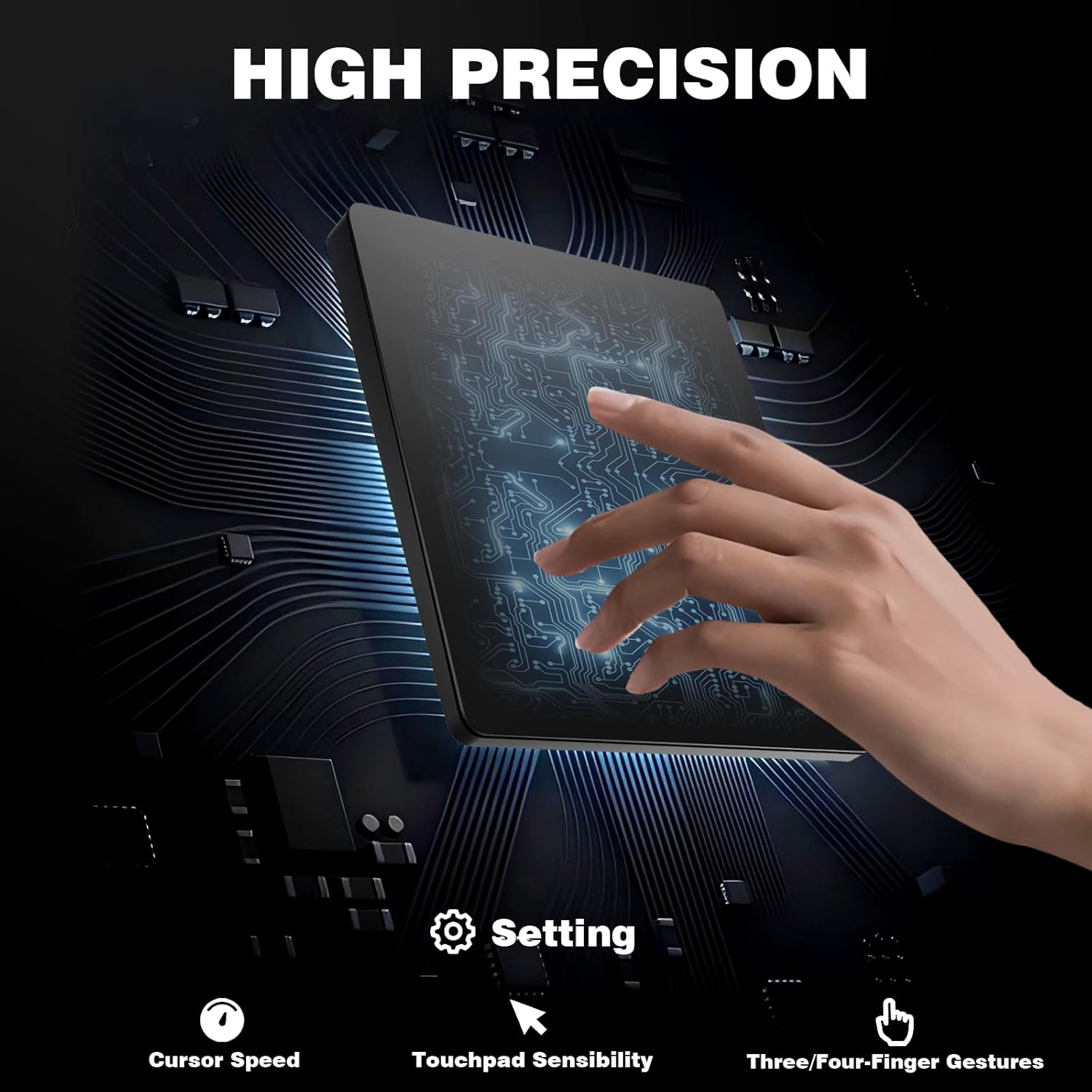
Figure 7: The full-sized trackpad provides ample space for comfortable use and multi-finger gestures.
Maintenance
Proper maintenance ensures the longevity and optimal performance of your trackpad.
- Cleaning the Surface: Use a soft, lint-free cloth slightly dampened with water or a mild, non-abrasive cleaner to wipe the matte glass surface. Avoid harsh chemicals or abrasive materials.
- Dust Removal: Regularly use a can of compressed air to clear any dust or debris from around the edges and physical buttons.
- Avoid Liquids: Do not immerse the trackpad in water or expose it to excessive moisture.
- Storage: When not in use for extended periods, store the trackpad in a clean, dry environment away from direct sunlight and extreme temperatures.
Troubleshooting
If you encounter issues with your Doohoeek Wired Trackpad, refer to the following common solutions:
| Problem | Possible Cause | Solution |
|---|---|---|
| Trackpad not responding. | Loose USB connection, faulty USB port, driver issue. |
|
| Cursor movement is erratic or jumpy. | Dirty trackpad surface, interference, system performance. |
|
| Gestures are not working (Windows 10/11). | Incorrect gesture execution, Windows settings, driver issue. |
|
| Clicks/taps are not registering consistently. | Light taps, surface debris, software sensitivity settings. |
|
Specifications
| Feature | Detail |
|---|---|
| Brand | Doohoeek |
| Model | B0CYZHFSQN |
| Connectivity | Wired USB |
| Compatibility | Windows 7/10/11 PC, Laptops, Desktop Computers |
| Surface Material | Matte Glass |
| Dimensions (LxWxH) | 4.3 x 4.7 x 0.1 inches (approx.) |
| Item Weight | 10 ounces |
| Color | Black |
| Special Features | Multi-Touch Gestures, High Precision, Portable, Lightweight |

Figure 8: Approximate dimensions of the Doohoeek Wired Trackpad.
Warranty Information
Doohoeek products are manufactured to high quality standards. For specific warranty terms and conditions, please refer to the warranty card included with your product or visit the official Doohoeek website. Keep your purchase receipt as proof of purchase for any warranty claims.
Support
If you require further assistance or have questions not covered in this manual, please contact Doohoeek customer support through the following channels:
- Online Support: Visit the official Doohoeek website for FAQs, driver downloads, and support contact forms.
- Email Support: Refer to your product packaging or the official website for the customer support email address.
Please have your product model number (B0CYZHFSQN) and purchase details ready when contacting support.
Ask a question about this manual
Ask about setup, troubleshooting, compatibility, parts, safety, or missing instructions. Manuals+ will review the question and use this page’s manual context to help answer it.