
Introduction
This manual provides detailed instructions for the setup, operation, and maintenance of your Atatat 7-inch Digital Picture Frame. Please read this manual thoroughly before using the device to ensure proper functionality and to maximize your user experience. Keep this manual for future reference.
Package Contents
Verify that all items listed below are included in your package:
- Atatat 7-inch Digital Picture Frame
- Remote Control
- Power Adapter
- User Manual (this document)
Product Overview
Familiarize yourself with the components of your digital picture frame.

Image: Front view of the Atatat 7-inch Digital Picture Frame, showcasing its display with a vibrant family photograph.
Front Panel
- 7-inch IPS Display: High-resolution screen for viewing photos and videos.
Side/Rear Panel
- Power Port (DC IN): Connects to the power adapter.
- USB Port: For connecting USB flash drives.
- SD Card Slot: For inserting SD/MMC memory cards (4-128GB supported).
- Control Buttons: Navigation and menu access buttons.
- Speaker: For audio playback.
Setup
Follow these steps to set up your digital picture frame:
- Connect Power: Insert the power adapter into the DC IN port on the frame and then plug it into a wall outlet. The frame will automatically power on.
- Insert Storage Device: Insert an SD card or USB flash drive containing your photos, videos, or music into the corresponding slot/port. Ensure the device is inserted correctly.
- Initial Boot-up: The frame will display the startup screen and then proceed to the main menu or begin a slideshow if media is detected.
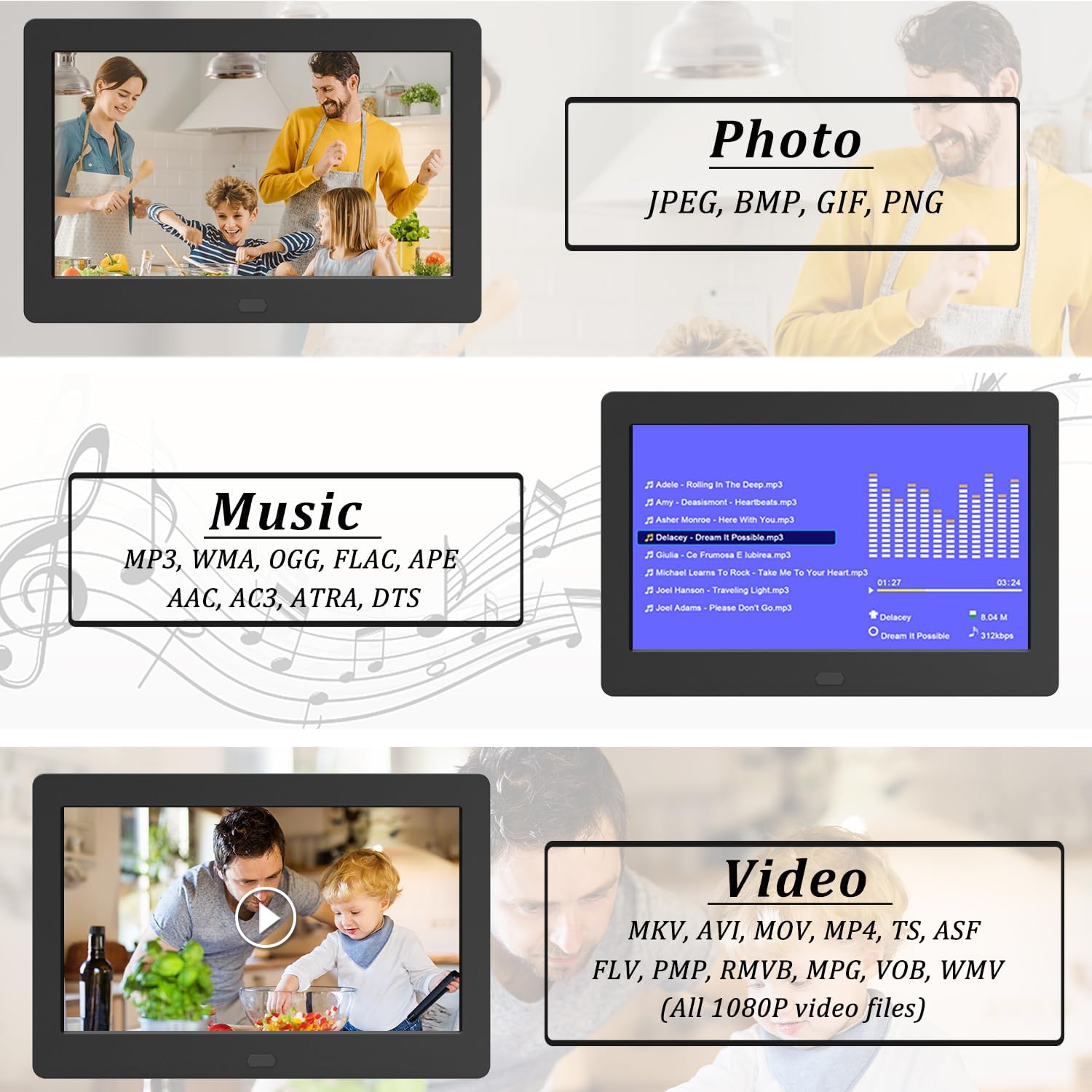
Image: The digital picture frame screen displaying the various supported file formats for photos, music, and videos.
Operating Instructions
Navigate and utilize the features of your digital picture frame.
Using the Remote Control
The included remote control allows for convenient operation from a distance. Ensure the remote has working batteries and is pointed towards the frame's sensor.
Main Menu Navigation
- Use the arrow buttons on the remote or the frame to navigate through menu options.
- Press the 'OK' or 'Enter' button to select an option.
- Press the 'Exit' or 'Return' button to go back to the previous menu.
Photo Playback (Slideshow)
- From the main menu, select 'Photo'.
- Choose your desired storage device (SD card or USB).
- The frame will automatically start a slideshow of the photos.
- Use the remote to pause, skip, or adjust slideshow settings.

Image: The digital picture frame displaying a grid of image previews and demonstrating multiple photo switching effects for slideshows.
Video Playback
- From the main menu, select 'Video'.
- Choose your desired storage device.
- Select the video file you wish to play.
- Use the remote for playback controls (play, pause, fast forward, rewind).
Music Playback
- From the main menu, select 'Music'.
- Choose your desired storage device.
- Select the audio file you wish to play.
- Music can be played in the background during photo slideshows.

Image: The digital picture frame showing a photo with musical notes, illustrating the background music feature.
Media Management
Supported File Formats
- Photos: JPEG, BMP, GIF, PNG
- Music: MP3, WMA, OGG, FLAC, APE, AAC, AC3, ATRA, DTS
- Video: MKV, AVI, MOV, MP4, TS, ASF, FLV, PMP, RMVB, MPG, VOB, WMV (Supports 1080P video files)
Transferring Files
To transfer files to your SD card or USB drive, connect the storage device to a computer and copy your media files directly. Ensure files are organized in folders for easier navigation on the frame.
Advanced Features
Slideshow Settings
Customize your photo slideshow experience:
- Slideshow Effects: Choose from 9 different transition effects.
- Display Mode: Set photos to display in sequence or randomly.
- Image Preview: Utilize the unique image preview function to easily locate specific photos.
- Photo Direction: The frame automatically adapts to portrait or landscape orientation.
- Photo Size: Adjust settings to prevent photo deformation when filling the screen.

Image: The digital picture frame demonstrating its ability to automatically correct photo direction for optimal viewing.
Clock, Calendar, and Alarm
The frame includes integrated time-keeping functions:
- View the current time and date.
- Access a full calendar display.
- Set alarms for reminders.
Adjustable Brightness
Customize the screen brightness to suit your environment and preference.
Auto Power On/Off
Schedule the frame to automatically power on and off at specified times.
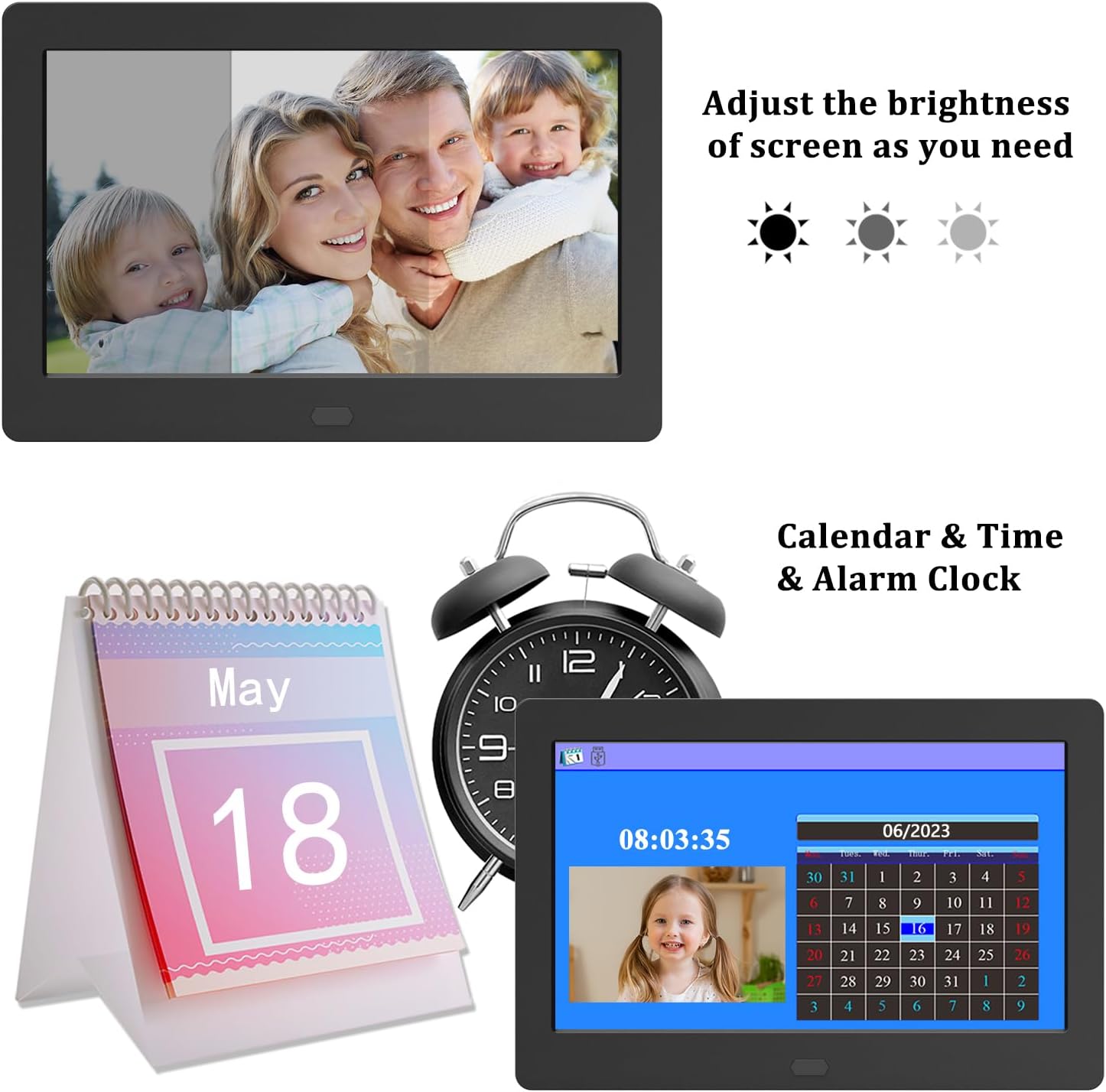
Image: The digital picture frame interface displaying options for brightness adjustment, along with the calendar, time, and alarm clock features.
Maintenance
Proper care will extend the life of your digital picture frame:
- Cleaning the Screen: Use a soft, dry, lint-free cloth to gently wipe the screen. For stubborn smudges, slightly dampen the cloth with water or a screen-cleaning solution designed for electronics. Avoid harsh chemicals.
- Cleaning the Frame: Wipe the frame's exterior with a soft, dry cloth.
- Storage: When not in use for extended periods, store the frame in a cool, dry place away from direct sunlight and extreme temperatures.
- Power: Always disconnect the power adapter before cleaning or when the device is not in use.
Troubleshooting
Refer to the table below for common issues and their solutions:
| Problem | Possible Cause | Solution |
|---|---|---|
| Frame does not power on. | Power adapter not connected or faulty. | Ensure the power adapter is securely connected to the frame and a working power outlet. Test the outlet with another device. |
| No photos/videos displayed. | No storage device inserted or media files are not supported. | Insert a compatible SD card or USB drive with supported media files. Check file formats (JPEG, MP4, etc.). |
| Remote control not working. | Batteries are dead or remote is not pointed correctly. | Replace the remote control batteries. Ensure there are no obstructions between the remote and the frame's sensor. |
| Images appear distorted. | Incorrect aspect ratio settings or low-resolution images. | Adjust the photo display settings in the menu. Use higher resolution images for best results. |
| Frame freezes or becomes unresponsive. | Software glitch or incompatible media. | Disconnect the power adapter, wait 10 seconds, then reconnect to restart the frame. Ensure media files are not corrupted. |
Specifications
Key technical specifications for the Atatat 7-inch Digital Picture Frame:
- Model: B0CYYLZY8N
- Screen Size: 7 inches
- Display Type: IPS
- Resolution: 1280x800
- Aspect Ratio: 16:9
- Supported Storage: SD Card (4-128GB), USB Flash Drive
- Connectivity: USB
- Video Support: 1080P
- Dimensions: 10 x 6 x 0.99 inches
- Item Weight: 1.41 pounds
- Manufacturer: Atatat
Warranty and Support
Atatat provides a 12-month warranty for this product, covering manufacturing defects from the date of purchase. This warranty does not cover damage caused by misuse, accidents, unauthorized modifications, or normal wear and tear.
For technical support, warranty claims, or any inquiries regarding your Atatat Digital Picture Frame, please contact our customer service team. Refer to the contact information provided with your product packaging or visit the official Atatat website for assistance.
We are committed to providing 24-hour after-sales service to ensure your satisfaction.