
1. Overview
The Generic H8 Brazil TV Box is a versatile media streaming device designed to enhance your television viewing experience. It supports 4K Ultra HD resolution, offering crisp and clear visuals. With dual-band 2.4GHz and 5GHz WiFi connectivity and Bluetooth 5, it provides stable and fast access to online content and seamless peripheral connections. This manual provides essential information for setting up, operating, and maintaining your H8 TV Box.
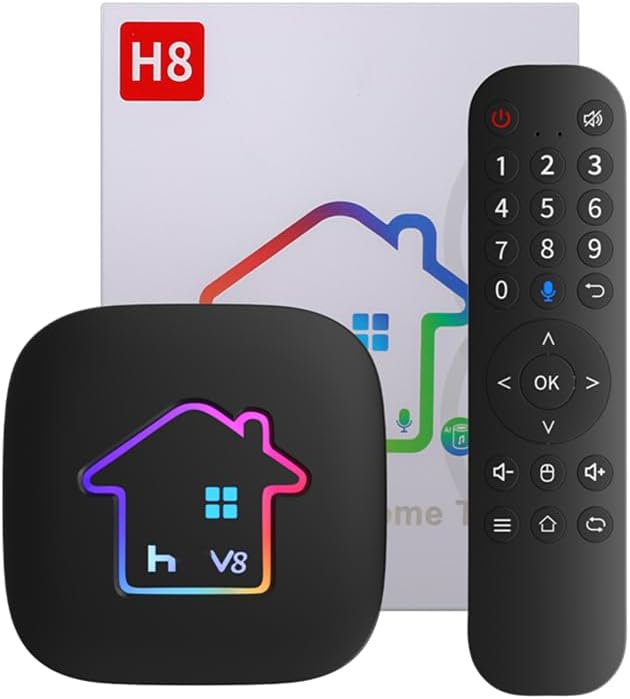
Product Highlights:
- 4K UHD Resolution Support
- 2.4GHz/5GHz Dual-Band WiFi
- Bluetooth 5 Connectivity
- Android Operating System
- Compact and User-Friendly Design
Video: H8 Brazil TV Box Overview
Video 1.1: A brief overview of the H8 Brazil TV Box, showcasing its design and key features.
2. What's in the Box
Before you begin, please check the contents of your H8 Brazil TV Box package to ensure all items are present:
- Generic H8 Brazil TV Box
- Remote Control
- HDMI Cable
- Power Adapter
- User Manual
Video: Unboxing the Android TV Box
Video 2.1: This video demonstrates the contents typically found inside an Android TV box package, including the device, remote, cables, and manual.
3. Setup Guide
Follow these steps to connect your H8 Brazil TV Box to your television and power source:
- Connect HDMI Cable: Plug one end of the HDMI cable into the HDMI port on the H8 TV Box and the other end into an available HDMI input on your television.
- Connect Power Adapter: Insert the power adapter into the DC 5V port on the H8 TV Box, then plug the adapter into a wall outlet.
- Power On: The device should automatically power on. If not, press the power button on the remote control.
- Select TV Input: Use your TV's remote control to select the correct HDMI input source that corresponds to where you connected the H8 TV Box.
- Network Connection: Once the device boots up, navigate to the settings menu to connect to your home Wi-Fi network or plug in an Ethernet cable for a wired connection.
Video: How to Connect an Android TV Box
Video 3.1: This video provides a visual guide on connecting an Android TV box, including power and HDMI connections, and the initial boot sequence.
4. Operating Instructions
4.1 App Management
The H8 TV Box allows you to customize your home screen by toggling and replacing applications. This helps in organizing your frequently used apps for quick access.
- Navigate to App: Use the remote control to highlight the app you wish to manage.
- Toggle/Replace: Press and hold the 'OK' button on the remote. An option to 'Toggle' or 'Replace' the app should appear. Select your desired action.
- Select New App (if replacing): If replacing, a list of available applications will appear. Select the app you want to place in the chosen slot.
Video: Switch App to Homepage
Video 4.1: This video demonstrates how to switch and replace applications on the TV box's homepage for personalized access.
4.2 Screen Casting (Miracast)
You can cast content from your Android device to your TV via the H8 TV Box using Miracast. Ensure both your phone and the TV box are connected to the same Wi-Fi network.
- Open Miracast App: On your H8 TV Box, navigate to and open the 'MiracastReceiver' app. The screen will display 'W3 waiting for connection'.
- Enable Casting on Phone: On your Android phone, go to 'Settings' > 'Connection & sharing' > 'Cast' (or similar, depending on your phone model).
- Connect to W3: Your phone will search for nearby devices. Select 'W3' from the list to establish the connection.
- Start Casting: Once connected, your phone's screen will be mirrored on your TV.
Video: How to Cast Your Android Device to a TV Box
Video 4.2: This video illustrates the process of casting an Android device's screen to the TV box using the Miracast feature, including connecting to the 'W3' device.
5. Specifications
Detailed technical specifications for the Generic H8 Brazil TV Box:
| Feature | Detail |
|---|---|
| Brand | Generic |
| Manufacturer | H.V BOX |
| Model Name | H8 |
| Memory Storage Capacity | 16 GB |
| RAM Memory Installed Size | 2 GB |
| Resolution | 4K |
| Compatible Devices | Television |
| Special Features | DLNA |
| Total USB Ports | 2 |
| Connectivity Technology | Ethernet, Wi-Fi (2.4GHz/5GHz), Bluetooth |
| Connector Type | HDMI |
| Form Factor | TV Box |
| Colour | Black |
| Item Weight | 620 Grams |
6. Troubleshooting
If you encounter issues with your H8 Brazil TV Box, refer to the following common problems and solutions:
- No Power:
Ensure the power adapter is securely connected to both the TV box and a working power outlet. Try a different outlet if necessary. - No Picture on TV:
Verify that the HDMI cable is correctly connected to both the TV box and the TV. Check that your TV is set to the correct HDMI input source. Try a different HDMI cable or port. - No Wi-Fi Connection:
Go to 'Settings' > 'Network' and ensure Wi-Fi is enabled. Select your network and enter the correct password. Restart your router and the TV box. Ensure the TV box is within range of your Wi-Fi router. - Remote Control Not Responding:
Check the batteries in the remote control and replace them if needed. Ensure there are no obstructions between the remote and the TV box. - Apps Crashing or Freezing:
Close and restart the app. Clear the app's cache in 'Settings' > 'Apps' > [App Name] > 'Clear Cache'. If the problem persists, try uninstalling and reinstalling the app. - Poor Video Quality:
Ensure your internet connection is stable and fast enough for streaming 4K content. Check your TV's resolution settings and ensure they are set to 4K if your TV supports it.
7. Maintenance
To ensure the longevity and optimal performance of your H8 Brazil TV Box, follow these maintenance guidelines:
- Keep Clean: Regularly wipe the device with a soft, dry cloth to remove dust. Avoid using liquid cleaners or abrasive materials.
- Ventilation: Ensure the TV box is placed in a well-ventilated area to prevent overheating. Do not cover ventilation openings.
- Avoid Extreme Conditions: Do not expose the device to extreme temperatures, humidity, or direct sunlight.
- Software Updates: Periodically check for and install system software updates to ensure you have the latest features and security patches.
- Safe Shutdown: Always power off the device properly before unplugging it to prevent data corruption.
8. Warranty and Support
The Generic H8 Brazil TV Box comes with a standard manufacturer's warranty. Please refer to the warranty card included in your package for specific terms and conditions, including the warranty period and coverage details.
For technical support, troubleshooting assistance beyond this manual, or warranty claims, please contact the retailer or manufacturer's customer service. Contact information can typically be found on the product packaging or the manufacturer's official website.
Please retain your proof of purchase for any warranty-related inquiries.