
1. Introduction
This manual provides detailed instructions for the installation, operation, and maintenance of your Zcargel Android 12 Car Stereo Radio Player. This unit features a 10-inch HD touch screen, GPS navigation, wireless Carplay, and Android Auto, designed for seamless integration into Lexus IS250 and IS350 models from 2006 to 2012. Please read this manual thoroughly before installation and use to ensure proper function and safety.
2. Safety Information
- Always disconnect the vehicle's battery before beginning any electrical installation to prevent short circuits and damage.
- Ensure all wiring connections are secure and properly insulated to avoid electrical hazards.
- Do not operate the device in a way that distracts you from driving. Always prioritize road safety.
- Consult a professional installer if you are unsure about any part of the installation process.
- Keep the device away from water and excessive moisture.
3. Package Contents
Verify that all items listed below are included in your package:
- 1x Zcargel Android 12 Car Stereo Unit
- 1x Power Cable Harness
- 1x RCA Input/Output Cable Set
- 2x USB Cables
- 1x Camera Input Cable
- 1x GPS Antenna
- 1x OBD Line
- 1x Canbus Box
- Mounting Brackets and Screws
- 1x Instruction Manual (this document)

Figure 3.1: Overview of the Zcargel Android 12 Car Stereo package contents, including the main unit, various cables, GPS antenna, OBD line, Canbus box, and mounting hardware.
4. Setup and Installation
Proper installation is crucial for the optimal performance of your car stereo. If you are not experienced with car audio installations, it is recommended to seek professional assistance.
4.1 Pre-Installation Steps
- Disconnect Battery: Before starting, disconnect the negative terminal of your vehicle's battery to prevent electrical damage.
- Remove Old Unit: Carefully remove your existing car stereo and dashboard trim. Refer to your vehicle's service manual for specific instructions.
4.2 Wiring Connections
Connect the provided wiring harnesses to the corresponding ports on the Zcargel unit and your vehicle's wiring. Ensure all connections are firm.

Figure 4.1: Detailed wiring diagram for the Zcargel Android 12 Car Stereo. This image illustrates connections for the radio back OUT port, CD, hazard light and AC control cable, OEM AC power plug, OEM backup camera, and OEM car OBD. Specific plugs are indicated for cars without a screen, and for 2006/2007 and 2008/2009 models with a screen. Note the importance of connecting the RX/TX cable for AC and steering wheel control functionality.
- Power Harness: Connect the main power harness to the vehicle's power supply.
- RCA Cables: Connect RCA input/output cables for external amplifiers or video devices as needed.
- USB Cables: Route the USB cables to an accessible location for connecting USB devices.
- Camera Input: Connect the camera input cable for a rearview camera.
- GPS Antenna: Mount the GPS antenna in a location with a clear view of the sky, typically on the dashboard or under the windshield.
- OBD Line & Canbus Box: Connect the OBD line and Canbus box according to the diagram. The Canbus box facilitates communication between the stereo and your vehicle's systems, enabling features like steering wheel controls and AC display.
- Vehicle-Specific Plugs: Use the correct vehicle-specific plugs based on your car's year and whether it has a factory screen. Refer to Figure 4.1.
- RX/TX Cable: Ensure the RX/TX cable is properly plugged in for AC and steering wheel control functions to operate correctly.
4.3 Mounting the Unit
- Secure the Zcargel unit into the dashboard opening using the provided mounting brackets and screws.
- Reinstall any removed dashboard trim pieces.
4.4 Post-Installation
- Reconnect the vehicle's battery.
- Turn on the ignition and power on the car stereo to test all functions.
5. Operating Instructions
Your Zcargel car stereo runs on Android 12, offering a range of features and customization options.

Figure 5.1: The main interface of the Zcargel Android 12 Car Stereo, showcasing various application icons including Phone, Music, Maps, Messages, Waze, Podcasts, Spotify, and Whatsapp. Status icons for Bluetooth, USB, steering wheel control, HD, Carplay, Android Auto, and WiFi are visible at the top.
5.1 Basic Operations
- Power On/Off: Press and hold the power button (usually on the front panel) to turn the unit on or off. A short press typically mutes or unmutes the audio.
- Volume Control: Use the physical knobs or on-screen controls to adjust the volume.
- Touch Screen: Navigate the interface by tapping, swiping, and pinching on the 10-inch HD capacitive touch screen.
5.2 Android 12 System
The unit operates on Android 12, providing access to a wide range of applications and settings.
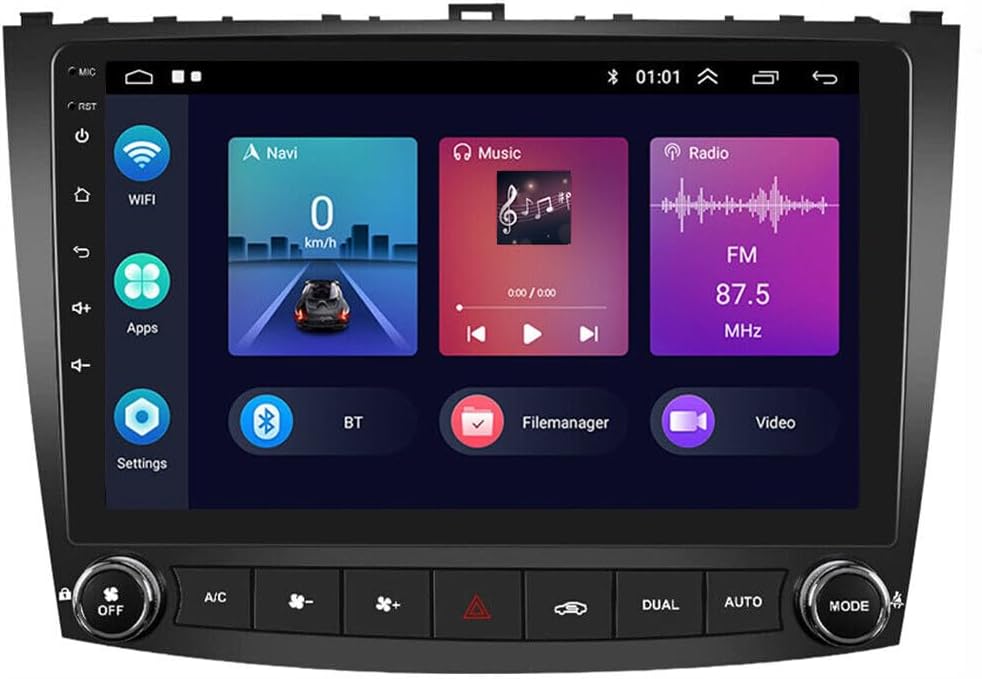
Figure 5.2: The Zcargel Android 12 Car Stereo displaying a split-screen view with navigation, music playback, and FM radio interfaces. Icons for WiFi, Apps, Settings, Bluetooth, File Manager, and Video are visible on the left sidebar.
- Home Screen: Access frequently used apps and widgets.
- Apps Drawer: Swipe up or tap the app icon to view all installed applications.
- Settings: Customize system preferences, network connections, display, sound, and more.
- Split Screen: Utilize the split-screen function to run two applications simultaneously, such as navigation and music.
5.3 Wireless Carplay & Android Auto
Integrate your smartphone for navigation, communication, and entertainment.
- Wireless Carplay (for iOS): Connect your iPhone via Bluetooth. Use the ZLINK5 app on the stereo to establish the connection. Once connected, you can use voice control for navigation, calls, messages, and music.
- Wireless Android Auto (for Android): Connect your Android phone via Bluetooth. Ensure the Android Auto app is installed on your phone. Once connected, you can use voice control for navigation, calls, messages, and music.
- Wired Connection: Both Carplay and Android Auto also support wired connections via USB for stable performance.
5.4 GPS Navigation
- Built-in Offline Maps: The unit comes with built-in offline maps. An internet connection is required to download map data initially.
- Online Navigation: Connect to Wi-Fi to use Google Maps or other online navigation applications for real-time traffic and updated maps.
5.5 FM Radio
- Tune into FM radio stations. The unit supports RDS (Radio Data System).
- Save up to 18 preset stations for quick access.
5.6 Bluetooth Connectivity
- Hands-Free Calling: Pair your smartphone via Bluetooth to make and receive calls directly from the stereo.
- Bluetooth Music Player: Stream audio from your phone to the car stereo.
- Phone Book: The unit can automatically load your phone's contact list.
5.7 Multimedia Playback
The stereo supports various audio, video, and picture formats via USB or internal storage.
- Audio Formats: APE, FLAC, WAV, MP3, WMA, etc.
- Video Formats: MKV, RMVB, AVI, MP4, MDV, etc.
- Picture Formats: PNG, JPEG, JPG, GIF, WBMP, BNP, etc.
5.8 Steering Wheel Control
If properly connected via the Canbus box, you can control essential functions of the stereo directly from your vehicle's steering wheel buttons.
5.9 Rear Camera Input
The unit supports CVBS reversing input. Connect a compatible rearview camera, and the display will automatically switch to the camera view when the vehicle is in reverse.
5.10 DSP Features
The Digital Sound Processor (DSP) ensures high-fidelity audio reproduction, closely matching the original sound quality.
6. Maintenance
- Cleaning: Use a soft, dry cloth to clean the screen and unit. For stubborn smudges, a slightly damp cloth with a mild, non-abrasive cleaner can be used. Avoid harsh chemicals.
- Software Updates: Periodically check for software updates through the system settings or Zcargel's official channels to ensure optimal performance and access to new features.
- Temperature: Avoid exposing the unit to extreme temperatures outside its operating range (-20℃ to 75℃).
7. Troubleshooting
If you encounter issues, refer to the following common problems and solutions:
| Problem | Possible Solution |
|---|---|
| Unit does not power on. | Check power cable connections and vehicle's fuse box. Ensure the battery is properly reconnected. |
| No sound from speakers. | Verify speaker wiring connections. Check volume levels and audio output settings. Ensure the unit is not muted. |
| GPS not acquiring signal. | Ensure the GPS antenna is properly connected and mounted in a location with a clear view of the sky. Try moving the vehicle to an open area. |
| Bluetooth connection issues. | Ensure Bluetooth is enabled on both the stereo and your phone. Delete previous pairings and try reconnecting. Restart both devices. |
| Carplay/Android Auto not connecting. | For wireless, ensure Bluetooth is on and the correct app (ZLINK5 for iOS, Android Auto for Android) is used. For wired, try a different USB cable. Ensure your phone's OS is up to date. |
| Steering wheel controls not working. | Verify the Canbus box and RX/TX cable are correctly connected as per the wiring diagram (Figure 4.1). Check settings for steering wheel control configuration. |
| System is slow or unresponsive. | Close unnecessary background applications. Perform a system restart. If issues persist, consider a factory reset (note: this will erase all user data). |
| Need to access factory settings. | The factory setting keyword is typically 8888 or 3368. Use with caution as incorrect changes can affect unit performance. |
8. Specifications
| Feature | Specification |
|---|---|
| System | Android 12 |
| Chipset | 8227L-DEMO |
| Screen Size | 10 inch |
| Memory | 2GB RAM + 32GB ROM |
| Screen Resolution | 1024x600 |
| Radio Chip | MT6625 |
| Power Output | 4x45W |
| Operating Temperature | -20℃ to 75℃ |
| Power Amplifier Chip | TDA7388 |
| Radio Band | FM/RDS |
| Video Output | Support |
| Reversing Input | CVBS |
| External Microphone | Support |
| Split Screen | Support |
| Maps | Built-in offline maps (internet required for data download) |
| WIFI | Support |
| USB Interface | Double USB |
| Audio Formats | APE/FLAC/WAV/MP3/WMA etc. |
| Video Formats | MKV/RMVB/AVI/MP4/MDV etc. |
| Picture Formats | PNG/JPEG/JPG/GIF/WBMP/BNP etc. |
| Product Dimensions | 14.17 x 9.84 x 4.72 inches |
| Fitment | Compatible with Lexus IS250 IS350 2006-2012 |
9. Warranty and Support
Zcargel is committed to providing high-quality products and customer satisfaction.
- Warranty: Please refer to your purchase documentation or contact Zcargel customer support for specific warranty details and duration.
- Customer Support: If you have any questions, concerns, or require assistance with your product, please contact Zcargel customer service. We aim to respond within 24 hours to help resolve any issues to your satisfaction.