
Mobility Lab ML313887
Mobility Lab ML313887 Blue Wireless Keyboard and Mouse Combo User Manual
Model: ML313887
Introduction
This manual provides instructions for the setup, operation, maintenance, and troubleshooting of your Mobility Lab ML313887 Blue Wireless Keyboard and Mouse Combo. Please read this manual thoroughly before using the product to ensure proper functionality and longevity.
Package Contents
- Wireless Keyboard
- Wireless Mouse
- USB Receiver (typically located inside the mouse battery compartment)
- User Manual
Setup Instructions
1. Battery Installation
The keyboard requires two (2) AAA batteries, and the mouse requires one (1) AA battery (batteries not included).
- For the Mouse: Open the battery compartment cover on the underside of the mouse. Insert one AA battery, ensuring correct polarity (+/-). Close the cover. The USB receiver is typically stored in this compartment.
- For the Keyboard: Open the battery compartment cover on the underside of the keyboard. Insert two AAA batteries, ensuring correct polarity (+/-). Close the cover.

Image: Mobility Lab ML313887 keyboard and mouse combo, showing the USB receiver. The receiver is typically found in the mouse battery compartment.
2. Connecting the USB Receiver
The keyboard and mouse share a single 2.4 GHz wireless USB receiver.
- Locate the USB receiver, usually stored in the mouse's battery compartment.
- Plug the USB receiver into an available USB port on your computer.
- Your computer should automatically detect and install the necessary drivers. No additional software installation is required (Plug and Play).

Image: Close-up of the compact USB receiver, which enables wireless connectivity for both the keyboard and mouse.
3. Power On
Ensure the power switches on both the keyboard and mouse are in the "ON" position. These are typically located on the underside of each device.
4. Compatibility
This combo is compatible with all Windows operating systems.
Operating Instructions
Keyboard Features
- AZERTY Layout: Standard French AZERTY keyboard layout.
- Flat and Sensitive Keys: Designed for comfortable and precise typing.
- Numeric Keypad: Full numeric keypad for data entry.
- Shortcut Keys: Dedicated multimedia and function shortcut keys for quick access to common tasks.
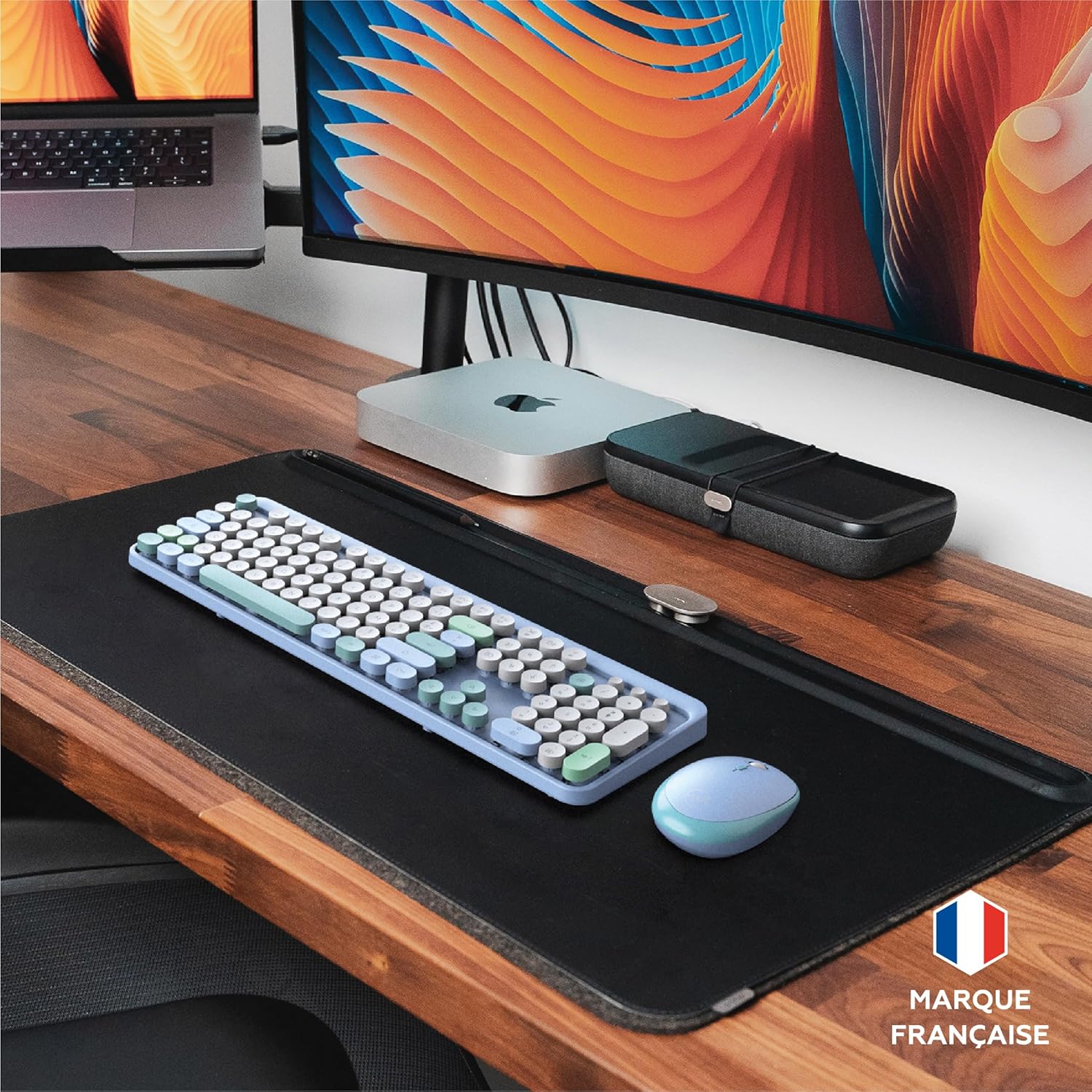
Image: The Mobility Lab ML313887 keyboard on a wooden desk, highlighting its French AZERTY layout.

Image: The complete Mobility Lab ML313887 wireless keyboard and mouse combo, showcasing its AZERTY layout and compact design.

Image: A close-up view of the keyboard's round membrane keys, designed for light and precise keystrokes.
Mouse Features
- Adjustable Sensitivity (DPI): The mouse offers adjustable DPI settings of 800, 1200, and 1600. This allows you to customize the cursor speed to your preference.
- To change the DPI, press the DPI button, usually located near the scroll wheel.

Image: The wireless mouse, highlighting its adjustable sensitivity (DPI) feature for customized cursor control.
Ergonomics and Design
- Compact Design: The keyboard and mouse feature a compact design suitable for various workspaces.
- Adjustable Keyboard Tilt: The keyboard includes foldable feet, offering two inclination modes for improved typing comfort.
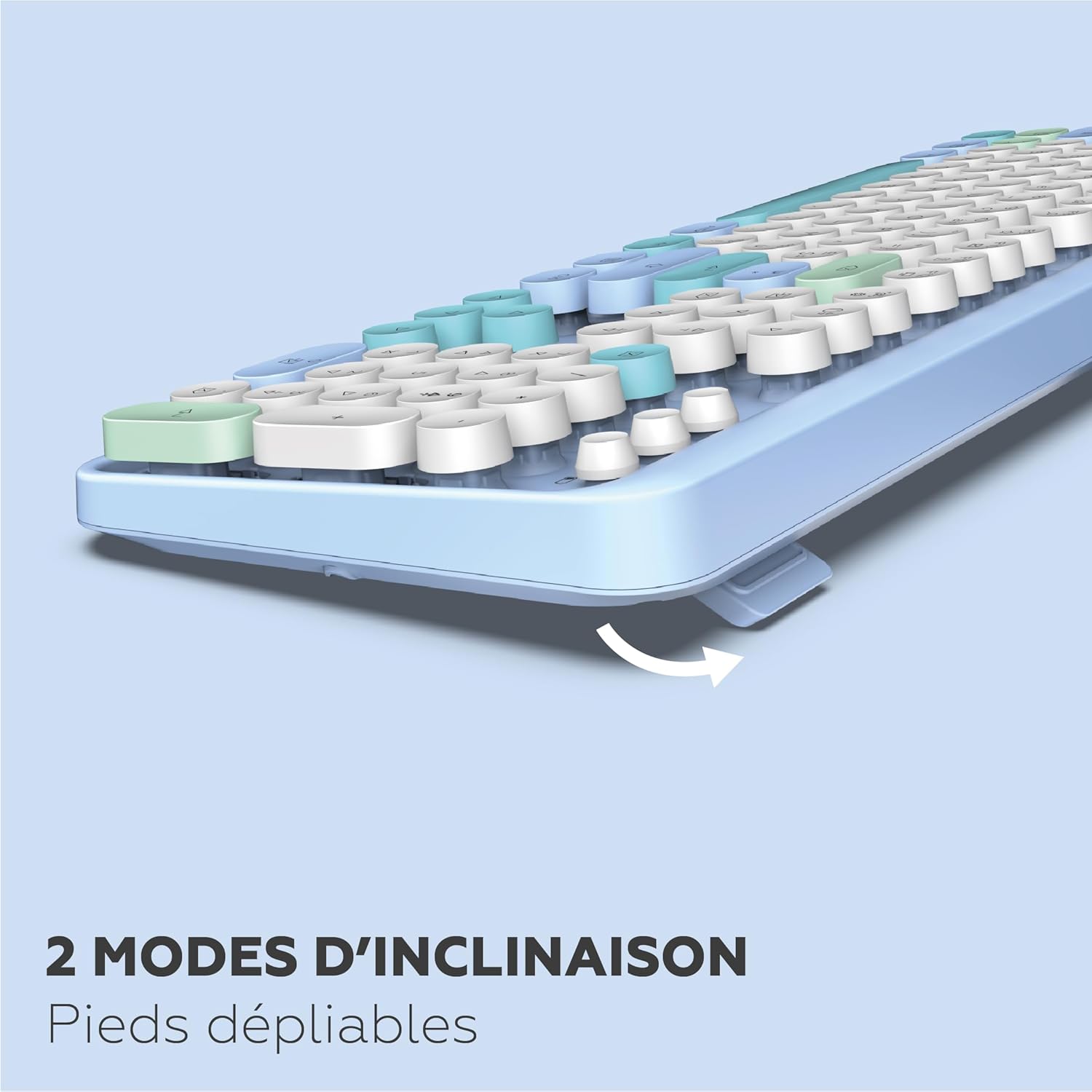
Image: The underside of the keyboard, showing the foldable feet that allow for two different tilt angles to enhance ergonomic comfort.

Image: Technical drawing illustrating the dimensions of the keyboard (441mm x 141mm) and mouse (66mm x 105mm), highlighting their compact form factor.
Low Power Consumption
Both the keyboard and mouse are designed with low power consumption features. They automatically enter a power-saving mode when not in use, extending battery life.
Maintenance
- Cleaning: Use a soft, dry cloth to clean the surfaces of the keyboard and mouse. For stubborn dirt, a slightly damp cloth can be used, but ensure no liquid enters the devices.
- Battery Replacement: Replace batteries when performance degrades or devices stop responding. Ensure correct polarity when inserting new batteries.
- Storage: When not in use for extended periods, turn off the devices and remove batteries to prevent leakage. Store in a cool, dry place.
Troubleshooting
- Device not responding:
- Check if the devices are powered on.
- Ensure batteries are correctly installed and not depleted. Replace if necessary.
- Verify the USB receiver is securely plugged into a working USB port on your computer.
- Try plugging the USB receiver into a different USB port.
- Move the keyboard and mouse closer to the USB receiver to rule out range issues.
- Lagging or intermittent connection:
- Ensure there are no large metallic objects or other wireless devices interfering with the 2.4 GHz signal.
- Replace batteries, even if they seem to have some charge left.
- Mouse cursor movement is too fast or too slow:
- Adjust the DPI setting using the DPI button on the mouse (cycles through 800, 1200, 1600 DPI).
Specifications
| Brand | Mobility Lab |
| Model Number | ML313887 |
| Color | Blue |
| Connectivity Technology | 2.4 GHz Wireless |
| Operating System Compatibility | Windows |
| Keyboard Description | Ergonomic Wireless, AZERTY Layout, Flat and Sensitive Keys, Numeric Keypad, Shortcut Keys |
| Mouse Movement Detection Technology | Laser |
| Mouse DPI Settings | 800, 1200, 1600 DPI (Adjustable) |
| Keyboard Batteries Required | 2 x AAA (not included) |
| Mouse Batteries Required | 1 x AA (not included) |
| Item Weight | 540 Grams |
| Special Features | Colored and ergonomic design, Driver-free installation, Shortcut and numeric keypad, Low power consumption for mouse and keyboard, Flat and sensitive keys, Adjustable keyboard tilt. |
Warranty and Support
For warranty information and technical support, please refer to the documentation provided with your purchase or contact Mobility Lab customer service directly.
Note: Spare parts for this product are currently unavailable.
Related documentsML313887


Ask a question about this manual
Ask about setup, troubleshooting, compatibility, parts, safety, or missing instructions. Manuals+ will review the question and use this page’s manual context to help answer it.