
1. Introduction
Thank you for choosing the NEWPET Tuya Smart Door Lock. This manual provides essential information for the proper installation, setup, operation, and maintenance of your smart lock. Please read these instructions carefully before installation and use to ensure optimal performance and security.
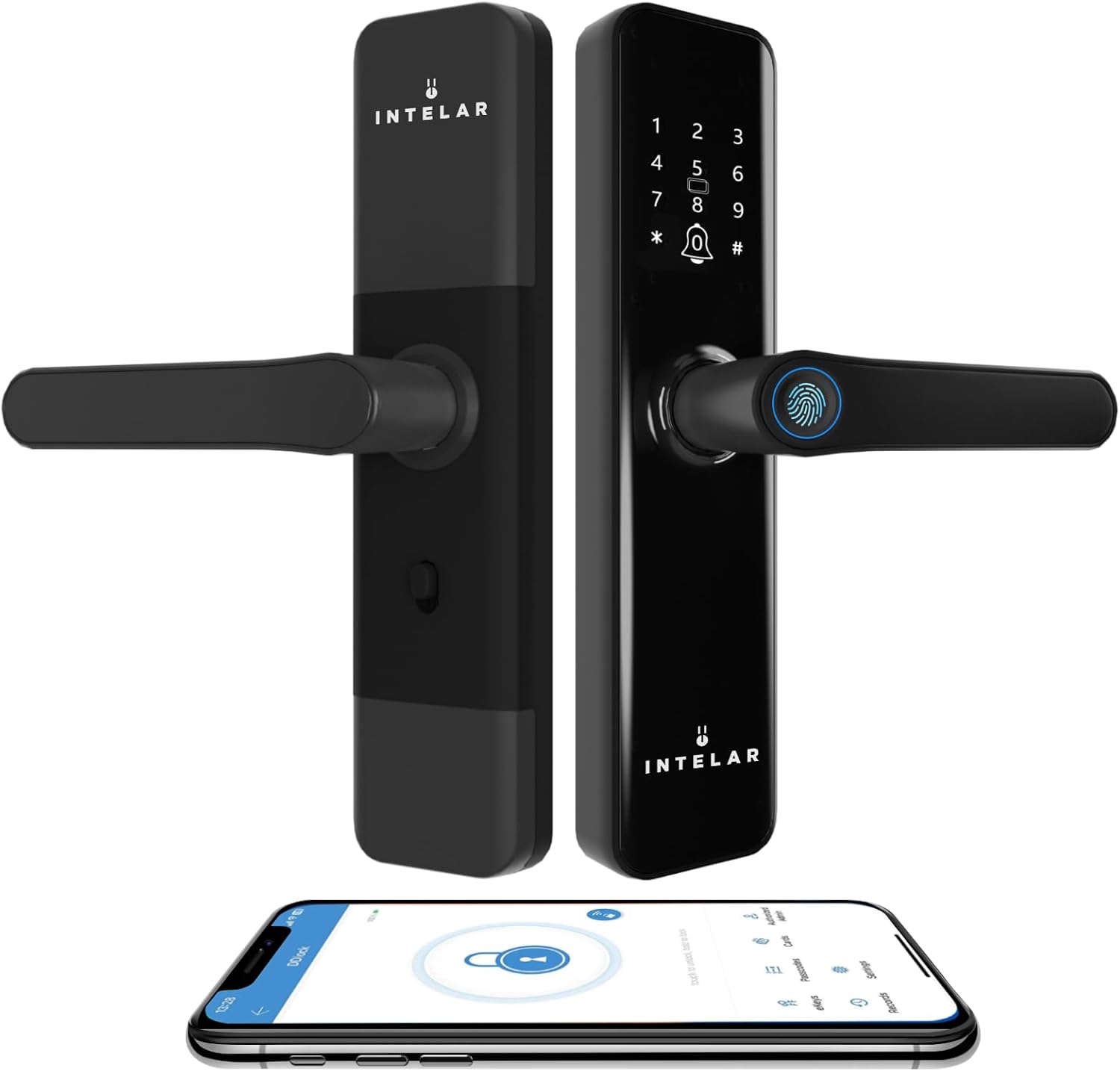
Image 1.1: The NEWPET Tuya Smart Door Lock, showing both the exterior and interior handle units, along with a smartphone demonstrating the associated mobile application interface.
2. Product Features
The NEWPET Tuya Smart Door Lock offers advanced security and convenience with multiple access options and smart functionalities:
- Multiple Unlocking Methods: Access your door using fingerprint, password, IC card, mechanical key, or the mobile application.
- Dual Verification Mode: For enhanced security, configure the lock to require two distinct verification methods (e.g., two fingerprints, or a fingerprint and a password) to unlock.
- Anti-lock Function: Activate the interior anti-lock switch for privacy. When engaged, only the administrator can unlock the door from the outside.
- Alarm System: Features a low battery warning and an alarm for multiple incorrect entry attempts.
- Normal Open Mode: Temporarily disable automatic locking for convenience, allowing the door to be opened by simply pressing the handle. This mode is exited after administrator verification.
- Fake Password Function: Enhance security by entering random digits before or after your actual password. The lock will still recognize the correct sequence within the longer input.
- Emergency Power Supply: In case of complete battery depletion, the lock can be temporarily powered via a USB emergency port using an external power bank.
- Automatic Locking: The digital door lock can be configured to lock automatically after a set period.
- Tamper Alerts: Receive alerts if unauthorized attempts are made to break in or tamper with the lock.
- App Control (Bluetooth & WiFi): Within Bluetooth range, use the app to unlock, share access, monitor status, and view entry logs. A compatible gateway (sold separately) is required for remote WiFi control.

Image 2.1: Overview of the lock's five primary access methods and additional features, including smart lock FOB (IC card), access code, fingerprint, automatic locking, mechanical key, and Tuya APP control.
3. Specifications
| Feature | Specification |
|---|---|
| Model | NEWPET-X5-V |
| Brand | NEWPET |
| Color | Black |
| Style | Modern |
| Lock Type | Biometric, Combination Lock, Keypad Lock |
| Unlocking Methods | Fingerprint, Password, IC Card, Mechanical Key, Mobile App (Tuya) |
| Power Supply | 4 x AAA 1.5V Alkaline Batteries (not included) |
| Emergency Power | USB Emergency Charging Port |
| Product Dimensions (L x W x H) | 32 x 19 x 13 cm |
| Product Weight | 2.08 kg |
| Application | Home Entrance Doors |

Image 3.1: Dimensional drawing of the smart door lock, illustrating key measurements for installation, including panel height, handle length, and mortise lock dimensions.
4. Installation
Proper installation is crucial for the functionality and security of your smart lock. While specific steps may vary based on your door type, general guidelines include:
- Preparation: Ensure your door meets the required thickness and backset specifications. Remove any existing lock hardware.
- Mortise Installation: Install the mortise lock into the door edge, ensuring it is flush and securely fastened.
- Exterior Panel Installation: Mount the exterior handle assembly, feeding the connecting rod and cables through the door.
- Interior Panel Installation: Connect the cables from the exterior panel to the interior panel. Secure the interior panel to the door, ensuring the handle operates smoothly.
- Battery Installation: Insert 4 AAA alkaline batteries into the designated compartment on the interior panel.
- Testing: After installation, perform initial tests using the mechanical key to ensure the lock operates correctly before proceeding with electronic setup.
Important: After installing a new lock, it is essential to perform an initialization operation to clear any pre-recorded fingerprints or data from debugging. Refer to the setup section for initialization instructions.
5. Setup
To fully utilize your NEWPET Tuya Smart Door Lock, follow these setup procedures:
5.1 Initializing the Lock
After installation, initialize the lock to clear all factory settings and debug data. This typically involves pressing a reset button on the interior panel for a few seconds until an audible confirmation is heard.
5.2 App Connection (Tuya/Smart Life App)
- Download the Tuya Smart or Smart Life app from your smartphone's app store.
- Register or log in to your account.
- Ensure Bluetooth is enabled on your smartphone and the lock is powered on.
- In the app, tap '+' to add a device. The app should detect the lock via Bluetooth. Follow the on-screen prompts to pair the lock.
- If remote access is desired, connect the lock to a compatible 2.4G WiFi gateway (sold separately) through the app.

Image 5.1: The Tuya app interface demonstrating various control options for the smart lock, including user management, security settings, and activity logs.
5.3 User Registration (Fingerprint, Password, IC Card)
Follow the in-app instructions or the lock's voice prompts to register new users:
- Fingerprint: Place your finger on the sensor, lift, and repeat several times from different angles until registration is complete.
- Password: Enter your desired password on the keypad, then confirm.
- IC Card: Present the IC card to the designated sensor area until it is registered.

Image 5.2: Visual representation of the fingerprint recognition process, highlighting the speed and accuracy of the biometric sensor.
6. Operating Instructions
Operating your NEWPET Smart Door Lock is straightforward:
6.1 Unlocking the Door
- Fingerprint: Place your registered finger on the fingerprint sensor. The lock will unlock upon successful recognition.
- Password: Enter your registered password on the keypad, followed by '#'.
- IC Card: Present your registered IC card to the card reader area.
- Mobile App: Open the Tuya/Smart Life app, select your lock, and tap the unlock icon.
- Mechanical Key: Insert the mechanical key into the keyhole and turn to unlock. This is for emergency use.
6.2 Locking the Door
- Automatic Locking: If enabled, the lock will automatically engage after the door closes.
- Manual Locking: From the exterior, press '#' on the keypad. From the interior, lift the handle or use the thumb turn.
6.3 Dual Verification Mode
If enabled, two registered users must perform their respective verification methods (e.g., two fingerprints, or a fingerprint and a password) in sequence to unlock the door.
6.4 Anti-lock Function
To activate, locate the anti-lock switch on the interior panel and engage it. A voice prompt will confirm "the door has been anti-locked." To deactivate, disengage the switch or have an administrator verify their credentials.
7. Maintenance
Regular maintenance ensures the longevity and reliable operation of your smart lock:
- Battery Replacement: The lock uses 4 high-performance 1.5V alkaline AAA batteries. When the "insufficient power, please change batteries" voice prompt is heard, replace all four batteries promptly to avoid inconvenience. It is recommended to replace batteries at least once every six months to prevent leakage.
- Cleaning: Wipe the lock's surface and fingerprint sensor with a soft, dry cloth. Avoid using abrasive cleaners or solvents that could damage the finish or electronic components.
- Handle Care: The handle is a critical part of the locking mechanism. Do not hang heavy objects on the handle, as this can affect its flexibility and the lock's operation.
- Fingerprint Sensor: When registering or using fingerprints, apply moderate pressure. Avoid applying strong pressure to prevent scratching the fingerprint reader head.
8. Troubleshooting
If you encounter issues with your NEWPET Smart Door Lock, refer to the following common problems and solutions:
- Lock Not Responding: Check battery levels. If batteries are depleted, use the USB emergency power port or the mechanical key.
- Incorrect Entry Alarm: If a fingerprint, card, or password is entered incorrectly 5 times, the device will alarm, and the lock will be unusable for 90 seconds. Wait for the lockout period to expire before attempting again.
- Fingerprint Recognition Failure: Ensure your finger is clean and dry. Try re-registering your fingerprint from multiple angles.
- App Connectivity Issues: Ensure Bluetooth is on and you are within range. For remote access, verify your WiFi gateway is properly connected and configured in the app.
- Handle Stiffness: Ensure no objects are obstructing the handle's movement. Check for proper installation alignment.
- Lock Does Not Initialize: If the lock does not respond to initialization, ensure batteries are correctly installed and charged. Repeat the initialization process carefully.
9. Safety Precautions
- Always keep a spare mechanical key in a secure location outside your home for emergency access.
- Do not expose the lock to extreme temperatures or direct water spray.
- Ensure all users are aware of the correct operating procedures and safety guidelines.
- Regularly check for firmware updates through the Tuya/Smart Life app to ensure optimal security and functionality.
10. Warranty and Support
For warranty information and technical support, please refer to the documentation provided at the time of purchase or contact NEWPET customer service. Keep your purchase receipt as proof of purchase.