
1. Safety Information
Please read all instructions carefully before installation and operation. Failure to follow these instructions may result in damage to the product, vehicle, or personal injury. Keep this manual for future reference.
- Ensure the vehicle's ignition is off and the negative battery terminal is disconnected before installation to prevent electrical shorts.
- Consult a professional for installation if you are unsure about any steps.
- Do not operate the device in a way that distracts you from driving. Always prioritize road safety.
- Avoid exposing the unit to extreme temperatures, direct sunlight, or moisture.
- Use only specified power cables and accessories.
2. Package Contents
Verify that all items are present in the package before proceeding with installation.

Image: Components included in the UNITOPSCI A3612A3 package, including the main unit, wiring harnesses, and accessories.
- UNITOPSCI A3612A3 Car Stereo Unit
- Power Cable & Speaker Cable Harnesses
- Steering Wheel Control Remote
- Microphone
- 12LED Rear Camera
- Antenna
- User Manual (this document)
- Mounting Brackets
3. Installation
Proper installation is crucial for optimal performance. Refer to the wiring diagram and consult a professional if needed.
3.1 Wiring Diagram

Image: Detailed wiring connections for the car stereo unit.
Connect the power and speaker cables according to the diagram. Ensure all connections are secure to prevent malfunctions.
- Red (ACC): Connect to ignition switch +12V.
- Yellow (BATTERY+): Connect to constant +12V.
- Black (GND): Connect to vehicle ground.
- Blue (ANT): Connect to antenna power.
- Orange (ILLUMINATION): Connect to vehicle illumination wire.
- Pink (REVERSE): Connect to reverse light signal for backup camera activation.
- Brown (KEY): Connect to steering wheel control wire.
- Speaker wires (White, Gray, Green, Purple) should be connected to corresponding vehicle speakers (Front Left, Front Right, Rear Left, Rear Right).
3.2 Mounting the Unit
Use the provided mounting brackets to secure the double din unit into your vehicle's dashboard opening. Ensure a snug fit to prevent vibrations.
3.3 Backup Camera Installation
Mount the backup camera at the rear of your vehicle. Connect its video output to the 'CAM IN' input on the stereo and its power to the reverse light circuit.
4. Setup
4.1 Initial Power On
After installation, reconnect the vehicle battery. Turn on the ignition. The unit should power on and display the main interface.
4.2 Basic Settings
Navigate to the 'Settings' menu to configure basic parameters such as language, time, and date.
4.3 Display Backlight Adjustment
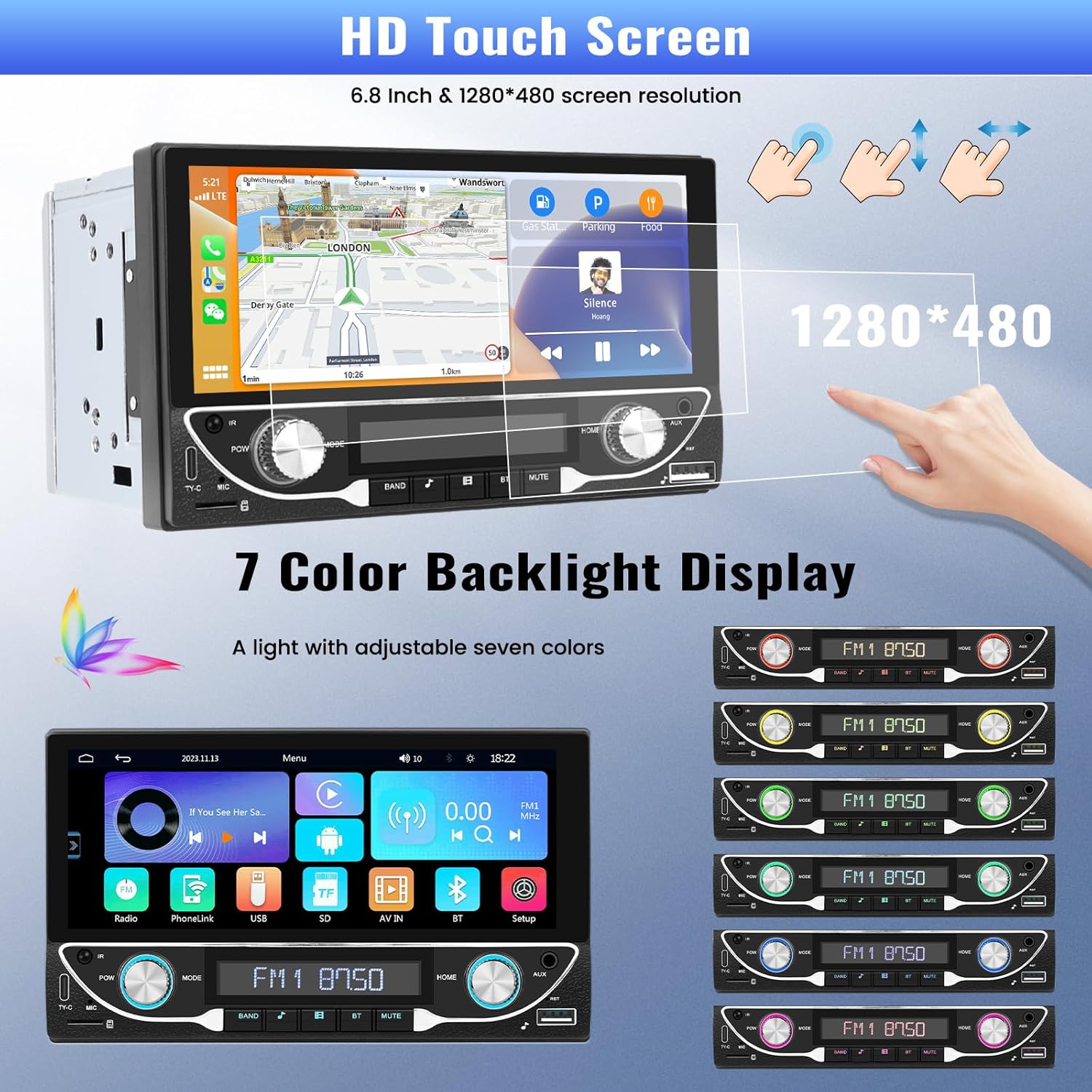
Image: The HD touchscreen and customizable 7-color backlight display options.
Access the display settings to adjust brightness and select from 7 available backlight colors for the physical buttons.
5. Operating Instructions
5.1 Wireless Apple CarPlay & Android Auto
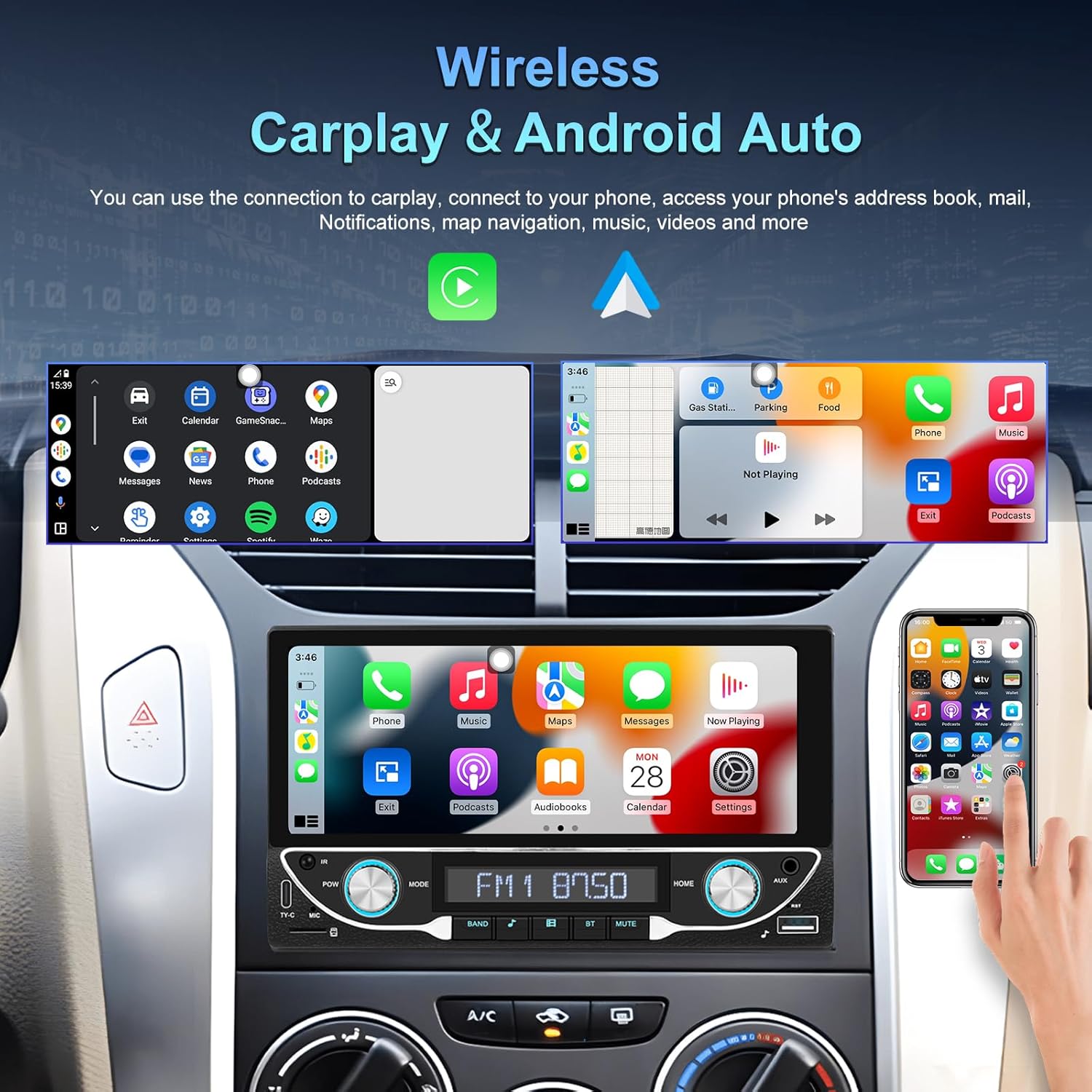
Image: The car stereo displaying both Apple CarPlay and Android Auto interfaces.
Connect your smartphone wirelessly to access Apple CarPlay or Android Auto. This allows for navigation, music, calls, and messages directly from the car stereo display.
- Ensure Bluetooth and Wi-Fi are enabled on your smartphone.
- On the car stereo, select the CarPlay or Android Auto icon.
- Follow the on-screen prompts to pair your device.
5.2 Bluetooth 5.1 Connectivity
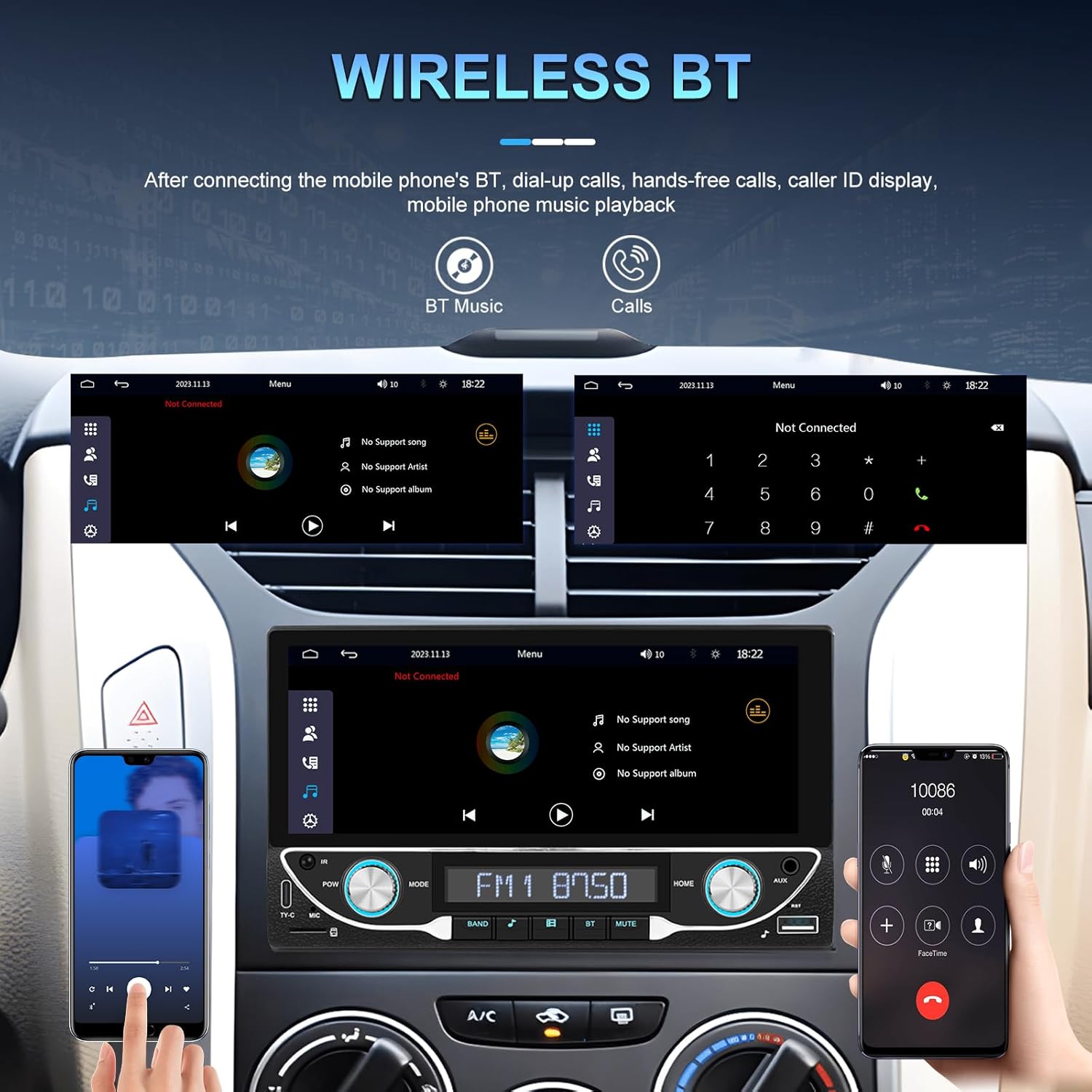
Image: Bluetooth interface for hands-free calling and music streaming.
Pair your phone via Bluetooth for hands-free calling and wireless audio streaming.
- Go to the 'Bluetooth' menu on the stereo.
- Enable Bluetooth on your phone and search for available devices.
- Select 'UNITOPSCI A3612A3' (or similar name) from your phone's list and confirm pairing.
- Use the built-in microphone for calls and stream music from your phone.
5.3 FM Radio Operation

Image: FM radio interface with frequency display and sound quality DSP/EQ settings.
Select the 'FM' icon to access the radio tuner. Use the on-screen controls or physical buttons to scan for stations, save presets, and adjust frequency.
5.4 Audio & Video Playback (USB/TF/AUX/Type-C)

Image: Available input options for audio and video playback: USB, TF Card, Type-C, and AUX-in.
The unit supports various media inputs for audio and video playback:
- USB Input: Connect a USB drive with media files.
- TF Card Slot: Insert a TF (MicroSD) card with media files.
- AUX Input: Connect external audio devices using a 3.5mm audio cable.
- Type-C Port: For charging compatible devices and potentially data transfer.
Select the corresponding input source from the main menu to access your media.
5.5 Steering Wheel Control

Image: Steering wheel control setup interface on the car stereo.
If your vehicle supports steering wheel controls, connect the 'KEY' wire during installation. Access the 'Steering Wheel Control' settings to program the buttons for functions like volume, track change, and mode selection.
5.6 Rear View Camera / HD Reversing Video
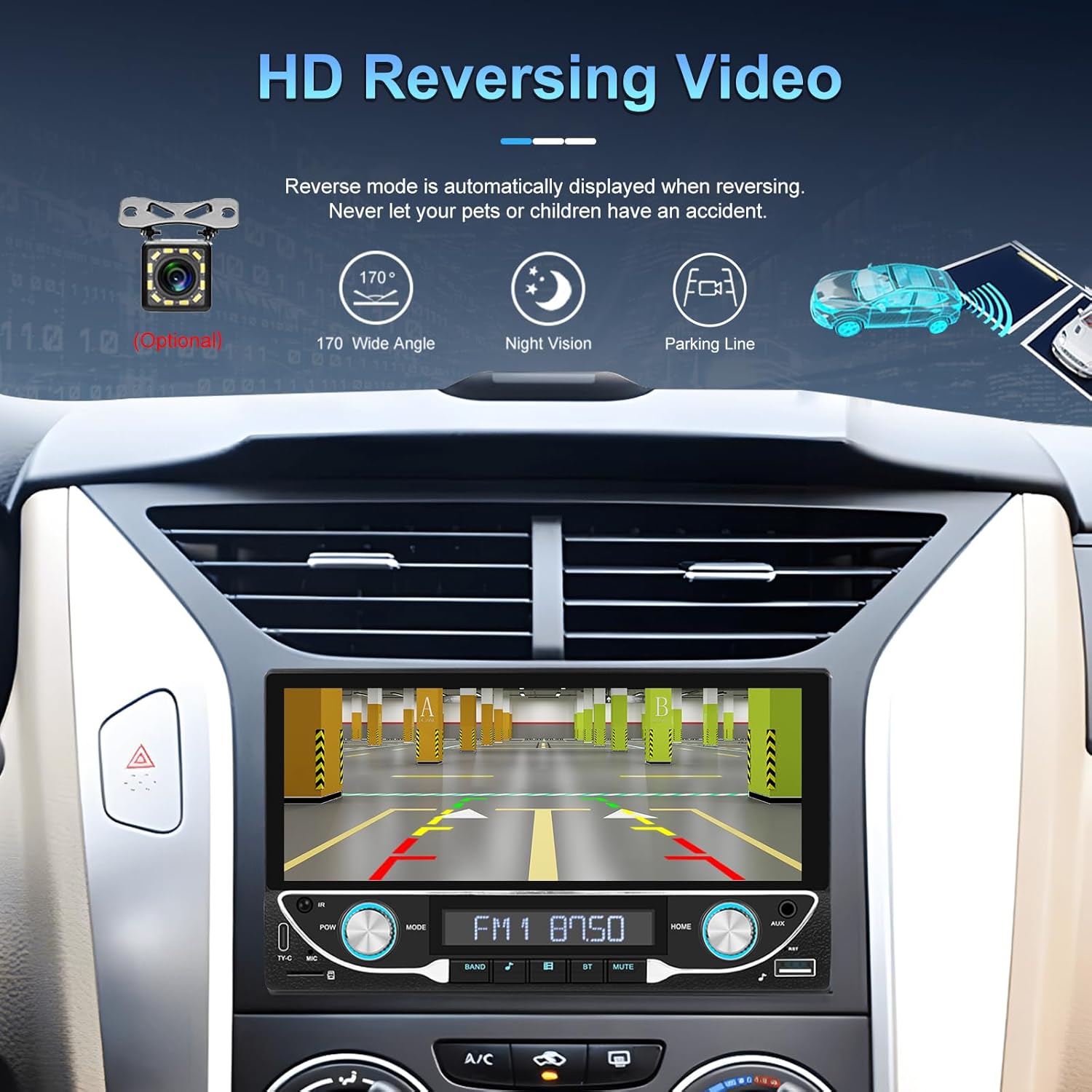
Image: High-definition reversing video display with parking guidelines.
When the vehicle is shifted into reverse, the stereo automatically displays the rear view camera feed. The included camera offers a 170-degree wide angle and night vision capabilities, along with parking lines for assistance.
5.7 DVR Function Support
The unit supports an optional DVR (Digital Video Recorder) function. Connect a compatible USB DVR camera to the dedicated USB input on the rear of the car radio to record driving footage.
5.8 Mirror Link Function
Use the Mirror Link function to display your smartphone's screen directly on the car stereo. This feature is compatible with both Android and iOS devices, allowing you to view apps and content from your phone on the larger display.
5.9 Voice Control & GPS Navigation
When connected via Apple CarPlay or Android Auto, you can utilize voice commands (e.g., Siri, Google Assistant) for navigation, making calls, sending messages, and controlling music, enhancing driving safety and convenience.
5.10 Sound Quality (DSP & EQ)
The built-in Digital Sound Processor (DSP) and Equalizer (EQ) allow for precise audio customization. Access the 'EQ Setup' menu to adjust bass, treble, and other frequency bands to match your audio preferences. Pre-set EQ modes (e.g., Jazz, Rock, Pop) are also available.
6. Maintenance
To ensure the longevity and optimal performance of your car stereo, follow these maintenance guidelines:
- Cleaning the Screen: Use a soft, lint-free cloth to gently wipe the touchscreen. Avoid abrasive cleaners or solvents that could damage the display.
- General Cleaning: Keep the unit free from dust and debris. Use a soft brush or compressed air for hard-to-reach areas.
- Software Updates: Periodically check the manufacturer's website for any available firmware updates to improve performance and add new features.
- Avoid Liquids: Do not spill liquids on the unit. If accidental spillage occurs, power off the unit immediately and allow it to dry completely before use.
7. Troubleshooting
If you encounter issues with your UNITOPSCI A3612A3 car stereo, refer to the following common problems and solutions:
| Problem | Possible Cause | Solution |
|---|---|---|
| No Power | Incorrect wiring; Blown fuse; Loose connection. | Check power cable connections (ACC, BATTERY+, GND). Verify vehicle fuse and unit's fuse. Ensure all wires are securely connected. |
| No Sound | Speaker wires disconnected; Volume too low; Mute function active; Incorrect audio source. | Check speaker wire connections. Increase volume. Deactivate mute. Select correct audio source (FM, USB, BT, etc.). |
| Bluetooth Not Connecting | Bluetooth off on phone/stereo; Device not in pairing mode; Interference. | Ensure Bluetooth is enabled on both devices. Put stereo in pairing mode. Delete previous pairings and try again. Move closer to the unit. |
| CarPlay/Android Auto Not Working | Wi-Fi/Bluetooth off; Phone not compatible; App issues. | Ensure Wi-Fi and Bluetooth are active on your phone. Restart phone and stereo. Check phone's settings for CarPlay/Android Auto permissions. |
| Rear Camera Not Displaying | Camera not powered; Video cable loose; Reverse trigger wire not connected. | Check camera power connection. Ensure video cable is securely connected to 'CAM IN'. Verify Pink (REVERSE) wire connection. |
| Touchscreen Unresponsive | System freeze; Dirt on screen. | Restart the unit (if possible, by briefly disconnecting power). Clean the screen. |
If the problem persists after trying these solutions, please contact UNITOPSCI customer support for further assistance.
8. Specifications
Key technical specifications for the UNITOPSCI A3612A3 car stereo:
- Model Number: A3612A3
- Display Size: 6.86 inches
- Display Resolution: 1280 x 480 pixels
- Output Wattage: 180 Watts (4 channels)
- Bluetooth Version: 5.1
- Supported Internet Services: Maps (via CarPlay/Android Auto)
- Audio Output Type: Internal
- Supported Media Formats: AVI, WAV, WMA
- Inputs: USB, TF Card, AUX, Type-C
- Features: Wireless Apple CarPlay, Wireless Android Auto, FM Radio, Mirror Link, DSP, EQ, Steering Wheel Control, Backup Camera Input, DVR Function Support, 7-Color Backlight.
Image: Front, rear, and side dimensions of the UNITOPSCI A3612A3 car stereo.
Dimensions (Approximate):
- Front Panel: 17.8cm (7.0in) width x 10.3cm (4.0in) height
- Chassis: 17.8cm (7.0in) width x 10.0cm (3.9in) height x 11cm (4.3in) depth
9. Warranty and Support
UNITOPSCI products are designed for reliability and performance. For warranty information and technical support, please refer to the warranty card included in your package or visit the official UNITOPSCI website.
When contacting support, please have your product model number (A3612A3) and purchase details ready.


