
1. Product Overview
The EVDO-LINK Verizon Wireless Jetpack Inseego MiFi 7730L is a portable mobile hotspot designed to provide secure Wi-Fi connectivity for multiple devices. It supports 4G LTE networks and offers features such as a color touchscreen, long battery life, and the ability to connect external antennas for improved signal reception.
This device is unlocked and compatible with various carriers, though specific setup may be required. It is important to note that this device requires a data plan for internet access.

The MiFi 7730L provides portable internet access, ideal for business or travel.
2. What's Included
The standard package for your EVDO-LINK Verizon Wireless Jetpack Inseego MiFi 7730L includes the following items:
- Hotspot Device with 2x Batteries
- QC Charger with USB Type C Cable
- Hard case and External Antennas
- Verizon SIM card (requires data plan)
- Protective film for the screen
- Protective travel pouch

An illustration of all components included with your MiFi 7730L mobile hotspot.
3. Setup Guide
3.1. Battery and SIM Card Installation
- Locate the battery compartment on the back of the MiFi 7730L device.
- Insert one of the provided Lithium-Ion batteries into the compartment, ensuring proper alignment of the contacts.
- Insert the Verizon SIM card into the designated SIM card slot. Ensure the card is oriented correctly as indicated by the device.
- Close the battery compartment cover securely.

The MiFi 7730L comes with two batteries for extended usage.
3.2. Initial Power On and Charging
- Press and hold the power button on the device until the screen illuminates.
- Connect the device to the QC Charger using the USB Type-C cable. Allow the device to charge fully before first use. A full charge typically takes about 2.5 hours.
3.3. Verizon Activation Guide
To activate your Verizon SIM card and data plan, follow these steps:
- Gather Necessary Information: Locate your device's IMEI number and the SIM Card ICCID number on the device's packaging box. Copy these numbers for reference. (Note 1: Another way to find IMEI and SIM ICCID: Remove the battery, then view the IMEI printed inside the battery compartment. SIM card ICCID 20-digit number is printed on the back of a SIM card holder.)
- Begin Activation: Go to Verizon's Bring Your Own Device (BYOD) page: https://www.verizon.com/bring-your-own-device/. Scroll to the bottom and click the "Connect with an expert" button.
- Provide Details to the Live Agent: When connected with a Verizon live agent, share the following details:
- Inform them that you have purchased a Mobile Hotspot bundled with a Verizon SIM card.
- Request assistance in purchasing a suitable data plan for your hotspot.
- Indicate whether you have a valid Verizon line.
- Indicate that you already have a device and SIM card, and provide the IMEI of the device and the ICCID of the SIM card.
- Customer Identification: Indicate whether you are a new Verizon customer or an existing customer. (Note 2: For new customers: If you are not a resident and do not have either a Tax Identification Number (TIN) or a Social Security Number, please ask a chat agent to provide you with a registration form for non-residents.) The agent will guide you through the appropriate verification process based on your customer status and location.
- Mobile Number Assignment: Provide the IMEI number and SIM Card ICCID number from the device packaging. The agent will assign a mobile number to your SIM Card ICCID.
- Complete Payment and Activation: The agent will send you a payment link for the data plan you have chosen. (Note 3: To ensure a successful checkout, please make sure to enter the same ZIP code in both the registration form (for new customers) and the payment link during checkout.) After a successful checkout, restart your device to initiate activation. Allow 1-2 hours for your data plan to be fully activated and added to your account.
- Start Using Your Hotspot: Once activation is complete, your Mobile Hotspot is ready for use with your new prepaid data plan.

Part 1 of the Verizon Activation Guide for your MiFi 7730L.

Part 2 of the Verizon Activation Guide for your MiFi 7730L.
4. Operating Instructions
4.1. Understanding the Display
The MiFi 7730L features a 2.4-inch TFT color touchscreen that provides essential information and allows for device configuration. Key indicators include:
- Cellular Signal Strength: Displays the current strength of the 4G LTE network signal.
- Data Transmission Activity Indicator: Shows when data is being sent or received.
- Traffic Counter: Monitors data usage.
- Battery Charge Level: Indicates the remaining battery power.
- Wi-Fi Status: Shows if Wi-Fi is active and the number of connected devices.
- Wi-Fi Name and Password: Displays the SSID and password for connecting devices.
- Router Settings Menu: Access device settings.
- Help Menu: Provides on-device assistance.

Detailed view of the MiFi 7730L touchscreen interface.
4.2. Connecting Devices to Wi-Fi
To connect your smartphone, laptop, or other Wi-Fi enabled devices to the MiFi 7730L:
- Ensure the MiFi 7730L is powered on and has an active data connection.
- On your device, search for available Wi-Fi networks.
- Select the Wi-Fi network name (SSID) displayed on the MiFi 7730L's screen.
- Enter the Wi-Fi password (security key) shown on the MiFi 7730L's screen.
- Your device should now be connected to the internet. The MiFi 7730L can support up to 15 connected devices simultaneously.
4.3. Guest Wi-Fi and Security
The MiFi 7730L includes features to enhance your network security:
- Guest Wi-Fi: Create a separate Wi-Fi network for guests, keeping your primary network secure. This can be configured via the device's touchscreen menu or web interface.
- Password Protection: Your Wi-Fi network is protected by a password. It is recommended to change the default password regularly for enhanced security.
- VPN Pass-through: Supports VPN pass-through for secure remote access.
- Admin Web Interface: For advanced settings and security configurations, access the web interface by connecting a device to the hotspot and navigating to the device's IP address in a web browser.
4.4. External Antenna Connection
For areas with poor mobile network signals, the MiFi 7730L is equipped with two MIMO connectors for external amplifying antennas (not included). Connecting external antennas can significantly improve signal reception and data speeds.
4.5. Universal Charging (Jump Boost)
The MiFi 7730L can function as a power bank. Use its USB port to charge other USB-powered devices, such as smartphones, on the go.
5. Maintenance
5.1. Battery Management
- Charging: Use the provided QC Charger and USB Type-C cable to charge the device. A full charge takes approximately 2.5 hours.
- Battery Life: The 4400 mAh battery provides up to 8 hours of active use and up to 24 hours of standby time. Using the second included battery can extend operating time.
- Storage: If storing the device for an extended period, ensure the battery is partially charged (around 50%) and store it in a cool, dry place.
5.2. Device Protection
To maintain the condition of your MiFi 7730L:
- Protective Film: Apply the included protective film to the touchscreen to prevent scratches.
- Travel Pouch and Hard Case: Utilize the protective travel pouch and hard waterproof case when transporting the device to guard against scratches and physical damage.
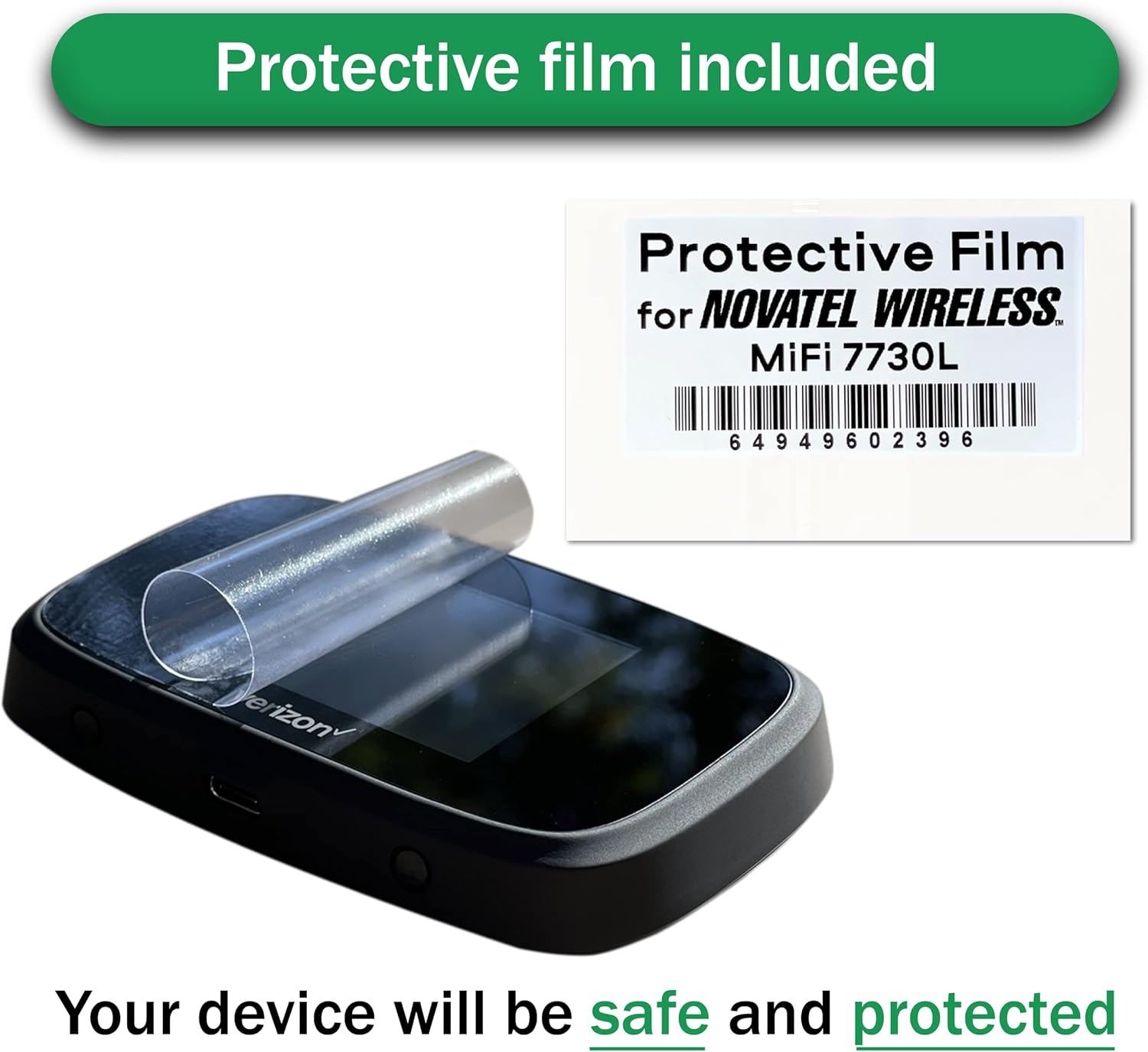
Applying the protective film to the MiFi 7730L screen.

The protective travel pouch helps safeguard your device.

Securely store your MiFi 7730L in its travel bag for protection.
6. Troubleshooting
- No Internet Connection:
- Ensure your Verizon data plan is active and has available data.
- Check the cellular signal strength on the device's screen. If the signal is weak, try moving to an area with better reception or connecting external antennas.
- Restart the MiFi 7730L device and the connected Wi-Fi devices.
- Verify that the SIM card is correctly inserted and activated.
- Slow Speeds:
- Check your data plan for any speed limitations or if you have exceeded your high-speed data allowance.
- Reduce the number of connected devices.
- Ensure the device is in an area with good cellular signal strength.
- Consider connecting external antennas for improved performance.
- Device Not Powering On:
- Ensure the battery is charged. Connect the device to the charger and wait a few minutes before attempting to power it on.
- Verify that the battery is correctly installed.
- Connecting to Other Carriers (Non-Verizon):
- The device is unlocked and compatible with T-Mobile and most US carriers (excluding AT&T).
- APN Setup Required: For non-Verizon carriers, you will need to manually configure the Access Point Name (APN) settings. Refer to your chosen carrier's support documentation for the correct APN settings. This can typically be done via the device's web interface.
- Device Disconnects Frequently:
- Check for strong and stable cellular signal.
- Ensure the device is not overheating.
- Update device firmware if available (check via web interface).
7. Specifications
| Feature | Detail |
|---|---|
| Model Name | 7730L |
| Brand | EVDO-LINK |
| Manufacturer | Novatel Wireless |
| Connectivity Technology | LTE, USB, Wi-Fi |
| Wireless Communication Standard | 802.11ac |
| Frequency Band Class | Dual-Band |
| 4G LTE Frequency Bands | B2/B3/B4/B5/B7/B13/B20/B28 (Supports 9 LTE bands) |
| 3G HSPA+/UMTS Bands | B5/B8/B2/B1 (Supports 4 3G bands) |
| Max Speed | Up to 450 Mbps (actual speeds depend on operator's network) |
| Battery | 4400 mAh Lithium Ion (2 included) |
| Battery Life | Up to 8 hours active use, 24 hours standby |
| Charging Time | 2.5 hours (with QC charging) |
| Display | 2.4 inch TFT color touchscreen |
| Max Connected Devices | Up to 15 Wi-Fi enabled devices |
| External Antenna Ports | Two MIMO connectors |
| Item Weight | 1.1 pounds |
| Package Dimensions | 6.73 x 4.37 x 4.29 inches |

Physical dimensions of the MiFi 7730L.
8. Warranty and Support
For product support, including assistance with APN setup for non-Verizon carriers, please contact EVDO-LINK customer service during business hours. While specific warranty details are not provided here, please refer to the product packaging or your purchase documentation for warranty information.
For Verizon-specific inquiries regarding your data plan or activation, please contact Verizon customer support directly.
