
1. Introduction
This manual provides comprehensive instructions for the VBESTLIFE 13-inch 2K Portable Monitor. Please read this manual thoroughly before using the product to ensure proper operation and to maximize its features. This portable display is designed for enhanced productivity and entertainment, offering high-resolution visuals and versatile connectivity.
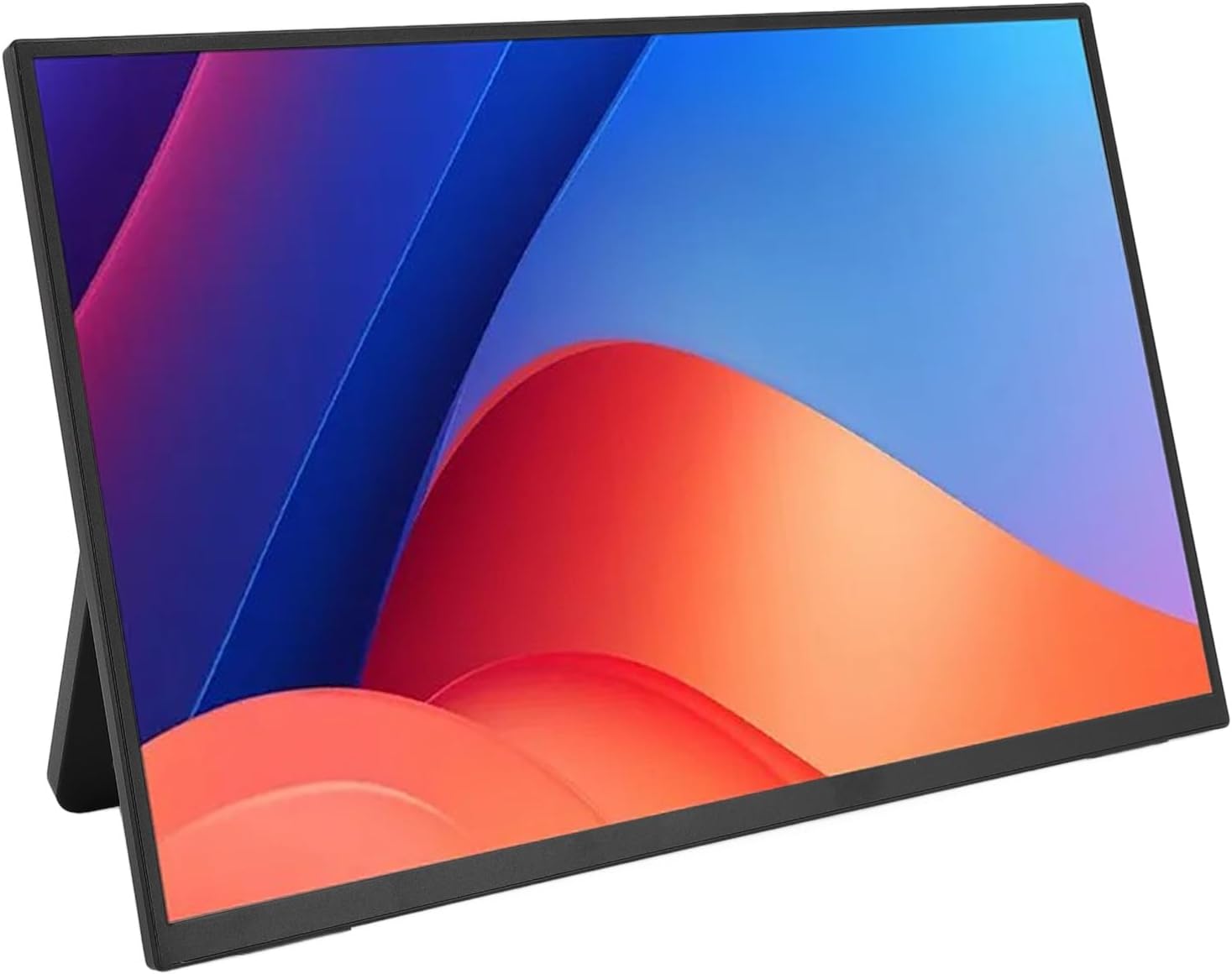
Image 1.1: Front view of the VBESTLIFE 13-inch 2K Portable Monitor.
2. Package Contents
Please verify that all items listed below are included in your package. If any items are missing or damaged, please contact customer support.
- 1 x Portable Display
- 1 x TYPE C to TYPE C Cable
- 1 x USB A to USB C Cable
- 1 x HD Multimedia Interface Cable
- 1 x User Manual (this document)

Image 2.1: The included cables: USB-A to USB-C, USB-C to USB-C, and HDMI cable.
3. Product Features
- 2K HD Display: Features a 13.3-inch screen with 2560 x 1600 resolution, 800:1 contrast ratio, 60Hz refresh rate, 16:10 aspect ratio IPS panel, 300 nits brightness, and a 178° viewing angle. Includes a low blue light eye-friendly screen to reduce eye fatigue.
- Plug and Play Connectivity: Equipped with full-featured USB-C (Type-C) ports and a Mini HD Multimedia Interface port. Connect easily via a single Type-C cable for both video and power, or use the HDMI cable for video input. Compatible with laptops, smartphones, and other devices.
- Multiple Display Modes: Supports Duplicate mode for mirroring content, Extended mode for expanding your desktop, and Second Screen mode for dedicated display use.
- Adjustable Stand: The integrated kickstand allows for 0-180° adjustment, providing stable support for various viewing angles.
- Ultra-Narrow Bezel Design: Features a 4-sided borderless design for an immersive visual experience.
- VESA Mountable: Compatible with 75x75mm VESA mounts for flexible installation options.

Image 3.1: The monitor features an ergonomic 180° adjustable stand and a 178° visual angle.

Image 3.2: The ultra-narrow bezel design provides an immersive viewing experience.
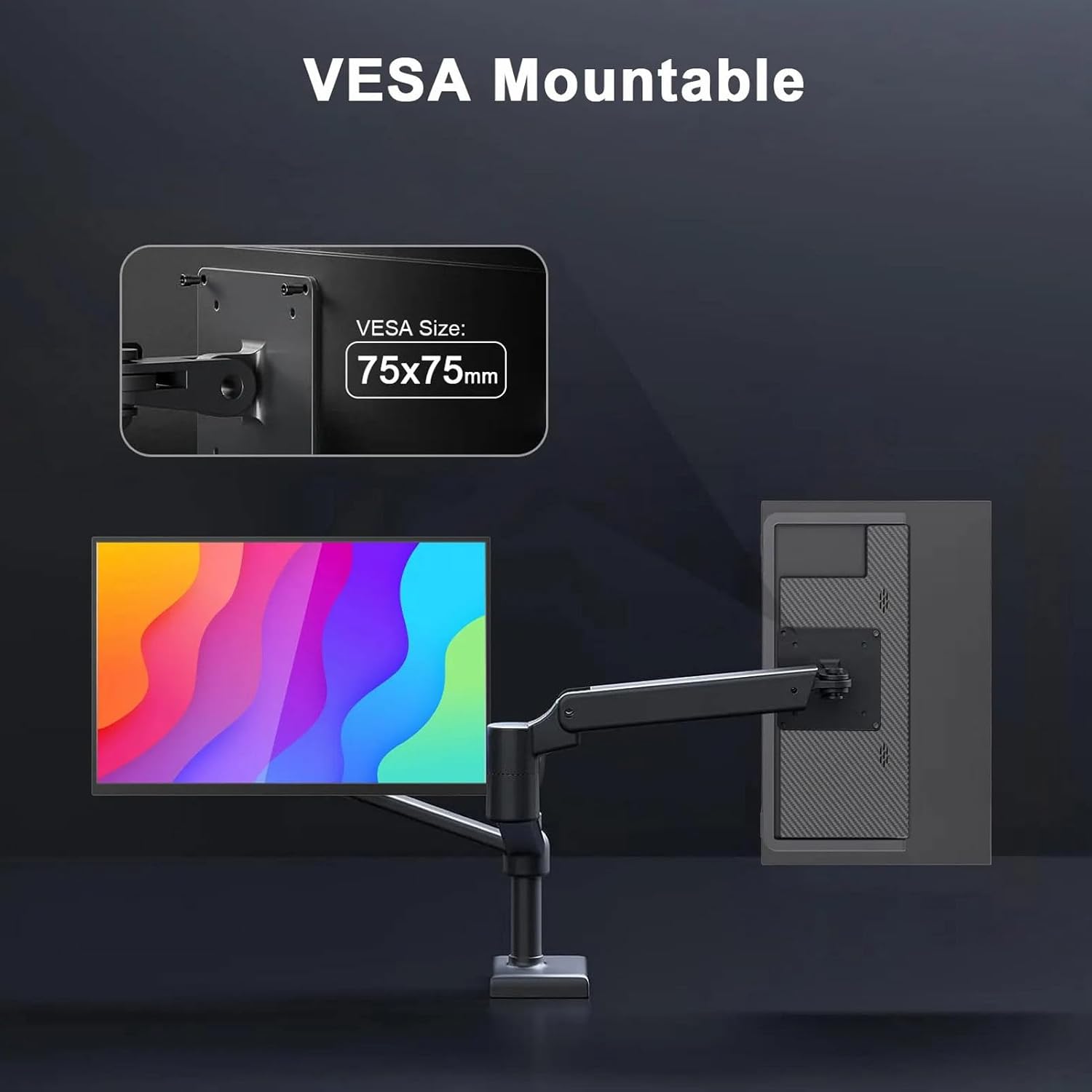
Image 3.3: The monitor is VESA mountable (75x75mm) for flexible setup.
4. Physical Overview
Familiarize yourself with the ports and controls of your portable monitor.

Image 4.1: Diagram illustrating the monitor's dimensions, ports, and controls, including USB-C ports, 3.5mm audio jack, control wheel, and power button.
- USB-C Ports: Two full-featured USB-C ports for power, video, and data transmission.
- Mini HD Multimedia Interface Port: For video input from devices supporting HDMI.
- 3.5mm Audio Jack: For connecting external headphones or speakers.
- Control Wheel: Used to navigate the On-Screen Display (OSD) menu and adjust settings.
- Power ON/OFF Button: To turn the monitor on or off.
- Dual Speakers: Integrated speakers for audio output.
- 180° Adjustable Stand: Integrated kickstand for versatile positioning.
- 75 VESA WALL: Mounting points for VESA compatible arms or stands.
5. Setup and Connections
Follow these steps to connect your portable monitor to various devices.
5.1 Connecting via USB-C (Full-Featured)
- Ensure your device (laptop, smartphone) has a full-featured USB-C port that supports DisplayPort Alternate Mode and power delivery.
- Connect one end of the provided USB-C to USB-C cable to your device's USB-C port.
- Connect the other end of the USB-C to USB-C cable to one of the USB-C ports on the portable monitor.
- The monitor should automatically detect the signal and display content. If the screen flickers or does not power on, connect the original power adapter to the monitor's second USB-C port for sufficient power.

Image 5.1: A single USB-C cable can provide both video and power for compatible devices.
5.2 Connecting via HDMI
- Connect one end of the provided HD Multimedia Interface cable to your device's HDMI output port.
- Connect the other end of the HD Multimedia Interface cable to the Mini HD Multimedia Interface port on the portable monitor.
- For power, connect the USB-A to USB-C cable from a USB power source (e.g., wall adapter, laptop USB port) to one of the monitor's USB-C ports.
- The monitor should automatically detect the signal.
6. Operating Instructions
6.1 Power On/Off
Press the Power ON/OFF button located on the side of the monitor to turn it on or off.
6.2 Adjusting Display Modes
When connected to a computer, you can configure the display mode through your operating system's display settings:
- Duplicate Mode: Mirrors your primary screen's content. Useful for presentations or sharing content.
- Extended Mode: Expands your desktop across both screens, providing more workspace.
- Second Screen Mode: Displays content only on the portable monitor, with the primary device's screen off.

Image 6.1: The monitor supports Duplicate, Extend, and Second Screen modes for versatile use.
6.3 On-Screen Display (OSD) Menu
Use the Control Wheel to access and navigate the OSD menu. This menu allows you to adjust various display settings such as brightness, contrast, color temperature, input source, and more.
6.4 Portrait and Landscape Modes
The display can be switched between portrait and landscape orientations. This adjustment is typically managed through your connected device's display settings.
6.5 Using the Adjustable Stand
The integrated kickstand can be adjusted from 0 to 180 degrees to achieve your preferred viewing angle for reading, typing, or viewing content.

Image 6.2: The monitor's stand can be adjusted to various angles for optimal viewing.
7. Maintenance
To ensure the longevity and optimal performance of your portable monitor, follow these maintenance guidelines:
- Cleaning the Screen: Gently wipe the screen with a soft, lint-free cloth. For stubborn marks, slightly dampen the cloth with water or a screen-cleaning solution. Avoid using harsh chemicals or abrasive materials.
- Cleaning the Casing: Use a soft, dry cloth to clean the monitor's casing.
- Storage: When not in use, store the monitor in a cool, dry place, away from direct sunlight and extreme temperatures.
- Handling: Avoid dropping or subjecting the monitor to strong impacts. Do not place heavy objects on the monitor.
8. Troubleshooting
If you encounter issues with your portable monitor, refer to the following common solutions:
- No Display/Power:
- Ensure the monitor is properly connected to a power source.
- If using USB-C, confirm your device's USB-C port supports power delivery and DisplayPort Alt Mode.
- Try connecting the monitor to an external power adapter using the USB-A to USB-C cable if your device cannot provide sufficient power.
- Check if the power button on the monitor is pressed.
- Flickering Screen:
- A flickering screen often indicates insufficient power. Connect the monitor to its original power adapter or a more powerful USB-C power source.
- Ensure the cables are securely connected.
- No Signal:
- Verify that the correct input source is selected in the monitor's OSD menu.
- Check cable connections for looseness or damage.
- Test with a different cable or device if possible.
- Image Not Centered/Incorrect Resolution:
- Adjust the resolution settings on your connected device. The monitor supports 2560 x 1600.
- Use the OSD menu to auto-adjust the image or manually correct position/size.
9. Specifications
| Feature | Specification |
|---|---|
| Model Number | VBESTLIFE6u0ri7omvk |
| Screen Size | 13.3 Inches |
| Resolution | 2560 x 1600 (2K HD) |
| Refresh Rate | 60Hz |
| Panel Type | IPS |
| Aspect Ratio | 16:10 |
| Contrast Ratio | 800:1 |
| Brightness | 300 nits |
| Viewing Angle | 178° |
| Connectivity | 2 x Type-C (Full-Featured), 1 x Mini HD Multimedia Interface |
| Audio Output | 3.5mm Audio Jack, Dual Speakers |
| Stand | Integrated 0-180° Adjustable Kickstand |
| VESA Mount | 75x75mm |
| Product Dimensions | 12.99 x 9.45 x 2.36 inches |
| Item Weight | 2.27 pounds (approx. 1.03 kg) |
| Material | Metal, Electronics |