
Introduction
This manual provides instructions for the Moerlab TV hearMore Auracast Audio Transmitter, designed to enhance your audio experience by broadcasting audio wirelessly to multiple devices. Please read this manual thoroughly before use to ensure proper setup and operation.
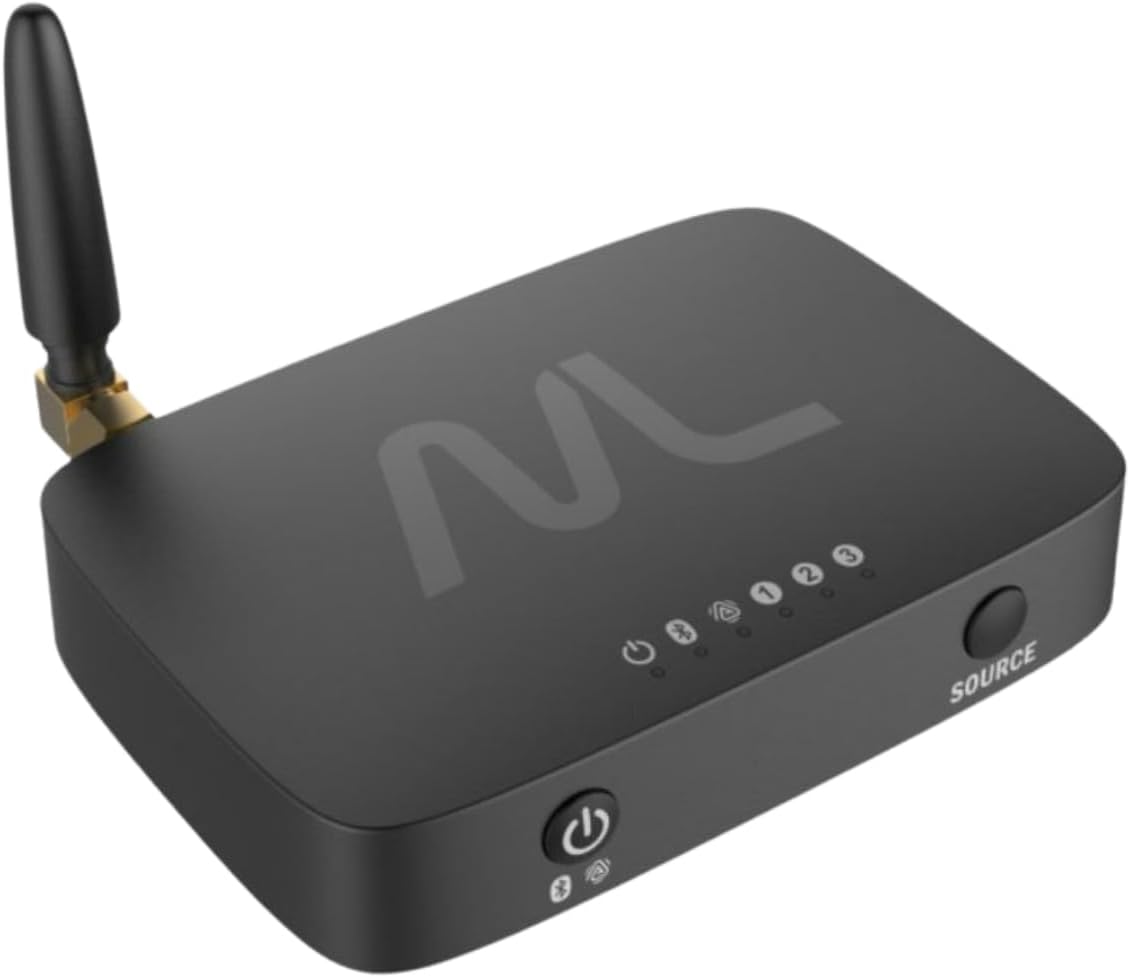
Image: The Moerlab TV hearMore Auracast Audio Transmitter, a compact black device with an antenna and control buttons.
Package Contents
Verify that all items are present in the package:

Image: Contents of the Moerlab TV hearMore package, including the transmitter, 3.5mm TRS cable, optical cable, microphone, Type-C cable, and user manual.
- Moerlab TV hearMore Auracast Audio Transmitter
- 3.5mm TRS Audio Cable
- Optical Audio Cable
- USB Type-C Power Cable
- Microphone
- User Manual
Product Overview
Components and Interfaces
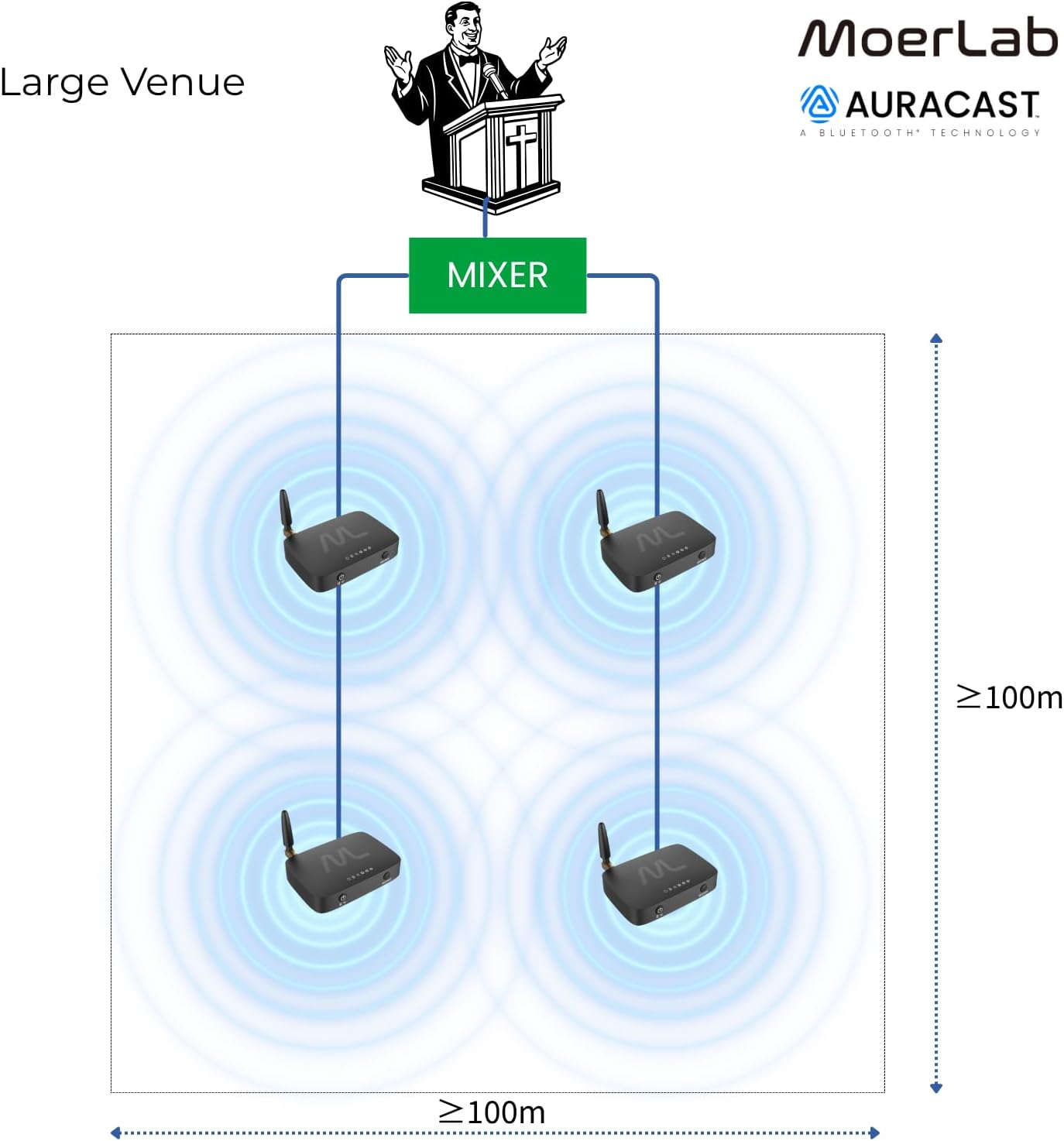
Image: Detailed diagram showing the LED indicators (Power, Bluetooth Classic, Auracast, HDMI audio input, AUX input, SPDIF/Microphone input), buttons (Power & Mode switch, Source), and connection interfaces (HDMI, AUX input, Optical, SPDIF/AUX output, SPDIF/Microphone input, Antenna, DC power jack) of the Moerlab TV hearMore transmitter.
LED Indicators:
- Power: Indicates device power status.
- Bluetooth Classic: Indicates active Bluetooth Classic connection.
- Auracast: Indicates active Auracast broadcast.
- HDMI Audio Input: Indicates HDMI audio source selected.
- AUX Input: Indicates AUX audio source selected.
- SPDIF/Microphone Input: Indicates SPDIF or Microphone audio source selected.
Buttons:
- Power & Mode Switch Button: Turns the device on/off and switches between modes.
- Source Button: Selects the audio input source.
Connection Interfaces:
- Audio Input: HDMI: Connects to HDMI audio sources.
- Audio Input: AUX: Connects to 3.5mm AUX audio sources.
- Audio Output: SPDIF/AUX: Provides audio bypass output for wired connections.
- Audio Input: SPDIF/Microphone: Connects to SPDIF optical audio sources or a 3.5mm microphone.
- Antenna: For wireless signal transmission.
- DC Power Jack: For power input.
Setup
Initial Connection for Auracast Hearing Aids
Before connecting to Auracast hearing aids, it is recommended to adjust the sampling rate using the MoerLab PC Tool.

Image: A diagram illustrating the connection of the Moerlab Auracast Transmitter to Resound Nexia Hearing Aids, showing the process of searching and connecting via an app interface.
- Connect the TV hearMore to your Windows computer using a USB Type-C data cable.
- Power on the device.
- Open the MoerLab PC Tool (downloadable from www.moerlab.com) on your computer.
- Follow the user guide or video tutorial within the tool to set the sampling rate to 24 kHz.
Connecting to a TV
The TV hearMore transmitter offers multiple connectivity options for your television. Choose the best option based on your TV's available ports.

Image: The Moerlab TV hearMore Auracast Audio Transmitter connected to a television, illustrating how TV audio can be streamed directly to Auracast hearing aids.
- Power On: Connect the USB Type-C power cable to the transmitter and a power source (e.g., TV USB port or wall adapter). Slide the power switch to the "ON" position.
- Select Audio Input: Use the provided HDMI, AUX, or Optical cables to connect the transmitter to your TV's corresponding audio output port. Press the "SOURCE" button on the transmitter to select the correct input.
- TV Audio Settings: Access your TV's audio settings menu. Set the audio output format to "PCM" and disable "Dolby" or "DTS" if using optical connection. For AUX connection, ensure the TV's audio output is set to "Headset" or "External Speaker".
Pairing with Auracast Devices
The TV hearMore supports both Auracast broadcast (BIS) and Bluetooth Classic modes.

Image: A diagram showing the Moerlab Auracast Transmitter wirelessly connecting to an Auracast hearing aid, emphasizing the quick 2-step setup process.
- Auracast Mode: Triple-click the main button on the transmitter to enter Auracast broadcast mode. The Auracast LED indicator will flash.
- Connect Auracast Receiver: Ensure your Auracast-compatible hearing aids or headphones are in pairing mode. They should automatically detect and connect to the transmitter's broadcast.
- Bluetooth Classic Mode: Double-click the main button to switch to Bluetooth Classic mode. The Bluetooth Classic LED indicator will flash.
- Pair Bluetooth Device: Put your Bluetooth headphones or speaker into pairing mode. Select "TV hearMore" from your device's Bluetooth list to connect.
Multi-Unit Daisy-Chain for Larger Spaces
For synchronized audio coverage in larger venues, multiple TV hearMore units can be daisy-chained via AUX connections.
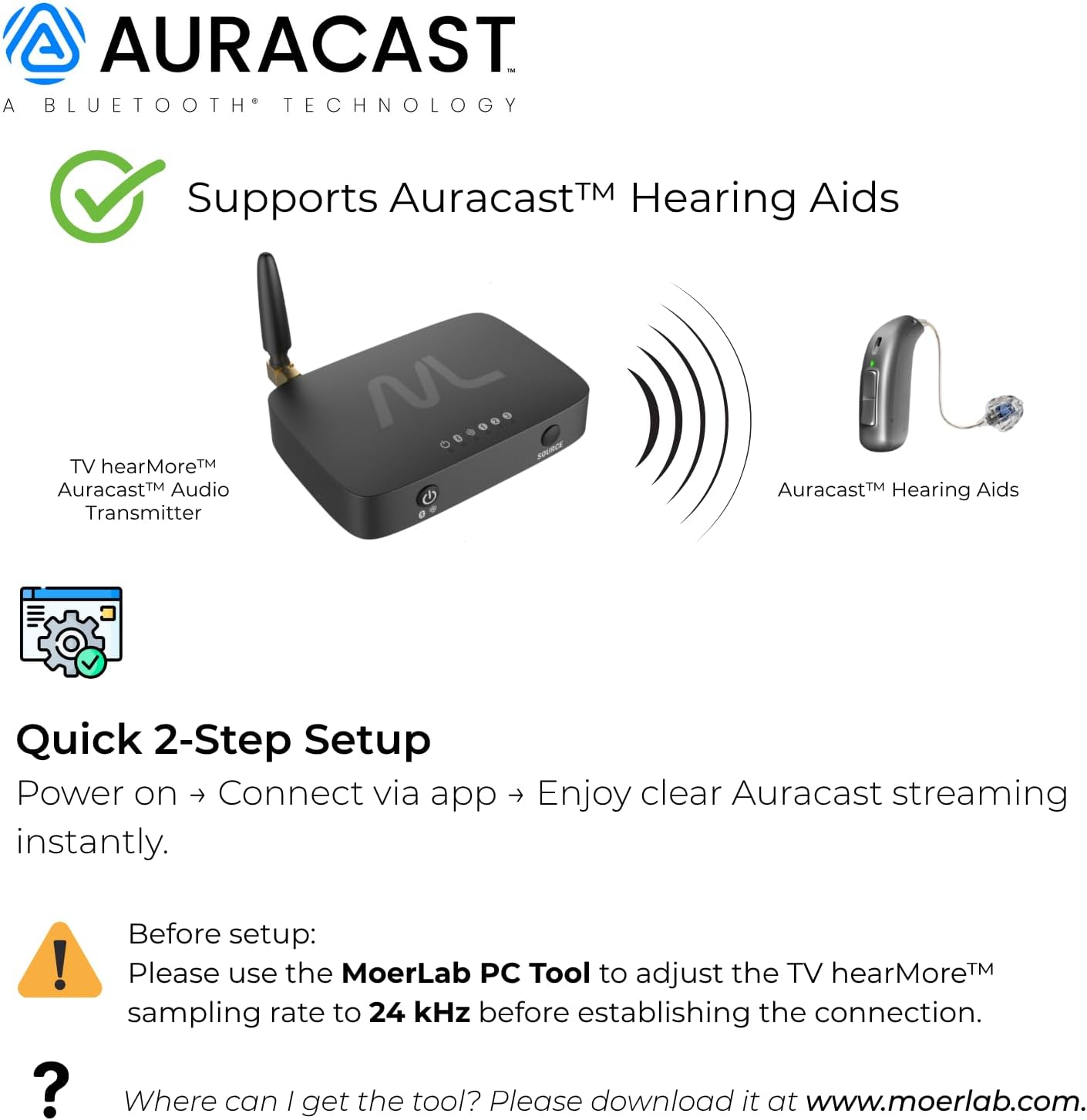
Image: A diagram illustrating how two Moerlab Auracast Audio Transmitters can be daisy-chained via AUX to provide synchronized audio coverage for a medium-sized venue (>=100m wide, >=60m deep).
- Connect the audio source to the first TV hearMore unit using HDMI, AUX, or Optical.
- Use an AUX cable to connect the "AUX OUT" port of the first unit to the "AUX IN" port of the second unit.
- Repeat this process for additional units as needed to expand coverage.
- Ensure all units are powered on and broadcasting in the desired mode (Auracast or Bluetooth Classic).
Operating Instructions
Audio Bypass Output
The TV hearMore features optical and AUX audio bypass outputs, allowing for flexible wired and wireless integration. This means you can simultaneously listen through wireless headphones and a wired sound system.
- Connect your TV to the transmitter's audio input (HDMI, AUX, or Optical).
- Connect your soundbar or stereo system to the transmitter's "SPDIF/AUX OUT" port using the appropriate cable.
- Ensure your sound system is powered on and set to the correct input.
- The audio will be simultaneously transmitted wirelessly to your paired devices and outputted to your wired sound system.
Microphone/Line-In Function
The 3.5mm MIC/Line-In port allows for speech amplification, ideal for classrooms or public venues.
- Plug the provided microphone into the "SPDIF/MIC IN" port on the transmitter.
- Ensure the transmitter is powered on and broadcasting in Auracast mode.
- The microphone audio will be broadcast wirelessly to all connected Auracast receivers.
Sampling Profile Switching
Manually switch between LC3-HQ (High Quality) and LC3-SQ (Standard Quality) sampling profiles to optimize audio performance based on your needs.
- While the device is powered on, press and hold the "Power & Mode Switch" button for approximately 3 seconds.
- The LED indicators will change to confirm the new sampling profile. Refer to the device's LED behavior for specific indications.
Maintenance
To ensure optimal performance and longevity of your Moerlab TV hearMore Auracast Audio Transmitter, follow these maintenance guidelines:
- Cleaning: Use a soft, dry cloth to clean the device. Avoid liquid cleaners or solvents.
- Storage: Store the device in a cool, dry place away from direct sunlight and extreme temperatures.
- Handling: Handle the device with care to prevent physical damage. Avoid dropping or subjecting it to strong impacts.
- Cables: Regularly check cables for any signs of wear or damage. Replace damaged cables immediately to prevent malfunction.
Troubleshooting
If you encounter issues with your Moerlab TV hearMore, refer to the following common troubleshooting steps:
- No Power:
- Ensure the USB Type-C power cable is securely connected to both the transmitter and the power source.
- Verify the power source is active. Try a different USB port or wall adapter.
- Check if the power switch is in the "ON" position.
- No Audio Output:
- Confirm the correct audio input source is selected on the transmitter (check LED indicators).
- Verify your TV's audio output settings are correctly configured (PCM format, Dolby/DTS off for optical; Headset/External Speaker for AUX).
- Ensure your receiving devices (headphones, hearing aids) are properly paired and powered on.
- Check all audio cables for secure connections and damage.
- Cannot Pair/Connect:
- Ensure the transmitter is in the correct mode (Auracast or Bluetooth Classic) for your receiving device.
- Place both the transmitter and the receiving device in pairing mode (refer to their respective manuals).
- Keep devices close during pairing.
- If connecting to Auracast hearing aids, ensure the sampling rate is set to 24 kHz using the MoerLab PC Tool.
- Audio Delay/Lag:
- Ensure your receiving device supports low latency codecs (e.g., aptX Low Latency) if available.
- Reduce the distance between the transmitter and receiving device.
- Minimize interference from other wireless devices.
Official Product Videos for Troubleshooting:
MoerLab PC Configuration Tool
Video: This video demonstrates how to use the MoerLab PC Configuration Tool, which is essential for adjusting settings like the sampling rate to 24 kHz for optimal performance with Auracast hearing aids.
Set 24 kHz, connect to Jabra, and configure the PIN code.
Video: A tutorial on setting the audio sampling rate to 24 kHz, connecting to Jabra devices, and configuring PIN codes for secure connections with the Moerlab TV hearMore transmitter.
Specifications
| Feature | Detail |
|---|---|
| Model Number | 465ad18b-3ac9-42c1-8d2a-c3464e4f8782 |
| Connectivity Technology | Bluetooth (Auracast broadcast (BIS) and Bluetooth Classic dual-mode) |
| Audio Input Modes | HDMI, AUX, SPDIF/Microphone |
| Audio Output Modes | SPDIF/AUX (Bypass) |
| Special Features | Low Latency, Multi-unit daisy-chain via AUX, 3.5mm MIC/Line-In, Manual LC3-HQ/LC3-SQ switching |
| Compatible Devices | Headphone, Laptop, Smartphone, Speaker, Tablet, Television |
| Connector Type | USB Type-C |
| Audio Output Mode | Stereo |
| Surround Sound Channel Configuration | 5.1 |
| Color | Black |
| Item Weight | 2.72 ounces (77 Grams) |
| Package Dimensions | 5.63 x 4.13 x 2.32 inches |
Warranty and Support
For warranty information and customer support, please refer to the official Moerlab website or contact their customer service directly.
- Online Resources: Visit www.moerlab.com for product registration, FAQs, and additional support materials.
- Contact Support: Refer to the contact information provided in your product packaging or on the official website for direct assistance.


