
EWLSAC EWLSAC MDX
EWLSAC Car Radio Instruction Manual
For Honda Acura MDX (2007-2013)
Introduction
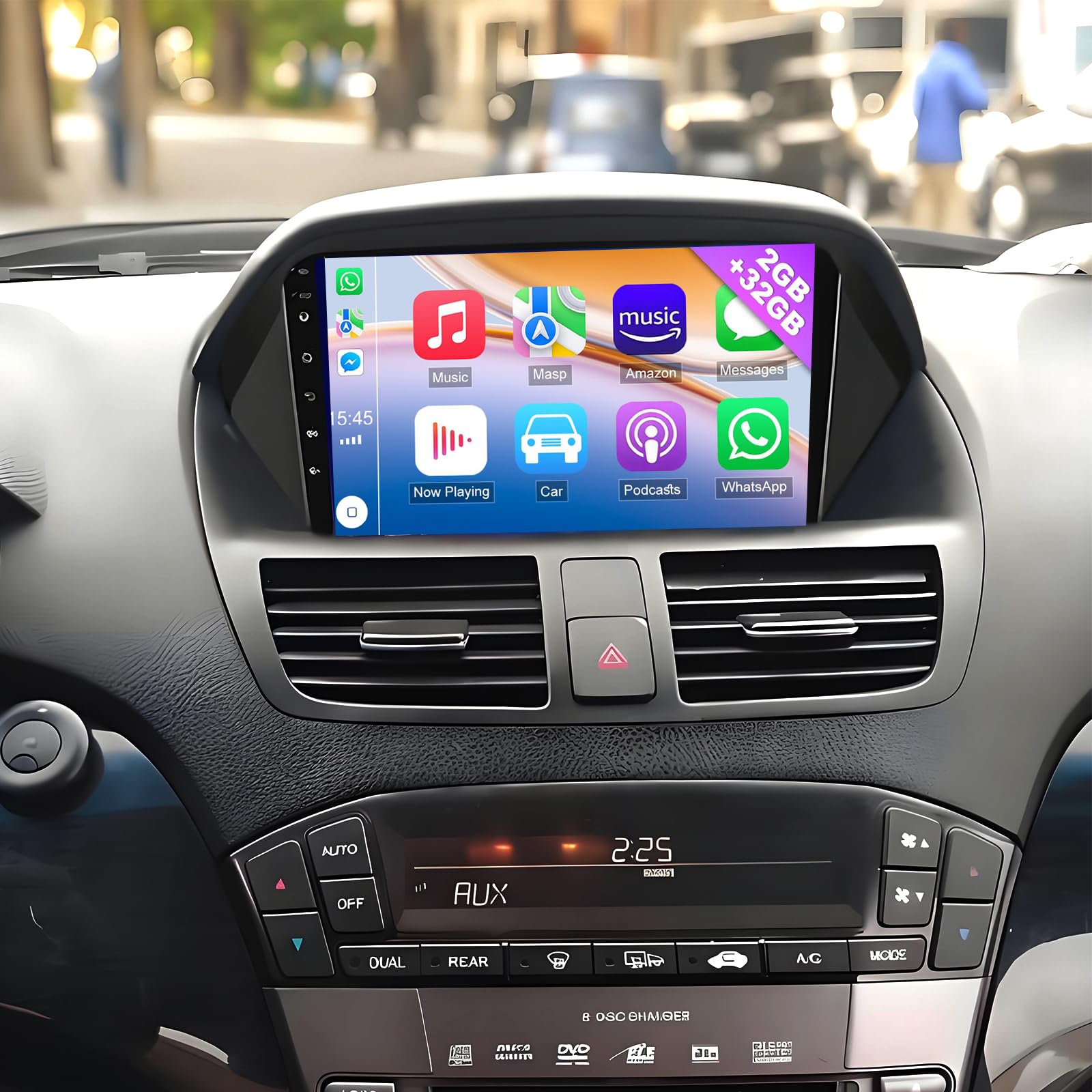
This manual provides detailed instructions for the installation, operation, and maintenance of your EWLSAC 9-inch Android 13 car radio. This unit is designed to enhance your driving experience with features such as Wireless Apple CarPlay, Android Auto, GPS navigation, WiFi connectivity, Bluetooth, FM radio, Steering Wheel Control (SWC), and a backup camera. Please read this manual thoroughly before installation and use to ensure proper function and safety.
Vehicle Compatibility
This car radio is compatible with Honda Acura MDX models manufactured between 2007 and 2013.
Important Compatibility Note:
- Models with an AUX center console (as shown in examples A and B below) support installation.
- Models with an HDD center console (as shown in examples C and D below) do not support installation.
- Consoles without HDD or AUX (as shown in example E below) do not support installation.
What's Included
The package includes the following components:
- 1 x Android Stereo Radio
- 2 x Power Cable
- 1 x GPS Antenna
- 1 x Rear Camera Input Cable
- 1 x RCA Cable
- 2 x USB Cable
- 1 x AHD Camera
- 1 x Microphone
- 1 x Canbus Box
- 1 x USB Adapter
- 1 x Radio Extension Cable
- 1 x Instruction Manual (this document)

Setup and Installation
Professional installation is highly recommended for this product. Incorrect installation can lead to damage to the unit or your vehicle's electrical system. Ensure the vehicle's battery is disconnected before beginning installation.
Wiring Connections
Refer to the included wiring diagrams for specific connections. Key connections include:
- Power Cables: Connect the main power harness to the vehicle's wiring. Ensure correct positive, negative, and accessory connections.
- GPS Antenna: Mount the GPS antenna in a location with a clear view of the sky, typically on the dashboard or under the windshield.
- Rear Camera Input: Connect the AHD camera to the dedicated input cable. Route the cable to the rear of the vehicle and mount the camera securely.
- RCA Cables: Use for external audio/video input or output, such as amplifiers or additional displays.
- USB Cables: Provide connections for USB devices, including data transfer and charging.
- Microphone: Connect the external microphone for improved call quality during Bluetooth hands-free operation.
- Canbus Box: Connect the Canbus box as per the vehicle-specific wiring diagram to enable steering wheel controls and other vehicle data integration.

Operating Instructions
Powering On/Off
The unit will power on automatically with the vehicle's ignition. To manually power off or restart, press and hold the power button on the unit or use the software controls.
Wireless Apple CarPlay & Android Auto
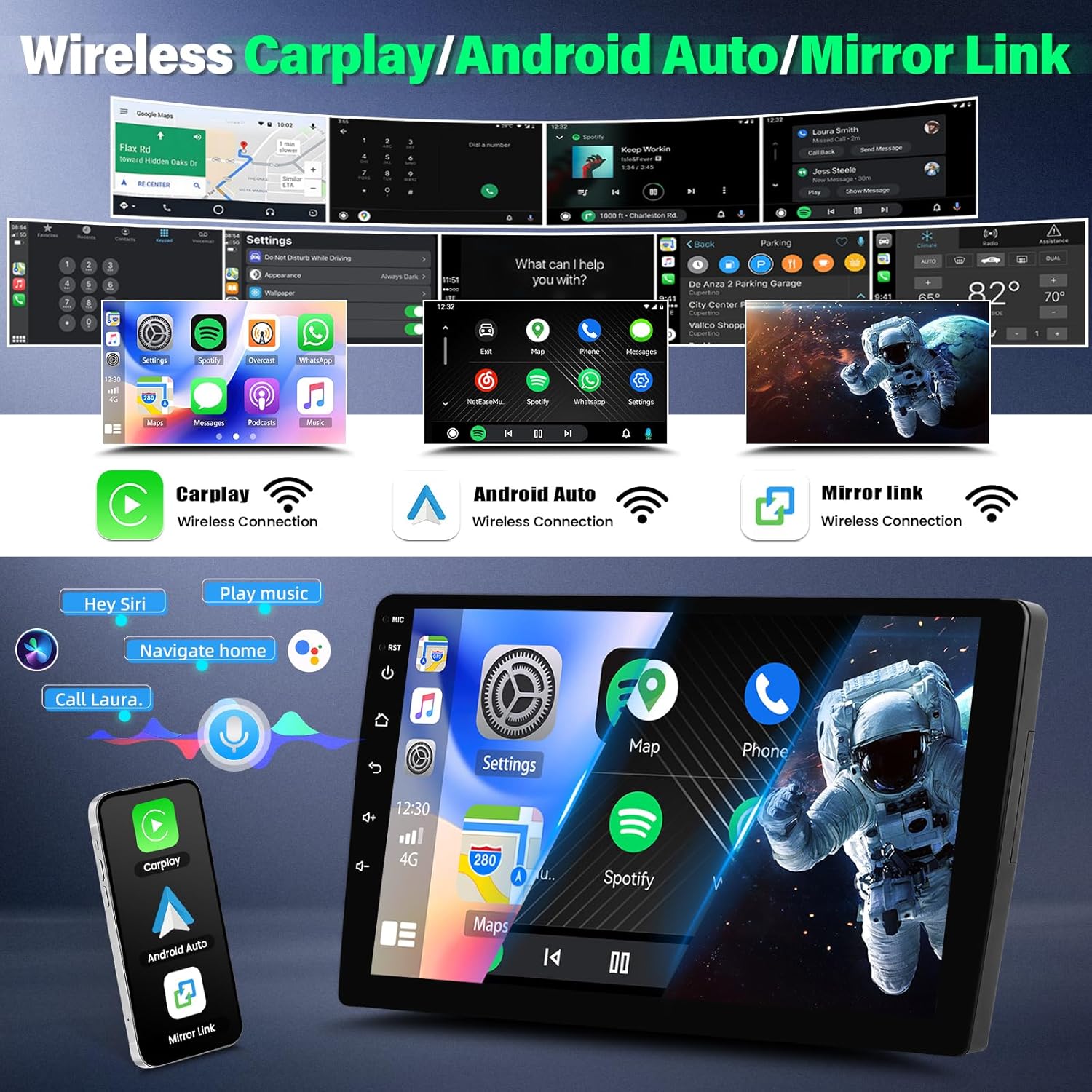
Connect your smartphone wirelessly via Bluetooth and Wi-Fi to access Apple CarPlay or Android Auto. This allows you to use your phone's navigation, messaging, music, and voice assistant features directly on the car radio's 9-inch touch screen.
Mirror Link Function
The Mirror Link function allows you to display your smartphone's screen content directly onto the car radio's display. Connect your phone via USB or Wi-Fi to mirror videos, pictures, and other applications.
GPS Navigation & WiFi
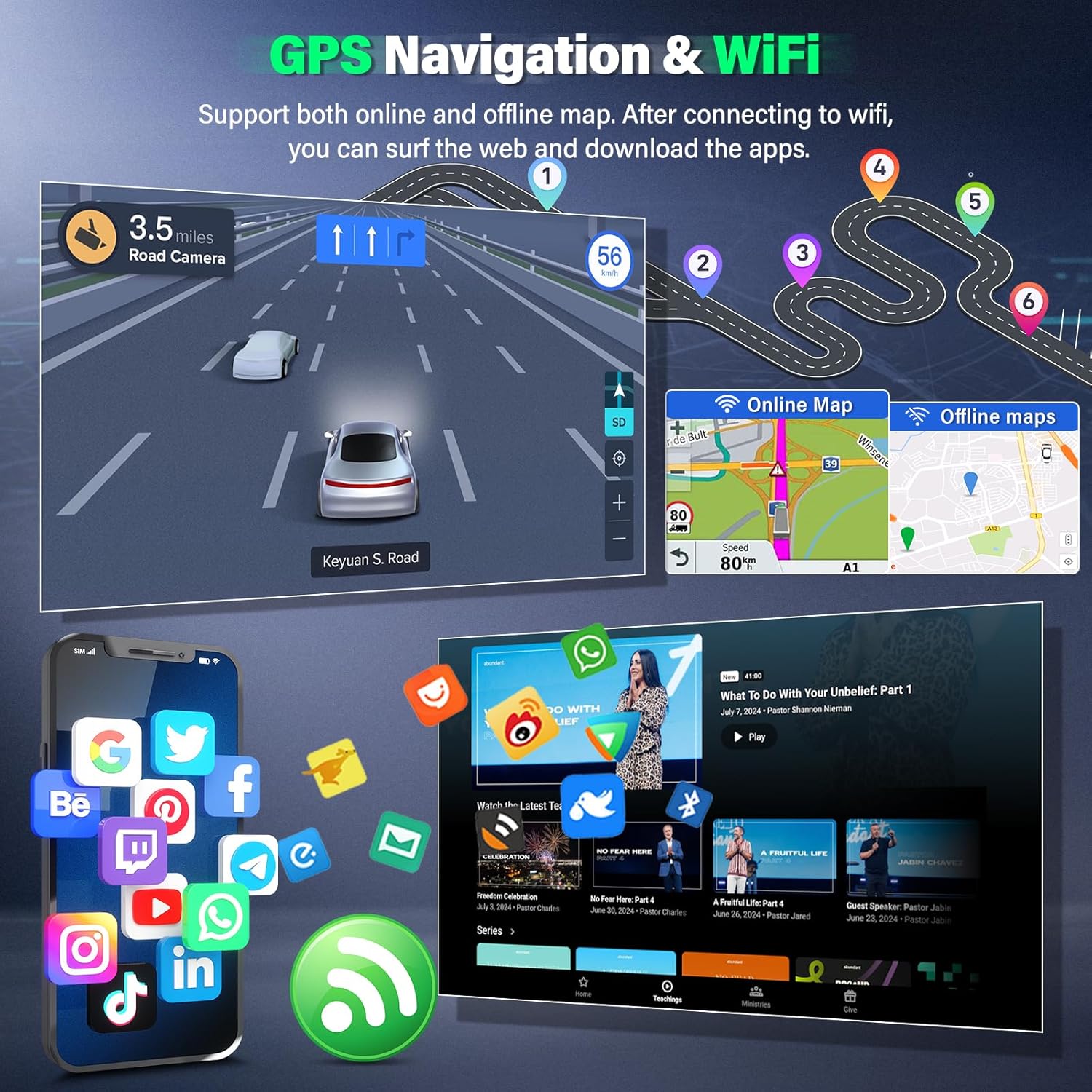
The unit features a built-in GPS module supporting both online and offline navigation maps. Connect to a Wi-Fi network or your phone's hotspot to download map data, receive real-time traffic updates, and access online services. Wi-Fi connectivity also enables web browsing and app downloads from the app store.
Bluetooth Functionality
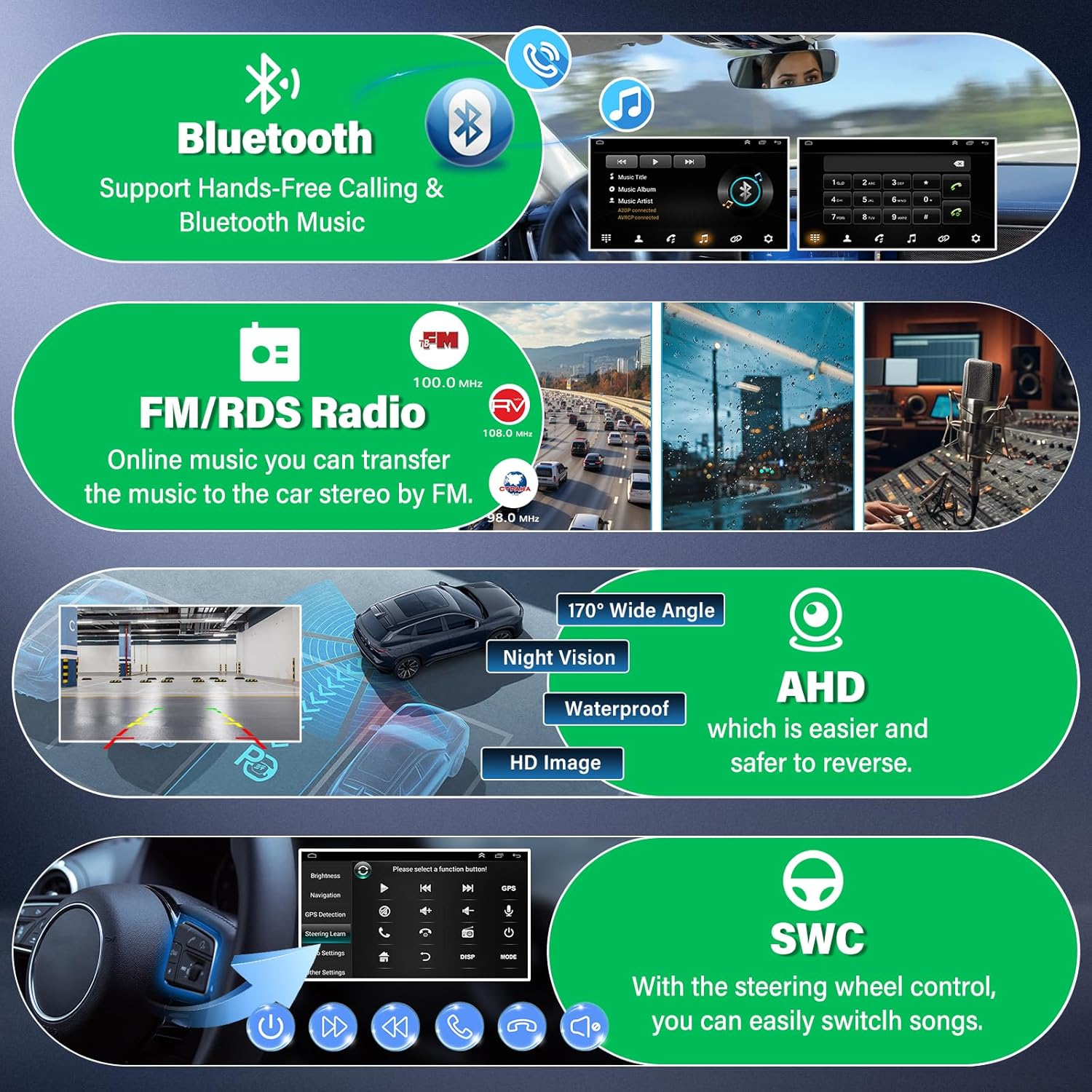
Pair your mobile phone via Bluetooth for hands-free calling, music streaming, and contact synchronization. Use the external microphone for clear voice communication.
FM Radio
Access the FM radio tuner to listen to local broadcasts. The unit supports 18 preset radio stations, allowing quick access to your favorite channels for news, traffic, and music.
AHD Backup Camera
The included AHD backup camera provides a clear, wide-angle (170-degree) view with night vision. When the vehicle is shifted into reverse gear, the display automatically switches to the camera feed, assisting with safe parking and maneuvering.
Steering Wheel Control (SWC)
If your vehicle supports it and the Canbus box is correctly installed, you can control various functions of the car radio directly from your steering wheel buttons. This includes adjusting volume, changing tracks, answering/ending calls, and switching modes, enhancing driving safety.
Split Screen Function
The split-screen feature allows you to run two applications simultaneously on the 9-inch display. For example, you can view navigation maps on one side while controlling music playback on the other.
HiFi Audio & EQ
The unit incorporates HiFi audio technology and a 16-band equalizer (EQ) to customize your sound experience. Adjust frequency bands to match your audio preferences and vehicle acoustics.


Maintenance
Cleaning the Screen
Use a soft, lint-free cloth to gently wipe the touch screen. For stubborn smudges, slightly dampen the cloth with water or a screen-safe cleaner. Avoid abrasive materials or harsh chemicals.
Software Updates
Periodically check for available software updates through the unit's settings menu. Updates can provide performance improvements, new features, and bug fixes. Ensure a stable internet connection during updates.
General Care
Avoid exposing the unit to extreme temperatures, direct sunlight for prolonged periods, or excessive moisture. Ensure all connections remain secure.
Troubleshooting
If you encounter issues, refer to the following common troubleshooting steps:
- No Power: Check all power cable connections. Ensure the vehicle's ignition is on. Verify the fuse in the vehicle's fuse box and the unit's wiring harness.
- No Sound: Check speaker connections. Ensure volume is not muted or set to zero. Verify audio output settings.
- Touch Screen Unresponsive: Try restarting the unit. If the issue persists, a factory reset might be necessary (note: this will erase all user data and settings).
- GPS Not Working: Ensure the GPS antenna is properly connected and mounted in a location with a clear view of the sky. Check GPS settings within the unit.
- Bluetooth Connection Issues: Ensure Bluetooth is enabled on both the car radio and your smartphone. Delete previous pairings and attempt to re-pair.
- Backup Camera Not Displaying: Check the rear camera input cable connection. Ensure the camera is receiving power and is functioning correctly. Verify the reverse trigger wire connection.
- Steering Wheel Controls Not Working: Verify the Canbus box is correctly installed and configured. Check the SWC settings in the unit's menu.
For persistent issues not resolved by these steps, please contact customer support.
Specifications
| Brand | EWLSAC |
| Model Name | EWLSAC MDX |
| Vehicle Service Type | Car |
| Screen Size | 9 Inches |
| Resolution | 1024 x 600 |
| Display Type | LCD |
| Touch Screen Type | Capacitive |
| Operating System | Android 13 |
| Memory Storage Capacity | 32 GB |
| Connectivity Technology | Bluetooth, Wi-Fi |
| Supported Satellite Navigation System | GPS |
| Map Type | Worldwide |
| Audio Output Mode | Stereo |
| Control Method | Touch |
| Compatible Devices | Smartphone |
| Mounting Type | Dashboard Mount |
Warranty and Support
Warranty Information
This EWLSAC car radio comes with a one-year warranty from the date of purchase. The warranty covers manufacturing defects and malfunctions under normal use. It does not cover damage caused by improper installation, misuse, accidents, or unauthorized modifications.
Customer Support
If you have any questions, require technical assistance, or need to claim warranty service, please contact EWLSAC customer support through the retailer where the product was purchased or visit the official EWLSAC website for contact information. Please have your purchase receipt and product model number ready when contacting support.