
1. Product Overview
This EWLSAC Android 13.0 Double Din Car Stereo is designed for Mazda MX-5 models from 2006 to 2021. It features a 9-inch HD capacitive touchscreen with 1024x600 resolution, a powerful 4-core processor, 2GB RAM, and 32GB ROM. The unit integrates various functions to enhance your driving experience, including wireless CarPlay and Android Auto, GPS navigation, Wi-Fi connectivity, Bluetooth, and support for a rear view camera.
2. What's in the Box
Verify that all components are present before beginning installation.

Image: The package includes the main car stereo unit, power cable, RCA input/output cables, two USB cables, camera input cable, GPS antenna, instruction manual, and a USB adapter.
- EWLSAC Android 13.0 Car Stereo Unit
- Power Cable
- RCA Input/Output Cables
- 2 USB Cables
- Camera Input Cable
- GPS Antenna
- Instruction Manual
- USB Adapter
- Rear View Camera (if included in package)
3. Setup and Installation
3.1 Vehicle Compatibility
This car stereo is specifically designed for Mazda MX-5 models manufactured between 2006 and 2021. Ensure your vehicle falls within this range for proper fitment.

Image: The car stereo unit seamlessly integrated into a Mazda MX-5 dashboard, illustrating the visual upgrade from the original system.
3.2 Wiring Diagram
Refer to the following diagram for correct wiring connections. Incorrect wiring can damage the unit or your vehicle's electrical system. If you are unsure, consult a professional installer.

Image: A clear diagram showing the back of the car stereo with numbered connection points: 1. Power Cable, 2. RCA Cable, 3. Original USB Cable, 4. USB Cable, 5. Rear Camera Input Cable, 6. Radio Antenna, 7. GPS Antenna.
- Power Cable: Connect to your vehicle's power harness. Ensure correct positive, negative, and accessory connections.
- RCA Cables: For audio/video input and output connections (e.g., external amplifier, monitors).
- USB Cables: For connecting USB devices, charging, and wired CarPlay/Android Auto.
- Rear Camera Input: Connect the video signal cable from your rear view camera.
- Radio Antenna: Connect your vehicle's radio antenna.
- GPS Antenna: Mount the GPS antenna in a location with a clear view of the sky for optimal signal reception.
3.3 Initial Power On
After installation, turn on your vehicle's ignition. The stereo should power on automatically. Follow any on-screen prompts for initial setup, such as language selection and time zone.
4. Operating Instructions
4.1 Wireless CarPlay & Android Auto
This unit supports both wireless and wired CarPlay and Android Auto. Connect your smartphone to access navigation, music, calls, and voice control directly from the stereo display.

Image: Displays the user interfaces for Apple CarPlay and Android Auto, highlighting common applications like Phone, Music, Maps, and Messages, accessible from the car stereo screen.
- Wireless Connection: Enable Bluetooth and Wi-Fi on your smartphone. Pair your phone with the car stereo via Bluetooth. Follow the on-screen prompts to initiate CarPlay or Android Auto.
- Wired Connection: Connect your smartphone to one of the USB ports using a high-quality USB cable. The system should automatically detect and launch CarPlay or Android Auto.
4.2 GPS Navigation
The stereo has a built-in GPS module and supports various online and offline navigation applications. You can download maps from the app store or use online maps by sharing your phone's hotspot.
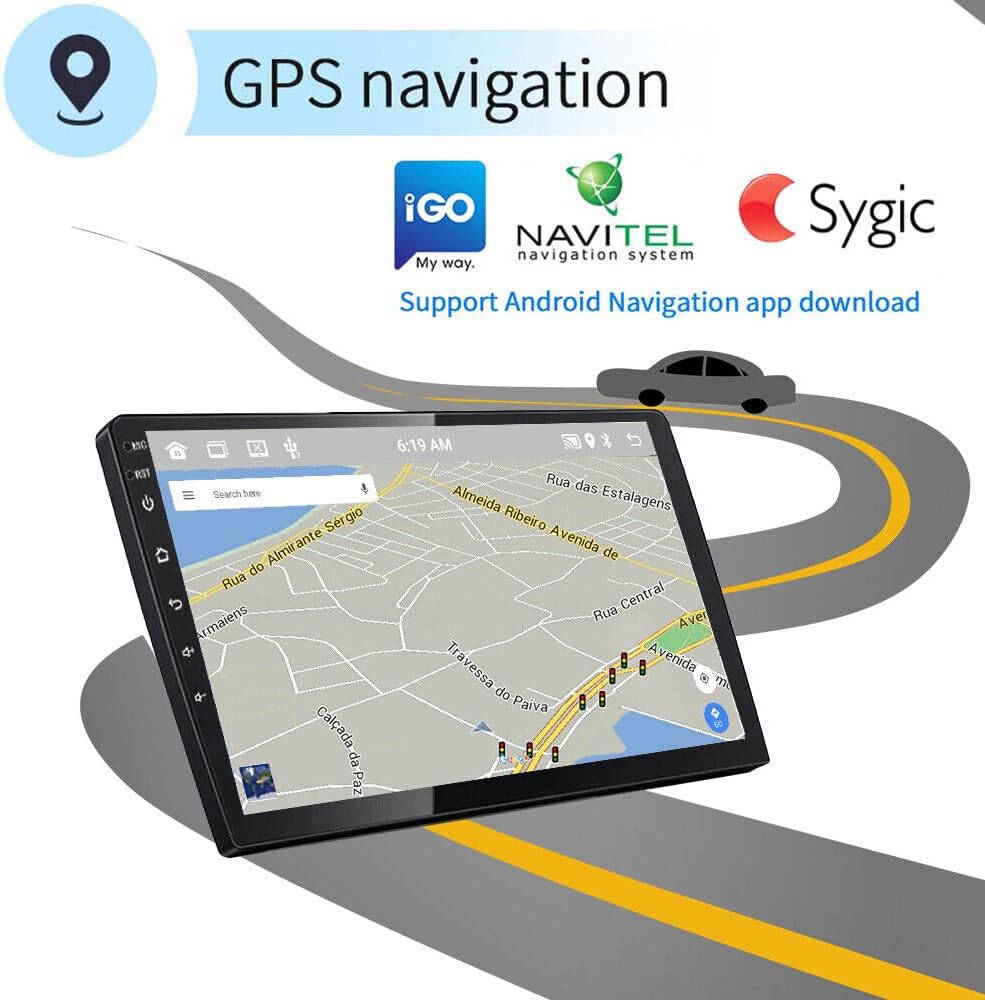
Image: The car stereo screen shows a detailed GPS map with a route highlighted, along with logos of supported navigation apps such as iGO, Navitel, and Sygic.
4.3 Wi-Fi Connectivity
Connect the stereo to a Wi-Fi network (e.g., your phone's hotspot) to access online features, download apps, browse the web, and stream content.

Image: Icons indicating the presence of built-in Wi-Fi and GPS capabilities within the car stereo system.
4.4 Bluetooth Functionality
Pair your phone via Bluetooth for hands-free calling, music streaming, and synchronized contacts. This allows for safer communication and entertainment while driving.

Image: The car stereo displays a phone dialer interface, while a smartphone shows an incoming call, demonstrating the hands-free Bluetooth calling feature.
4.5 FM/RDS Radio
Tune into FM radio stations and utilize RDS (Radio Data System) for station information, traffic updates, and more.

Image: The car stereo displays its FM radio interface, showing frequency selection and RDS information. Below, a Google search bar indicates active Wi-Fi connectivity.
4.6 Steering Wheel Control
Configure the stereo to work with your vehicle's existing steering wheel controls for safe and convenient operation of audio and other functions.

Image: The car stereo displays a menu for configuring steering wheel controls, with an arrow pointing from the screen to a car's steering wheel, highlighting the control buttons.
4.7 Rear View Camera
The unit supports an external rear view camera. When the vehicle is put into reverse, the display will automatically switch to the camera feed, aiding in safe parking and maneuvering.

Image: The car stereo displays a clear view from a rear view camera, complete with parking guidelines, assisting with safe reversing. A separate image shows the compact backup camera unit.
4.8 Mirror Link
Use the Mirror Link function to cast your smartphone's screen directly onto the car stereo display. This allows you to view apps, videos, and navigation from your phone on the larger screen.

Image: A smartphone's display is mirrored onto the car stereo screen, showcasing a vibrant image of a spaceship, demonstrating the Mirror Link feature.
4.9 Split Screen Functionality
The split-screen feature allows you to run two applications simultaneously on the display, such as navigation on one side and music playback on the other.

Image: The car stereo screen is split, displaying a navigation map on the left and music playback controls on the right, illustrating the dual-app functionality.
4.10 HiFi Audio & EQ
Experience high-fidelity audio with a 16-band equalizer, allowing you to customize sound profiles (e.g., Pop, Jazz, Classical) to your preference for an immersive listening experience.

Image: The car stereo screen displays a detailed 16-band equalizer interface, allowing users to fine-tune audio settings and select from various sound presets like Jazz, Pop, and Rock.
5. Maintenance
- Screen Cleaning: Use a soft, lint-free cloth to gently wipe the touchscreen. For stubborn smudges, slightly dampen the cloth with water or a screen-safe cleaner. Avoid harsh chemicals.
- Software Updates: Periodically check for software updates through the system settings or the manufacturer's website to ensure optimal performance and access to new features.
- General Care: Avoid exposing the unit to extreme temperatures, direct sunlight for prolonged periods, or excessive moisture.
6. Troubleshooting
6.1 No Sound Output
- Check Wiring: Ensure all speaker wires and the power cable are securely connected. Verify that the amplifier turn-on wire (often orange or blue/white) is correctly connected if your vehicle has an external amplifier (e.g., a Bose system in some Mazda MX-5 models).
- Amplifier Settings: Access the stereo's settings menu and locate the audio or amplifier settings. Ensure the internal amplifier is enabled, or if using an external amplifier, confirm it is properly recognized and activated.
- Volume Levels: Confirm that the volume is not muted or set to a very low level on both the stereo and any connected devices (e.g., smartphone).
- Source Selection: Ensure the correct audio source (e.g., Radio, Bluetooth, USB) is selected.
6.2 GPS Signal Issues
- Antenna Placement: Ensure the GPS antenna is mounted in a location with a clear, unobstructed view of the sky, away from metal objects that could interfere with the signal.
- Software: Verify that your navigation app and maps are up to date.
6.3 Touchscreen Unresponsive
- Restart Unit: Try restarting the car stereo by turning off the vehicle's ignition and then restarting it.
- Factory Reset: If issues persist, a factory reset may be necessary (refer to the system settings for this option). Note that this will erase all personal data and settings.
7. Specifications

Image: A technical drawing illustrating the precise dimensions of the car stereo unit and its mounting frame, provided in both millimeters and inches for accurate fitment.
| Feature | Specification |
|---|---|
| Operating System | Android 13.0 |
| RAM | 2GB |
| ROM | 32GB |
| Screen Size | 9 Inches |
| Resolution | 1024 x 600 |
| Connectivity | Wi-Fi, Bluetooth |
| Special Features | Touchscreen, GPS Navigation, Wireless CarPlay, Android Auto |
| Vehicle Service Type | Car (Mazda MX-5 2006-2021) |
| Audio Output Mode | Stereo |
| Mounting Type | Dashboard Mount |
8. Warranty and Support
For any questions or assistance, please contact EWLSAC customer service. Refer to your purchase documentation for specific warranty details. The manufacturer is EWLSAC.
Date First Available: March 20, 2024