
Introduction
This manual provides detailed instructions for the safe and effective use of your Andoer Portable Digital Camera. Please read this manual thoroughly before operating the device and retain it for future reference.
Package Contents
Verify that all items listed below are included in your package:
- 1 x Andoer Digital Camera
- 1 x 32GB Memory Card
- 1 x USB Cable (Type-C)
- 1 x Cleaning Cloth
- 1 x Lanyard
- 1 x Storage Bag
- 1 x User Manual
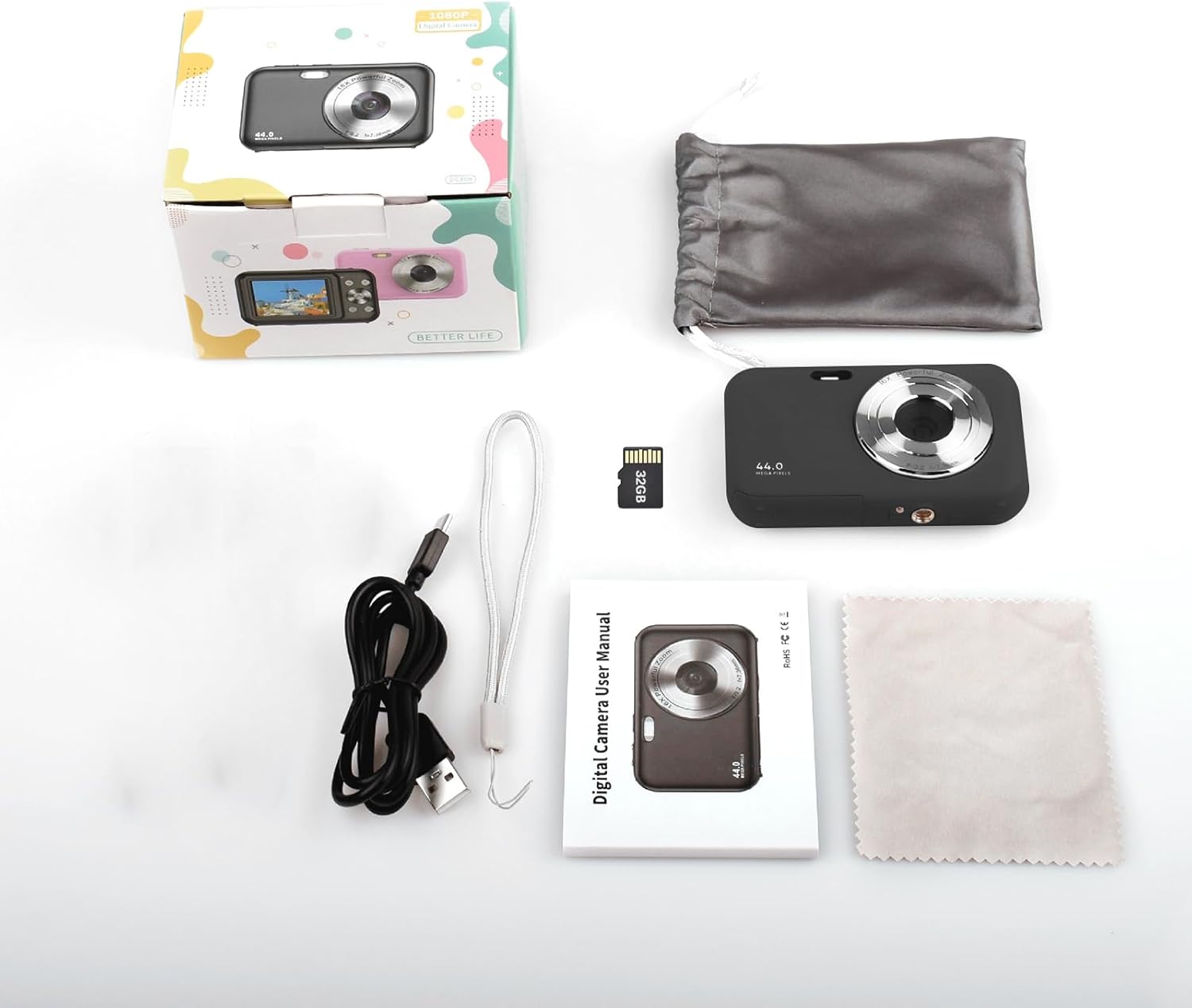
Image: Contents of the Andoer Digital Camera package.
Camera Overview
Familiarize yourself with the various parts of your camera.

Image: Multi-angle view of the Andoer Digital Camera, highlighting its compact design and button layout.
- Front: Lens, Flash, Microphone.
- Top: Power Button, Shutter Button.
- Back: 2.4-inch IPS Screen, Navigation Buttons (Up, Down, Left, Right, OK), Menu Button, Mode Button, Zoom (W/T).
- Side: USB Type-C Port.
- Bottom: Battery/Memory Card Compartment.
Setup
1. Charging the Battery
The camera is equipped with a built-in 700mAh rechargeable lithium battery. Before first use, fully charge the battery.
- Connect the included USB Type-C cable to the camera's USB port.
- Connect the other end of the USB cable to a USB power adapter (not included) or a computer's USB port.
- The charging indicator light will illuminate. It will turn off or change color once charging is complete.
Note: The camera can be used while charging. A full charge provides approximately 150 minutes of continuous shooting or 90 minutes of video recording.

Image: Battery life information for the 700mAh battery.
2. Inserting the Memory Card
The camera supports a 32GB memory card (included). Ensure the camera is powered off before inserting or removing the memory card.
- Locate the battery/memory card compartment cover on the bottom of the camera.
- Open the cover.
- Insert the 32GB memory card into the designated slot with the metal contacts facing the correct direction (refer to the diagram inside the compartment if available) until it clicks into place.
- Close the compartment cover securely.
Important: Format the memory card in the camera's settings menu before first use to ensure optimal performance.
Operating Instructions
1. Powering On/Off
- To power on, press and hold the Power Button on the top of the camera.
- To power off, press and hold the Power Button again. The camera also features an auto power-off function (configurable in settings).
2. Taking Photos
The camera captures photos up to 44MP resolution.
- Turn on the camera.
- Ensure the camera is in photo mode (indicated on the 2.4-inch IPS screen). If not, press the Mode Button to switch.
- Frame your shot using the IPS screen.
- Press the Shutter Button halfway down to focus, then press it fully to take the picture.

Image: Example of a high-resolution photo taken with the 44MP camera.
3. Recording Videos
The camera records videos in 1080P resolution.
- Turn on the camera.
- Press the Mode Button to switch to video recording mode.
- Press the Shutter Button to start recording. A red indicator will typically appear on the screen.
- Press the Shutter Button again to stop recording.

Image: Screen view during 1080P video recording.
4. Using Digital Zoom
The camera features 16X digital zoom.
- In photo or video mode, press the T (Telephoto) button to zoom in.
- Press the W (Wide-angle) button to zoom out.

Image: Comparison of 1x and 16x digital zoom effects.
5. Other Functions
- Self-Timer: Set a delay (e.g., 2s, 5s, 10s) before a photo is taken. Access this option in the camera's menu.
- Continuous Shooting: Take multiple photos in quick succession. This setting is also found in the menu.
- Anti-Shaking: Digital image stabilization helps reduce blur from camera movement. This feature is typically enabled by default or can be toggled in settings.
- Playback: Press the Playback Button (often indicated by a triangle icon) to view photos and videos. Use the navigation buttons to browse.
- Menu Settings: Press the Menu Button to access various camera settings, including resolution, white balance, exposure, date/time, and formatting the memory card.
Transferring Files to a Computer or Phone
You can transfer photos and videos from the camera to a computer or a mobile phone.
1. Via USB Cable (to Computer)
- Connect the camera to your computer using the provided USB Type-C cable.
- Power on the camera.
- The camera should appear as a removable disk or media device on your computer.
- Open the camera's folder and copy the desired files to your computer.
2. Via Memory Card Reader (to Computer/Phone)
For direct transfer from the memory card, you can use a card reader.
- Remove the memory card from the camera.
- Insert the memory card into a compatible card reader.
- Connect the card reader to your computer or mobile phone (via an OTG adapter if necessary).
- Access the files on the memory card and transfer them.

Image: OTG usage diagram for transferring files from memory card to phone.
Maintenance
- Cleaning the Camera Body: Use a soft, dry cloth to wipe the camera body. For stubborn dirt, slightly dampen the cloth with water. Avoid harsh chemicals.
- Cleaning the Lens: Use the included cleaning cloth or a specialized lens cleaning cloth. Gently wipe the lens in a circular motion. Do not use abrasive materials.
- Screen Care: The 2.4-inch IPS screen can be cleaned with a soft, lint-free cloth. Avoid pressing too hard.
- Storage: When not in use for extended periods, store the camera in the provided storage bag in a cool, dry place, away from direct sunlight and extreme temperatures.
- Battery Care: Recharge the battery regularly, even if the camera is not used frequently, to maintain battery health. Avoid fully discharging the battery for long periods.
Troubleshooting
| Problem | Possible Cause | Solution |
|---|---|---|
| Camera does not power on. | Battery is depleted or not properly inserted. | Charge the battery fully. Ensure the battery is correctly inserted. |
| Cannot take photos/record videos. | Memory card is full, not inserted, or corrupted. | Check memory card insertion. Delete unnecessary files or replace the card. Format the card (this will erase all data). |
| Images are blurry. | Lens is dirty, insufficient light, or camera shake. | Clean the lens. Ensure adequate lighting. Hold the camera steady or enable anti-shaking. |
| Camera freezes or becomes unresponsive. | Software glitch or low battery. | Remove and reinsert the battery (if possible) or press and hold the power button for 10 seconds to force a shutdown. Recharge the battery. |
| Cannot transfer files to computer. | Incorrect USB connection or driver issue. | Ensure the USB cable is securely connected. Try a different USB port or computer. Check if the camera is recognized as a device. |
Specifications
| Feature | Detail |
|---|---|
| Display | 2.4 inch IPS Screen |
| Video Resolution | 1080P/720P/480P |
| Image Resolution | 44MP/42MP/36MP/24MP (Effective Still Resolution: 44 MP) |
| File Format | JPG (Image), AVI (Video) |
| Electronic Zoom | 16X |
| USB Port | Type-C |
| Battery | 3.7V/ 700mAh Rechargeable Lithium Battery |
| Focal Length | f=7.36mm |
| Aperture | F/3.2 |
| Power Save | Auto power off in 1Min/2Mins/3Mins/4Mins/5Mins/10Mins |
| Supported System | Windows XP, Vista, 7, 8, 10, Mac 10.2 and above |
| Memory Storage Capacity | 32 GB (included) |
| Auto Focus Technology | Contrast Detection |
| Image Stabilization | Digital |
| Age Range Description | Kid |
Warranty and Support
For warranty information and technical support, please refer to the contact details provided with your purchase documentation or visit the official Andoer website. Keep your proof of purchase for warranty claims.