
SEZO SP630E
SEZO SP630E Music Bluetooth LED Controller Instruction Manual
Model: SP630E
1. Introduction
The SEZO SP630E is a versatile Music Bluetooth LED Controller designed to manage a wide array of LED strip lighting. This controller supports up to 12 different types of LED strips, including various PWM (Pulse Width Modulation) and SPI (Serial Peripheral Interface) addressable LED strips, as well as hybrid SPI+PWM configurations. It operates within a DC5V-24V input voltage range, making it compatible with most standard LED strip power requirements. The SP630E offers comprehensive control through a dedicated mobile application, optional 2.4G remote controls, and music synchronization features, providing dynamic and customizable lighting experiences.

Figure 1: The SEZO SP630E controller, its retail packaging, and a small screwdriver for terminal connections.
2. Key Features
- 12-in-1 Compatibility: Supports PWM LED strips (Monochrome, CCT, RGB, RGBW, RGBCCT), SPI addressable LED strips (Monochrome, CCT, RGB, RGBW, RGBCCT), and SPI+PWM combination LED strips.
- Wide Voltage Range: Operates with DC5V-24V power input. Ensure the power supply matches the operating voltage of your LED strip.
- Bluetooth Control: Manage your lighting via the "BanlanX" mobile application.
- Customization Options: Modify device names, perform color correction, and set multiple timers.
- Extensive SPI IC Support: Compatible with WS2811, WS2812B, WS2813, WS2814, WS2815, SK6812, LB1934 IC chips. Note: Does not support SK9822, WS2801, or other data+clock LED strips.
- Multiple Control Modes: Control via mobile phone APP, 2.4G touch remote control (optional), and 2.4G touch 86-type wall panel (optional).
- Zone Control: Remote and 86-type panel can be configured for partition control (up to 4 zones) or unified control (ALL).
- Music Synchronization: Features three music capture modes: mobile phone microphone, player streaming, and on-board microphone.
- App Control Pages: The BanlanX app includes five main control pages: Dynamic, Static, Music, Custom, and Setting.

Figure 2: Overview of the SEZO SP630E controller's broad compatibility with various LED strip types and key functionalities.

Figure 3: An illustration detailing the 12 different types of LED strips compatible with the SP630E controller.
3. Setup and Installation
3.1 Power Supply Selection
Select a DC power supply that matches the operating voltage of your LED strip (e.g., 5V, 12V, or 24V). The SP630E controller itself supports DC5V-24V input. Ensure the power supply has sufficient wattage to power your entire LED strip length.
3.2 Connecting the LED Strip
Refer to the "Wiring Diagrams" section for detailed instructions on connecting your specific LED strip type to the SP630E controller. Always ensure power is disconnected before making any wiring connections.
3.3 App Download and Pairing
- Download the "BanlanX" application from your smartphone's app store.
- Power on the SP630E controller and ensure your LED strip is connected.
- Enable Bluetooth on your smartphone.
- Open the "BanlanX" app. The app should automatically detect and display the SP630E controller. Tap on the device to connect.
- If connection issues occur, ensure the controller is within Bluetooth range and try restarting both the app and the controller.
For more information and app downloads, visit: https://download.ledhue.com/page/scenex/
4. Wiring Diagrams
The SEZO SP630E controller features clearly labeled output ports. It is critical to match the wiring configuration to your specific LED strip type. The controller's terminals are labeled VCC, G, R, G, B, CW, WW, DAT, GND.
- VCC: Positive power input (Voltage Common Collector)
- GND: Ground (Negative power input)
- R, G, B: Red, Green, Blue color channels for PWM RGB strips.
- CW, WW: Cold White, Warm White channels for CCT strips.
- DAT: Data line for SPI addressable LED strips.
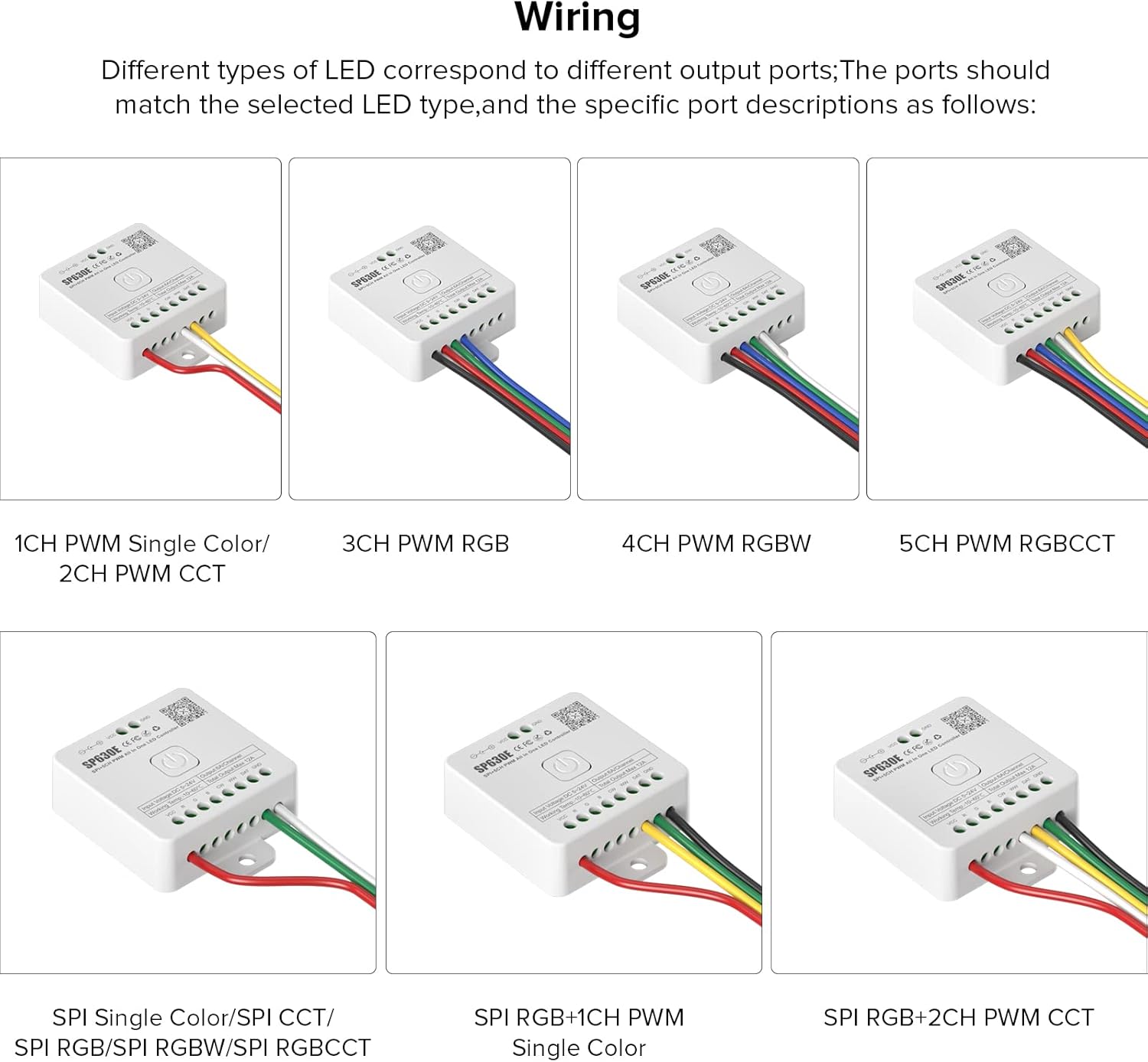
Figure 4: Detailed wiring diagrams illustrating how to connect different types of LED strips to the SP630E controller's output ports.
4.1 PWM LED Strip Wiring Examples
- 1CH PWM Single Color: Connect the positive (+) wire of the strip to VCC, and the negative (-) wire to one of the R/G/B/CW/WW terminals (depending on desired color channel, typically a dedicated single color output if available, or one of the RGB channels).
- 2CH PWM CCT: Connect the positive (+) wire to VCC. Connect the Warm White (WW) wire to the WW terminal and the Cold White (CW) wire to the CW terminal.
- 3CH PWM RGB: Connect the common positive (+) wire to VCC. Connect the Red (R) wire to R, Green (G) wire to G, and Blue (B) wire to B.
- 4CH PWM RGBW: Connect the common positive (+) wire to VCC. Connect R, G, B, and White (W) wires to their respective R, G, B, and CW/WW terminals (depending on the strip's white channel).
- 5CH PWM RGBCCT: Connect the common positive (+) wire to VCC. Connect R, G, B, CW, and WW wires to their respective terminals.
4.2 SPI Addressable LED Strip Wiring Examples
For SPI strips (e.g., WS2811, WS2812B), ensure the data line is connected to the DAT terminal and the ground to GND. The power lines (VCC and GND) should also be connected to the strip.
- SPI Single Color/CCT/RGB/RGBW/RGBCCT: Connect the positive (+) wire of the strip to VCC, the negative (-) wire to GND, and the Data (DAT) wire to the DAT terminal.
4.3 SPI+PWM Combination LED Strip Wiring Examples
These strips combine addressable ICs with separate PWM channels, offering enhanced control.
- SPI RGB + 1CH PWM Single Color: Connect the SPI RGB section (VCC, GND, DAT) and the PWM Single Color section (VCC, GND, and a specific color channel like CW or WW).
- SPI RGB + 2CH PWM CCT: Connect the SPI RGB section (VCC, GND, DAT) and the PWM CCT section (VCC, GND, CW, WW).
5. Operation
5.1 Mobile App Control (BanlanX)
The "BanlanX" app is the primary interface for controlling your SP630E. After connecting via Bluetooth (refer to Section 3.3), you can access various functions.

Figure 5: The five primary control interfaces within the BanlanX mobile application.
- Dynamic Page: Select from various pre-programmed dynamic lighting effects and adjust speed/brightness.
- Static Page: Choose a single static color from a color wheel or palette. Adjust brightness.
- Music Page: Activate music synchronization modes.
- Custom Page (DIY): Create and save your own unique lighting patterns and color sequences.
- Setting Page: Access advanced settings such as device name modification, color correction, and timer functions.

Static Mode

Dynamic Effects

Timer Function

DIY Customization
5.2 Remote and Panel Control (Optional)
The SP630E can also be controlled using an optional 2.4G touch remote control or a 2.4G touch 86-type wall panel. These accessories are sold separately.

Figure 6: An overview of the three control methods for the SP630E controller.
- Partition Control: These controllers can be configured to manage up to 4 distinct lighting zones independently.
- Unified Control (ALL): Alternatively, they can control all connected LED strips simultaneously.

Figure 7: Illustration of zone control capability using optional 2.4G remotes or wall panels.
5.3 Music Synchronization
The SP630E offers dynamic lighting effects that synchronize with music. You can choose from three input sources:
- Mobile Phone Microphone: Uses your smartphone's microphone to pick up ambient sound.
- Player Streaming: Synchronizes with audio playing directly from your smartphone.
- On-board Microphone: Utilizes a microphone built into the controller itself to react to nearby sounds.

Figure 8: LED strip lights syncing with music, demonstrating the various music capture modes.
6. Maintenance
To ensure the longevity and optimal performance of your SEZO SP630E controller, follow these simple maintenance guidelines:
- Keep Dry: Avoid exposing the controller to moisture or liquids, as this can cause damage.
- Temperature: Operate the controller within its specified working temperature range (-10°C to 60°C). Avoid extreme heat or cold.
- Cleaning: Use a soft, dry cloth to clean the surface of the controller. Do not use harsh chemicals or abrasive cleaners.
- Ventilation: Ensure the controller is installed in a location with adequate airflow to prevent overheating.
7. Troubleshooting
- LED strip not lighting up:
- Check if the power supply is correctly connected and providing the correct voltage (DC5V-24V).
- Verify all wiring connections between the controller and the LED strip are secure and correct according to the wiring diagrams.
- Ensure the correct LED strip type is selected within the BanlanX app settings.
- Bluetooth connection issues:
- Confirm the controller is powered on.
- Ensure Bluetooth is enabled on your smartphone.
- Try restarting both the BanlanX app and the SP630E controller.
- Make sure your smartphone is within close proximity to the controller.
- Incorrect colors or effects:
- Use the color correction feature in the BanlanX app to adjust color output.
- Double-check that the wiring for RGB/RGBW/RGBCCT strips matches the expected color order.
- Ensure the correct LED strip type is configured in the app settings.
- Remote control not responding:
- Verify that the remote control has functional batteries.
- Ensure the remote is properly paired with the SP630E controller (refer to remote's specific instructions).
8. Specifications
| Feature | Detail |
|---|---|
| Model Number | M1SP630E-1 |
| Input Voltage | DC 5V-24V |
| Output Current | 6A per channel |
| Total Output Max | 12A |
| Working Temperature | -10°C to 60°C |
| Control Methods | Bluetooth APP ("BanlanX"), 2.4G Remote Control (optional), 2.4G 86-type Panel (optional) |
| Supported LED Types | PWM (Monochrome, CCT, RGB, RGBW, RGBCCT), SPI (WS2811, WS2812B, WS2813, WS2814, WS2815, SK6812, LB1934), SPI+PWM combinations |
| Item Weight | 2.39 ounces |
| Package Dimensions | 5.87 x 5.04 x 0.91 inches |
9. Warranty and Support
For warranty information, technical support, or service inquiries regarding your SEZO SP630E Music Bluetooth LED Controller, please contact the manufacturer or your point of purchase. Keep your purchase receipt as proof of purchase for any warranty claims.