
1. Introduction
This manual provides detailed instructions for the setup, operation, and maintenance of your Eyoyo Wireless QR Barcode Scanner, Model EY-032P. Please read this manual thoroughly before using the device to ensure proper functionality and to maximize its performance.
2. Product Overview
2.1 Key Features
- Smartphone Attachment Design: Specifically designed to attach to smartphones, allowing for simultaneous scanning and data verification on your mobile device via Bluetooth.
- Wide Compatibility: Supports smartphones with widths ranging from 4.7 to 7.2 inches. The design ensures the scanner does not obstruct the phone's camera, regardless of its position.
- Extended Battery Life: Equipped with a 1200mAh rechargeable battery, providing up to 10 hours of continuous hands-free scanning on a full charge, enhancing work efficiency.
- Versatile Scanning: Capable of scanning both 1D and 2D barcodes, including QR codes, from printed materials and LCD screens with high speed and accuracy.
- Multiple Connectivity Options: Offers three connection modes: 2.4G wireless, Bluetooth, and USB wired, providing flexibility for various operating environments and devices.
- Customizable Settings: Supports instant data transmission or storage mode. Allows for editing prefixes and suffixes, hiding parts of barcodes, and converting character cases (uppercase/lowercase).
2.2 Product Components
The package includes the Eyoyo EY-032P barcode scanner, a USB charging cable, and this user manual.

Figure 1: Eyoyo EY-032P barcode scanner attached to a smartphone, demonstrating its compact and ergonomic design for mobile use.

Figure 2: The scanner's design ensures that the smartphone's camera remains unobstructed, allowing for full phone functionality while the scanner is attached.

Figure 3: The scanner is compatible with a wide range of smartphone models, including Galaxy S9 Plus, Galaxy S10, OnePlus 7T, and iPhone 13 Pro Max, due to its adjustable clip mechanism.

Figure 4: The scanner's advanced decoding function supports various barcode types, including common 1D barcodes, 2D barcodes, and QR codes, ensuring broad application.
3. Setup
3.1 Charging the Device
Before initial use, fully charge the scanner. Connect the provided USB cable to the scanner's charging port and a power source (e.g., computer USB port or USB wall adapter). The battery indicator lights will show charging status.

Figure 5: The scanner features a 1200mAh battery, offering 10 hours of continuous operation, 2 hours for a full charge, and 720 hours of standby time. Battery level is indicated by four LED lights.
3.2 Attaching to a Smartphone
Gently extend the scanner's clips and attach it to the back of your smartphone. Ensure the phone is securely held by the clips. The scanner is designed to fit phones between 4.7 and 7.2 inches in width without blocking the camera.
3.3 Connectivity Options
The EY-032P offers three ways to connect to your host device:
- USB Wired Connection: Connect the scanner directly to your computer using the USB cable. No driver installation is required.
- 2.4G Wireless Connection: Plug the 2.4G USB dongle (if included) into your computer. The scanner will automatically pair.
- Bluetooth Connection: Turn on the scanner and enable Bluetooth on your smartphone or computer. Search for 'Eyoyo Scanner' (or similar) in the Bluetooth device list and pair.
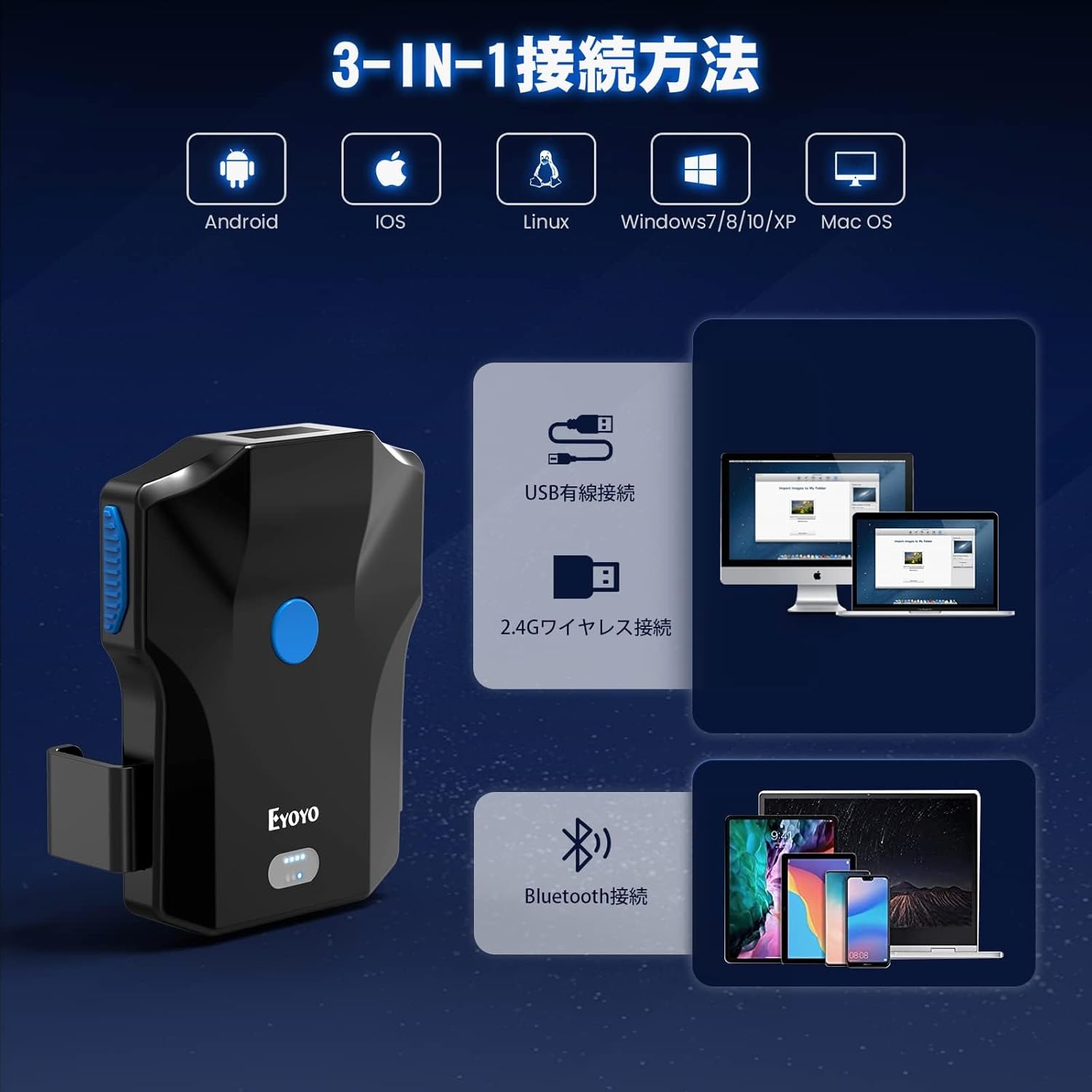
Figure 6: The scanner supports versatile connectivity options, including USB wired for direct connection, 2.4G wireless for extended range, and Bluetooth for mobile device integration.

Figure 7: The scanner is compatible with Android, iOS, Linux, Windows (7/8/10/XP), and Mac OS, ensuring broad system support.
4. Operating Instructions
4.1 Basic Scanning
Point the scanner's window at the barcode you wish to scan. Press one of the scan buttons. A successful scan will typically be indicated by a beep and/or vibration, and the data will be transmitted to your connected device.
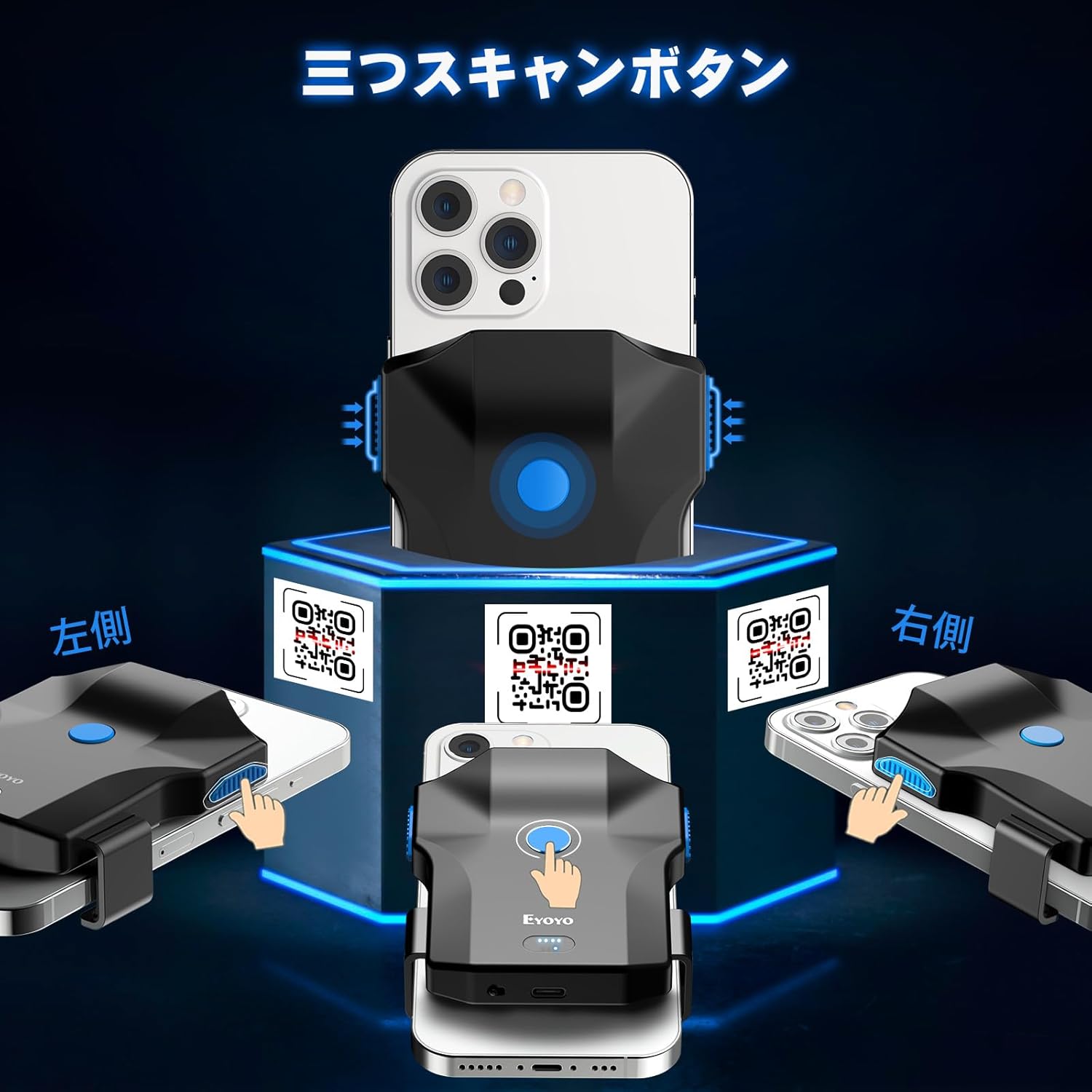
Figure 8: The scanner features three conveniently placed scan buttons (left, right, and central) to accommodate various scanning preferences and improve user comfort.
4.2 Scanning Modes
The scanner supports different scanning modes to suit your workflow:
- Manual Trigger Mode: Press a scan button for each scan.
- Continuous Scan Mode: The scanner continuously scans without needing to press a button.
- Automatic Scan Mode: The scanner activates when a barcode is detected in its field of view.

Figure 9: The scanner offers automatic, manual trigger, and continuous scan modes. It also supports two data transfer methods: instant upload and storage mode.
4.3 Data Transmission Modes
- Instant Upload Mode: Scanned data is immediately transmitted to the connected device.
- Storage Mode: Scanned data is stored in the scanner's internal memory and can be uploaded in bulk later.
4.4 Advanced Settings
The scanner allows for various customizations by scanning specific configuration codes (refer to the included quick setup guide or contact support for these codes):
- Prefix/Suffix Editing: Add custom characters before or after scanned data.
- Barcode Data Hiding: Conceal specific parts of the scanned barcode data.
- Case Conversion: Convert scanned alphanumeric data to all uppercase or all lowercase.
- Sound and Vibration Settings: Adjust the volume of the beep or enable/disable vibration feedback.
5. Maintenance
To ensure the longevity and optimal performance of your Eyoyo barcode scanner, follow these maintenance guidelines:
- Cleaning: Use a soft, dry cloth to clean the scanner's exterior. For the scanning window, use a lens cleaning cloth to avoid scratches. Do not use abrasive cleaners or solvents.
- Storage: Store the scanner in a cool, dry place away from direct sunlight and extreme temperatures.
- Battery Care: Avoid fully discharging the battery frequently. If storing for an extended period, charge the battery to about 50% and recharge every few months.
- Handling: Handle the scanner with care to prevent drops or impacts, which can damage internal components.
6. Troubleshooting
If you encounter issues with your scanner, refer to the following common problems and solutions:
| Problem | Possible Cause | Solution |
|---|---|---|
| Scanner does not turn on. | Low battery. | Charge the scanner for at least 2 hours. |
| Cannot connect via Bluetooth. | Scanner not in pairing mode; Bluetooth on host device is off; interference. | Ensure scanner is discoverable. Turn on Bluetooth on your device. Move closer to the host device. Re-pair the device. |
| Scanner does not read barcodes. | Barcode is damaged or poorly printed; incorrect scanning mode; scanner window is dirty. | Ensure barcode is clear. Try different scanning angles. Clean the scanning window. Check if the correct barcode type is enabled. |
| Scanned data is incorrect or incomplete. | Incorrect settings (prefix/suffix, data hiding). | Reset scanner to factory defaults (refer to quick setup guide) or adjust specific settings. |
| Scanner beeps but no data transmitted. | Not properly connected to host device; host device software issue. | Verify connection (Bluetooth, 2.4G, or USB). Check if the host application is ready to receive input. |
7. Specifications
| Feature | Detail |
|---|---|
| Brand | Eyoyo |
| Model Number | EY-032P |
| Connectivity | Bluetooth, 2.4G Wireless, USB Cable |
| Battery Capacity | 1200mAh Lithium Ion |
| Continuous Operation Time | Up to 10 hours |
| Charging Time | Approximately 2 hours |
| Standby Time | Up to 720 hours |
| Scan Rate | 6 arc_sec (High-speed scanning) |
| Dimensions | 11.5 x 10 x 4.2 cm |
| Weight | 160 g |
| Supported 1D Codes | ISBN, UPC, EAN, Code39, Code93, Code128, Codabar, Interleaved 2 of 5, etc. |
| Supported 2D Codes | QR, DataMatrix, PDF417, Aztec, ETC codes, etc. |
| Smartphone Compatibility | Width 4.7 - 7.2 inches |
| OS Compatibility | Android, iOS, Linux, Windows 7/8/10/XP, Mac OS |
8. Warranty and Support
Eyoyo provides quality assurance for this product. If you encounter any questions or issues during use, please do not hesitate to contact us. Our support team aims to respond within 2 hours and will do our best to resolve your concerns promptly and appropriately.
How to Contact Support:
- Go to your Amazon Account Service.
- Navigate to 'Order History'.
- Find your order for the Eyoyo barcode scanner.
- Click on the 'Seller' link.
- Select 'Ask a Question' to send a message to our support team.