
1. Introduction
This manual provides instructions for the safe and efficient operation of your Eficentline WZ001-100pcs Laminator Machine. Please read this manual thoroughly before using the device and retain it for future reference.
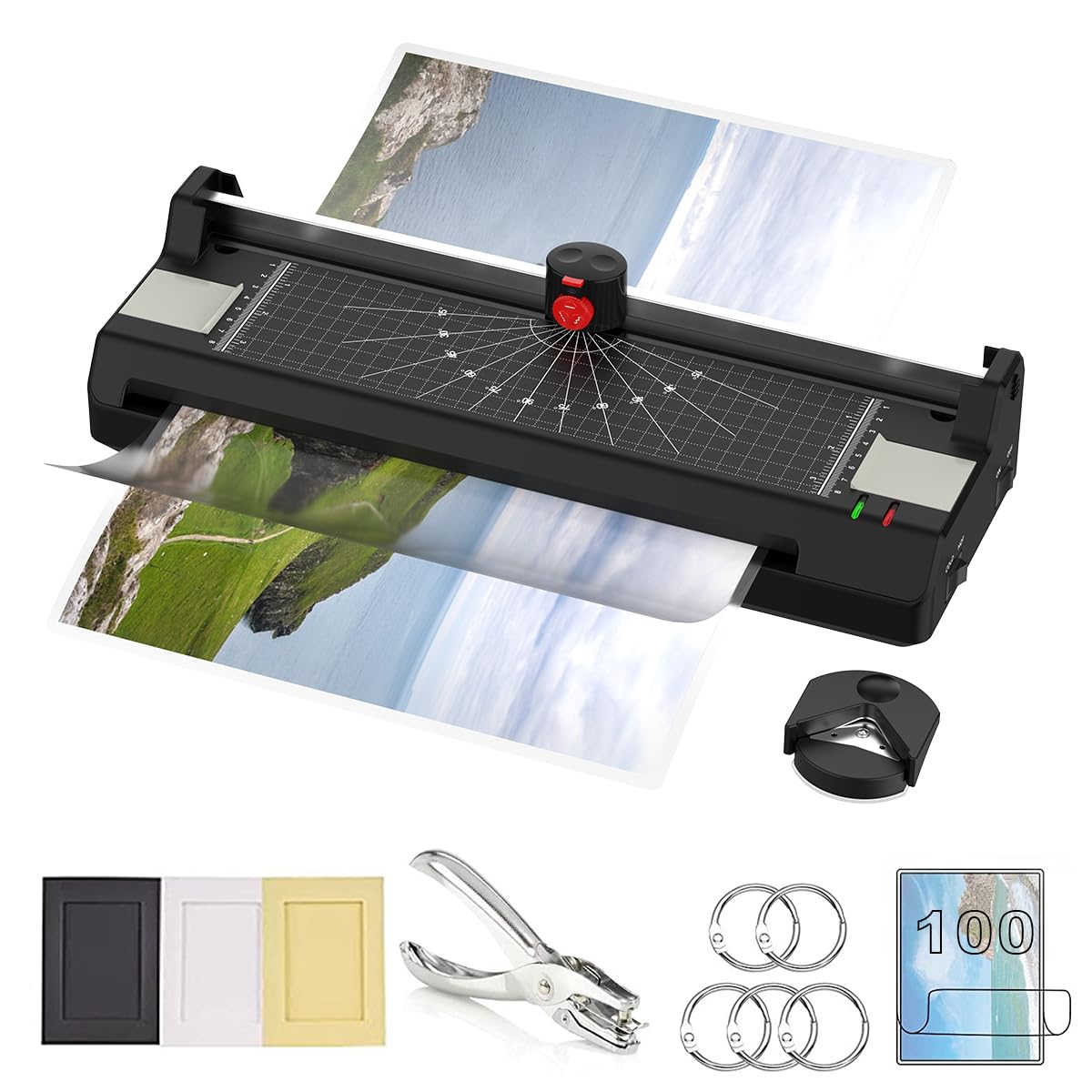
Image 1.1: Eficentline WZ001-100pcs Laminator Machine.
2. Product Overview
The Eficentline WZ001-100pcs is a versatile 5-in-1 thermal laminating machine designed for home, office, and school use. It supports both hot and cold lamination and includes integrated tools for document finishing.
2.1 Key Features
- Versatile Pouch Sizes: Compatible with A3, A4, and A6 laminating pouches.
- Fast Lamination: Achieves a laminating speed of 250mm/min.
- Integrated Paper Trimmer: Features three cutting patterns: straight, perforated, and wave.
- Corner Rounder: Included for creating smooth, rounded corners.
- ABS Button: One-touch release for clearing paper jams.
- Dual Roller System: Ensures smooth and efficient lamination with minimal noise.
- Intelligent Temperature Control: Prevents overheating and supports both thermal and cold lamination.

Image 2.1: Visual representation of key features including preheat, plastic molding, 3-in-1 paper trimmer, quick plastic seal, no paper jam, beauty cutting, double roller system, and one-touch paper exit.
3. Setup
- Placement: Place the laminator on a stable, flat surface with adequate ventilation. Ensure there is enough space behind the machine for laminated documents to exit freely.
- Power Connection: Plug the power cord into a standard electrical outlet.
- Power On: Turn the main power switch to the 'ON' position.
- Select Lamination Mode: Choose either 'COLD' or 'HOT' mode using the selector switch.
- Preheating (Hot Mode Only): If 'HOT' mode is selected, the machine will begin preheating. Wait approximately 3-5 minutes until the 'Ready' indicator light turns green. The machine is now ready for use.

Image 3.1: Step 1 of operating instructions, showing the power switch and hot/cold selection.

Image 3.2: Detail of Hot and Cold lamination options and their indicators.
4. Operating Instructions
4.1 Laminating Documents
- Prepare Document: Place your document or photo inside a laminating pouch, ensuring it is centered and there is an even border around the edges. Smooth out any air bubbles.
- Insert Pouch: Once the 'Ready' light is green (for hot lamination), insert the sealed edge of the laminating pouch into the machine's entry slot. The machine will automatically feed the pouch through.
- Retrieve Laminated Document: The laminated document will exit from the rear slot. Allow it to cool on a flat surface before handling.
Image 4.1: Steps 2 and 3 of operating instructions, demonstrating pouch preparation and insertion.
4.2 Using the Paper Trimmer
The integrated paper trimmer allows for precise cutting of documents. It offers three cutting patterns: straight, perforated, and wave.
- Select Cutting Pattern: Push the red button on the trimmer head upwards to open it. Rotate the button to select your desired cutting pattern (straight, perforated, or wave).
- Position Document: Place the document on the trimmer base, aligning it with the grid lines for accuracy.
- Cut: Recover the red button (push it down) and press firmly while sliding the trimmer head along the guide rail to cut the document.

Image 4.2: Detailed steps for using the paper trimmer to achieve different cutting effects.
4.3 Using the Corner Rounder
The included corner rounder helps create smooth, professional-looking rounded corners on your laminated documents or paper.
- Retrieve Corner Rounder: The corner rounder is typically stored in a compartment on the underside of the laminator.
- Position Document: Insert the corner of your document into the corner rounder slot.
- Round Corner: Press down firmly to cut and round the corner. Repeat for all desired corners.

Image 4.3: Demonstration of using the corner rounder tool.
4.4 Official Product Video
Video 4.4: This video demonstrates the laminator machine in operation, including the use of the paper trimmer and corner rounder for A3/A4/A6 documents.
5. Maintenance
5.1 Cleaning
Regularly clean the exterior of the laminator with a soft, dry cloth. Do not use abrasive cleaners or solvents. Ensure the machine is unplugged and cool before cleaning.
5.2 Jam Release (ABS Button)
In the event of a paper jam, press the 'ABS' button located on the side of the machine. This will release the rollers, allowing you to gently pull out the jammed pouch. Always pull the pouch straight out, not at an angle, to avoid damaging the rollers.

Image 5.1: Close-up of the ABS button for releasing jammed documents.
6. Troubleshooting
- Machine Not Powering On: Check if the power cord is securely plugged into both the laminator and the electrical outlet. Ensure the main power switch is in the 'ON' position.
- Laminating Pouch Not Feeding: Ensure the sealed edge of the pouch is inserted first. If the pouch is stuck, use the ABS button to release the rollers and gently remove it.
- Poor Lamination Quality (Bubbles/Wrinkles): Ensure the machine has fully preheated (green 'Ready' light). Use appropriate pouch thickness for the selected mode. Ensure the document is centered and flat within the pouch.
- Overheating: The intelligent temperature control system is designed to prevent overheating. If the machine feels excessively hot or shuts down, unplug it and allow it to cool down in a well-ventilated area before resuming use.
7. Specifications
| Feature | Specification |
|---|---|
| Brand | Eficentline |
| Model Number | WZ001-100pcs |
| Item Weight | 6.45 pounds (2.93 Kilograms) |
| Package Dimensions | 17.76 x 7.6 x 5.39 inches |
| Color | Black-2 |
| Material Type | WZ001-100pcs |
| Sheet Size Compatibility | A3, A4, A5, A6 |
| Laminating Width Maximum | 297 Millimeters |
| Laminating Speed | 250mm/min |

Image 7.1: Diagram showing the dimensions of the laminator machine.
8. Warranty and Support
For warranty information or technical support, please refer to the product packaging or contact Eficentline customer service directly. Keep your purchase receipt as proof of purchase.
Eficentline is committed to providing high-quality laminating solutions and continuous innovation to improve user experience.