
1. Introduction
The INFOCAR Smart Scanner IO180-PH is a versatile OBD2 diagnostic tool designed to provide comprehensive vehicle data and analysis directly to your smartphone. This device simplifies vehicle maintenance and troubleshooting, offering a convenient and cost-effective solution for car owners.
By simply connecting the scanner to your vehicle's OBD connector, you can access a wide range of information through the dedicated Infocar app, available for both iOS and Android devices.
2. Product Overview
The INFOCAR Smart Scanner IO180-PH is a compact and lightweight device, measuring approximately 11.2 x 7.39 x 4.39 cm and weighing 82g. Its sleek design allows for easy installation and discreet placement within your vehicle.

Figure 2.1: INFOCAR Smart Scanner connected to a smartphone.

Figure 2.2: Front and side view of two INFOCAR Smart Scanners.
3. Setup Instructions
- Locate the OBD2 Port: Identify your vehicle's OBD2 diagnostic port, typically located under the dashboard on the driver's side.
- Connect the Smart Scanner: Plug the INFOCAR Smart Scanner firmly into the OBD2 port. Ensure a secure connection. The device will power on automatically.
- Install the Infocar App: Download and install the official Infocar app from the Google Play Store (for Android) or Apple App Store (for iOS).
- Pair with the App: Open the Infocar app. Follow the on-screen instructions to register your vehicle and establish a Bluetooth connection with the scanner. Ensure your smartphone's Bluetooth is enabled.
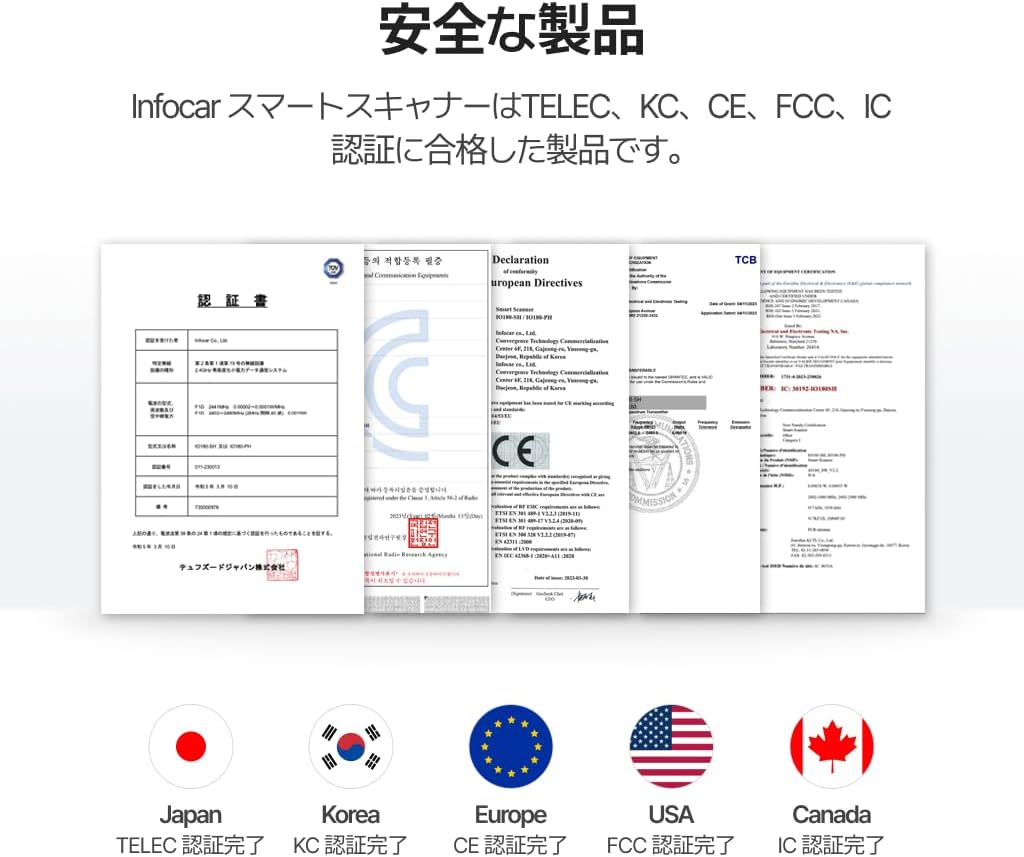
Figure 3.1: Connecting the scanner to the OBD2 port.

Figure 3.2: Infocar app download page on a smartphone.

Figure 3.3: App interface for connecting to the scanner.
Video 3.1: This video demonstrates the process of connecting the OBD2 diagnostic tool to a car and pairing it with the companion app. It highlights the ease of setup and the automatic connection feature of the app.
4. Operating Instructions
4.1 Vehicle Diagnosis and Fault Code Deletion
The Infocar app allows for detailed vehicle diagnostics, providing insights into potential issues. You can read and clear diagnostic trouble codes (DTCs) to identify and resolve problems.

Figure 4.1: Diagnostic screen showing fault codes and options.
4.2 Detailed Data Monitoring
Monitor various vehicle parameters in real-time, including engine coolant temperature, RPM, vehicle speed, and battery voltage. This feature helps you understand your vehicle's performance and health.

Figure 4.2: Real-time data monitoring interface.
4.3 Driving Style Analysis
The app provides analysis of your driving style, offering scores for safety and eco-friendliness. Review historical driving data to improve your habits and optimize fuel efficiency.

Figure 4.3: Driving style analysis and report.
4.4 Vehicle Management
Keep track of your vehicle's maintenance history, including fuel fill-ups, service records, and replacement of consumables. This helps in proactive vehicle care.

Figure 4.4: Vehicle maintenance management interface.
5. Features and Benefits
- Convenience: Easy installation and continuous app updates ensure you can check your vehicle anytime, anywhere.
- Economy: Avoid costly workshop visits by performing diagnostics yourself. The dedicated app is free to use and receives lifetime free updates.
- Compatibility: Supports both iOS and Android operating systems, ensuring stable communication with the Infocar Smart Scanner.
- Diversity: Beyond basic diagnostics, the device offers a variety of convenient functions such as driving records, driving style analysis, real-time monitoring, and vehicle management.
- Excellence: The Infocar app has garnered over 10 million users worldwide, a testament to the product's quality and reliability.
6. Safety Information
The Infocar Smart Scanner is a certified product, having received official certifications from various regulatory bodies including TELEC, KC, CE, FCC, and IC. These certifications ensure the product meets high safety and quality standards.

Figure 6.1: Product certifications for various regions.
7. Troubleshooting
- Is Bluetooth connection mandatory? Yes, Bluetooth is required for the Infocar app to communicate with the scanner.
- What do the product lights indicate? The orange light indicates communication with the vehicle's ECU, while the green light indicates communication with the Infocar app.
- Can it start the vehicle's engine? No, the Infocar Smart Scanner does not support forced engine start or lock release functions.
- Is login required for the app? Yes, logging into the app saves your data to the server, allowing for automatic backup and restoration during device changes or reinstallation. An internet connection is required for data saving and restoration.
- What if the vehicle type is not displayed? The vehicle type display is solely for identifying the vehicle. There is no functional difference if it is not displayed.
8. Specifications
| Feature | Detail |
|---|---|
| Manufacturer | INFOCAR |
| Brand | INFOCAR |
| Model Name | Infocar Smart Scanner IO180-PH |
| Product Model Number | IO180-PH |
| Package Dimensions | 11.2 x 7.39 x 4.39 cm |
| Product Weight | 82 g |
| Power Source | Corded Electric |
| Operating System | iOS, Android OS |
| Vehicle Fit Type | Universal Fit |
9. Warranty and Support
This product is covered by Amazon Japan's exchange and return policy. Additionally, the dedicated Infocar app receives lifetime free updates, ensuring your device remains up-to-date with the latest features and vehicle compatibility.
For further assistance or inquiries, please refer to the contact information provided by the seller or through the Infocar app's support section.