
1. Introduction and Overview
This manual provides comprehensive instructions for the installation, operation, and maintenance of your Gyration Cyberview 2000 Indoor Full HD Network Camera. Please read this manual thoroughly before using the product to ensure proper functionality and safety.
Key Features:
- High-quality 2 Megapixel image sensor (1920x1080 at 15fps).
- 3X Digital Zoom for detailed viewing.
- Pan and Tilt functionality for wide area coverage (355° Pan, 90° Tilt).
- Two-way audio with built-in microphone and speaker.
- Infrared night vision with a range of 7 meters for 24-hour monitoring.
- Motion detection with intelligent push notifications.
- Supports Micro SD card storage (up to 128 GB) and cloud storage.
- Wi-Fi connectivity for easy setup and remote access.
- Compatible with Amazon Alexa and Google Assistant.
2. Setup Guide
2.1 What's in the Box
Please verify that all components are present before proceeding with installation.
- Gyration Cyberview 2000 Camera
- Power Adapter (Corded Electric)
- Mounting Accessories (if applicable, for tabletop mount)
- User Manual (this document)
2.2 Physical Installation
The Cyberview 2000 camera is designed for indoor use and supports tabletop mounting. Place the camera on a stable, flat surface in the desired monitoring area. Ensure the camera has a clear line of sight and is within range of your Wi-Fi network.

Image 1: Front view of the Gyration Cyberview 2000 camera.
2.3 Power Connection
Connect the provided power adapter to the camera's power input port and then plug it into a standard electrical outlet. The camera will power on automatically.
2.4 App Installation and Account Creation
To operate the camera, download the "CyberView Plus" app from your mobile device's app store (available for Android and iOS). Follow the in-app instructions to create an account and log in.
2.5 Wi-Fi Connection
Within the CyberView Plus app, select "Add Device" and follow the on-screen prompts to connect your camera to your home Wi-Fi network. This typically involves scanning a QR code displayed on your phone with the camera or entering your Wi-Fi credentials.
3. Operating Instructions
3.1 Live View and Remote Monitoring
Once connected, open the CyberView Plus app to access the live video feed from your camera. You can monitor your space remotely from anywhere with an internet connection.

Image 2: Screenshot of the mobile app showing remote monitoring and notifications.
3.2 Pan and Tilt Control
Within the live view interface of the app, use the directional controls to pan the camera horizontally (355°) and tilt it vertically (90°) to adjust the viewing angle as needed. The 3X digital zoom can be activated by pinching the screen.
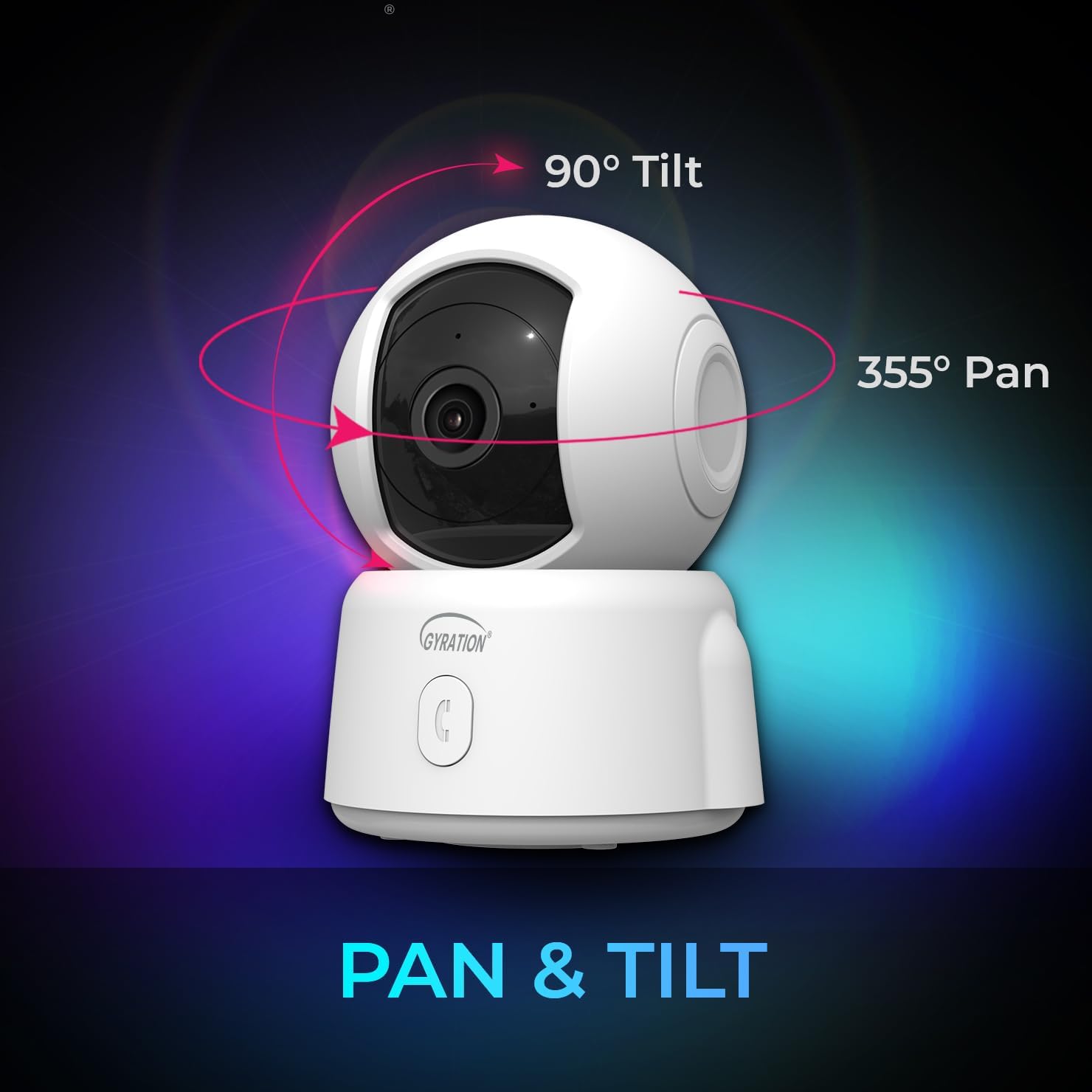
Image 3: Diagram illustrating the 355° pan and 90° tilt capabilities of the camera.
3.3 Two-Way Audio and Call Button
The camera features a built-in microphone and speaker, enabling two-way communication. Tap the microphone icon in the app to speak through the camera. The physical call button on the camera allows someone at the camera's location to initiate a call to your connected mobile device.

Image 4: Close-up of the camera showing the call button, highlighting two-way audio functionality.
3.4 Night Vision
The Cyberview 2000 automatically switches to infrared night vision in low-light conditions, providing clear black and white video up to 7 meters. The IR-CUT filter ensures accurate color representation during the day.
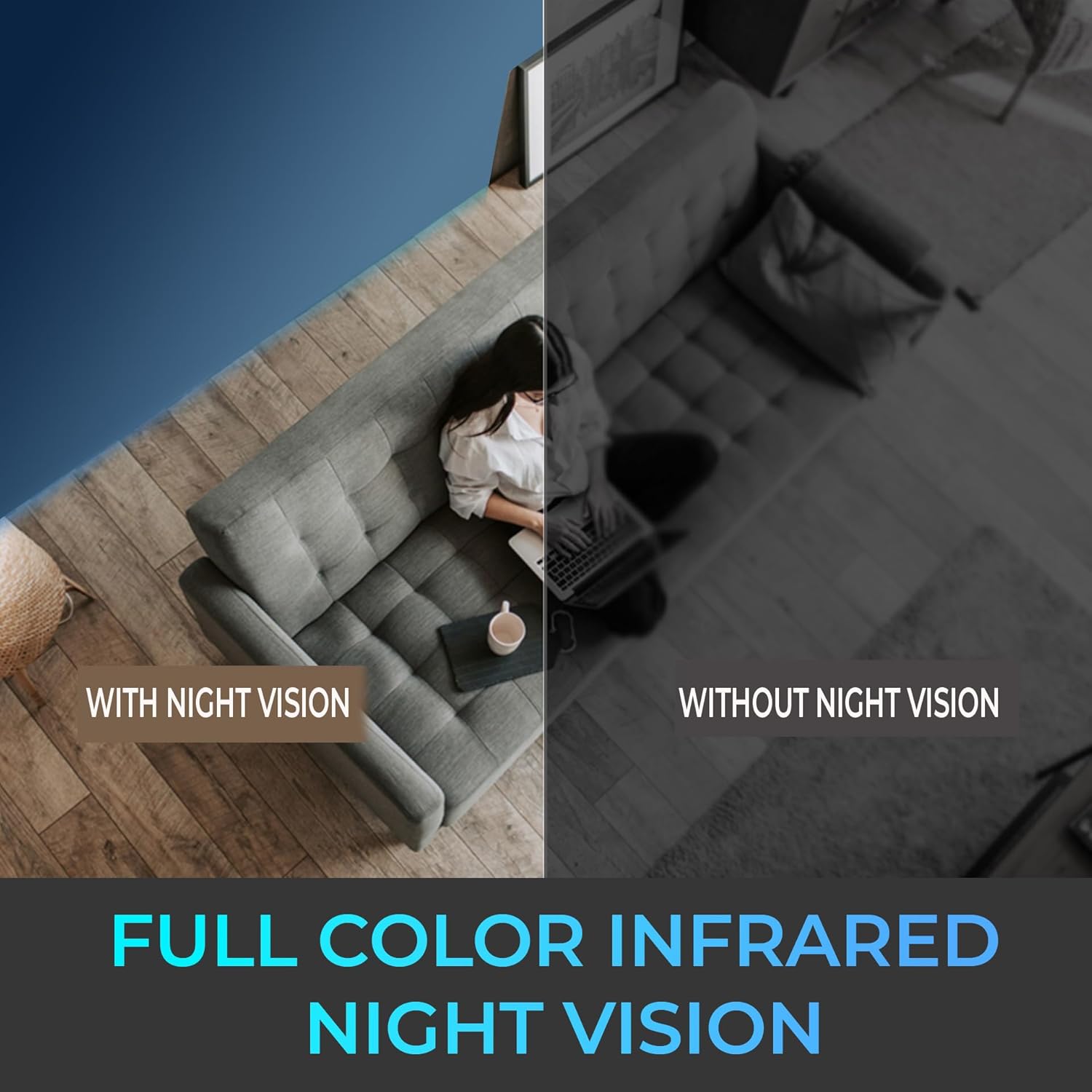
Image 5: Split image demonstrating the clarity of night vision compared to a scene without it.
3.5 Motion Detection and Alerts
Configure motion detection settings within the app to receive instant alerts on your mobile device when activity is detected. You can define specific activity zones to reduce false alarms.
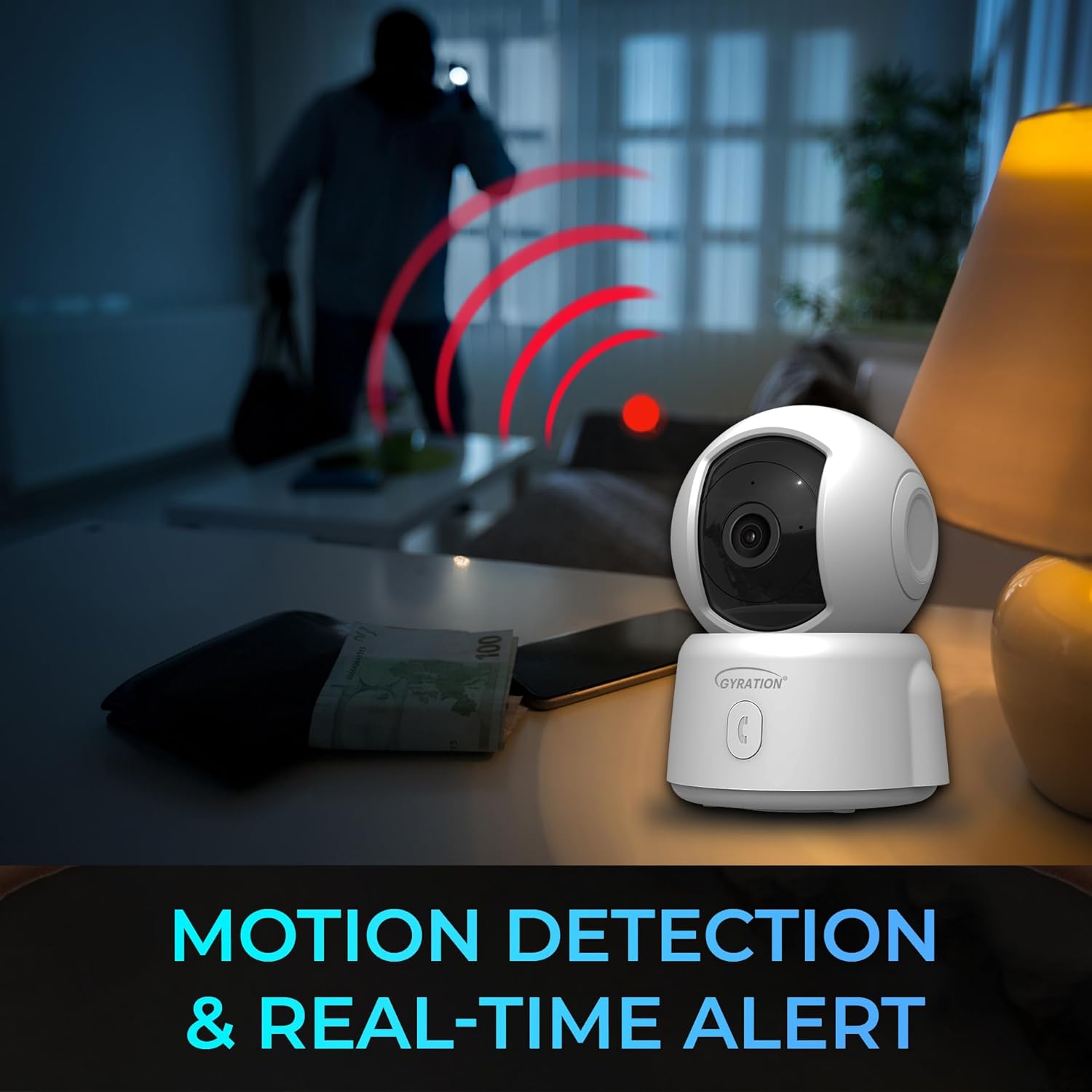
Image 6: Illustrates the camera detecting motion and sending an alert.
3.6 Storage Options (Cloud and Micro SD)
The camera supports local storage via a Micro SD card (up to 128 GB, not included). Insert the Micro SD card into the designated slot on the camera. Additionally, the camera supports cloud streaming and storage, with a free 3-day rolling cloud storage for 2 years.

Image 7: Depicts the cloud storage feature and an event timeline within the app.
4. Maintenance
4.1 Cleaning the Camera
To maintain optimal image quality, periodically clean the camera lens and body. Use a soft, dry cloth to wipe away dust. For stubborn marks, slightly dampen the cloth with water. Avoid using harsh chemicals or abrasive cleaners.
4.2 Firmware Updates
Ensure your camera's firmware is up to date for the best performance and security. The CyberView Plus app will typically notify you of available firmware updates. Follow the in-app instructions to perform updates. Do not power off the camera during a firmware update.
5. Troubleshooting
Refer to the table below for common issues and their solutions.
| Problem | Solution |
|---|---|
| Camera not powering on. | Ensure the power adapter is securely connected to both the camera and a working electrical outlet. Try a different outlet. |
| Unable to connect to Wi-Fi. | Verify your Wi-Fi network name and password are correct. Ensure the camera is within range of your Wi-Fi router. Restart your router and the camera. The camera supports 2.4GHz Wi-Fi networks only. |
| No live video feed. | Check your internet connection. Ensure the camera is powered on and connected to Wi-Fi. Restart the app and the camera. |
| Motion alerts not received. | Check app notification settings on your phone and within the CyberView Plus app. Ensure motion detection is enabled and activity zones are correctly configured. |
| Micro SD card not recording. | Ensure the Micro SD card is inserted correctly and is not full. Format the SD card through the app if it's new or causing issues. The camera supports up to 128GB. |
| Poor image quality. | Clean the camera lens. Ensure adequate lighting. Check your internet speed for streaming issues. |
6. Technical Specifications
| Feature | Detail |
|---|---|
| Model Name | Cyberview 2000 |
| Image Sensor | 2 Megapixel, 1/2.3'' CMOS |
| Video Resolution | 1920x1080 @ 15fps (Full HD) |
| Video Compression | H.264, MJPEG |
| Digital Zoom | 3X |
| Pan/Tilt Range | Pan 355°, Tilt 90° |
| Night Vision | Infrared, up to 7m distance |
| Audio | Built-in Mic & Speaker (Two-way audio) |
| Storage | Micro SD card (max 128 GB), Cloud Storage |
| Connectivity | Wi-Fi (2.4GHz) |
| Power Source | Corded Electric, 5 Volts |
| Compatible Devices | Smartphone (Android/iOS), Amazon Alexa, Google Assistant |
| Indoor/Outdoor Usage | Indoor |
| Dimensions (L x W x H) | 6.2 x 3.7 x 3.4 inches |
| Item Weight | 12.7 ounces |
| UPC | 744390953460 |
7. Warranty and Support
Gyration products are manufactured to high-quality standards. This product comes with a limited warranty against defects in materials and workmanship. Please refer to the warranty card included with your purchase or visit the official Gyration website for detailed warranty terms and conditions.
For technical support, troubleshooting assistance, or warranty claims, please contact Gyration Customer Service:
- Website: www.gyration.com (Placeholder, actual website not provided in data)
- Email: support@gyration.com (Placeholder, actual email not provided in data)
- Phone: 1-800-XXX-XXXX (Placeholder, actual phone number not provided in data)
Please have your product model number (Cyberview 2000) and purchase date ready when contacting support.

