
1. Introduction
Thank you for choosing the GFFFFFFJJJJJJJJJJJ E26 LED Light Bulb Camera. This manual provides detailed instructions for the installation, operation, and maintenance of your new security camera. Please read this manual thoroughly before use to ensure proper functionality and to maximize your product experience. Keep this manual for future reference.
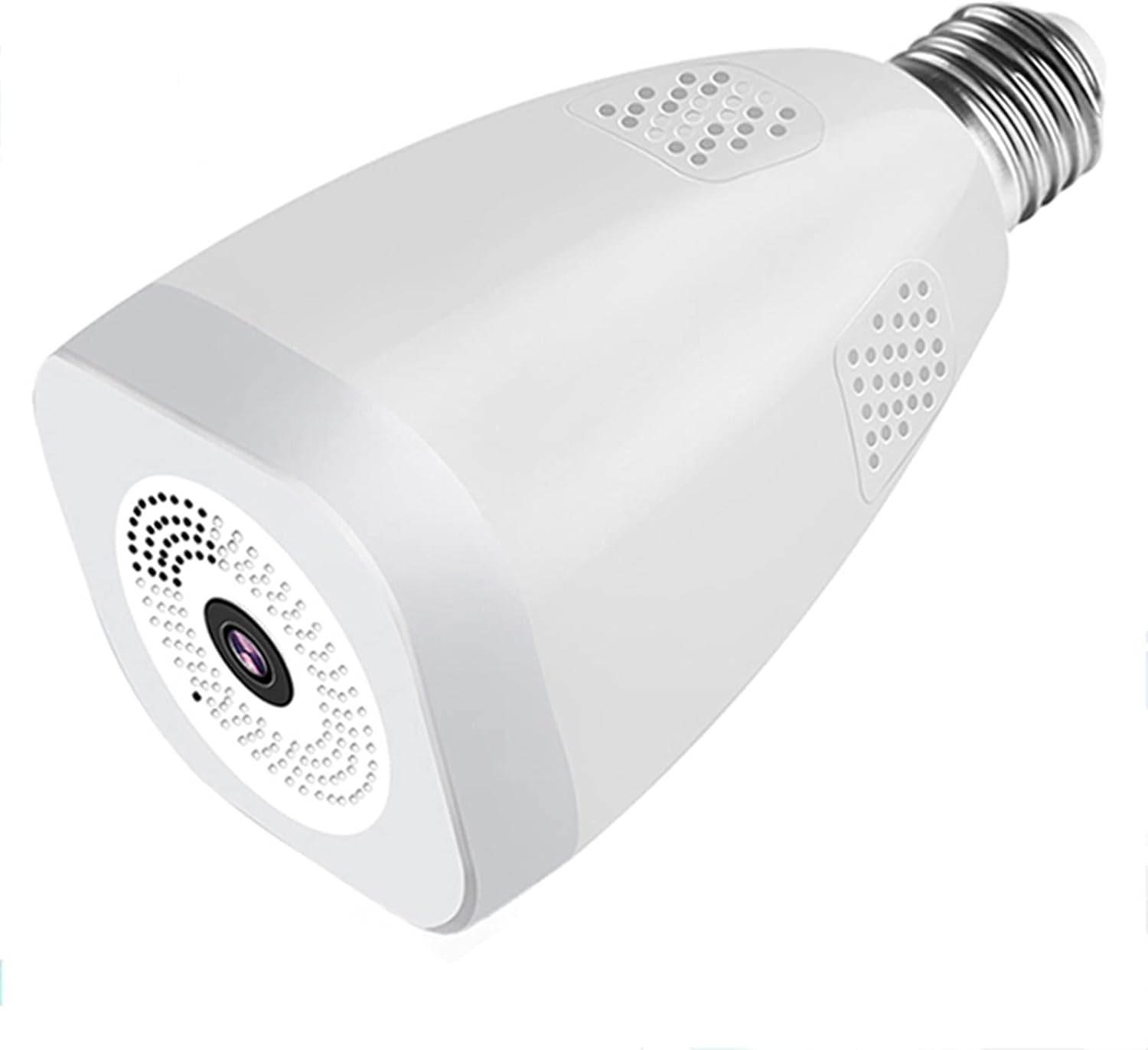
Figure 1: GFFFFFFJJJJJJJJJJJ E26 LED Light Bulb Camera. This image shows the compact, white light bulb camera with its E26 screw base and integrated camera lens.
2. Product Features
- Remote Control & View: Access live streams via iOS/Android mobile applications. Supports multi-camera display and multi-user sharing. Compatible with 2.4GHz Wi-Fi networks only.
- 1080P Full HD & Night Vision: Features a 2.0 MP home security camera for clear 1080P resolution. Equipped with floodlight and infrared light for automatic night vision, providing clear images in various lighting conditions.
- Dual Lighting Source: Integrates infrared lights and LED floodlights that can switch automatically based on motion detection. Remote control allows manual switching of lights.
- Motion Detection & Two-Way Audio: Sends real-time alert notifications to your mobile phone upon detecting movement. Allows for two-way communication through the camera's built-in microphone and speaker.
- 360-Degree Panoramic View: A fisheye lens provides a 360-degree panoramic view, covering the entire room without blind spots.
- Storage Options: Supports local storage via a micro SD card (up to 64GB, not included) or cloud storage for recorded footage.
3. Setup Instructions
3.1. Physical Installation
- Ensure the power to the light fixture is turned off before installation.
- Screw the E26 LED Light Bulb Camera into a standard E26/E27 lamp holder.
- Turn on the power to the light fixture. The camera will power on and initiate its startup sequence.

Figure 2: Easy Installation. This image demonstrates the simple process of screwing the E26 LED Light Bulb Camera into a standard E27 lamp holder.
3.2. App Download and Account Registration
- Download the designated mobile application (e.g., 'iCSee' or similar, as indicated in the product packaging) from your device's app store (iOS or Android).
- Open the app and follow the on-screen instructions to register a new account or log in if you already have one.
3.3. Wi-Fi Connection
- In the app, select 'Add Device' or the '+' icon.
- Choose the option to add a new camera and follow the prompts for Wi-Fi configuration. Ensure your mobile device is connected to a 2.4GHz Wi-Fi network. The camera does not support 5GHz Wi-Fi.
- The camera may offer an AP hotspot connection method. If prompted, connect your phone to the camera's temporary Wi-Fi hotspot (e.g., 'camera_b-tdd' or similar) and then proceed to connect the camera to your home Wi-Fi network through the app.

Figure 3: AP Hotspot Network Monitoring. This image illustrates connecting to the camera's AP hotspot via a mobile phone's Wi-Fi settings for initial setup or direct monitoring without an internet connection.
4. Operating Instructions
4.1. Live View and Panoramic Monitoring
Once connected, open the app to view the live feed from your camera. The 360-degree panoramic fisheye lens provides a comprehensive view of the monitored area. You can digitally pan, tilt, and zoom within the panoramic view using your fingers on the screen.

Figure 4: 360° Panoramic View. This image shows the camera installed on a ceiling, capturing a wide panoramic view of a room, displayed on a smartphone screen.
4.2. Motion Detection and Alerts
The camera is equipped with sensitive motion detection. When motion is detected, the camera will send an alert notification to your mobile device. You can customize the detection sensitivity and schedule detection times within the app settings.

Figure 5: Sensitive Motion Detection. This image depicts a smartphone displaying an alert notification from the camera app, indicating detected motion, alongside an image of a person in a mask, symbolizing a security event.
4.3. Two-Way Audio Communication
Utilize the two-way audio feature to communicate with individuals near the camera. Press the microphone icon in the app to speak, and the sound will be transmitted through the camera's speaker. The camera's built-in microphone will capture audio from the monitored area.

Figure 6: Two-Way Intercom/Audio. This image illustrates the two-way audio capability, showing a woman communicating with a child through the camera, with icons representing speaking and listening.
4.4. Integrated LED Illumination
The camera features an integrated LED light. You can manually turn the light on or off through the mobile application. The light can also be configured to activate automatically upon motion detection, serving as both an illuminator and a deterrent.

Figure 7: Integrated LED Illumination. This image shows the bulb camera providing light to a desk where two children are reading, demonstrating its dual function as a light source.
4.5. Video Recording and Storage
The camera supports continuous recording or event-triggered recording (e.g., by motion detection). Recorded footage can be stored in two ways:
- Micro SD Card: Insert a micro SD card (up to 64GB, not included) into the designated slot on the camera. Ensure the card is formatted correctly through the app.
- Cloud Storage: Refer to the app for available cloud storage plans and subscription details.

Figure 8: Support Up to 64GB TF Card Storage. This image highlights the TF card slot on the camera and a hand inserting a TF card, indicating local storage capability.
5. Maintenance
- Cleaning: Gently wipe the camera lens and body with a soft, dry cloth. Avoid using harsh chemicals or abrasive materials.
- Software Updates: Regularly check the mobile application for firmware updates. Keeping the camera's firmware updated ensures optimal performance and security.
- Environmental Conditions: Ensure the camera is used within its specified operating temperature and humidity ranges to prevent damage.
6. Troubleshooting
6.1. Camera Not Connecting to Wi-Fi
- Ensure your Wi-Fi network is 2.4GHz. The camera does not support 5GHz networks.
- Verify the Wi-Fi password entered in the app is correct.
- Place the camera closer to your Wi-Fi router to ensure a strong signal.
- Restart your router and the camera, then attempt to reconnect.
6.2. No Image or Poor Image Quality
- Check your internet connection speed. A slow connection can affect live stream quality.
- Ensure the camera lens is clean and free from dust or smudges.
- Verify that the camera has sufficient power.
6.3. Motion Detection Not Working
- Check the motion detection settings in the app to ensure it is enabled and configured correctly.
- Adjust the sensitivity level.
- Ensure there are no obstructions blocking the camera's view.
6.4. Micro SD Card Not Recording
- Ensure the micro SD card is inserted correctly.
- Format the micro SD card through the camera's settings in the app.
- Check if the card is full. If so, delete old recordings or replace the card.
- Verify that the recording settings (e.g., continuous recording, event recording) are enabled in the app.
7. Specifications
| Feature | Specification |
|---|---|
| Dimension | Max diameter 80mm, height 137.8mm |
| Lamp Socket | E26 |
| Power Supply | 100-240V AC, 50/60Hz |
| Power Consumption | <6W |
| Field of View | 360° |
| Image Sensor | Progressive Scan CMOS |
| Angle of View | 180° hemisphere |
| Lens | 1.85mm / F2.2 Fisheye Lens |
| Two-Way Audio | Supported |
| Motion Detection | Supported |
| Advance Event Management | Triggered by motion, notification broadcast to APP |
| Protocol Support | WiFi (IEEE802.11.a/b/g/n) |
| Frequency | 2.4GHz-2.4835GHz |
| Video Codec | H.264 |
| Audio Codec | AAC |
| Resolution | 1920*1080P (2MP) |
| Video Stream (HD) | 1920*1080P (2MP) |
| Frame Rate | 25FPS at maximum resolution |
| Operation Temperature | -15°C to 50°C |
| Storage Temperature | -15°C to 50°C |
| Operation Humidity | 10%-95% (non-condensing) |
8. Warranty and Support
For warranty information and technical support, please refer to the product packaging or contact the manufacturer directly. Keep your purchase receipt as proof of purchase for warranty claims.