Important Safety Information
Please read all safety instructions carefully before installing or operating this power supply unit. Failure to follow these instructions may result in electric shock, fire, or damage to the product and connected components.
- Qualified Personnel Only: Installation and servicing should only be performed by qualified technicians.
- Power Disconnection: Always disconnect the power cord from the wall outlet before installing, removing, or servicing the power supply.
- Ventilation: Ensure adequate ventilation around the power supply. Do not block any ventilation openings.
- Moisture and Liquids: Do not expose the power supply to moisture, rain, or any liquids.
- Operating Environment: Operate the power supply within the specified temperature and humidity ranges.
- Grounding: Ensure the power supply and the computer system are properly grounded.
- High Voltage: The power supply contains high voltage components. Do not open the power supply casing. There are no user-serviceable parts inside.
Product Overview
This document provides instructions for the Generic FSP 80 Plus Bronze 350W Switching Power Supply, designed to provide stable and efficient power to your computer system. It is compatible with various FSP models including FSP350-60PFG, FSP350-70PFL, FSP350-60GLC, and FSP350-60GLN.
The power supply features 80 Plus Bronze certification, indicating high power efficiency, which reduces heat generation and operating costs. With a 350W output, it is suitable for systems requiring reliable power delivery.

Figure 1: Generic FSP 350W Power Supply Unit, showing the model number FSP350-60PFG and 350W rating.
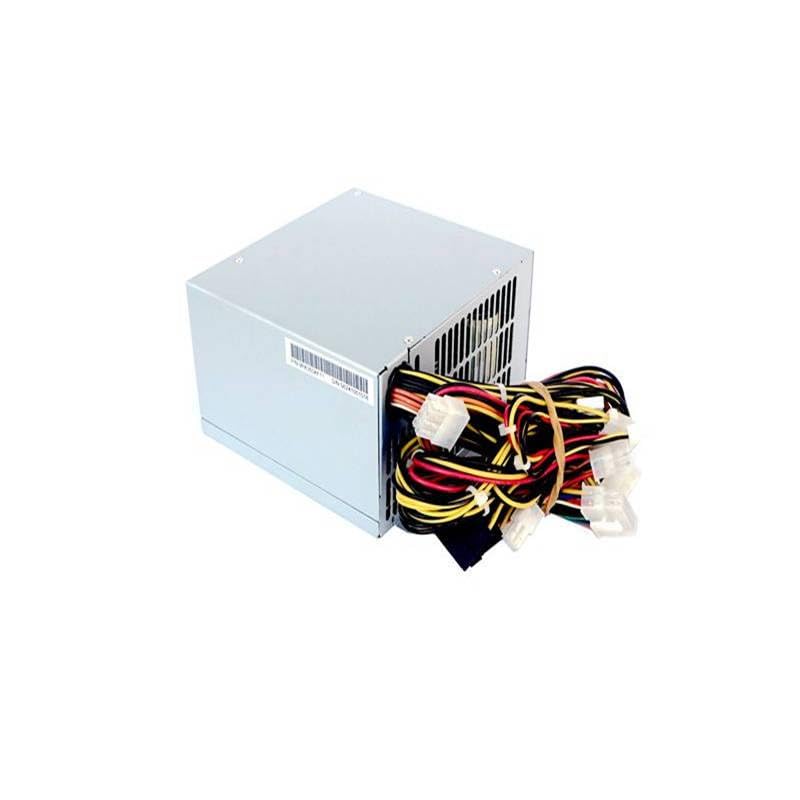
Figure 2: Rear view of the power supply unit, featuring the cooling fan, AC power inlet, and power switch.
Specifications
The following table details the electrical specifications of the FSP350-60PFG model, which is representative of the series. Please refer to the specific label on your unit for exact details if different.

Figure 3: Specification label for FSP350-60PFG Power Supply, detailing input and output electrical characteristics.
Electrical Specifications (FSP350-60PFG)
| Characteristic | Value |
|---|---|
| Model No. | FSP350-60PFG |
| AC Input | 100-240V~, 8-3A, 60-50Hz |
| DC Output +3.3V | 21.0A |
| DC Output +5V | 20.0A |
| DC Output +12V1 | 16.0A |
| DC Output +12V2 | 16.0A |
| DC Output +5Vsb | 3.0A |
| DC Output -12V | 0.5A |
| DC Output -5V | 0.3A |
| Max Wattage (+3.3V & +5V) | 130W Max |
| Total Output Power | 350W |
| Efficiency | 80 Plus Bronze Certified |
| Cooling | Ball Bearing Fan |
| PFC | Active PFC |
General Product Specifications
- Brand: Generic
- Output Wattage: 350 Watts
- Manufacturer Part Number: ZZlH_DNC_18497
- Compatible FSP Models: FSP350-60PFG, FSP350-70PFL, FSP350-60GLC, FSP350-60GLN
Installation (Setup)
Before beginning installation, ensure your computer is completely powered off and unplugged from the wall outlet. It is recommended to wear an anti-static wrist strap to prevent electrostatic discharge (ESD) damage to components.
- Prepare Your System: Open your computer case. If replacing an existing power supply, disconnect all cables from the old PSU and remove it from the chassis.
- Mount the PSU: Carefully slide the new FSP 350W power supply into the designated PSU bay in your computer case. Secure it with screws (typically four) from the rear of the case.
- Connect Motherboard Power: Connect the main 20+4 pin ATX power connector to your motherboard. Ensure it clicks securely into place.
- Connect CPU Power: Connect the 4-pin or 4+4 pin EPS/ATX 12V connector to the CPU power socket on your motherboard.
- Connect Peripherals: Connect SATA power connectors to your hard drives, SSDs, and optical drives. Connect Molex connectors to any other peripherals that require them (e.g., case fans, older drives).
- Connect Graphics Card (if applicable): If your graphics card requires additional power, connect the appropriate PCIe power connectors (e.g., 6-pin, 8-pin) from the PSU to the graphics card.
- Cable Management: Route cables neatly to improve airflow and aesthetics.
- Close Case and Connect Power: Close your computer case. Connect the AC power cord to the power supply's inlet and then to a grounded wall outlet or surge protector.
Operation
Operating the FSP 350W power supply is straightforward once installed correctly.
- Power On: Ensure the power switch on the rear of the power supply (next to the AC inlet) is in the 'I' (On) position. Then, press the power button on your computer case.
- Power Off: To turn off your computer, use the operating system's shutdown procedure. For a complete power cycle, you can switch the PSU's rear switch to the 'O' (Off) position after the system has shut down.
- Normal Operation: The power supply fan will operate to cool the unit. The fan speed may vary depending on the load and temperature.
Maintenance
Proper maintenance ensures the longevity and stable operation of your power supply.
- Dust Cleaning: Periodically (e.g., every 6-12 months), power off and unplug your computer. Open the case and use compressed air to gently clean dust from the power supply's fan and ventilation grilles. Do not open the PSU casing.
- Ventilation: Ensure that the computer case has good airflow and that the power supply's intake and exhaust vents are not obstructed.
- Environmental Conditions: Keep the computer in a cool, dry, and well-ventilated area, away from direct sunlight, heat sources, and excessive humidity.
Troubleshooting
If you encounter issues with your power supply, refer to the following troubleshooting steps:
- No Power:
- Check if the AC power cord is securely plugged into both the wall outlet and the power supply.
- Ensure the power switch on the rear of the PSU is in the 'I' (On) position.
- Verify that the wall outlet is functional by plugging in another device.
- Check all internal power connections (20+4 pin ATX, 4/8 pin CPU, PCIe, SATA) to ensure they are firmly seated.
- System Instability/Random Shutdowns:
- This could indicate an overloaded or failing power supply. Ensure your system's power requirements do not exceed 350W.
- Check for proper ventilation and ensure the PSU fan is spinning. Overheating can cause instability.
- If possible, test the power supply with a known working system or use a PSU tester.
- Loud Noise from PSU:
- A loud fan might indicate dust buildup. Refer to the Maintenance section for cleaning instructions.
- If the noise is a grinding or rattling sound, the fan bearing might be failing. In this case, the PSU may need replacement.
If these steps do not resolve the issue, contact your retailer or a qualified technician for further assistance.
Warranty and Support
As a Generic branded product, warranty and support are typically provided by the retailer or seller from whom the product was purchased. Please retain your proof of purchase for any warranty claims.
- Warranty Period: Refer to the terms and conditions provided by your retailer at the time of purchase.
- Technical Support: For technical assistance, contact the seller or a qualified computer technician.
- Returns: For return policies, please consult the retailer's return guidelines.
Note: Opening the power supply casing will void any existing warranty.


