
Introduction
This instruction manual provides detailed information on the setup, operation, maintenance, and troubleshooting of your Arafuna Mini DVD Player. Please read this manual thoroughly before using the product to ensure proper and safe operation. Keep this manual for future reference.
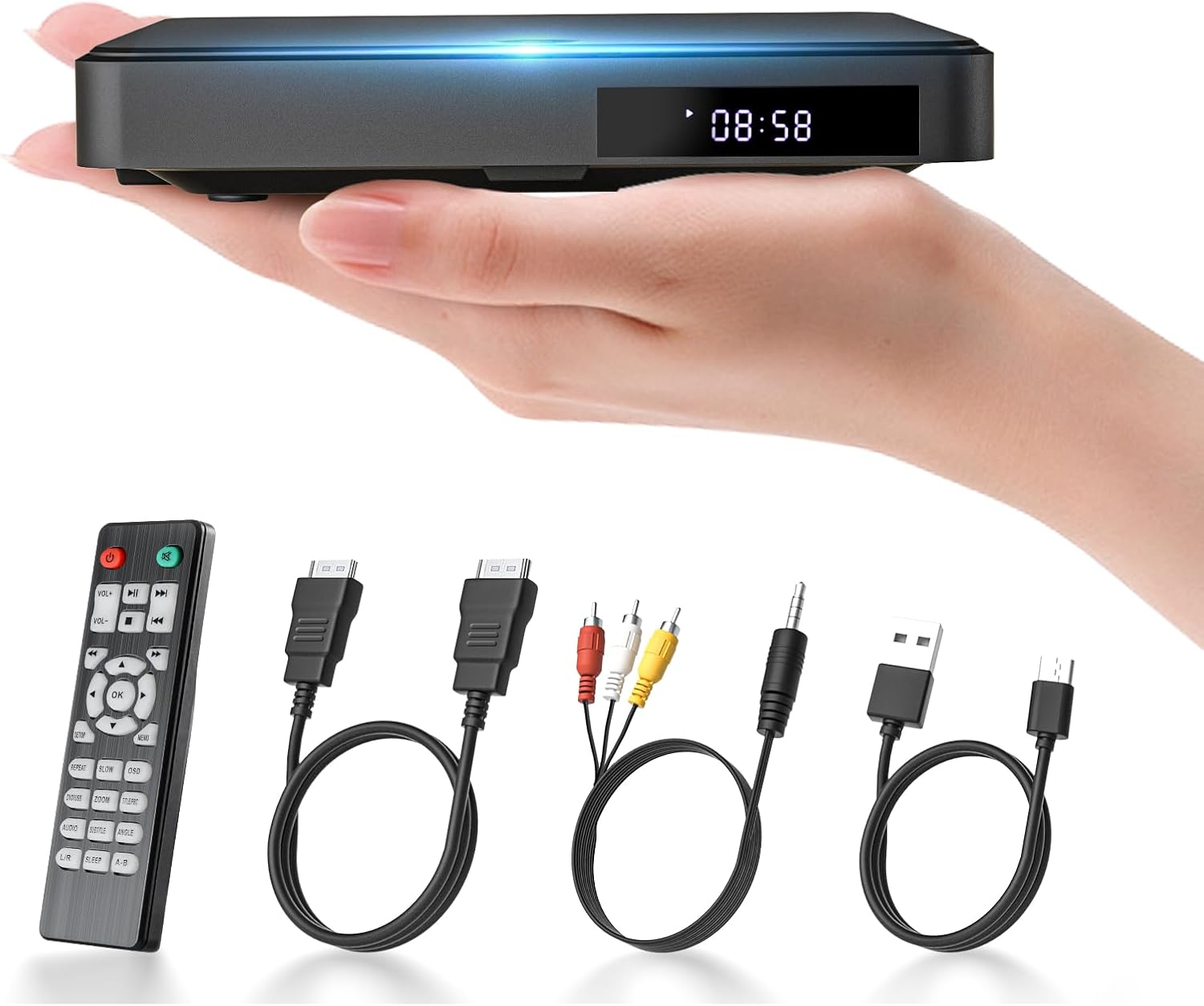
Image: The Arafuna Mini DVD Player, showcasing its compact size, along with the included remote control, HDMI cable, AV cable, and USB cable.
Package Contents
Please verify that all items listed below are included in your package:
- Arafuna Mini DVD Player
- Remote Control
- HDMI Cable
- AV Cable
- USB Cable
- Instruction Manual (Japanese)

Image: A visual representation of the items included in the product packaging: the mini DVD player, remote, and various connection cables.
Product Features
The Arafuna Mini DVD Player offers a range of features designed for versatile media playback:
- Compact and Portable Design: Weighing only 280g with dimensions of 15cm (width) x 3cm (height) x 14cm (depth), this player is highly portable.
- Earphone Terminal: Equipped with an earphone jack for private listening, ideal for use on the go. Note: This unit does not have built-in speakers.
- 1080P HDMI Output: Supports high-definition video output via HDMI for clear picture quality on compatible TVs and projectors.
- Multiple Connectivity Options: Includes HDMI, AV, and USB ports for connecting to various display devices and external storage.
- USB Playback: Features a Micro USB 2.0 port, supporting USB flash drives up to 16GB for playing music, videos, and photos.
- Versatile Power Supply: Can be powered by an AC adapter, mobile battery, or car cigarette lighter adapter, offering flexibility in different environments.
- CPRM Compatibility: Capable of playing CPRM discs recorded from terrestrial digital broadcasts.
- Region-Free Playback: The player's region code is set to 'All', allowing playback of DVDs from any region.
- Wide Format Support: Compatible with CD, CD-R/-RW, DVD, DVD-R/+R, DVD-/+RW, WMA, Xvid, AVI, Text (SMI), MPG, MPEG, Digital Audio, and MP3 files. Note: Not compatible with Blu-ray discs.
Setup
Follow these steps to set up your Arafuna Mini DVD Player:
- Connect to Power: Connect the USB cable to the player's power port. Use the included AC adapter, a mobile battery, or a car charger to supply power.
- Connect to Display:
- HDMI Connection (Recommended for 1080P): Use the provided HDMI cable to connect the player's HDMI output port to an HDMI input port on your TV or projector.
- AV Connection: Use the provided AV cable to connect the player's AV output ports (red, white, yellow) to the corresponding AV input ports on your TV.
- Select Input on Display: Turn on your TV or projector and select the correct input source (e.g., HDMI 1, AV) that corresponds to the port you connected the DVD player to.
- Insert Disc: Open the disc tray and carefully place a DVD or CD onto the spindle, ensuring it is seated correctly. Close the disc tray.

Image: Demonstrates how to connect the DVD player to a display using either an HDMI cable for high-definition output or an AV cable for standard definition.

Image: Illustrates the various power supply methods for the player, including AC adapter, car charger, and mobile battery.
Operating Instructions
This section outlines the basic operations of your DVD player.
Basic Playback
- Ensure the player is connected to power and a display device, and the correct input is selected on your display.
- Insert a compatible DVD or CD. The player should automatically begin playback.
- Use the remote control or the buttons on the player to control playback:
Play/Pause: Press to start or pause playback.
Stop: Press to stop playback.
Next/Previous: Press to skip to the next or previous track/chapter.
Volume +/-: Adjust the audio volume.
USB Playback
- Insert a USB flash drive (up to 16GB) into the USB port on the player.
- Navigate to the USB input mode using the remote control.
- Browse and select the desired music, video, or photo files for playback. Supported video formats include Mpeg1/2, MPEG2, MPEG4, AVI/MPG/MPEG4 (not mp4), VOB, FLV. Supported audio formats include MP3, MP2, AC3, PCM. Note that USB video resolution is limited to 720x480/576.

Image: The DVD player with an open disc tray and a USB flash drive inserted, illustrating its media input capabilities.
Using the Earphone Terminal
Connect your earphones to the earphone terminal on the side of the player for private audio listening. Adjust the volume using the player's controls or remote.

Image: A detailed diagram of the DVD player's various ports and control buttons, including the earphone jack, power button, playback controls, volume, TF card slot, USB port, HDMI output, and AV output.
Maintenance
Proper maintenance ensures the longevity and optimal performance of your DVD player:
- Cleaning the Unit: Use a soft, dry cloth to wipe the exterior of the player. Do not use liquid cleaners or abrasive materials.
- Cleaning Discs: Always handle discs by their edges. If a disc is dirty, wipe it gently from the center outwards with a soft, lint-free cloth. Do not use solvents or abrasive cleaners.
- Storage: Store the player in a cool, dry place away from direct sunlight, high temperatures, and humidity. When not in use, remove any disc from the tray.
- Avoid Impact: The player is lightweight; avoid dropping or subjecting it to strong impacts, especially during operation, as this can damage internal components.
Troubleshooting Guide
This section provides solutions to common issues you may encounter with your Arafuna Mini DVD Player.
1. Intermittent Playback (Sound or Video)
If the disc playback experiences interruptions in sound or video, consider the following:
- Disc Quality: The disc may be of low quality (e.g., blank discs or recorded discs with poor quality) or recorded at too high a speed.
- Disc Age/Condition: Discs, especially recorded ones, may degrade over time.
- Physical Damage/Dirt: Improper storage can lead to disc coating fading, deformation, scratches, dust, or dirt. Clean the disc carefully with a soft, lint-free cloth.
- Unsupported Format/Region: The disc format may not be supported (e.g., inserting a DVD into a CD-only drive, though this player supports both DVD and CD). Also, ensure there are no region restriction issues, although this player is region-free.
2. "No Disc" Message Displayed
If you insert a disc and the player displays "No Disc":
- Blu-ray Discs: This DVD player is not a Blu-ray player and cannot play Blu-ray discs. Ensure you are using a standard DVD or CD.
- Disc Type: Use genuine recorded discs.
- Supported Formats: Before playing, confirm that the disc's file format is supported. This player supports CD, DVD, DVD-R/+R, DVD-/+RW, CD-R/-RW, VCD, and SVCD formats.
3. No Picture When Connected via HDMI
If you connect the player to a TV via HDMI and there is no picture:
- Power Indicator: Check if the power indicator light on the DVD player is on and functioning normally.
- TV Input Selection: Ensure that the correct video input on your TV is selected. For example, if the player is connected to HDMI 1 on your TV, but the TV is set to HDMI 2 input mode, no signal will be displayed.
Specifications
| Feature | Description |
|---|---|
| Model Number | 1014 |
| Dimensions (L x W x H) | 15 x 14 x 3 cm |
| Weight | 280 g |
| Color | Black |
| Connectivity | HDMI, USB, RCA (AV), Earphone Terminal |
| Resolution | 1920 x 1080 (1080P) |
| Special Features | Region-Free, CPRM Compatible |
| Supported Disc Media | CD, CD-R/-RW, DVD, DVD-R/+R, DVD-/+RW, VCD, SVCD |
| Supported USB Video Formats | Mpeg1/2, MPEG2, MPEG4, AVI/MPG/MPEG4 (not mp4), VOB, FLV (USB resolution limited to 720x480/576) |
| Supported USB Audio Formats | MP3, MP2, AC3, PCM |
| Supported Image Formats | JPG, JPEG |
| Power Source | USB (AC adapter, mobile battery, car charger compatible) |
| Compatible Devices | TV, Projector, Monitor |
Warranty and Support
Your Arafuna Mini DVD Player comes with the following warranty and support:
- 30-Day Return Guarantee: Enjoy a 30-day return guarantee from the date of purchase.
- 12-Month After-Sales Service: We provide reliable after-sales service for 12 months from the date of purchase.
- Exclusions: Please note that accessories included with the product are not covered by the warranty.
For any inquiries or support needs, please refer to the contact information provided in your Japanese instruction manual or visit the official Arafuna store on Amazon.