
Introduction
Welcome to the GO MD USA X23 TAB PRO user manual. This guide provides comprehensive instructions to help you set up, operate, maintain, and troubleshoot your new tablet. Please read this manual carefully to ensure proper use and to fully utilize all features of your device.
What's in the Box
Upon unpacking, please ensure all items are present:
- GO MD USA X23 TAB PRO Tablet
- Charger
- Protective Case
Product Overview
Familiarize yourself with the physical components of your GO MD USA X23 TAB PRO tablet.
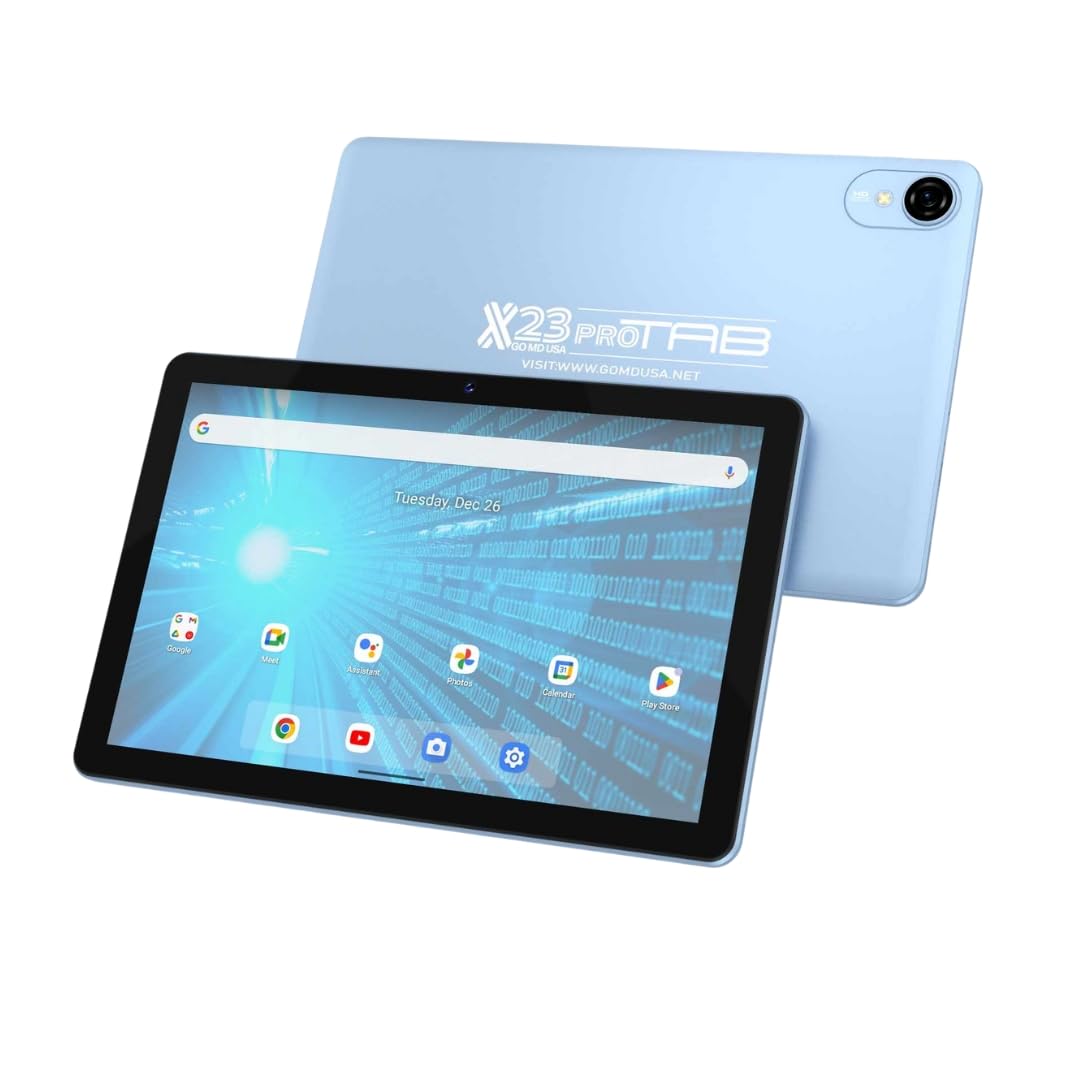
Image: The GO MD USA X23 TAB PRO tablet, showcasing its 10-inch display and sleek design. This image provides a general view of the device's front and side profile.
The tablet features a 10-inch HD+ display on the front. Typically, the power button and volume controls are located on the side. A USB-C port for charging and data transfer is usually found on the bottom edge, along with speaker grilles. The front-facing camera is positioned above the screen for video calls and selfies. A slot for a SIM card and expandable storage (microSD card) is also present on one of the sides.
Setup
1. Charging the Device
Before first use, fully charge your tablet using the provided charger. Connect the charger to the tablet's USB-C port and plug it into a power outlet. The battery indicator on the screen will show charging status.
2. Powering On/Off
- To Power On: Press and hold the Power button until the GO MD USA logo appears on the screen.
- To Power Off: Press and hold the Power button until the power options menu appears. Select 'Power off' and confirm.
- To Restart: From the power options menu, select 'Restart' and confirm.
3. Initial Setup Wizard
The first time you power on your tablet, a setup wizard will guide you through essential configurations:
- Language Selection: Choose your preferred language.
- Wi-Fi Connection: Connect to a Wi-Fi network to access the internet. Select your network and enter the password.
- Google Account: Sign in with your Google account or create a new one. This is necessary for downloading apps from the Google Play Store and syncing data.
- Date & Time: Set the correct date and time, or allow the network to set it automatically.
- Security: Set up a screen lock (PIN, pattern, or password) for device security.
4. SIM Card and Expandable Storage Installation
Your tablet supports LTE connectivity and expandable storage via a microSD card.
- Locate the SIM/microSD card tray on the side of the tablet.
- Use the provided SIM ejector tool to open the tray.
- Carefully place your Nano-SIM card and/or microSD card into the designated slots on the tray. Ensure correct orientation.
- Gently push the tray back into the tablet until it clicks into place.
Operating
1. Basic Navigation
The X23 TAB PRO uses touch gestures for navigation:
- Tap: To select an item or open an app.
- Swipe: To scroll through screens or lists.
- Pinch: To zoom in or out on images and web pages.
- Long Press: To access contextual menus or move icons.
2. Connecting to Wi-Fi
- Go to Settings > Network & internet > Wi-Fi.
- Toggle Wi-Fi ON.
- Select your desired network from the list and enter the password if prompted.
3. Connecting to Bluetooth Devices
- Go to Settings > Connected devices > Bluetooth.
- Toggle Bluetooth ON.
- Ensure your Bluetooth device is in pairing mode.
- Select the device from the 'Available devices' list to pair.
4. Using LTE Data
If you have an active SIM card with a data plan, you can use LTE for internet access.
- Go to Settings > Network & internet > Mobile network.
- Ensure 'Mobile data' is toggled ON.
- You can also configure data roaming and preferred network types here.
5. Camera Usage
The tablet is equipped with a front-facing camera.
- Open the 'Camera' app from your home screen or app drawer.
- Tap the shutter button to take a photo.
- Switch to video mode to record videos.
6. App Management
- Installing Apps: Open the Google Play Store app, search for your desired app, and tap 'Install'.
- Uninstalling Apps: Long-press the app icon on the home screen or app drawer, then drag it to 'Uninstall' or select 'App info' and then 'Uninstall'. Alternatively, go to Settings > Apps > select the app > 'Uninstall'.
7. Display Settings
Adjust display preferences for optimal viewing.
- Go to Settings > Display.
- Adjust brightness, enable adaptive brightness, change font size, and set screen timeout.
Maintenance
1. Cleaning Your Tablet
To maintain the tablet's appearance and functionality:
- Use a soft, lint-free cloth to wipe the screen and body.
- Avoid using harsh chemicals, abrasive cleaners, or aerosol sprays.
- Do not allow moisture into openings.
2. Software Updates
Regularly check for and install software updates to ensure optimal performance and security.
- Go to Settings > System > System update.
- Follow the on-screen instructions to check for and install any available updates.
3. Battery Care
To prolong battery life:
- Avoid extreme temperatures.
- Do not leave the tablet fully charged or fully discharged for extended periods.
- Use the original charger provided.
4. Storage Management
Manage your tablet's storage to prevent performance issues.
- Go to Settings > Storage to view storage usage.
- Clear cached data for apps regularly.
- Move large files (photos, videos) to the expandable microSD card or cloud storage.
Troubleshooting
Here are solutions to common issues you might encounter:
Device Not Powering On
- Ensure the battery is charged. Connect the charger and wait a few minutes before attempting to power on.
- Perform a forced restart by holding the Power button for 10-15 seconds.
Wi-Fi Connection Issues
- Restart your Wi-Fi router and the tablet.
- Forget the network in Wi-Fi settings and reconnect.
- Ensure you are within range of the Wi-Fi signal.
Slow Performance
- Close unused apps running in the background.
- Clear app caches (Settings > Apps > select app > Storage & cache > Clear cache).
- Ensure sufficient free storage space.
- Restart the tablet.
Apps Crashing or Not Responding
- Force stop the app (Settings > Apps > select app > Force stop).
- Clear the app's cache and data (this will reset the app).
- Uninstall and reinstall the app.
- Ensure the tablet's software is up to date.
Factory Reset (Last Resort)
If issues persist, you may need to perform a factory reset. This will erase all data on your tablet. Back up important data before proceeding.
- Go to Settings > System > Reset options.
- Select 'Erase all data (factory reset)'.
- Confirm your decision and enter your PIN/pattern if prompted.
Specifications
Key technical specifications for the GO MD USA X23 TAB PRO:
| Brand | GO MD USA |
| Model Name | GO MD USA X23 TAB PRO |
| Memory Storage Capacity | 64 GB |
| RAM Memory Installed | 4 GB |
| Screen Size | 10 Inches |
| Display Resolution Maximum | 1280 X 800 Pixels |
| Operating System | Android 13 |
| Processor Description | OCT CORE T606 |
| Processor Speed | 2 GHz |
| Wireless Technology | Bluetooth, LTE, Wi-Fi |
| Cellular Technology | LTE |
| Battery Capacity | 4000 Milliamp Hours |
| Item Dimensions L x W x Thickness | 9.7"L x 6.5"W x 0.3"Th |
| Other Special Features | 5G WIFI, Expandable Storage |
Warranty Information
The GO MD USA X23 TAB PRO comes with a 2-year warranty from the date of purchase. This warranty covers manufacturing defects and malfunctions under normal use. Please retain your proof of purchase for warranty claims. The warranty does not cover damage caused by misuse, accidents, unauthorized repairs, or normal wear and tear.
Support
For further assistance, technical support, or warranty inquiries, please refer to the official GO MD USA website or contact their customer service. Ensure you have your product model name and purchase details ready when seeking support.