
1. Introduction
Thank you for choosing the Megadream Wireless Bluetooth Game Controller, Model D8. This manual provides detailed instructions for setting up, operating, and maintaining your controller to ensure an optimal gaming experience. The D8 controller is designed for broad compatibility across various platforms, including iOS, Android, PC, PS3, PS4, and Nintendo Switch, offering advanced features like Hall Effect joysticks, linear triggers, Turbo function, and dynamic RGB lighting.
2. Setup
2.1 Package Contents
Upon unboxing, please verify that all components are present:
- Megadream D8 Game Controller
- Type-C Charging Cable
- Multi-language User Manual
Video: Unboxing the Megadream D8 Controller. This video demonstrates the contents of the package, including the controller, charging cable, and user manual.
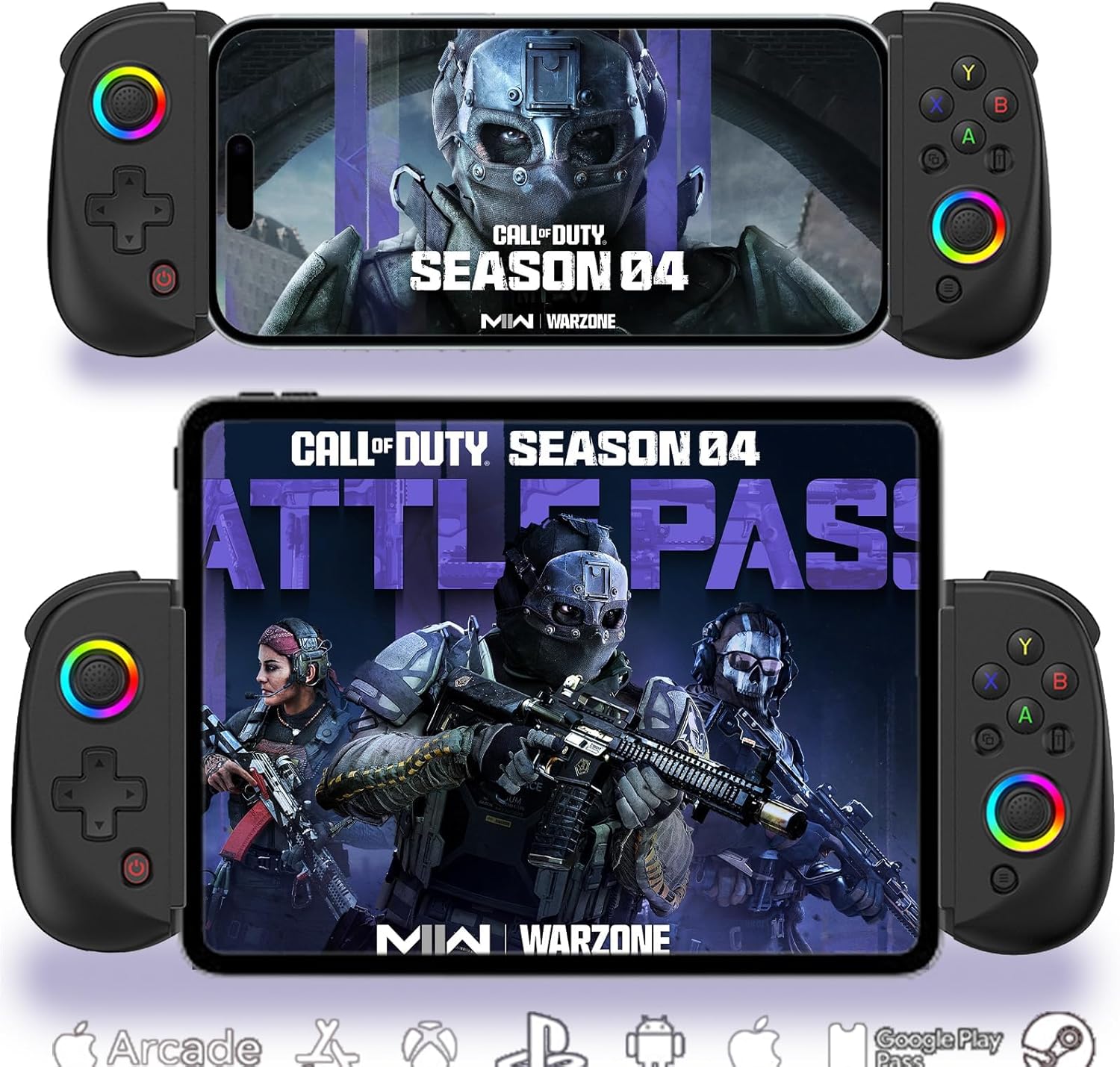
Image: The Megadream D8 Game Controller and its packaging. The image shows the controller in its box, highlighting its design and compatibility.
2.2 Device Compatibility
The Megadream D8 controller supports a wide range of devices:
- iOS Devices: iOS 13.0+ (iPhone 15/14/13, iPad 10/9/8/7, iPad Mini 6, iPad Air, iPad Pro)
- Android Devices: Android 6.0+ smartphones and tablets (e.g., Galaxy Tab S9 FE/S9/S8/A9+/A8, HUAWEI Mate Pad/SE, Surface GO)
- PCs: Windows 7.0+
- Consoles: Nintendo Switch, Switch OLED, Switch Lite, PS3, PS4
Note: iPad Pro 12.9-inch is not supported. Gyroscope and motor vibration functions are available for PC/N-Switch/PS4/5 only, not for smartphones.

Image: The controller shown with various compatible devices, including smartphones, tablets, and a Nintendo Switch, illustrating its multi-platform support.
2.3 Connecting to Nintendo Switch
To connect your D8 controller to a Nintendo Switch:
- Ensure your Nintendo Switch is powered on.
- On the D8 controller, simultaneously press and hold the RT button and the HOME button.
- The green light on the HOME key will begin to flash, indicating pairing mode.
- On your Nintendo Switch, navigate to the "Controllers" menu and select "Change Grip/Order".
- The Switch will detect the D8 controller. Once paired, the green light on the HOME key will remain steadily lit.
- You can now insert your Nintendo Switch into the controller's adjustable holder.
Video: Nintendo Switch Connection Guide. This video demonstrates the step-by-step process of pairing the D8 controller with a Nintendo Switch console.

Image: The Megadream D8 controller with a Nintendo Switch inserted, ready for gameplay.
2.4 Connecting to Other Devices (iOS/Android/PC/PS3/PS4)
For other compatible devices, the connection process typically involves standard Bluetooth pairing:
- Power on the D8 controller.
- Activate Bluetooth on your device (smartphone, tablet, PC, or console).
- Search for available Bluetooth devices and select "Megadream D8" (or similar) to pair.
- Once paired, the controller's indicator light will stabilize.
- Adjust the controller's stretchable holder to securely fit your device. The maximum stretch length is 252mm.
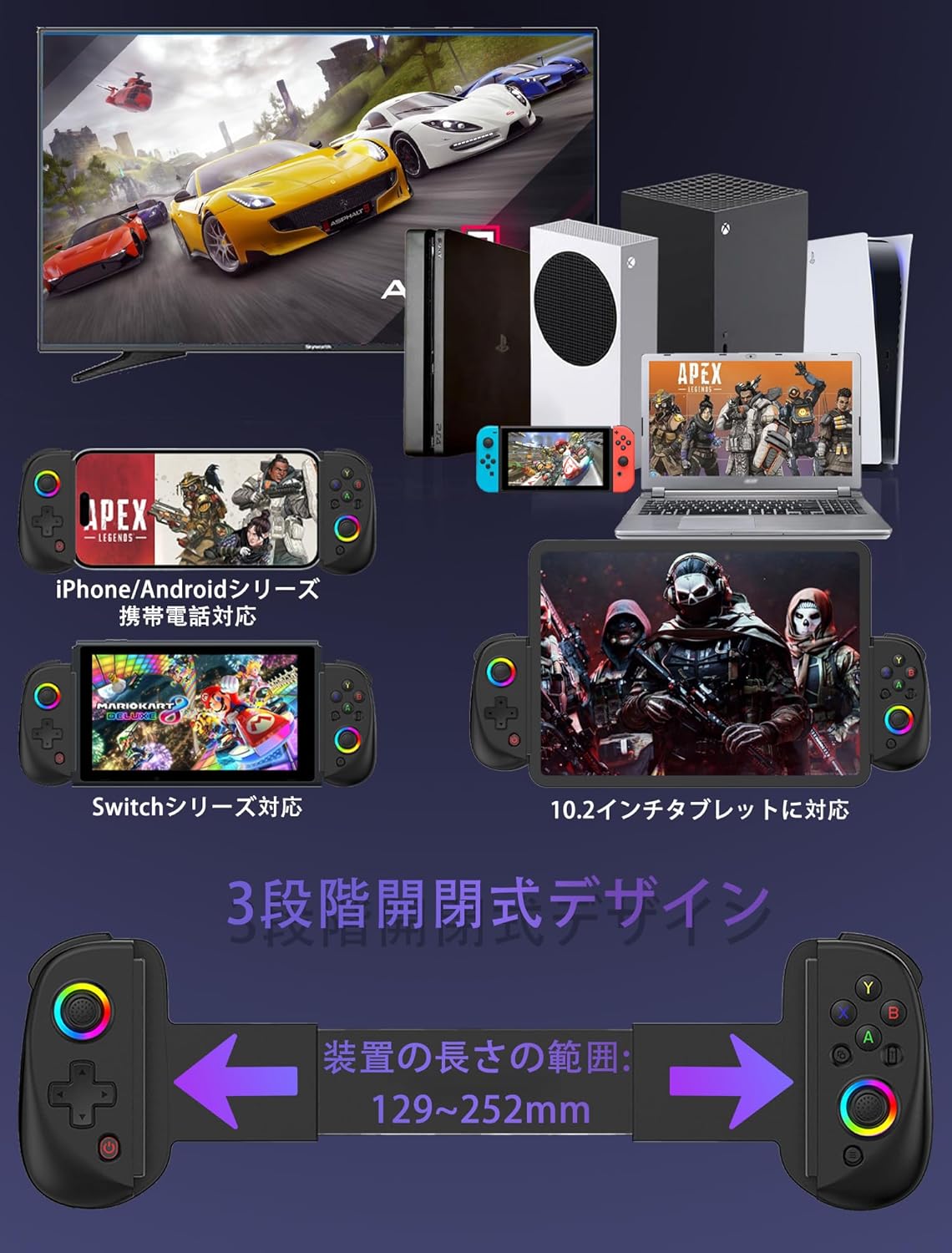
Image: The Megadream D8 controller holding a smartphone, demonstrating its adjustable length feature. The controller can extend up to 252mm.
3. Operating Instructions
3.1 Basic Controls
- Hall Effect Joysticks: Provides precise 360-degree control without drift, suitable for various game genres.
- Linear Triggers (LT/RT): Offers responsive input with minimal travel distance (under 0.1mm response gap), enhancing control in racing and shooting games.
- D-Pad: Standard directional input.
- Action Buttons (A/B/X/Y): Standard game action buttons.

Image: A close-up view of the Hall Effect joystick, featuring vibrant RGB lighting around its base, ensuring smooth and accurate movement.

Image: A detailed view of the linear trigger (LT) button, designed for quick and precise responses in gameplay.
3.2 Special Functions
- Turbo Function:
The Turbo function allows for rapid, continuous input of a button press. It has two modes: Manual and Auto.
- To activate Turbo: Press the Turbo button and the desired action button (A/B/X/Y/LT/LB/RT/RB) simultaneously.
- To switch to Auto Turbo: Press the Turbo button and the action button again.
- To deactivate Turbo: Press the Turbo button and the action button a third time.
Note: Turbo function applies only to single buttons, not combinations like "A+B" or "X+Y".
- RGB Breathing Lights:
The joysticks feature colorful RGB breathing lights, enhancing the gaming atmosphere, especially in low-light conditions. You can switch between light off, monochrome mode, and colorful mode.
- 6-Axis Gyroscope:
Experience precise motion control in games with the high-sensitivity 6-axis gyroscope. (Available for PC/N-Switch/PS4/5 only).
- Motor Vibration:
Adjust the motor vibration intensity by pressing the Turbo button and moving the right stick up or down. There are four levels: None, Weak, Medium, and Strong, providing immersive feedback. (Available for PC/N-Switch/PS4/5 only).

Image: This image illustrates the 6-axis gyroscope for motion control and the adjustable motor vibration feature, enhancing immersion during gameplay.

Image: The controller's joysticks illuminated with RGB ring lights, showcasing the customizable lighting options (light off, monochrome, colorful).
4. Key Features
- Cloud Gaming Support: Compatible with major cloud gaming platforms such as Nvidia GeForce Now, Xbox Cloud Gaming, Amazon Luna, Google Stadia, Rainway, and Moonlight.
- Streaming Support: Transform your mobile device into a gaming console by streaming Xbox/PS4/5/PC games via dedicated apps.
- Ergonomic Design: The grips are designed with a large, rounded shape for comfortable extended gameplay sessions.
- Adjustable Length: The controller features a 3-stage stretch design, accommodating devices with lengths from 129mm to 252mm.

Image: The controller shown with a device displaying a game being streamed, highlighting its streaming capabilities.

Image: An illustration of the controller's support for various cloud gaming services, showcasing a range of popular games.
5. Maintenance
- Cleaning: Use a soft, dry cloth to clean the controller. Avoid using harsh chemicals or abrasive materials.
- Storage: Store the controller in a cool, dry place away from direct sunlight and extreme temperatures.
- Charging: Use the provided Type-C cable for charging. Avoid overcharging or completely draining the battery to prolong its lifespan.
- Handling: Handle the controller with care. Avoid dropping it or subjecting it to strong impacts.
6. Troubleshooting
| Problem | Possible Cause | Solution |
|---|---|---|
| Controller does not power on. | Battery is low or depleted. | Connect the controller to a power source using the Type-C cable and charge it. |
| Unable to pair via Bluetooth. | Controller not in pairing mode; Bluetooth on device is off; interference. | Ensure controller is in pairing mode (flashing HOME light). Turn device Bluetooth off and on. Move closer to the device. |
| Buttons or joysticks are unresponsive. | Connection issue; software glitch; physical damage. | Reconnect the controller. Restart both the controller and the device. If the issue persists, contact support. (One review mentioned stick unresponsiveness, possibly due to charging issues or defect). |
| Charging is incomplete or slow. | Faulty cable or power source; internal battery issue. | Try a different Type-C cable and power adapter. Ensure the charging port is clean. (A review mentioned insufficient charging). |
| Controller feels stiff or uncomfortable. | Initial use; personal preference. | Allow for a break-in period. The grips are designed for comfort, but individual feel may vary. (A review mentioned buttons being deep and stiff). |
7. Specifications
- Model Number: D8
- Connectivity: Wireless Bluetooth
- Compatibility: iOS 13.0+, Android 6.0+, Windows 7.0+, N-Switch, Switch OLED, Switch Lite, PS3, PS4
- Special Features: Hall Effect Joysticks, Linear Triggers, Turbo Function, RGB Lighting, 6-Axis Gyroscope (PC/N-Switch/PS4/5 only), Adjustable Vibration (PC/N-Switch/PS4/5 only)
- Adjustable Length: 129mm to 252mm
- Dimensions (Packaged): 22.1 x 10.7 x 5.4 cm
- Weight (Packaged): 250 g
- Power Input: Type-C
- Country of Origin: China
8. Warranty & Support
Megadream products are designed for quality and reliability. For specific warranty details, please refer to the warranty card included in your product packaging or visit the official Megadream website.
If you encounter any issues or have questions regarding your D8 controller, please contact Megadream customer support through the retailer where you purchased the product or via the contact information provided on the official website. Please have your purchase receipt and product model number (D8) ready when contacting support.