
UNITOPSCI CPU-F133
UNITOPSCI Double Din Car Stereo User Manual
Model: CPU-F133 (113266)
1. Introduction
This user manual provides detailed instructions for the installation, operation, and maintenance of your UNITOPSCI Double Din Wireless Apple CarPlay Android Auto Car Stereo. Please read this manual thoroughly before using the product to ensure proper function and safety.

Figure 1.1: UNITOPSCI Double Din Car Stereo and Accessories
This image displays the main car stereo unit, a backup camera, a steering wheel remote control, an external microphone, and graphical representations of Wireless Apple CarPlay, Android Auto, and Mirror Link functionalities.
2. Safety Information
- Professional Installation Recommended: Due to the complexity of car electrical systems, professional installation is highly recommended to prevent damage to the unit or vehicle.
- Power Supply: Ensure the power supply is DC 12V and the negative terminal is grounded.
- Wiring: Connect all wires correctly according to the wiring diagram before powering on the unit. Incorrect wiring can cause damage.
- Driving Safety: Do not operate the unit in a way that distracts you from driving. Always prioritize road safety.
- Temperature: The operating temperature range is -10°C to 60°C. Avoid extreme temperatures.
- Cleaning: Use a soft, dry cloth for cleaning. Do not use abrasive cleaners or solvents.
3. Package Contents
Please check the contents of your package against the list below:
- 1 x Car MP5 Player (Main Unit)
- 1 x Power Cable
- 1 x Speaker Cable
- 1 x External Microphone
- 1 x Steering Wheel Control Remote (Battery Not Included)
- 1 x User Manual
- 1 x Mounting Bracket
- 4 x Screws
- 1 x 12-LED Backup Camera

Figure 3.1: Packing List and Product Dimensions
This image provides a visual overview of the product's physical dimensions, the layout of its rear panel connections, a detailed wiring diagram for both power and speaker connections, and a clear depiction of all items included in the product package.
4. Setup and Installation
4.1 Pre-Installation Checks
- Verify your car's dashboard opening size matches the stereo's dimensions (approx. 180mm x 104mm).
- Disconnect the car battery's negative terminal before starting any wiring.
- Ensure all necessary tools are available.
4.2 Wiring Diagram
Refer to the detailed wiring diagram below for correct connections. Incorrect wiring can damage the unit or your vehicle's electrical system.
Figure 4.1: Main Wiring Connections
This diagram illustrates the electrical connections for the car stereo, including power (Red: ACC, Yellow: Battery+), ground (Black: GND), illumination (Blue: ILL), antenna (Green: ANT), steering wheel control (Brown: KEY), reverse camera (Pink: REVERSE, Orange: BRAKE), and speaker outputs (White/Gray/Green/Purple pairs for Front/Rear Left/Right speakers).
- Power Cable:
- Red (ACC): Connect to car ignition switch (12V).
- Yellow (Battery+): Connect to car battery positive (constant 12V).
- Black (GND): Connect to car chassis ground.
- Speaker Cables: Connect to corresponding car speakers (Front Left, Front Right, Rear Left, Rear Right). Ensure correct polarity.
- Reverse Camera Input: Connect the camera's video output to the unit's "CVBS" input. Connect the camera's power to the car's reverse light circuit.
- Steering Wheel Control (SWC): Connect the SWC wires to your vehicle's steering wheel control wires. Refer to your vehicle's manual for specific wiring.
- External Microphone: Plug the external microphone into the dedicated MIC input port.
4.3 Initial Test
Before fully installing the unit into the dashboard, perform a quick test:
- Connect the Red (ACC), Yellow (Battery+), and Black (GND) wires to a 12V power source (e.g., car battery or test bench).
- Power on the unit. If it powers on correctly, proceed with full installation.
- If it does not power on, recheck all connections.
5. Operating Instructions
5.1 Basic Operation
- Power On/Off: Press the power button (usually the central knob) to turn the unit on or off.
- Volume Control: Rotate the central knob to adjust the volume.
- Touchscreen: The 6.86-inch HD capacitive touchscreen provides smooth and responsive interaction.
- 7 Color Backlight: The unit features a 7-color LED backlight. You can select and fix a favorite color or allow it to switch automatically in the settings.

Figure 5.1: HD Touch Screen and 7 Color Backlight
This image highlights the high-definition 6.86-inch touchscreen with its 1280x480 resolution, showing its responsiveness to touch. It also demonstrates the customizable 7-color LED backlight feature, allowing users to personalize the unit's appearance.
5.2 Wireless Apple CarPlay & Android Auto
Connect your smartphone wirelessly via Bluetooth to access Apple CarPlay or Android Auto. This allows you to use navigation, make calls, send messages, and listen to music directly from the stereo's display.
- Ensure Bluetooth is enabled on your phone and the car stereo.
- Pair your phone with the car stereo via Bluetooth.
- Once paired, CarPlay or Android Auto will automatically launch.
- Use voice commands (Siri/Google Assistant) for hands-free operation.

Figure 5.2: Wireless CarPlay and Android Auto Interface
This image illustrates the user interfaces for both Wireless Apple CarPlay and Android Auto as displayed on the car stereo. It shows various application icons and demonstrates the integration of voice commands for hands-free control.
5.3 Bluetooth 5.0 (Hands-free Calling & Music)
The unit features Bluetooth 5.0 for stable and high-quality wireless connections.
- Hands-free Calling: Pair your phone to make and receive calls directly through the stereo. The built-in microphone and external microphone ensure clear audio.
- Bluetooth Audio Streaming: Play music wirelessly from your phone or other Bluetooth-enabled devices.
- Phone Book Sync: Sync your phone's contacts for easy access.

Figure 5.3: Voice Control and Bluetooth Hands-free Calling
This image demonstrates the voice control capabilities and hands-free calling features of the car stereo. It shows the interface during music playback and a phone call, along with examples of voice commands and a visual of the included external microphone.
5.4 Mirror Link
The Mirror Link function allows you to project your smartphone's screen onto the car stereo display. This is useful for viewing maps, videos, or other content from your phone.
- Connect your phone via USB cable for Mirror Link.
- Follow the on-screen prompts to establish the connection.
- Supported for iOS up to version 13.4 and Android up to version 10.1. (Note: May not work with some Samsung phones).
5.5 FM Radio & DSP/EQ Audio Setting
Enjoy your favorite radio stations and customize your audio experience.
- FM Radio: Tune into FM stations (87.5-108MHz). You can save up to 18 preset stations.
- DSP/EQ Audio Setting: Adjust sound quality with the built-in Digital Sound Processor (DSP) and Equalizer (EQ). Choose from preset styles (Pop, Rock, Classic, Jazz, Flat) or customize your own.

Figure 5.4: FM Radio and Sound Quality DSP/EQ
This image displays the car stereo's FM radio interface and the detailed EQ setup screen. It illustrates how users can adjust sound frequencies and select from various audio presets to customize their listening experience.
5.6 Auxiliary Audio Input, USB/TF Card Playback, Type-C Charging
The unit offers multiple options for media playback and device charging.
- USB Input: Connect USB drives for audio/video playback and charging.
- TF Card Slot: Insert a TF (microSD) card for media playback.
- AUX Input: Connect external audio devices via the 3.5mm AUX jack.
- Type-C Charging: A dedicated Type-C port is available for fast charging compatible devices.

Figure 5.5: Video & Audio Playback and DVR Support
This image illustrates the various media input options available on the car stereo, including USB, TF Card, AUX, and Type-C charging. It also highlights the unit's capability to support an external DVR (driving recorder) via its rear USB port.
5.7 Steering Wheel Control (SWC)
Control basic functions of the stereo directly from your vehicle's steering wheel for added convenience and safety.
- Connect the SWC wires during installation (refer to Section 4.2).
- Program the steering wheel buttons through the unit's settings menu.
- Functions typically include volume up/down, track next/previous, mode, and call answer/end.
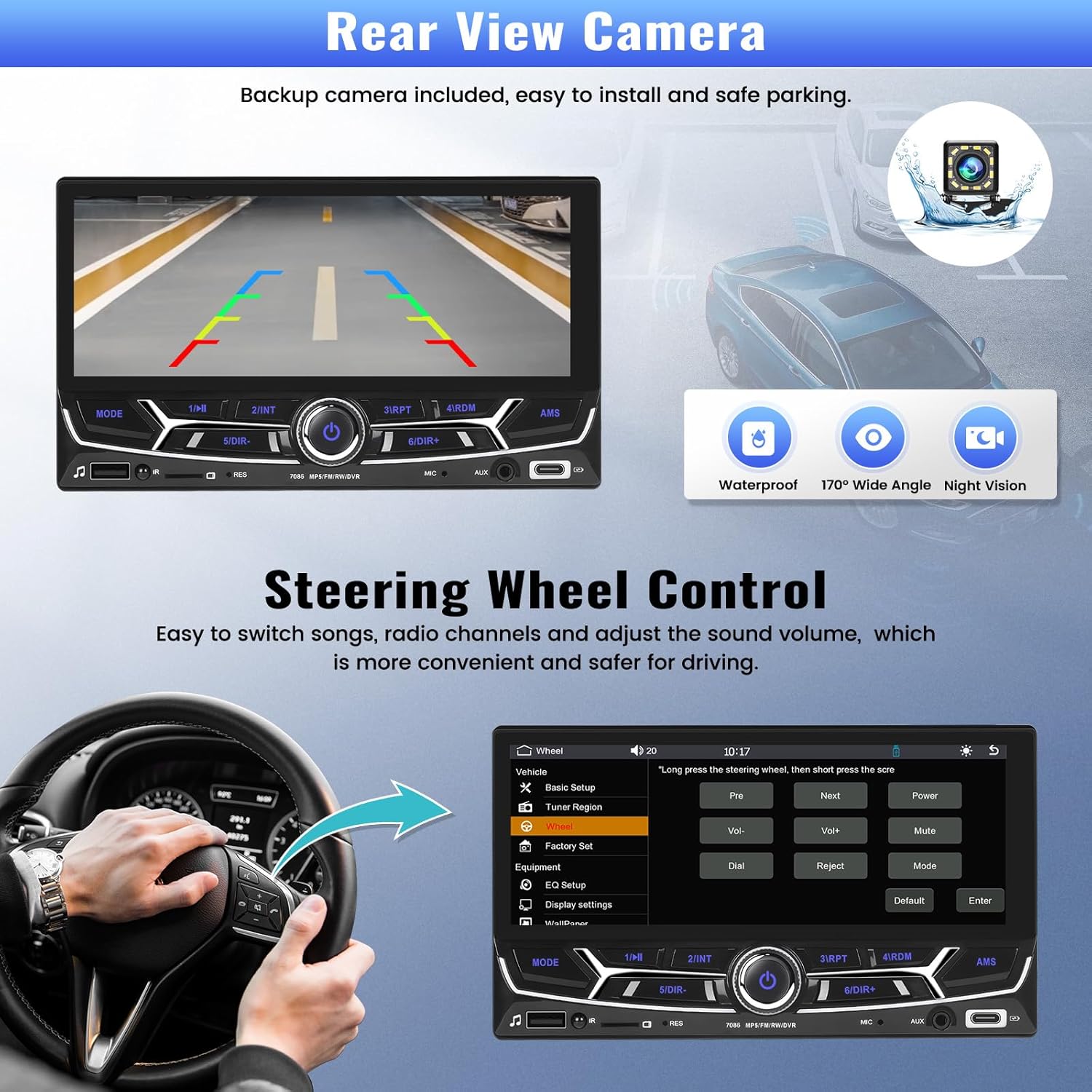
Figure 5.6: Rear View Camera and Steering Wheel Control
This image showcases two key features: the automatic display of the rear view camera feed with parking guidelines when reversing, and the integration of steering wheel controls for convenient operation of the stereo while driving.
5.8 Rear View Camera & DVR Input
- Backup Camera: The included 12-LED backup camera provides a clear view behind your vehicle. The display automatically switches to the camera feed when the car is put into reverse gear. Parking guidelines assist with safe maneuvering.
- DVR Input: The unit supports connecting an external car driving recorder (DVR) via the rear USB port. This allows you to view and save driving footage directly on the stereo. (DVR not included).
6. Troubleshooting
| Problem | Possible Cause | Solution |
|---|---|---|
| Unit does not power on. | Incorrect wiring (ACC, Battery+, GND). Blown fuse. | Check all power connections. Ensure Red (ACC) and Yellow (Battery+) have 12V, and Black (GND) is properly grounded. Check vehicle's fuse box and the unit's fuse. |
| No sound. | Speaker wires incorrectly connected. Volume too low. Mute function active. | Verify speaker wire connections and polarity. Increase volume. Check if mute is enabled. |
| Bluetooth connection unstable. | Interference. Phone too far. Outdated phone software. | Ensure phone is close to the unit. Restart both phone and stereo. Update phone's operating system. |
| CarPlay/Android Auto not connecting. | Incorrect phone settings. Incompatible phone version. | Ensure CarPlay/Android Auto is enabled on your phone. Check phone's OS version compatibility (iOS up to 13.4, Android up to 10.1). Try restarting the phone and stereo. |
| Rear camera image not displaying. | Camera not powered. Reverse trigger wire not connected. Faulty camera. | Check camera power supply. Ensure the reverse trigger wire (Pink) is connected to the car's reverse light circuit. Test camera functionality. |
| Steering wheel controls not working. | SWC wires incorrectly connected. Not programmed. | Verify SWC wire connections. Go to the unit's settings to program the steering wheel buttons. |
7. Specifications
| Model | CPU-F133 (113266) |
| Screen Size | 6.86 inches |
| Screen Resolution | 1280 x 480 pixels |
| CPU Chip | F133 |
| Bluetooth Version | 5.1 |
| Power Output | 45W x 4 |
| Radio Frequency | FM 87.5-108MHz |
| Work Temperature | -10°C to 60°C |
| Product Dimensions | 4.37"D x 7"W x 4.01"H (111mm x 180mm x 104mm) |
| Item Weight | 2.64 pounds |
| Audio Formats Supported | MP3/WMA/WAV/APE/FLAC |
| Video Formats Supported | RM/RMVB/AVI/MP4/MKV/3GP |
| Image Formats Supported | JPG/BMP/PNG |
| Connectivity | Bluetooth, Auxiliary, USB, TF Card, Type-C |
| Special Features | Wireless Apple CarPlay, Android Auto, Mirror Link, FM Tuner, DSP/EQ, Backup Camera Input, DVR Input, SWC |
8. Maintenance
- Cleaning the Screen: Use a soft, lint-free cloth to gently wipe the touchscreen. For stubborn smudges, slightly dampen the cloth with water or a screen cleaner designed for electronics. Do not spray cleaner directly onto the screen.
- General Cleaning: Keep the unit free from dust and debris. Use a soft, dry cloth to wipe the exterior.
- Avoid Liquids: Do not expose the unit to excessive moisture or liquids.
- Temperature: Avoid leaving the unit in direct sunlight or extreme temperatures for prolonged periods, as this can affect performance and lifespan.
9. Warranty and Support
UNITOPSCI is committed to providing high-quality products and satisfactory services.
- Warranty: The product typically comes with a warranty period. Please refer to your purchase documentation for specific warranty terms and conditions.
- Returns: 60-days No Worry to Return policy.
- Replacement: Replacement available within 24 months.
- Technical Support: For any technical assistance, troubleshooting, or inquiries, please contact UNITOPSCI customer support.
- Contact Information:
- Email: UNITOPSCI@126.com
- Response Time: Quick Response in 16 Hours.
- Support Type: Lifetime After-Sales Consult and Technical Support.

Figure 9.1: UNITOPSCI Brand Commitment
This image displays the UNITOPSCI brand logo and slogan "DRIVING WISELY," emphasizing the company's dedication to providing high-quality products and satisfactory customer service globally, with online support available via email.
Ask a question about this manual
Ask about setup, troubleshooting, compatibility, parts, safety, or missing instructions. Manuals+ will review the question and use this page’s manual context to help answer it.