
1. Introduction
The GOCHANMI MKPRO is a versatile 4-channel audio mixer designed for various applications including home karaoke, parties, studio recording, and live performances. It features a built-in sound card, USB interface, Bluetooth connectivity, and comes with two UHF wireless microphones. This manual provides detailed instructions for setting up, operating, and maintaining your MKPRO mixer.
Package Contents
Before you begin, please check the package for the following items:
- MKPRO4 Mixing Machine x 1
- Wireless Microphone x 2
- Power Supply x 1
- Universal Adapter x 1
- Anti-slip Ring (for microphones)
- RCA to 6.35mm Connector x 2

Figure 1: MKPRO Box Contents. Includes the mixer, two wireless microphones, power supply, universal adapter, anti-slip rings, and RCA to 6.35mm connectors.
2. Setup
Follow these steps to set up your GOCHANMI MKPRO mixer for optimal performance.
2.1 Power Connection
- Connect the provided power supply to the mixer's DC 5V input port.
- Plug the power supply into a suitable electrical outlet.
2.2 Connecting Audio Devices
The MKPRO mixer supports various audio input and output options. Refer to the connection diagram below for visual guidance.

Figure 2: MKPRO Connection Diagram. Illustrates how to connect wireless microphones, guitars, amplifiers, powered speakers, condenser microphones, dynamic microphones, computers (Windows/MacBook), mobile devices (Android/iPhone/iPad), headphones, and monitoring systems.
- Microphones:
- Wireless Microphones: The mixer includes two UHF wireless microphones. Ensure they are powered by 2 AA batteries. The mixer has a built-in dual-channel microphone system.
- Wired Microphones: Connect dynamic or condenser microphones to the combo XLR/6.35mm input ports (Channels 1-4). For condenser microphones, activate the +48V Phantom Power if required.
- Musical Instruments: Connect guitars, electronic musical instruments, or bass to the 6.35mm line inputs.
- Output Devices:
- Speakers/Amplifiers: Connect your powered speakers or amplifier to the MAIN OUT (L/R) RCA or 6.35mm outputs.
- Headphones: Connect monitoring headphones to the 6.35mm headphone jack.
- Computer/Mobile Devices:
- USB Interface: Connect the mixer to a PC (Windows/MacBook) using the USB-Type-C cable for recording and playback.
- Bluetooth: Pair your mobile phone or other Bluetooth-enabled devices for audio input.
3. Operating Instructions
This section details the functions of the mixer's controls and how to operate them.
3.1 Channel Controls (Channels 1-4)

Figure 3: Channel Control Layout.
- Combo XLR/TRS Input: Connect microphones or line-level instruments.
- +48V Phantom Power Button: Press to supply +48V phantom power to condenser microphones. Ensure the microphone requires phantom power before activating.
- PAD Button (-20dB): Press to attenuate the input signal by 20dB, useful for high-output sources to prevent clipping.
- GAIN Knob: Adjusts the input sensitivity of the channel. Turn clockwise to increase gain, counter-clockwise to decrease.
- HIGH (Treble) EQ Knob: Controls the high-frequency range of the channel.
- LOW (Bass) EQ Knob: Controls the low-frequency range of the channel.
- FX/ON (Reverb) Button: Activates or deactivates the built-in reverb effect for the channel.
- PEAK Indicator LED: Lights up when the input signal is too high, indicating potential clipping. Reduce the GAIN if this LED illuminates frequently.
- Channel Volume Fader (VOL1, VOL2, VOL3/4): Adjusts the output volume of the individual channel.

Figure 4: Gain and EQ Controls. Demonstrates the 48dB high gain preamplifier and the range of adjustment for input gain, treble, and bass.
3.2 Main Section Controls

Figure 5: Main Section Control Layout.
- MAIN OUT (L/R): Main stereo audio output ports (RCA/6.35mm).
- USB Interface: Connects to a computer for audio recording and playback.
- 6.35mm Monitor Headphone Port: Connect headphones for monitoring the mix.
- MODE/REC Button: Switches between different playback modes (e.g., USB, Bluetooth) and initiates recording.
- Previous Track Button: Skips to the previous track during media playback.
- Play/Pause Button: Plays or pauses media playback.
- Next Track Button: Skips to the next track during media playback.
- BT (Bluetooth) Button: Press to activate Bluetooth pairing mode.
- FX Knob: Adjusts the overall level of the reverb effect.
- PHONES Knob: Controls the volume of the monitor headphones.
- MP3 VOL Knob: Adjusts the volume of the MP3/USB/Bluetooth input.
- MAIN Knob: Controls the overall volume of the main output.
3.3 Wireless Microphone Operation
The MKPRO mixer comes with two UHF wireless microphones. These microphones operate on specific frequencies to ensure stable transmission.
- Frequency Range:
- Microphone A (CHA): 576.1-590.1MHz
- Microphone B (CHB): 560.1-574.1MHz
- Battery: Each microphone requires 2 AA batteries. A fully charged battery can provide 4-6 hours of operation.
- Range: The wireless microphones have an effective range of approximately 100 meters (328 feet) under optimal conditions.
- Anti-Interference Technology: The UHF technology provides stable transmission and excellent anti-interference capabilities.

Figure 6: UHF Anti-Interference Technology. Highlights the benefits of UHF in terms of communication distance, audio quality, penetration capability, and anti-interference compared to other wireless technologies.

Figure 7: Maximum Wireless Transmission Distance. Illustrates the effective range of up to 100 meters for the included wireless microphones.
3.4 Audio Recording and Playback
The MKPRO mixer offers multiple modes for audio recording and playback:
- USB Recording: Connect the mixer to a computer via the USB-Type-C cable. The built-in sound card allows for ultra-low noise recording directly to your PC.
- USB Playback: Play audio files from a USB flash drive or a connected computer through the mixer.
- Bluetooth Playback: Stream music wirelessly from your smartphone or other Bluetooth devices.
- Audio Cable Input: Use standard audio cables to connect external audio sources for playback.
4. Maintenance
Proper care and maintenance will extend the life of your GOCHANMI MKPRO mixer.
- Cleaning: Use a soft, dry cloth to clean the mixer's surface. Do not use liquid cleaners or abrasive materials.
- Storage: Store the mixer in a cool, dry place away from direct sunlight and extreme temperatures.
- Handling: Avoid dropping or subjecting the mixer to strong impacts.
- Power Off: Always power off the mixer and disconnect the power supply when not in use for extended periods.
5. Troubleshooting
If you encounter issues with your MKPRO mixer, refer to the following common problems and solutions:
| Problem | Possible Cause | Solution |
|---|---|---|
| No sound output from main speakers. |
|
|
| No sound from a specific microphone/instrument. |
|
|
| Distorted audio. |
|
|
| Bluetooth connection issues. |
|
|
6. Specifications
| Feature | Detail |
|---|---|
| Brand | Gochanmi |
| Model | MKPRO |
| Number of Channels | 4 |
| Connectivity Technology | Bluetooth, USB |
| Power Source | Corded Electric |
| Output Connector Type | RCA, 3.5mm headphone jack |
| Wireless Microphone Frequency (CHA) | 576.1-590.1MHz |
| Wireless Microphone Frequency (CHB) | 560.1-574.1MHz |
| Wireless Microphone Battery Life | 4-6 hours (with 2 AA batteries) |
| Wireless Microphone Range | Approx. 100 meters |
| Item Weight | 1.39 kg |
| Package Dimensions | 33.79 x 31.9 x 8.6 cm |
7. Warranty and Support
Seller Warranty: This product comes with a 30-day seller warranty from the date of purchase.
For any support inquiries or warranty claims, please contact your seller or the manufacturer, GOCHANMI.
8. Applications
The GOCHANMI MKPRO mixer is suitable for a wide range of audio applications:
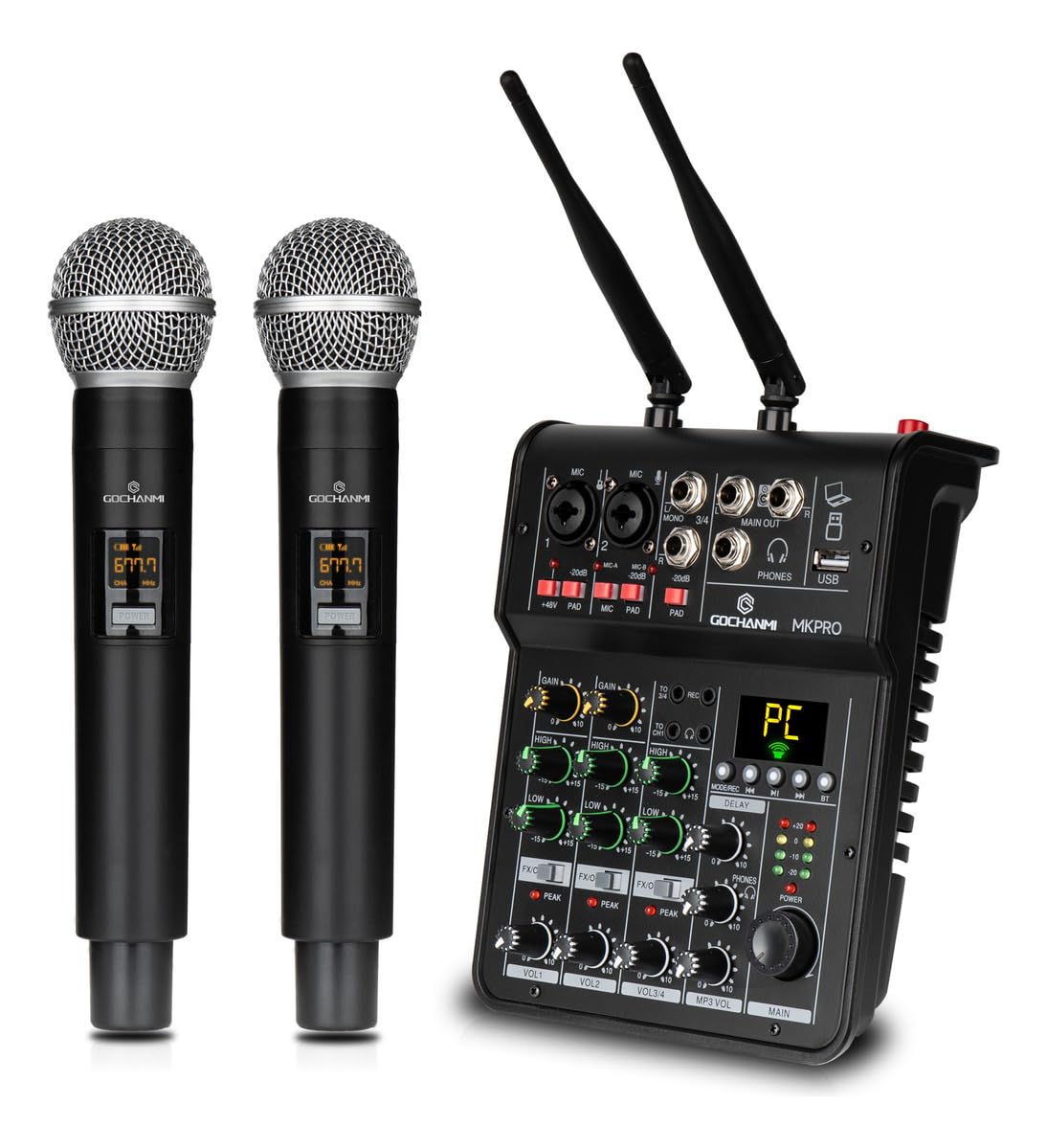
Figure 8: Versatile Applications. The MKPRO mixer can be used in diverse settings such as concerts, speeches, meetings, various activities, church services, and classrooms.
- Live Performances: Ideal for small concerts, open mic nights, and live music events.
- Public Speaking: Perfect for speeches, presentations, and meetings.
- Studio Recording: Use the USB interface for high-quality audio recording in home studios.
- Karaoke & Parties: Enhance your karaoke sessions and parties with professional sound and wireless microphones.
- Educational Settings: Suitable for classrooms and lecture halls.
- Religious Services: Can be used in churches and other places of worship for sound reinforcement.