Introduction
Welcome to your NIMO 15.6" IPS FHD Laptop, Model N157. This manual provides essential information to help you set up, operate, maintain, and troubleshoot your new device. Please read these instructions carefully to ensure optimal performance and longevity of your laptop.
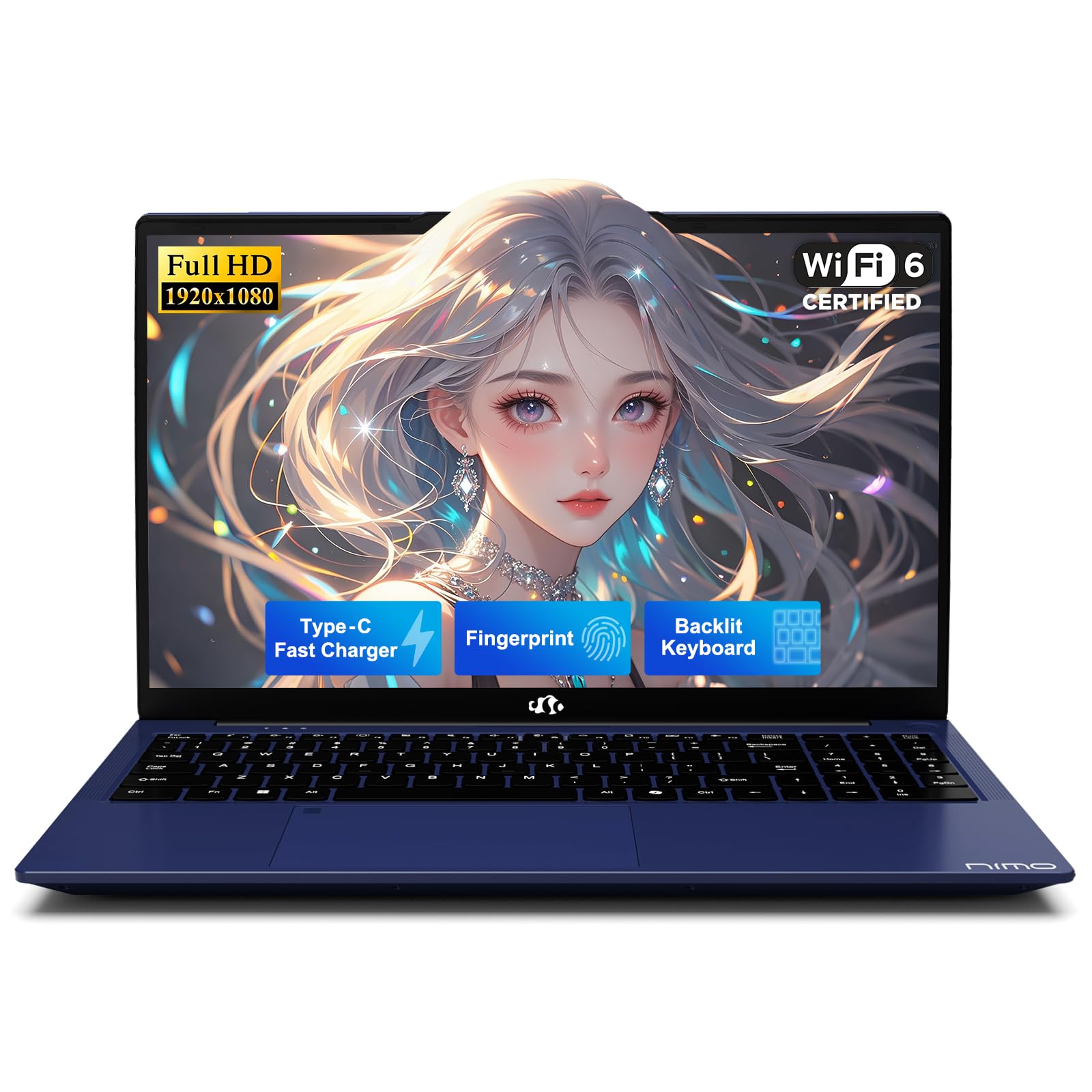
The NIMO 15.6-inch laptop in its closed state, highlighting its design.
What's Included
Verify that all items are present in the packaging:
- 1 x NIMO N157 Laptop
- 1 x Type-C 65W PD Fast Charger
- 1 x User Manual
- Windows 11 Home (Pre-installed)
Getting Started (Setup)
1. Unpacking
Carefully remove the laptop and all accessories from the packaging. Retain the packaging for future transport or service needs.
2. Charging the Battery
Before initial use, fully charge the laptop battery. Connect the included Type-C 65W PD Fast Charger to the laptop's Type-C charging port and then to a power outlet. The charging indicator light will confirm charging status.

The included Type-C 65W PD Fast Charger and cable. This charger can also power other compatible devices.
3. Initial Power On
Open the laptop lid and press the power button located on the keyboard. Follow the on-screen instructions to complete the Windows 11 operating system setup, including language, region, and network settings.
4. Fingerprint Sensor Setup
For enhanced security and convenience, configure the fingerprint sensor. This can typically be done during the initial Windows setup or later via Settings > Accounts > Sign-in options > Fingerprint recognition (Windows Hello).

The fingerprint sensor allows for quick and secure one-touch login.
5. Connecting Peripherals
Utilize the various ports to connect external devices such as USB drives, external monitors, or headphones.

Diagram showing the laptop's various ports, including USB 3.0, USB 2.0, Type-C, HDMI, and headphone jack.
Operating Your Laptop
1. Keyboard and Touchpad
The laptop features a full-size keyboard and a responsive touchpad for navigation. Standard gestures are supported on the touchpad.
2. Backlit Keyboard Function
The keyboard includes a backlight feature for improved visibility in low-light environments. Use the designated function keys (e.g., Fn + F key combination) to toggle the backlight on/off or adjust its intensity.

The backlit keyboard provides visibility in low-light conditions.
3. Display
The 15.6-inch Full HD (1920x1080) IPS anti-glare display provides clear and vibrant visuals. Adjust brightness via function keys or Windows display settings.

The 15.6-inch Full HD IPS display provides clear and vibrant visuals.
4. Wireless Connectivity
The laptop supports Wi-Fi 6 for high-speed internet access and Bluetooth 5.2 for connecting wireless peripherals such as headphones or mice.

The laptop supports Wi-Fi 6 for fast internet and Bluetooth 5.2 for peripheral connections.
5. Privacy Webcam
The integrated webcam features a physical privacy switch. Slide the cover to block the camera lens when not in use to ensure your privacy.

The integrated webcam includes a physical slider for privacy.
Maintenance and Care
1. General Handling
- Always hold the laptop by its base.
- Consider using a protective case for transport.
- Avoid placing heavy items on the laptop.
- Place the laptop on a hard, flat surface to ensure proper ventilation and prevent overheating.
- Keep the laptop away from extreme temperatures and moisture.
2. Battery Care
- Avoid constantly overcharging the battery.
- If the battery shows signs of swelling, discontinue use immediately and contact support.
3. Heat Dissipation
The laptop is equipped with an efficient fan-based cooling system. Ensure that the ventilation openings are not obstructed to maintain optimal operating temperatures.

Internal view of the cooling system, designed for efficient heat dissipation.
4. Software and Security
- Set strong, unique passwords for your accounts.
- Regularly update your operating system and software to ensure the latest security patches are applied.
- Install and maintain reputable antivirus software.
- Regularly back up your important data to an external drive or cloud storage.
Troubleshooting
1. Liquid Spills
In case of a liquid spill, immediately unplug the laptop from power and turn it off. Do not attempt to power it on until it has completely dried. Seek professional assistance if necessary.
2. General Issues
For persistent issues such as system unresponsiveness, unexpected shutdowns, or hardware malfunctions, refer to the Warranty and Support section for contact information. Do not attempt to disassemble or repair the laptop yourself, as this may void your warranty.
3. Audio Quality
If you experience unsatisfactory audio quality, consider connecting external speakers or headphones. You may also check the settings within the Realtek Audio Console, if installed, for sound adjustments.
Product Specifications
| Feature | Specification |
|---|---|
| Brand | NIMO |
| Model Name | NIMO N157 |
| Screen Size | 15.6 Inches |
| Screen Resolution | 1920 x 1080 pixels (FHD) |
| Processor | Intel N150 (3.6 GHz, 4 Cores) |
| RAM | 4 GB DDR4 (3200 MHz) |
| Hard Drive | 1 TB SSD (PCIe) |
| Graphics Coprocessor | Integrated Graphics |
| Operating System | Windows 11 Home |
| Wireless Type | Wi-Fi 6 (802.11ax), Bluetooth 5.2 |
| USB Ports | 3 x USB 3.0, 1 x USB 2.0, 2 x Type-C (1 for PD Charge Only) |
| Other Ports | HDMI, Headphone Jack, Micro SD Card Slot, Kensington Lock |
| Average Battery Life | Up to 12.75 Hours |
| Item Weight | 3.75 pounds |
| Product Dimensions | 14.07 x 8.98 x 0.76 inches |
| Special Features | Backlit Keyboard, Fingerprint Reader, HD Audio, Numeric Keypad, Privacy Webcam |
Warranty and Support
1. Manufacturer's Warranty
Your NIMO laptop includes a comprehensive 2-year manufacturer's warranty covering defects in materials and workmanship.

A technician performing repairs on a laptop, illustrating the 2-year support.
2. Return Policy
A 90-day hassle-free return policy is provided from the date of purchase.

A delivery person and customer, illustrating the 90-day return policy.
3. Contact Support
For any questions, technical assistance, or warranty claims, please contact our dedicated support team:
- Email: service@nimopc.com

Customer service representatives available to provide professional assistance.
Safety Information
Adhere to the following safety guidelines to prevent damage to your device and ensure personal safety:
- Use only original chargers and inspect cables regularly for damage.
- Avoid using non-approved chargers or counterfeit accessories.
- Keep the laptop away from water, excessive humidity, and extreme temperatures.
- Do not attempt to disassemble, modify, or repair the laptop yourself. Refer to qualified professionals for service.
- Regularly back up your data to prevent loss.
- The manufacturer is not liable for damages resulting from misuse, physical damage, or failure to follow safety instructions.


