
ANJIELO SMART 94202b-95112-Camera
ANJIELO SMART Wired Video Door Phone Apartment Intercom System
User Manual
Model: 94202b-95112-Camera
Product Overview
The ANJIELO SMART Wired Video Door Phone Apartment Intercom System provides a comprehensive security and communication solution for your home. This system includes a 10-inch touch monitor, 1080P doorbell camera, and additional HD cameras, offering clear video and audio communication with visitors. It supports multiple unlocking methods and integrates with the Tuya app for remote access and control.

Image: Overview of the ANJIELO SMART Video Door Phone System, showing the 10-inch monitor, two doorbell units, two outdoor cameras, a smartphone displaying the app, a 32GB SD card, and five RFID key fobs.
Key Features
- Wired Connection: The indoor monitor and doorbell units are connected via a 4-wire system, ensuring stable communication. The main monitor supports WiFi for mobile app integration.
- 10-Inch Touch Monitor: Features a large, responsive touch screen for easy operation, hands-free communication, and WiFi connectivity for internet access.
- 1080P Doorbell Camera: Equipped with a 1080P camera, 148° wide-angle lens, infrared night vision, and a waterproof, dustproof, vandal-resistant design.
- Multiple Unlocking Methods: Supports unlocking via IC card, Tuya APP, and directly from the monitor, providing flexible access control. Five IC cards are included.
- Motion Detection: Configurable motion detection areas to receive accurate alerts on your mobile phone when activity is detected at your door.
- Two-Way Audio: Allows you to see, hear, and speak to visitors from anywhere via the monitor or mobile app, ensuring you never miss a visitor.
- Expandable System: Supports connection of up to 2 doorbell units and 6 indoor monitors, and can be integrated with 12V electronic locks.
Setup Guide
1. Wiring the System
The indoor monitor and doorbell units require a wired connection. Use the provided 3m 4-core cable for each doorbell for basic installation. You can extend the distance using RVV4/Cat5/Cat6 wires. The maximum recommended distance is 300ft.
- Connect the doorbell unit(s) to the indoor monitor(s) using the 4-wire cable.
- Connect the external power supply (1.2m cable provided for each monitor) to the indoor monitor.
- Ensure all connections are secure before powering on the system.
2. Network Connection (WiFi)
The main indoor monitor supports WiFi connectivity (2.4GHz band only) to enable remote access via the Tuya app. Follow these steps to connect:
- Ensure your home router is broadcasting a 2.4GHz WiFi signal.
- On the monitor, navigate to the network settings and select your WiFi network.
- Enter your WiFi password to connect.
- Download and install the Tuya app on your mobile phone.
- Follow the in-app instructions to add your ANJIELO SMART intercom system. This allows you to view visitor information and control the system remotely.
Operating Instructions
Two-Way Audio Communication
When a visitor presses the doorbell, all connected monitors and your mobile phone (via the Tuya app) will ring. You can then initiate two-way audio communication.
- On the monitor: Tap the "Answer" button to speak with the visitor.
- On the Tuya app: Accept the call notification to speak with the visitor from your smartphone.

Image: A woman interacting with the monitor, showing a delivery person on screen and speech bubbles indicating two-way audio communication.
Unlocking Methods
The system offers three convenient ways to unlock connected electronic locks (12V electronic locks supported):
- IC Card Unlocking: Present one of the provided RFID IC cards to the doorbell unit's card reader.
- Tuya APP Remote Unlock: Use the Tuya app on your smartphone to remotely unlock the door from anywhere.
- Monitor Unlock: Tap the "Unlock" icon on the indoor monitor's screen.

Image: Visual representation of the three unlocking methods: App Remote Unlock, Monitor Unlock, and Card Unlock, with a hand demonstrating card unlocking on the doorbell unit.
Motion Detection
The system can detect motion in front of the doorbell camera and send notifications to your phone. You can customize the motion detection area for improved accuracy.
- Enabling Motion Detection: On the indoor monitor, navigate to the settings menu. Locate "Motion Detection" and ensure it is set to "ON".
- Setting Motion Detection Area: When motion detection is enabled, you can define specific areas for detection. Click on the grid displayed on the monitor to make areas transparent (not detected) or solid (detected).

Image: The monitor screen showing a grid overlay for setting the motion detection area. Transparent squares indicate areas where motion will not trigger an alert.

Image: The monitor's settings interface, highlighting the "Motion Detection" option which is currently set to "OFF".

Image: A smartphone screen displaying a "TUYASMART detected movement" notification, with a masked figure near a doorbell unit in the background, illustrating the motion detection alert feature.
Recording and SD Card Usage
The system supports recording events such as calls, visitor messages, motion detection, and alarms. An SD card is required for this functionality.
- SD Card Slot: Insert a compatible SD card into the slot on the indoor monitor for recording.
- Viewing Records: On the monitor, navigate to the "Record" section to view a log of all recorded events. You can filter by channel, event type, and date.
- Deleting Records: To delete a record, long-press on the file entry to bring up the delete option.
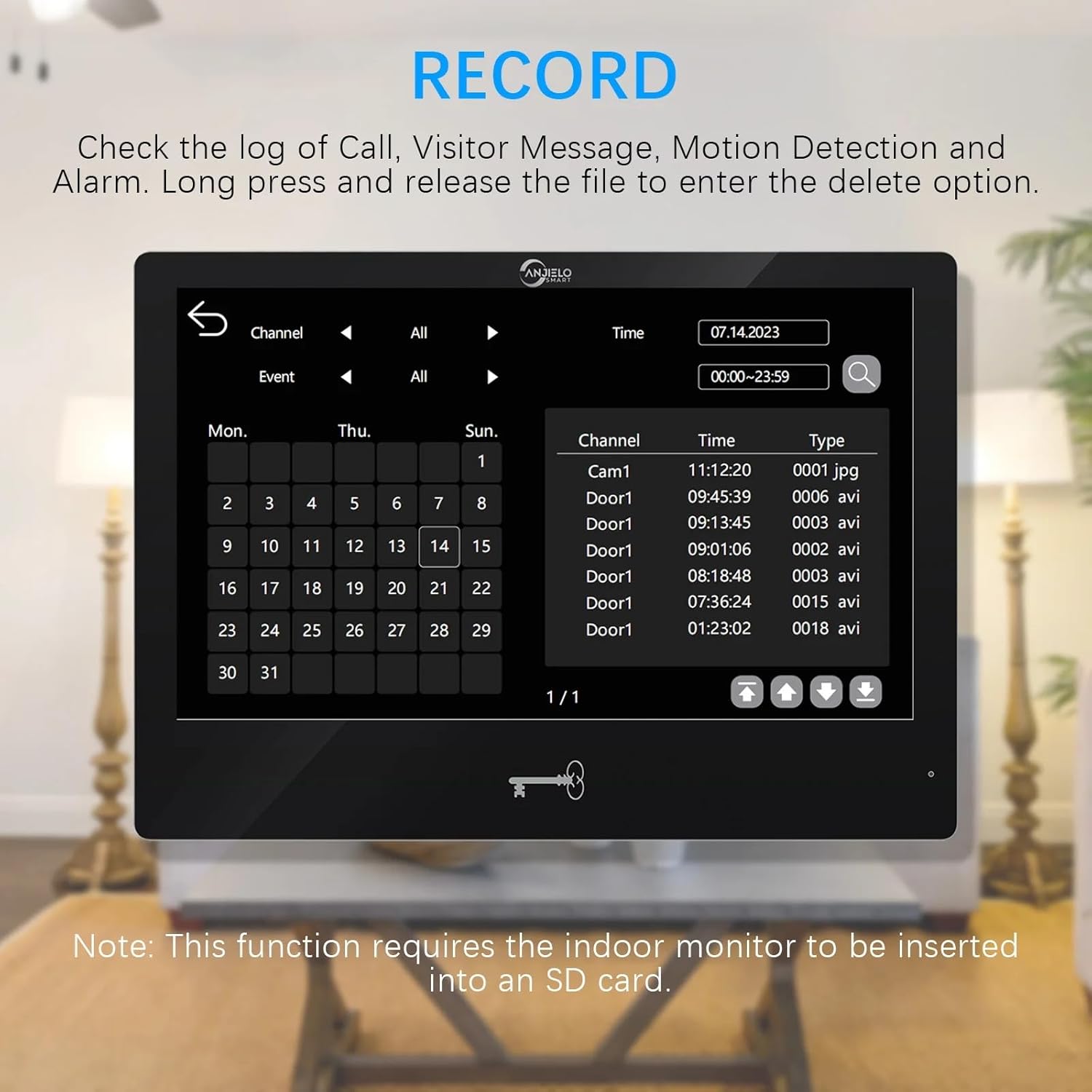
Image: A close-up of the indoor monitor showing the SD card slot and an SD card being inserted, indicating its use for recording.

Image: The monitor screen displaying the "RECORD" log, showing a calendar and a list of recorded events with details like channel, time, and type (e.g., jpg, avi).
Night Vision
The doorbell camera is equipped with IR LEDs to provide clear visibility even in low-light or nighttime conditions, ensuring continuous monitoring.
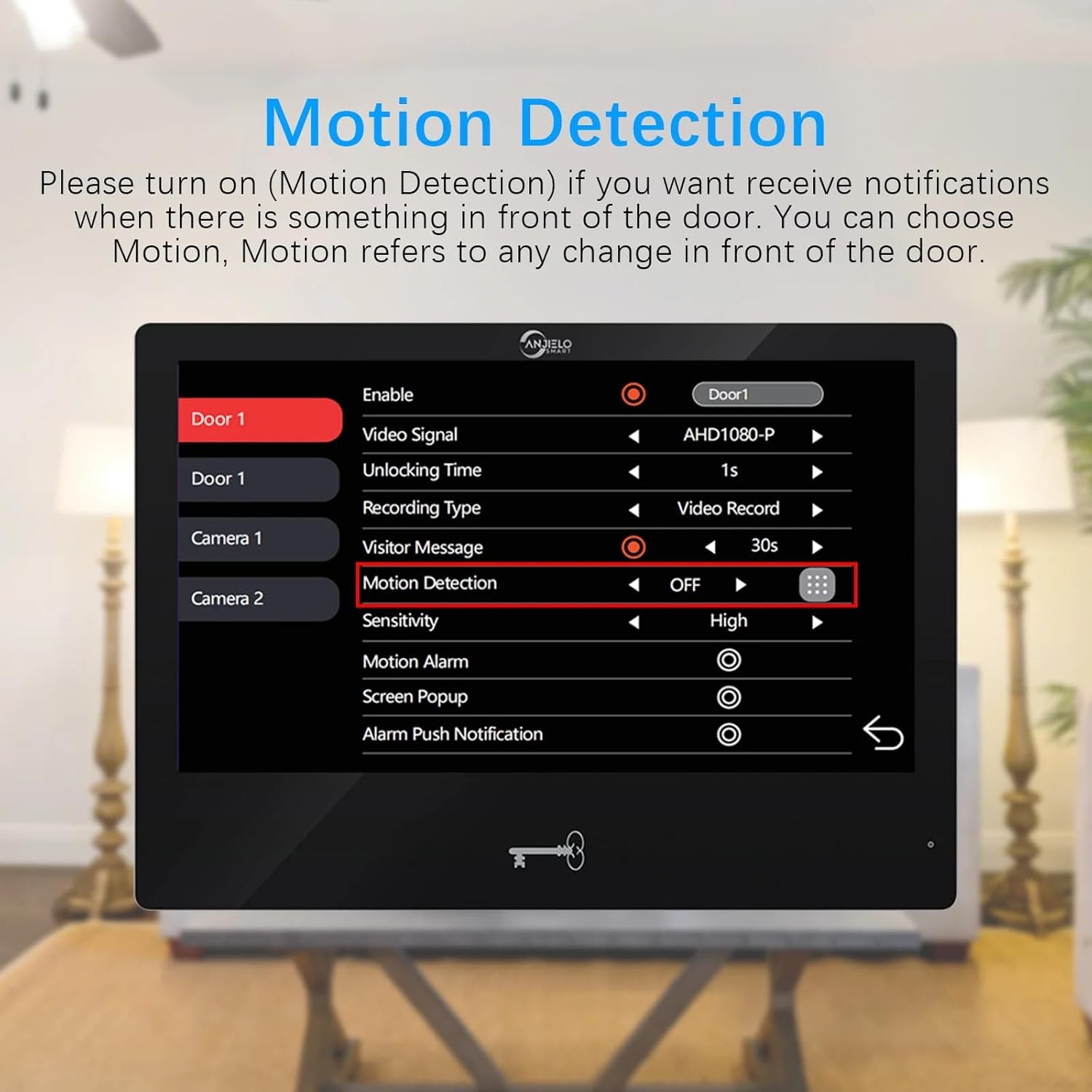
Image: A split image showing the difference between day and night camera views from an outdoor camera, demonstrating the night vision capability.
Maintenance
To ensure optimal performance and longevity of your ANJIELO SMART intercom system, follow these maintenance guidelines:
- Cleaning: Gently wipe the monitor screen and doorbell camera lens with a soft, dry, lint-free cloth. Avoid using abrasive cleaners or solvents.
- Cable Connections: Periodically check all wired connections to ensure they are secure and free from damage.
- Software Updates: Check for any available firmware updates for the monitor or doorbell units through the Tuya app or manufacturer's website to ensure you have the latest features and security patches.
- Environmental Protection: Ensure the outdoor doorbell unit's rain cover is properly installed to protect it from harsh weather conditions.
Troubleshooting
| Problem | Possible Cause | Solution |
|---|---|---|
| No image or audio from doorbell. | Loose or incorrect wiring; power issue. | Check all 4-wire connections between the doorbell and monitor. Ensure the monitor has power. |
| Monitor not connecting to WiFi. | Incorrect WiFi password; 5GHz network; weak signal. | Verify WiFi password. Ensure your router is broadcasting a 2.4GHz network. Move monitor closer to the router or check signal strength. |
| No notifications on mobile app. | App not configured correctly; motion detection off; phone settings. | Ensure the monitor is connected to WiFi. Check Tuya app settings for notifications. Verify motion detection is enabled on the monitor. Check phone's notification settings for the Tuya app. |
| Door not unlocking. | Incorrect wiring to lock; lock malfunction; IC card not registered. | Verify wiring to the 12V electronic lock. Test the lock independently. Ensure IC cards are properly registered with the system. |
| Recording not working. | No SD card; full SD card; faulty SD card. | Insert a compatible SD card. Check if the SD card is full and delete old recordings if necessary. Try formatting or replacing the SD card. |
Specifications
| Component | Specification |
|---|---|
| Doorbell Camera Sensor | 1/2.7 CMOS |
| Doorbell Definition | 1080P |
| Doorbell Lens | 3.2mm |
| Doorbell View Angle | 148° |
| Doorbell Night Vision | IR LEDs (120°) |
| Doorbell Power Consumption | 200mA max (Supplied from indoor unit) |
| Doorbell Operating Temp. | -40℃ ~ +50℃ |
| Doorbell Installation | Surface mount (Accessory: Rain Cover) |
| Doorbell Size | 137mm x 85.5mm x 23.5mm |
| Monitor Screen | 10 inch TFT-LCD touch screen |
| Monitor Resolution | 1024 x 680 |
| Monitor Ring Tones | 7-chord melody rings (Volume, color adjustable) |
| Monitor Connection Way | 4-wires, WIFI TUYA solution |
| Monitor Panel Material | Acrylic/ABS cover |
| Monitor Installation | Surface mounting |
| Monitor Input Voltage | AC 100-240V 50/60Hz |
| Monitor Working Voltage | DC 12V, 2A |
| Monitor Size | 7.8×5.1×0.8 inch / 272x170x21 mm |
| System Expandability | Supports 2 doorbells, 6 indoor monitors, 5 mobile phones (Tuya app) |
| Compatible Locks | All 12V electronic locks |
| Model Number | 94202b-95112-Camera |
| ASIN | B0CY51CF1M |
Warranty and Support
For warranty information and technical support, please refer to the documentation included with your product or visit the official ANJIELO SMART website. You may also contact the seller directly through the platform where the product was purchased for assistance.
Please note that extended protection plans may be available for purchase separately, offering additional coverage beyond the standard manufacturer's warranty.
Ask a question about this manual
Ask about setup, troubleshooting, compatibility, parts, safety, or missing instructions. Manuals+ will review the question and use this page’s manual context to help answer it.