
1. Introduction
Thank you for choosing the Plimpton 2024 Portable Apple CarPlay/Android Auto Screen. This 7-inch IPS touchscreen multimedia player is designed to bring advanced connectivity and entertainment features to your vehicle, supporting wireless Apple CarPlay, Android Auto, voice control, Bluetooth, FM transmission, and Mirror Link functionality. This manual provides detailed instructions for setup, operation, maintenance, and troubleshooting to ensure optimal performance and a seamless user experience.

Image: The Plimpton portable screen displaying a navigation map and music interface, alongside its adjustable mounting bracket and icons indicating wireless CarPlay and Android Auto connectivity.
2. Package Contents
Please verify that all items listed below are included in your package:
- 1 x 7-inch CarPlay Screen
- 1 x Solid Base with 3M Adhesive
- 1 x User Manual
- 1 x Warranty Card
- 1 x Power Cord (Car Charger)
- 1 x 3.5mm Audio Cable (AUX)

Image: A visual representation of the product's package contents, including the 7-inch screen, mounting bracket, power cord, AUX cable, and user manual.
3. Setup
3.1 Mounting the Device
The Plimpton portable screen comes with a solid base and 3M adhesive for easy and secure dashboard mounting. Choose a flat, clean surface on your dashboard that does not obstruct your view or interfere with vehicle controls. Clean the surface thoroughly before applying the adhesive. Attach the bracket to the screen, then firmly press the adhesive base onto the chosen dashboard location. Allow sufficient time for the adhesive to bond before heavy use.
3.2 Power Connection
Connect the provided power cord (car charger) to the Type-C port on the side of the screen and plug the other end into your vehicle's 12-24V power outlet (cigarette lighter socket). The device will power on automatically when the vehicle's ignition is turned on.

Image: This image illustrates the straightforward installation process of the Plimpton portable screen, contrasting it with the more involved installation of a built-in car stereo system.
4. Operating Instructions
4.1 Connectivity Requirements
To ensure proper functionality of wireless CarPlay or Android Auto, please meet the following requirements:
| CarPlay Requirements | Android Auto Requirements |
|---|---|
| 1. An iPhone running iOS 9 or later. | 1. A phone that supports 5GHz Wi-Fi. |
| 2. It also requires the CarPlay system and the iPhone's voice system to be turned on. Please check if Siri is enabled. | 2. A phone running Android 11 or later. |
| 3. A Google or Samsung phone with Android 10.0. | |
| 4. A Samsung Galaxy S8, Galaxy S8+, or Note 8 with Android 9.0. | |
| 5. A phone that supports the Android Auto app updates to the latest version. |
For additional how-to videos, scan the QR code provided in the original user manual or visit https://qr1.be/5ATH.
4.2 Wireless Apple CarPlay Connection
- Turn on CarPlay mode on the portable screen.
- Turn on Bluetooth on your iPhone.
- Select the Bluetooth device named "CarKit-xxxx" to connect and pair.
- Confirm to use CarPlay with "DDP" when prompted.
- Connection successful.

Image: Visual steps for connecting your iPhone to the Plimpton screen via wireless Apple CarPlay.
4.3 Wireless Android Auto Connection
- Turn on CarPlay mode on the portable screen.
- Turn on Bluetooth on your Android phone.
- Select the device named "CarKit-xxxx" to pair and connect.
- Connection successful.

Image: Visual steps for connecting your Android phone to the Plimpton screen via wireless Android Auto.
4.4 Wireless Airplay Connection (Mirror Link for iOS)
- Turn on Airplay mode on the portable screen.
- Turn on Wi-Fi on your iPhone.
- Connect to the Wi-Fi network named "carplay_wifi_xxxx".
- Turn on phone screen mirroring from your iPhone's control center.
- Connection successful.

Image: Visual steps for mirroring your iPhone screen to the Plimpton device using Wireless Airplay.
4.5 Wireless Android Cast Connection (Mirror Link for Android)
- Turn on Android Cast mode on the portable screen.
- Turn on Wi-Fi on your Android phone.
- Connect to the Wi-Fi network named "carplay_wifi_xxxx".
- Turn on phone screen mirroring/casting from your Android phone's settings.
- Connection successful.

Image: Visual steps for mirroring your Android phone screen to the Plimpton device using Wireless Android Cast.
4.6 Audio Output Options
The Plimpton screen offers multiple ways to output audio to your car's sound system:
- Built-in Speaker: The unit has its own integrated speaker for direct audio output.
- Bluetooth: Connect the screen to your car's Bluetooth system for wireless audio streaming.
- AUX Connection: Use the included 3.5mm audio cable to connect the screen's AUX output to your car's AUX input.
- FM Transmitter: Transmit audio wirelessly to your car's FM radio by setting both the screen and your car radio to the same FM frequency.
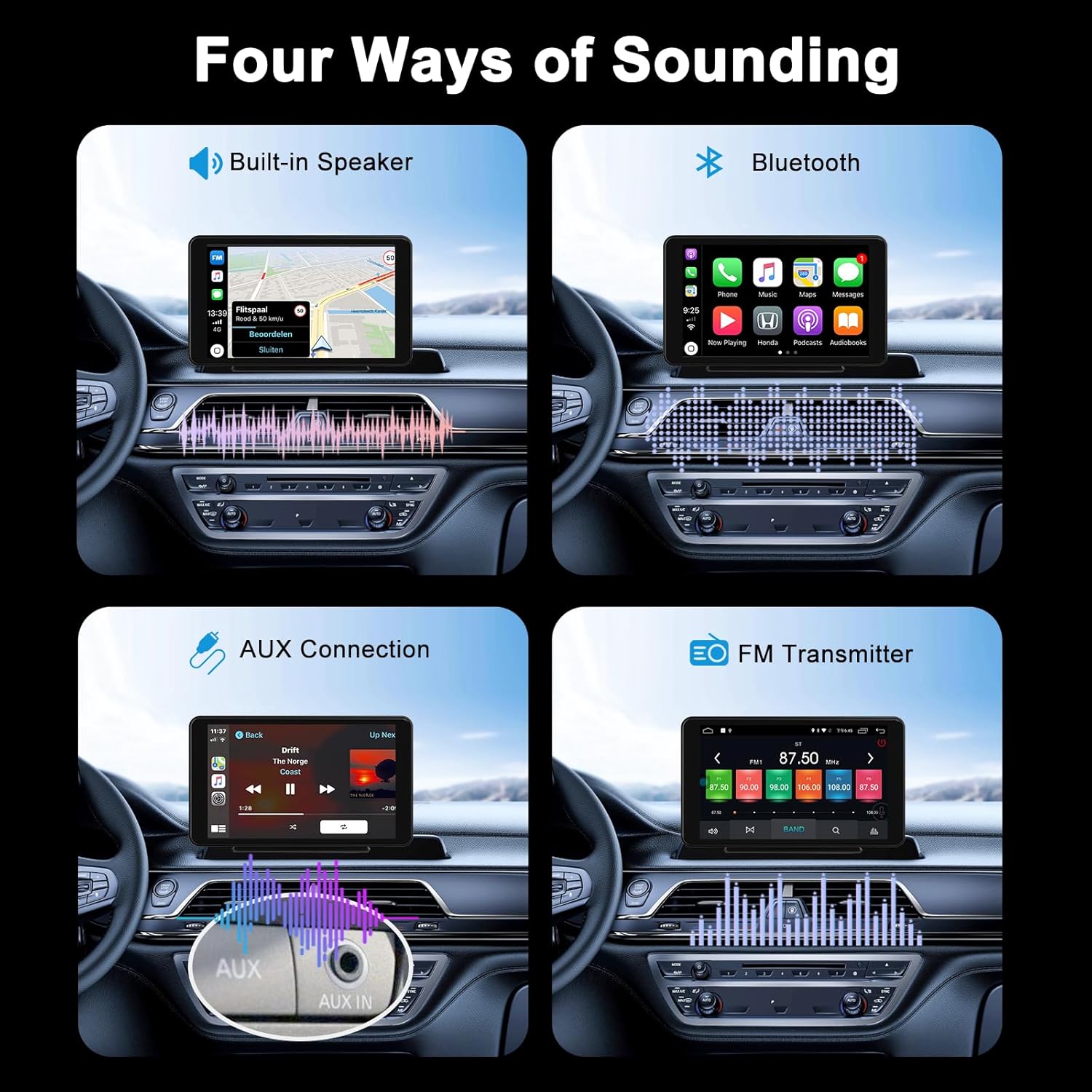
Image: A visual guide demonstrating the various audio output methods available with the Plimpton portable screen.
4.7 Voice Control
Utilize voice commands for hands-free operation. With Apple CarPlay and Android Auto, you can activate Siri or Google Assistant to manage navigation, make calls, send messages, and control music, enhancing driving safety and convenience.

Image: A driver interacting with the Plimpton screen using voice commands for navigation and communication, highlighting the hands-free operation.
4.8 Official Product Videos
Watch these official videos from Plimptonline for further guidance on setup and features:
2024 Newest Wireless Carplay, 7" Touch Screen Android Auto
Video: An overview of the 2024 Plimpton Wireless Carplay 7-inch Touch Screen Android Auto device, showcasing its features and functionality.
How to connect carplay with L1
Video: A step-by-step tutorial on how to connect your device to CarPlay using the Plimpton L1 model.
2024 Wireless Apple & Android Auto Carplay for any car
Video: Demonstrates the compatibility and features of the 2024 Plimpton Wireless Apple and Android Auto CarPlay system for various car models.
Plimpton CarPlay Android Auto connection steps
Video: A detailed guide on the connection steps for Plimpton CarPlay and Android Auto.
5. Features Overview
5.1 IPS Wide Viewing Angle
The 7-inch IPS touch screen provides improved brightness, contrast, and color accuracy, ensuring a vibrant and precise interface. It offers clear and sharp display performance, whether in bright sunlight or low-light conditions inside the vehicle.
5.2 Multi-rotation Bracket
The included adhesive sticker bracket allows for multi-directional adjustments, including 180-degree and 360-degree rotation, enabling you to position the screen for optimal viewing comfort and accessibility.

Image: This image highlights the flexible multi-rotation bracket and the wide viewing angle of the IPS screen, showing how it can be adjusted for optimal visibility.
5.3 Wide Compatibility
The Plimpton portable screen is compatible with approximately 99% of 12-24V car models, making it suitable for a wide range of vehicles including RVs, cars, and trucks.

Image: An illustration showcasing the broad compatibility of the Plimpton portable screen with a diverse range of 12-24V car models.
6. Troubleshooting
- Device Not Powering On: Ensure the power cord is securely connected to both the device and the car's 12-24V power outlet. Check if the car's power outlet is functioning correctly.
- Occasional Disconnections: Wireless connections can sometimes be affected by interference. Try restarting both the portable screen and your smartphone. Ensure your phone's Bluetooth and Wi-Fi are stable and not connected to other devices.
- Lag in Music/GPS: Ensure your smartphone has a strong cellular or Wi-Fi signal for optimal performance. Close unnecessary applications on your phone that might be consuming resources. If using a wired connection, ensure the USB cable is not damaged.
- Screen Not Responding: Try restarting the device by unplugging and re-plugging the power cord. If the issue persists, ensure the screen is clean and free from debris.
- No Audio Output: Verify the selected audio output mode (Built-in Speaker, Bluetooth, AUX, FM Transmitter) is correctly configured on the device and your car's audio system. Check all cable connections for AUX. For FM transmission, ensure the frequencies match and there is no strong local radio interference.
7. Specifications
| Feature | Detail |
|---|---|
| Brand | plimpton |
| Model | 2024 Portable Apple Carplay/Android Auto Screen |
| Display Size | 7 inches |
| Resolution | 1920x1080 |
| Operating System | Android (for internal system, compatible with CarPlay/Android Auto) |
| Connectivity Technology | Wireless CarPlay, Wireless Android Auto, Bluetooth, USB, AUX, FM Transmitter, Mirror Link (Airplay/Android Cast) |
| Voice Command | Touchscreen (supports Siri/Google Assistant via connected phone) |
| Mounting Type | Dashboard Mount (with 3M adhesive) |
| Audio Output Mode | Multiple (Built-in Speaker, Bluetooth, AUX, FM) |
| Vehicle Service Type | RV, Car, Truck (12-24V compatible) |
| Item Weight | 1.72 pounds |
| Product Dimensions | 7.48 x 4.41 x 0.87 inches |
8. Warranty and Support
The Plimpton 2024 Portable Apple CarPlay/Android Auto Screen comes with a 2-year warranty from the date of purchase. This warranty covers manufacturing defects and malfunctions under normal use. Please retain your proof of purchase for warranty claims.
For technical support, troubleshooting assistance, or warranty inquiries, please refer to the contact information provided on the warranty card included in your package or visit the official Plimpton website for the most up-to-date support resources.
